Alfred can open any link, and Unpixel’s capture is a link: unpixel://capture brings up the crosshair so you can drag over text anywhere on screen and copy it. There are two ways to wire that into Alfred, depending on whether you have the Powerpack, and a couple of workflows that put the text to work once it’s on your clipboard.
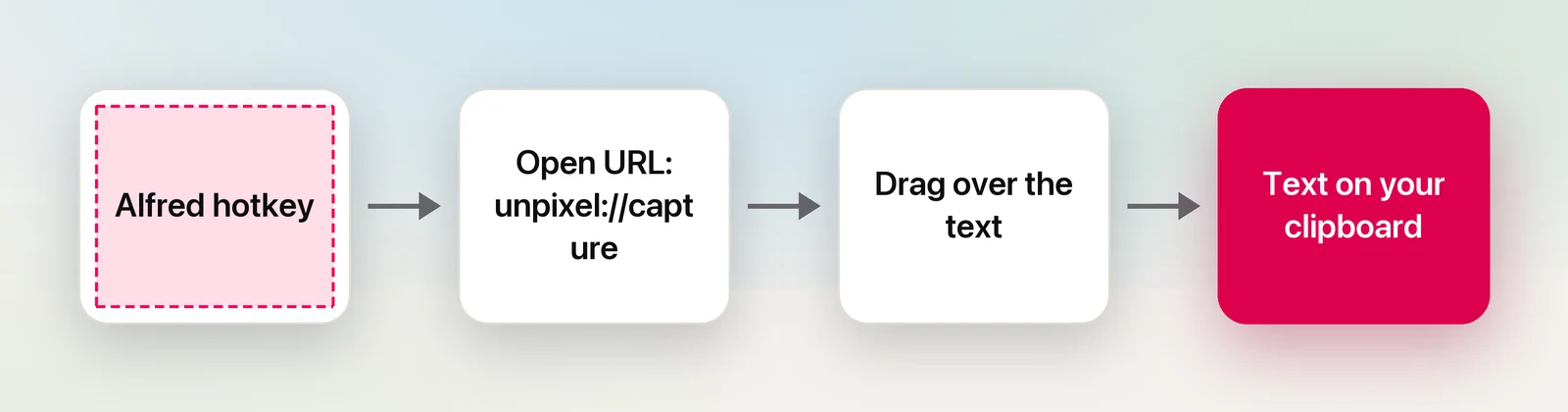
Alfred can open Unpixel’s capture link. Without the Powerpack, add a custom search under Features → Web Search with unpixel://capture as the URL and a keyword such as grab. With the Powerpack, build a workflow that connects a Hotkey trigger to an Open URL action. Either way, the crosshair appears and you drag over the text.
The quick way: a custom search keyword
Custom searches turn a keyword into a URL. They’re built for websites, but Alfred’s help shows them opening app links too, with examples for Spotify and FaceTime, and a custom search doesn’t need a {query} when it only opens something.
- Open Alfred’s preferences and go to Features → Web Search.
- Click Add Custom Search.
- In the search URL field, enter
unpixel://capture. - Give it a title, such as “Copy text from screen”, and a keyword, such as
grab. - Save it.
Now bring up Alfred, type grab and press Return. Alfred closes, the screen dims slightly, and you drag over the text you want. Add a second custom search for unpixel://capture?translate=1 with a keyword like grabt, and that one copies a translation into your language instead.
A workflow with a hotkey
A keyword still means opening Alfred first. A hotkey skips that step, and in Alfred hotkeys belong to workflows, which are part of the Powerpack.
- In Alfred’s preferences, open Workflows, click + below the list and choose Blank Workflow. Call it “Unpixel”.
- Right-click the empty canvas and choose Triggers → Hotkey. Record a combination, set Argument to None, and save.
- Right-click the canvas again and choose Actions → Open URL. Enter
unpixel://captureand save. - Drag from the hotkey’s connector to the Open URL action to join them.
Choose a combination that macOS and your apps don’t already use, and not Unpixel’s own ⇧⌘2 or ⇧⌘1 (Capture Again, which re-reads your last area and has no link), since only one app can answer a key. A workflow hotkey earns its place for the things Unpixel doesn’t have a key for, like translating or reading the clipboard, rather than as a second plain-capture key.
If the Open URL action sends the link to your browser rather than to Unpixel, replace it with Actions → Run Script, set the language to /bin/zsh and use:
open "unpixel://capture"The open command always hands a link to the app that registered its scheme. If Unpixel isn’t running, it launches, and the capture starts once it’s ready.
Translate, add and other links
Each of these can have its own hotkey in the same workflow, or its own custom search keyword:
unpixel://capture?translate=1captures and copies the text in your language, translated on your Mac. It’s the same as holding ⌥ as you let go of a normal capture.unpixel://capture?append=1adds the capture after what’s already on your clipboard, like holding ⇧ as you let go, so a few passages paste as one. A keyword such asgrabaddsuits it.unpixel://clipboardreads the image already on your clipboard. With the Powerpack’s Clipboard History keeping images, you can bring back a screenshot you copied hours ago and read it.unpixel://openshows the Open dialog, for an image or a PDF of up to 50 pages.unpixel://historyopens Unpixel’s menu bar panel, where every capture is listed with the app it came from.
The full list is in the URL scheme reference.
Search what you just captured
Alfred hotkeys can pass your clipboard on, which turns a capture into the first half of a lookup:
- Add another Hotkey trigger and set its Argument to macOS Clipboard Contents.
- Connect it to an Open URL action whose address ends in
{query}, such ashttps://duckduckgo.com/?q={query}. - Capture an error message, a model number or a word in another script with Unpixel, then press the new hotkey.
Alfred puts the captured text where {query} is and opens the search. The same pattern works with any workflow that accepts text: a dictionary lookup, your issue tracker’s search, or a script that tidies the text.
Keep the capture and the lookup on separate keys. The capture link returns at once, before you’ve dragged anything, so a single workflow can’t capture and then search in one go.
One key that captures and processes
To capture and act on the text with one key, let the Shortcuts app do the waiting. A shortcut built on Open X-Callback URL with unpixel://x-callback-url/capture pauses until you’ve dragged, then receives the text; Run Unpixel from the Shortcuts app builds one called “Screen to Note”. In Alfred, connect a Hotkey trigger to a Run Script action with:
shortcuts run "Screen to Note"The shortcuts command comes with macOS and runs a shortcut by name. Unpixel’s x-callback links also accept alfred:// links as callbacks, but Alfred’s own links expect their own parameters, so the shortcut is the easier bridge. Every result field is listed in Get captured text in Shortcuts.
What needs the Powerpack
From Alfred’s help pages, as of October 2026:
- Free: custom searches with a keyword, including the
unpixel://ones above. - Powerpack: workflows, and with them hotkeys, Open URL and Run Script actions, plus Clipboard History. Clipboard History is off until you turn it on, and it can keep text, images and file paths for 24 hours, 7 days, 1 month or 3 months.
If Clipboard History is on, your captures are kept there as well as in Unpixel’s own history. Alfred ignores some password apps by default, but it can’t know that a capture contains a code or a password, so delete those from both histories when you’re done.
Prices change, so check Alfred’s site; our comparison of Raycast vs Alfred lists them as of October 2026. If you switch launchers, the same links work as Raycast quicklinks.
Frequently asked questions
Do I need the Powerpack to start Unpixel from Alfred?
Not for a keyword. Custom searches belong to Alfred’s Web Search feature, and Alfred’s help only marks URL history there as a Powerpack extra. Hotkey workflows and Clipboard History need the Powerpack.
The Open URL action opens my browser instead of Unpixel. What now?
Swap it for a Run Script action that runs open unpixel://capture. The open command always hands a link to the app that registered its scheme.
Can Alfred pass the captured text to a workflow?
Yes, once the capture is done. A Hotkey trigger with its Argument set to macOS Clipboard Contents hands whatever you just captured to the next step, such as a search or a script.
Sources
- Custom Searches — Alfred Help alfredapp.com
- Web Search — Alfred Help alfredapp.com
- Workflows — Alfred Help alfredapp.com
- Hotkey trigger — Alfred Help alfredapp.com
- Open URL action — Alfred Help alfredapp.com
- Run shortcuts from the command line — Shortcuts User Guide (Apple Support) support.apple.com
- Clipboard History — Alfred Help alfredapp.com