You drag across a paragraph and nothing highlights. Or the right-click menu never appears, or your paste arrives with “Read more at…” stuck on the end. The site is blocking copying on purpose. Most of these blocks are thin, and a Mac gives you several ways past them, from a one-key fix to reading the pixels directly.
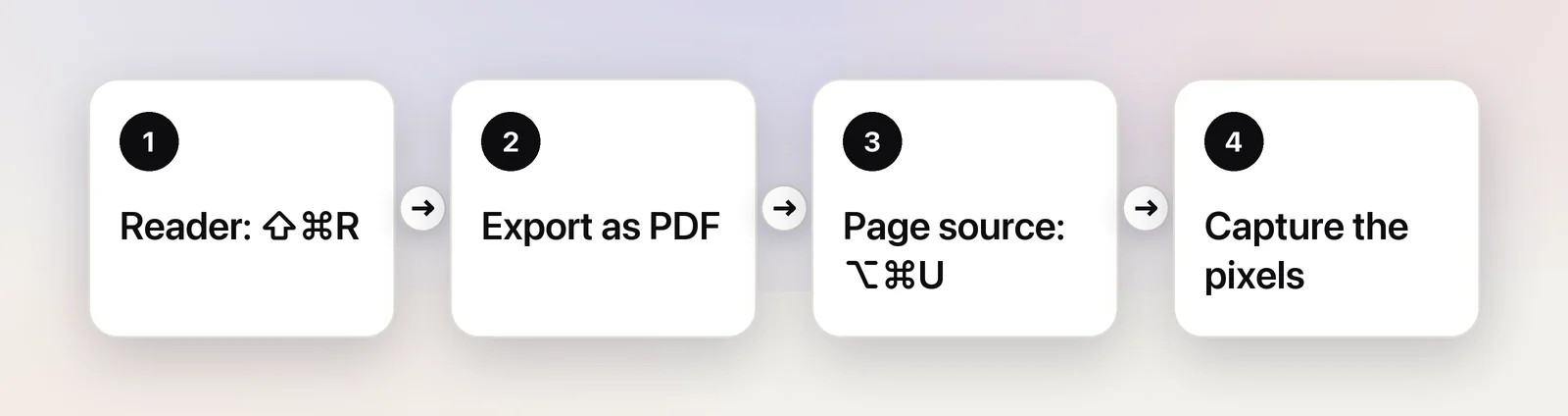
Start with Safari Reader (⇧⌘R): it redraws the article as plain text that copy blockers can’t touch. If Reader isn’t offered, export the page as a PDF or find the words in the page source (⌥⌘U). Turning off JavaScript for the tab defeats most scripted blockers. When the words are drawn as an image or on a canvas, use Live Text or OCR.
Why some websites block copying
Pages use four main techniques, and knowing which one you’ve hit tells you which fix will work:
- CSS that turns off selection. One line,
user-select: none, makes text look normal but refuse to highlight. Nothing runs; the browser just obeys the style. - Scripts that cancel copying. JavaScript can listen for copy, right-click or selection events and stop them, or swap what lands on your clipboard.
- An invisible layer on top. A transparent element covers the text, so your clicks and drags hit the layer instead.
- Text that isn’t text. Some pages draw their words as images, SVG shapes or onto a canvas. There are no letters in the page at all, only pixels.
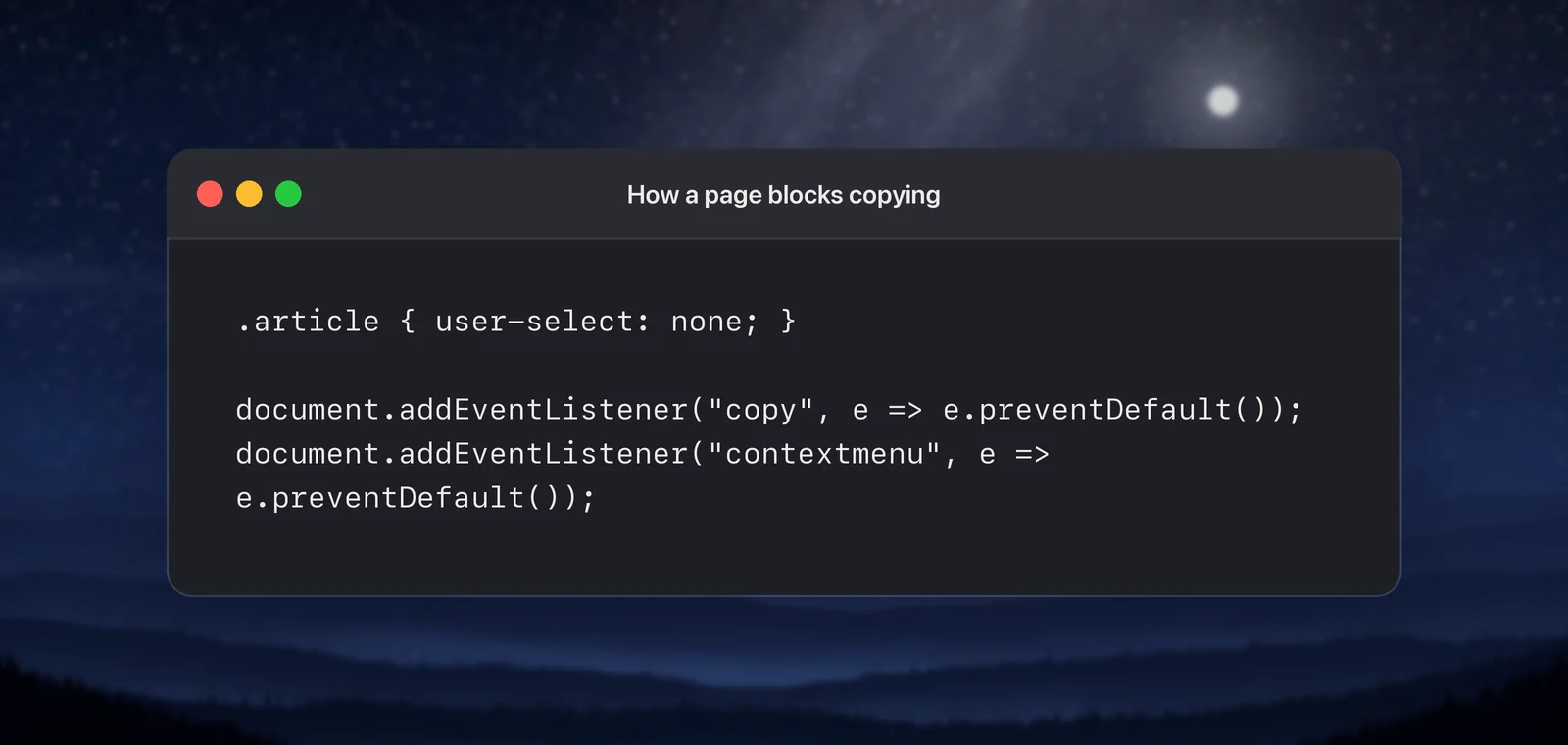
The first three can be stepped around. The fourth needs text recognition. Work through the fixes below in order; they get slower as you go, but each one handles more cases.
Try Reader first
Safari’s Reader rebuilds an article with Safari’s own layout and fonts, without the site’s styles or most of its scripts. That alone removes user-select blocks, overlays and copy listeners.
- Open the page in Safari.
- Click the Page menu button in the Smart Search field and choose Show Reader, or press ⇧⌘R.
- Select the text you want and press ⌘C.
- Press Esc to leave Reader.
Reader is only offered when Safari recognizes an article on the page, so it works on news stories, blog posts and recipes, but not on web apps, forums or product pages. As of October 2026, Chrome has a similar Reading mode: Control-click the page and choose Open in reading mode, or use Chrome’s menu, More tools → Reading mode, if the site blocks right-clicks.
Export or print the page to PDF
A PDF made from the page keeps real text wherever the page had real text, and the site’s scripts don’t come along.
- In Safari, choose File → Export as PDF… and save the file. In Chrome, press ⌘P, set Destination to Save as PDF and click Save.
- Open the PDF in Preview and select the text there.
Two catches. Some sites use print styles that hide parts of the page or blank it completely, so check the PDF before you rely on it. And long pages break across PDF pages, which can split a sentence in two; you’ll fix that when you paste.
Find it in the page source
The words you see are usually sitting in the page’s HTML, untouched by whatever is blocking the selection.
- In Safari, choose Safari → Settings…, click Advanced, and tick Show features for web developers. This adds the Develop menu.
- Choose Develop → Show Page Source (⌥⌘U). Chrome uses the same shortcut for View → Developer → View Source.
- Press ⌘F, type a few words you can see on the page, and copy the text around the match.
The source is mixed with tags and codes like &, so this is best for a sentence or two, a code snippet or an address. Pages that load their text after opening won’t have it in the source. For those, Control-click the text and choose Inspect Element: Web Inspector highlights the paragraph in its Elements tab, where the text is selectable. If the site blocks the right-click menu, open Develop → Show Web Inspector instead and use the Elements tab’s search field to find the words.
Temporarily turn off JavaScript
Most copy blockers are scripts, and a page with scripts switched off can’t cancel anything.
In Safari: the switch is no longer in the Develop menu. An Apple developer tools engineer explains on Apple’s developer forums that it now lives in Web Inspector’s Device Settings popover and applies to the current tab only.
- Choose Develop → Show Web Inspector (⌥⌘I).
- Click the Device Settings button at the top left of the inspector and tick JavaScript under the options to disable.
- Reload the page, then select and copy as usual.
In Chrome: click the site information icon to the left of the web address, open Site settings, set JavaScript to Block, and reload. Set it back afterwards, or the site stays broken for you.
Be ready for side effects. Many modern sites build their whole page with JavaScript, so you may get a blank page. Article sites often still show their text, which is all you need.
When the text is an image or a canvas: capture it
If none of the above finds the words, they probably aren’t words: the page shows a picture of them. Infographics, quote cards, some document viewers and design tools all draw text this way.
Live Text is the built-in answer. In Safari, hold the pointer over text inside an image; if it turns into a text cursor, drag to select and copy. When an overlay gets in the way, press ⌃⇧⌘4 and drag over the text to copy it as an image, then open Preview, choose File → New from Clipboard, and select the text there.
In Unpixel
Unpixel skips the detour. Press ⇧⌘2, drag over the paragraph, and let go: the words are on your clipboard. Because it reads what’s on your screen, it doesn’t matter whether the page uses user-select, a copy script, an overlay or a canvas. A table on the page pastes into Numbers or Excel as real cells, and with Keep line breaks off, lines that wrapped on screen come back as whole sentences.
There’s one limit to know: Unpixel captures only what’s visible and doesn’t scroll, so a long article takes one capture per screen. For a whole article, Reader or a PDF export is quicker.
Respect copyright and paywalls
A copy block is often there to stop scrapers and plagiarists, not readers. Copying a passage to quote it, translate it or keep it in your notes is ordinary use. Copying a paywalled article to share it in full, or republishing someone’s writing as your own, isn’t, and it may break the site’s terms even when it’s technically easy.
A simple rule: quote what you need, name the source, and link to the page. If you want the whole thing, subscribe or ask the author.
Frequently asked questions
Why does my pasted text end with “Read more at…”?
The site runs a script when you copy and adds a line with its name and a link. Delete the extra line, or copy from Reader or a PDF export, where the site’s scripts don’t run.
Why can’t I right-click on some websites?
A script cancels the right-click menu. If you can still select the text, the menu bar works instead: choose Edit → Copy or press ⌘C.
Will turning off JavaScript break the page?
It can. Many sites build their pages with JavaScript, so with it off you may see a blank page or missing sections. Article sites often still show their text, which is all you need here. Turn it back on when you’re done.
Is it legal to copy text from a website?
Copying a passage for your own notes or a short, credited quote is everyday use in many countries. Republishing whole articles usually isn’t, and getting around a paywall can break a site’s terms. If you plan to publish, check the rules where you live.
Sources
- Hide ads when reading articles in Safari on Mac — Apple Support support.apple.com
- Keyboard shortcuts in Safari on Mac — Apple Support support.apple.com
- Enabling features for web developers — Apple Developer Documentation developer.apple.com
- Safari 17.3: Where did Develop → Disable Java go? (Apple engineer’s answer) — Apple Developer Forums developer.apple.com
- Use reading mode in Chrome — Google Chrome Help support.google.com
- Change site settings permissions — Google Chrome Help support.google.com
- user-select — MDN Web Docs developer.mozilla.org