The QR code on a café table or a holiday-rental fridge is meant as a one-tap way to join the network. Sometimes you need the password itself, though: to type into a laptop, a smart TV, a printer or anything else without a camera. The good news is that the password isn’t hidden. It sits inside the code as plain text, and once you can read that text, it takes seconds to find.
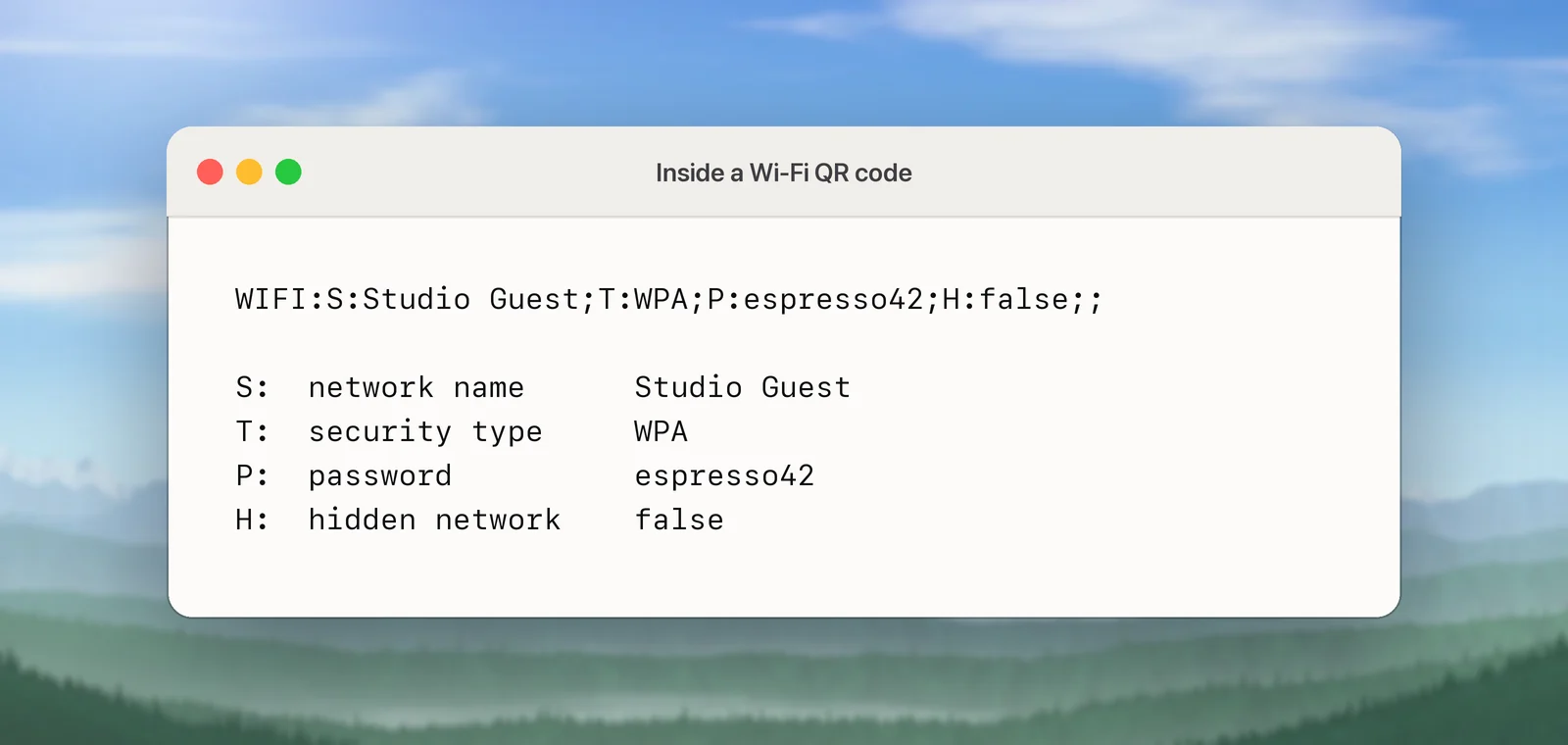
A Wi-Fi QR code holds a line of text like WIFI:S:Studio Guest;T:WPA;P:espresso42;; where S is the network name, T the security type and P the password. Decode the code with a reader that shows the raw text, then copy everything after P: up to the next semicolon. A backslash in front of a character just means that character is part of the password.
What a Wi-Fi QR code contains
Wi-Fi QR codes use a simple text format, documented by the open-source ZXing barcode project and understood by phone cameras. The code holds a single line of text that starts with WIFI:, followed by fields that each start with a letter and a colon and end with a semicolon. The line ends with two semicolons.
| Field | Meaning | Example |
|---|---|---|
S: |
Network name (SSID). Required | S:Studio Guest; |
T: |
Security type: WPA, WEP, WPA2-EAP for business networks, or nopass for an open network |
T:WPA; |
P: |
Password. Left out for open networks | P:espresso42; |
H: |
true if the network is hidden |
H:true; |
The fields can come in any order. Business networks that use usernames (T:WPA2-EAP) add extra fields for the identity and sign-in method, such as I: and E:, but the password still follows P:.
Read the code on a Mac
Your Mac doesn’t have a camera app that scans codes, so the route depends on where the code is.
The code is on paper, a sticker or a sign. Point your iPhone’s camera at it and tap the notification to join. The phone doesn’t show you the password at this point, but you can see it afterwards: on iOS 16 and later, open Settings → Wi-Fi, tap the info button next to the network, tap Password, and authenticate. A Copy option appears.
The code is on your screen or in an image, like a host’s welcome PDF or a screenshot a friend sent. You need a reader that shows the raw text instead of acting on it. Phone camera apps tend to offer only “Join”, which isn’t what you want here. Our guide to reading a QR code from a screenshot covers the options on a Mac, including holding your iPhone up to the Mac’s screen.
In Unpixel
Unpixel reads codes on screen. Press ⇧⌘2, drag a rectangle around the QR code, and let go. The confirmation says “QR code copied” and shows the contents, and the whole WIFI: line is on your clipboard, ready to paste into Notes. Because it isn’t a web link, nothing opens; the text just waits for you. The capture is also saved under QR Codes in Unpixel’s history, in case you need it again tomorrow.
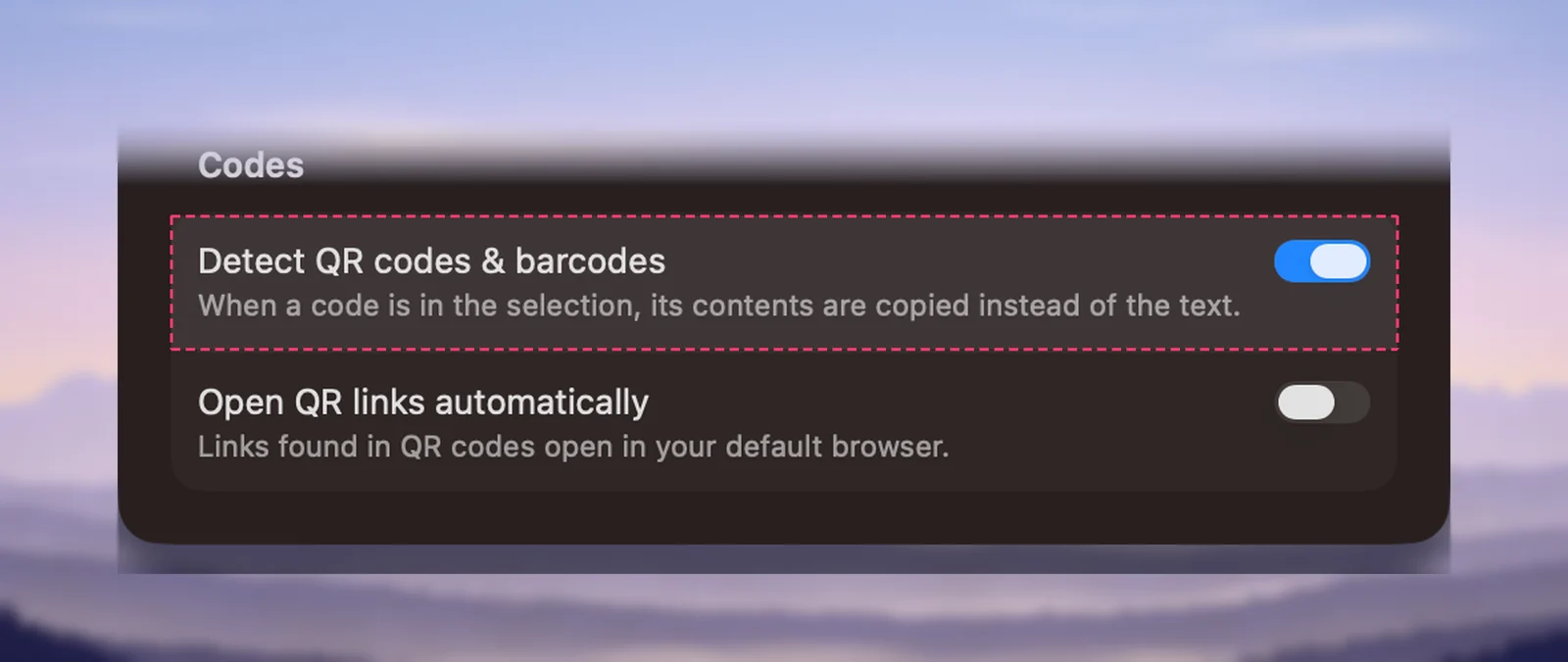
This relies on Detect QR codes & barcodes in Settings → Recognition, which is on unless you’ve changed it.
Find the password in the text
With the decoded text in front of you:
- Find
P:. - Copy everything after it, up to the next semicolon that doesn’t have a backslash in front of it.
- Ignore
S:,T:andH:for the password; you’ll wantS:for the network name andH:to know whether it’s hidden.
In WIFI:T:WPA;P:espresso42;S:Studio Guest;; the password is espresso42, even though it comes before the name. Spaces count: if the text says P:blue door 7;, the password includes both spaces.
Special characters and escaping
Semicolons and colons hold the format together, so a password that contains them needs marking. The format uses a backslash in front of five characters: \ ; , " and :. When you type the password, leave the backslash out and keep the character after it.
| In the code | Real password |
|---|---|
P:pa\;ss; |
pa;ss |
P:north\:2; |
north:2 |
P:back\\slash; |
back\slash |
The ZXing notes add one more rule: a network name or password that could be mistaken for hexadecimal can be wrapped in double quotes. Those quotes aren’t part of the password.
Join the network on your Mac
- Click the Wi-Fi icon in the menu bar (or in Control Center).
- Choose the network named after
S:. - Type the password and click Join.
If the code says H:true, the network doesn’t broadcast its name, so it won’t appear in the list. Click the Wi-Fi icon, choose Other Networks, then Other… at the bottom. Type the network name, choose the security type from the pop-up menu, enter the password and click Join.
If your iPhone already joined by scanning the code and both devices use the same Apple Account with passwords syncing through iCloud Keychain, your Mac may know the network already. Check the Wi-Fi section of the Passwords app.
Share your own Wi-Fi safely
Making a code for your own network is easy, and macOS has it built in. In the Passwords app, choose Wi-Fi in the sidebar, select the network, and click Show Network QR Code. Print it or keep it on a tablet by the door.
Remember what this article shows: anyone who scans the code can read the password. So:
- Give visitors a guest network if your router has one, and put that network’s code on display.
- Keep the code for your main network out of photos and videos you post.
- If a code was shared more widely than you meant, change the network password; old codes stop working straight away.
- For friends with Apple devices, there’s an even simpler route. When they choose your network, your unlocked Mac shows a Wi-Fi password notification with a Share button. Apple’s conditions: the person is in your Contacts, signed in to their Apple Account, and close to your Mac.
Frequently asked questions
Is the password in a Wi-Fi QR code encrypted?
No. It’s stored as plain text inside the code, so anyone who can scan the code can read the password. That’s why a code for your main network shouldn’t appear in photos you post.
My iPhone joined the network but never showed the password. Where is it?
On iOS 16 and later, open Settings → Wi-Fi, tap the info button next to the network, then tap Password and authenticate with Face ID, Touch ID or your passcode. You can copy it from there.
What does T:nopass mean?
The network is open and has no password. The code still includes the network name, so scanning it simply joins the open network.
Why does the code have no T field at all?
The format lets generators leave the security type out for open networks. If there’s a P: field anyway, try it with WPA security, which most home and café networks use.
Sources
- Barcode Contents: Wi-Fi network config — ZXing project wiki github.com
- Find your saved Wi-Fi passwords on iPhone or iPad — Apple Support support.apple.com
- See and share Wi-Fi passwords in Passwords on Mac — Apple Support support.apple.com
- Share a Wi-Fi password on Mac — Apple Support support.apple.com
- Join a hidden Wi-Fi network on Mac — Apple Support support.apple.com