You have a scanned letter and you need the words in it. A search turns up dozens of free sites: drop the file in, get text back in seconds. Before you do, it’s worth knowing what you’re handing over, because the answer depends far more on the document than on the site.
For a restaurant menu or a public flyer, usually yes. For anything personal, be careful: an online OCR site gets a full copy of your file, and its privacy policy, not you, decides how long it’s kept and who else sees it. Keep IDs, medical, financial and work documents off these sites and use your Mac’s built-in Live Text instead.
What happens when you upload a file
An online OCR tool can’t read your file from a distance. Your browser sends the whole thing to the service’s servers, where their software finds the text and sends it back. Along the way, several things can happen that you never see:
- A copy is stored. At the very least while it’s processed, often longer, so you can download the result. Copies can also end up in logs and backups.
- Other companies may handle it. Some sites pass files to a cloud OCR service run by someone else. Their privacy policy usually calls these companies “processors” or “service providers”.
- Details about you are recorded. Your IP address, your browser, the time, and the file name. A name like “passport-scan-maria.jpg” gives a lot away on its own.
- Another country’s laws may apply. The servers can be anywhere, and data protection rules differ from country to country.
- The page itself may track you. Free sites are often paid for by ads, and the upload page can load analytics and advertising scripts.
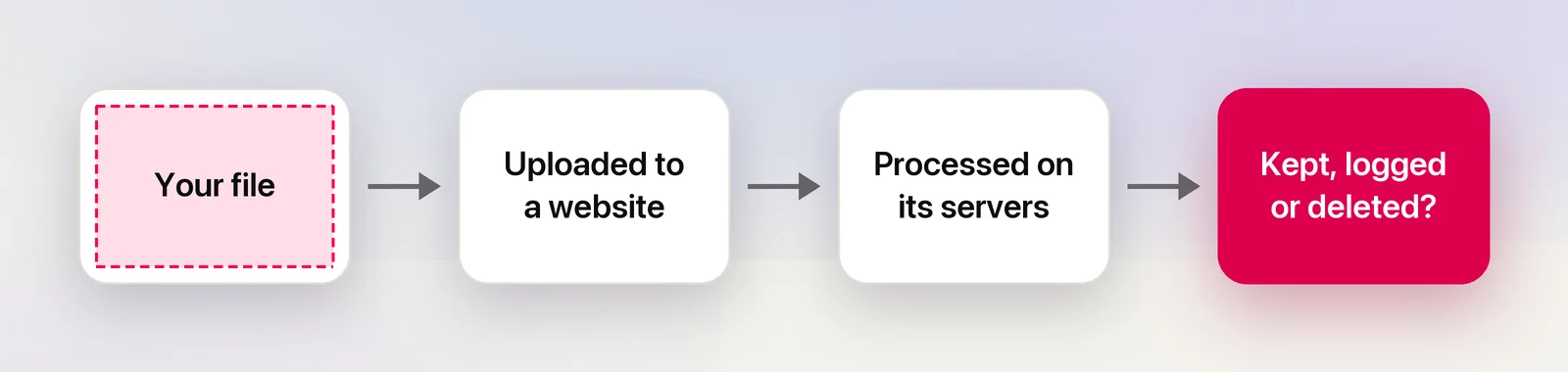
None of this means a site is malicious. Most just want to show you ads. The problem is that every promise about your file is a promise you can’t check.
What privacy policies actually say
A privacy policy is the only description you get of what happens after the upload. You don’t need to read all of it. Open it, press ⌘F, and search for a handful of words: delete, retain, store, third part, improve and train.
What a reassuring policy tells you:
- Who runs the site, with a company name and an address.
- How long files are kept, as a number (“deleted after processing”, “after one hour”), not “as long as necessary”.
- Whether uploads are used for anything else, such as improving the service or training models.
- Who else receives them, and in which country.
- How to ask for deletion, with a working contact.
Two examples show how different the answers can be. As of October 2026, the OCR.space policy says uploaded documents are deleted after processing. A searchable PDF it creates stays on its servers for 60 minutes so you can download it, and the IP addresses of API requests are logged for a month. Google Drive works differently: you convert a file by opening it with Google Docs, so the upload and the new document sit in your own Drive until you delete them.
Neither approach is wrong. They’re just different promises. Treat a missing policy, or one with no company name, as a reason to close the tab.
Documents you should never upload
Some files are risky to hand to anyone, however good their policy sounds:
- Identity documents: passports, driver’s licenses, ID cards, residence permits.
- Money: bank statements, tax forms, payslips, invoices with account numbers, anything with a card number.
- Health: test results, prescriptions, insurance letters.
- Work and clients: contracts, NDAs, HR files, customer lists, anything your employer marks confidential. Sending other people’s personal data to a third-party site can also break your organization’s data protection rules.
- Keys to your accounts: recovery codes, two-factor setup QR codes, Wi-Fi details, screenshots of password managers.
Screenshots deserve a second look too. A notification banner, a browser tab or a file name in the sidebar can carry more than the text you wanted. Crop or redact the screenshot before it goes anywhere.
Local alternatives on your Mac
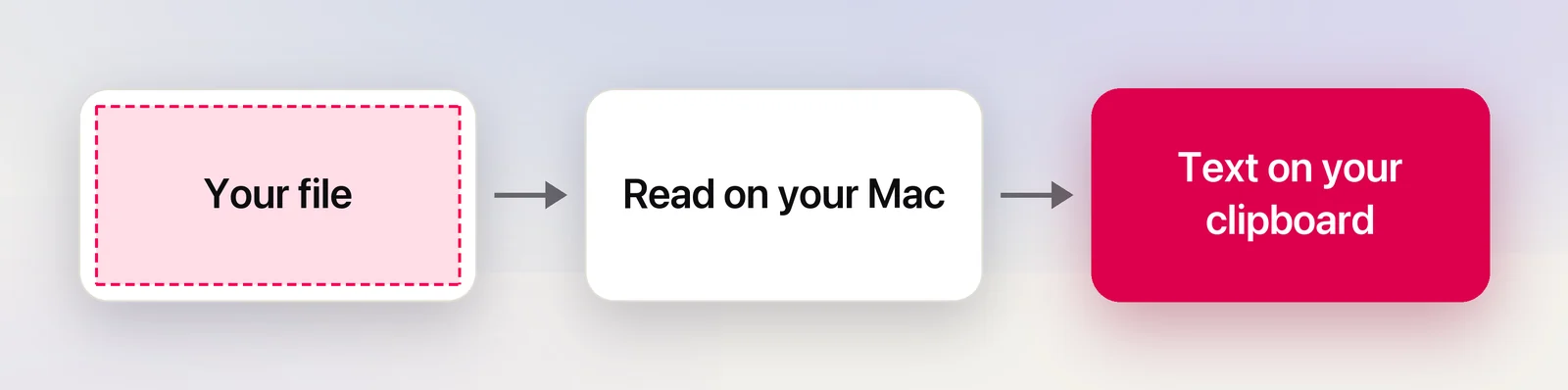
Your Mac can already read text in images, and these options don’t upload anything:
- Live Text in Preview, Quick Look and Photos. Open the image, drag across the words, and press ⌘C. Apple describes Live Text as on-device machine learning.
- Preview’s Embed Text for scanned PDFs. In Preview, choose File → Export, select Embed Text, and save a copy. The copy has a text layer you can select, search and copy.
- Shortcuts. The Extract Text from Image action turns an image into text inside a shortcut, which helps with a folder of files.
- Tesseract. A free, open-source OCR engine for the command line, useful for batches. Our offline OCR guide shows how to install it and how to check that a tool really stays offline.
For most everyday documents, these are as good as a website. The limits are the same ones online tools struggle with: messy handwriting, faint pencil and very small print.
In Unpixel
Unpixel is built around keeping this step on your Mac. Press ⇧⌘2 and drag over a document on screen, or click Open Image… in its menu bar panel to read a PNG, JPEG, HEIC or PDF (up to 50 pages in one go). Apple’s Vision framework recognizes the text on your Mac, and the result goes to your clipboard. There’s no account, and captures never leave the Mac. Unpixel only goes online to check its license and, if you leave it on, for updates.
A quick checklist before you upload
- Would a leak hurt? If yes, do it on your Mac instead.
- Is the operator named, with a policy that states how long files are kept?
- Does the policy rule out other uses, such as training or “improving the service”?
- Upload the minimum. One page instead of the whole PDF, cropped to the part you need, renamed to something neutral.
- Delete afterwards if the site lets you. In Google Drive, delete both the original and the converted document, then empty the trash.
- Check the rules first for anything from work.
Frequently asked questions
Does HTTPS make an online OCR site safe?
HTTPS protects the file on its way to the server, so nobody on your Wi-Fi can read it. It says nothing about what happens to the file once it arrives.
Is Google Drive’s OCR safer than a random OCR website?
It’s a different risk. The file and the converted document stay in your own Drive, under your Google account, until you delete them. It’s still an upload to a cloud service, so check your employer’s rules before using it for work files.
Does Live Text on a Mac send my images to Apple?
Apple describes Live Text as using on-device machine learning, so the recognition happens on your Mac. You can confirm it yourself by turning off Wi-Fi and selecting text in an image.
I already uploaded something sensitive. What now?
Look for a delete option or a contact address in the site’s privacy policy and ask for the file to be deleted. If it was an ID or bank document, watch your accounts for unusual activity and follow your bank’s or ID issuer’s advice.
Sources
- OCR.space Privacy Policy (read October 2026) ocr.space
- Convert PDF and photo files to text — Google Drive Help support.google.com
- macOS Monterey is now available (Live Text uses on-device machine learning) — Apple Newsroom apple.com
- Interact with text in a photo in Preview on Mac — Apple Support support.apple.com
- Embed text in a PDF in Preview on Mac — Apple Support support.apple.com