You downloaded an app from a developer’s website, double-clicked it, and macOS refused: Apple could not verify it’s free of malware. Older versions of macOS called this an app from an “unidentified developer”. Either way, that’s Gatekeeper doing its job, and you can still open the app in under a minute. The minute before that is the one that matters, though, because the same steps that open a small indie app also open malware.
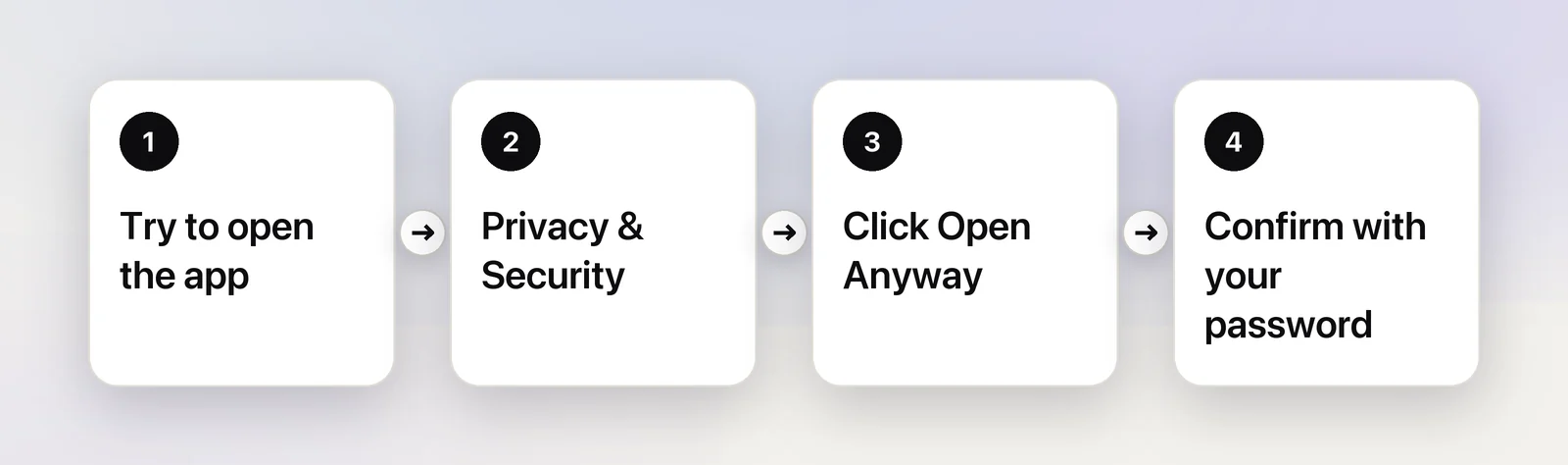
Try to open the app once and close the warning. Then go to System Settings → Privacy & Security, scroll to Security, and click Open Anyway next to the app’s name. Confirm, and enter your login password. The button stays for about an hour after the blocked attempt. Control-clicking the app and choosing Open no longer skips the warning on current macOS.
Why macOS blocks some apps
Gatekeeper is the part of macOS that checks software you get from outside the App Store before it runs for the first time. Apple’s security guide says it looks for two things:
- A Developer ID signature. The developer registered with Apple and signed the app, so macOS knows who made it and can tell if the app was changed afterwards.
- Notarization. The developer sent the app to Apple, which scanned it for known malicious content and found none.
Which apps may open at all is set under Allow applications from at the bottom of System Settings → Privacy & Security. On macOS Tahoe the choices are App Store and App Store & Known Developers. With the second, a signed and notarized app opens after a short “downloaded from the internet” question. Anything macOS can’t vouch for gets blocked, and it’s then up to you.
Notarized vs not notarized
The wording of the warning tells you which case you’re in. Apple notes the exact text varies, but the meaning is consistent:
| What macOS says | What it means | What to do |
|---|---|---|
| The app was downloaded from the internet. Are you sure you want to open it? | Signed and notarized | Open it if you meant to download it |
| Apple could not verify the app is free of malware | Not notarized, or not signed in a way macOS can check | Check the source, then use Open Anyway if you trust it |
| The app is damaged and can’t be opened | The app doesn’t match its signature: a broken download or a changed app | Download it again from the official site |
| The app will damage your computer | macOS recognized known malware | Move it to the Trash |
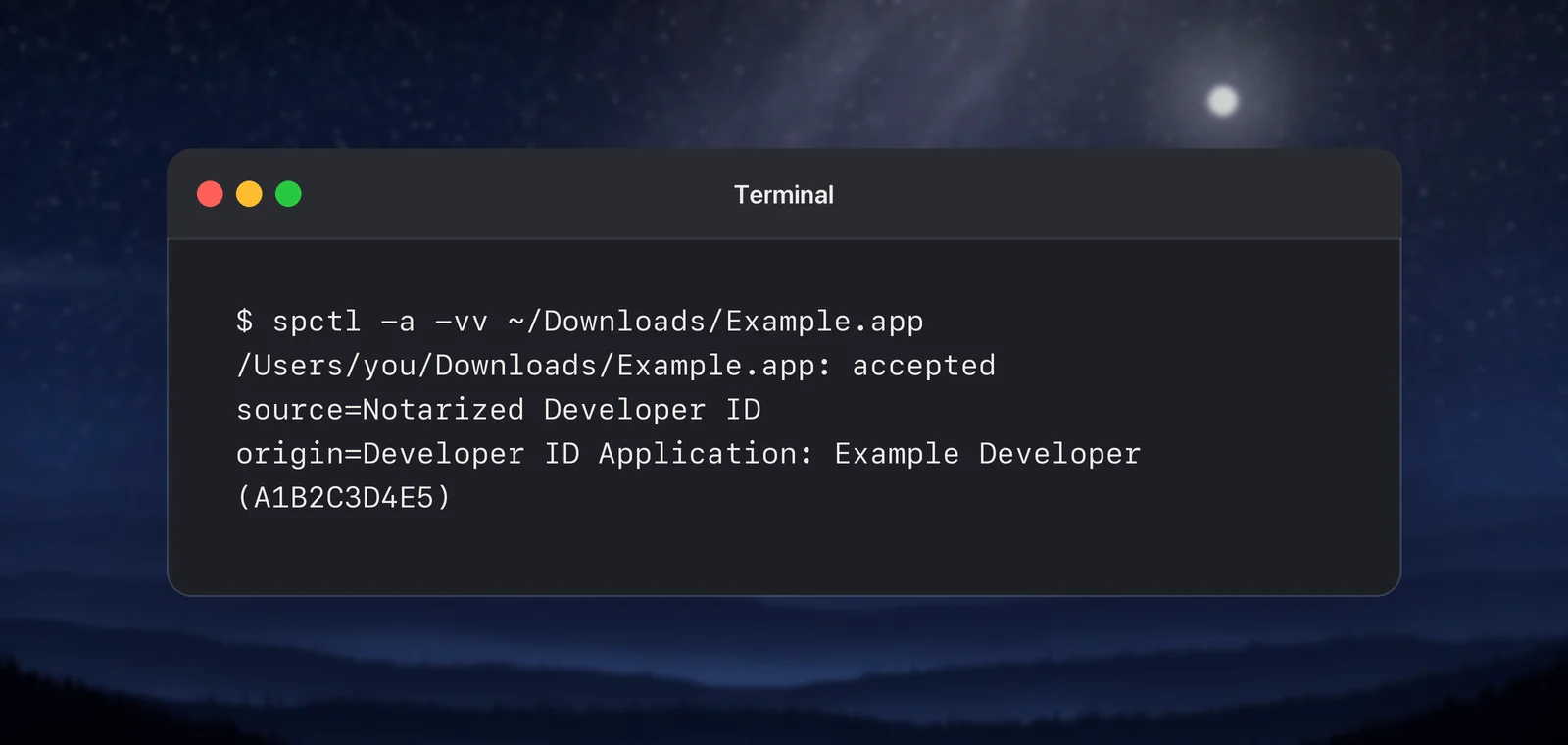
You can also ask macOS directly. In Terminal, run spctl -a -vv followed by the app’s path. Notarized Developer ID means the app passed both checks, and the line after it names the developer.
Open Anyway in Privacy & Security
When you’ve decided the app is trustworthy, this is the supported way to open it:
- Double-click the app once. When the warning appears, click Done, not Move to Trash.
- Choose Apple menu → System Settings, then click Privacy & Security in the sidebar.
- Scroll down to Security. You’ll see a note that the app was blocked, with an Open Anyway button next to it.
- Click Open Anyway, confirm in the dialog that follows, then enter your login password and click OK.
The app opens and is saved as an exception, so it opens normally from now on. Apple’s guide says the button is only offered for about an hour after the blocked attempt. If it’s gone, double-click the app again and come straight back.
Before you click Open Anyway
Open Anyway turns off the check for one app, permanently. Apple’s own guide warns that overriding these settings is the most common way a Mac gets infected with malware. Take a minute first:
- Where did it come from? The developer’s own website, reached by typing the address or from a source you trust, is a good answer. A download portal, a link in an email or a direct message, a pop-up ad or a “cracked” copy of a paid app is not.
- Is there a real developer behind it? A name, a support address, release notes and a history of updates all count.
- Does the download match? If the developer publishes a SHA-256 checksum, run
shasum -a 256followed by the file’s path in Terminal and compare the two values. - Is there a notarized alternative? Apple’s own advice is to look for a Mac App Store version or a similar app first.
- Do the installer’s instructions make sense? Be suspicious of any installer that asks you to paste a command into Terminal or drag a file into it. That’s a common way to get around Gatekeeper. On recent versions of macOS Tahoe, Terminal may stop such a paste with a “Possible malware, Paste blocked” alert. Apple’s advice is to paste only if you know what the command does and trust where it came from.
After the app opens, watch what it asks for. A request for Screen Recording, Accessibility or Full Disk Access should match a feature you’re about to use. Our guide to whether Screen Recording permission is safe explains how to judge requests like these.
Never disable Gatekeeper
Old forum answers still suggest sudo spctl --master-disable to bring back an “Anywhere” choice under Allow applications from, or xattr commands that remove the downloaded-from-the-internet flag from an app. Both work in the wrong way. Choosing Anywhere turns off the check for every app you download from then on. The second removes the marker that tells macOS the app came from the internet, so you skip the approval step and the developer and notarization checks that come with it.
Open Anyway is the better trade: you approve one app, and Gatekeeper keeps checking the next one. If you disabled Gatekeeper in the past, go back to Privacy & Security and choose App Store & Known Developers under Allow applications from.
Applying this to any app you download
Unpixel isn’t sold on the Mac App Store, so the same checks apply to it. Get it from the Download page, never from a mirror or a download site. The install guide describes what macOS may show the first time you open it. Once it’s running, Unpixel asks for one permission, Screen Recording, so it can read the text in the area you select with ⇧⌘2.
Quick checklist
- Blocked app? Privacy & Security → Security → Open Anyway, within about an hour.
- Check the source first: the developer’s own site, a real developer, a matching checksum.
- “Damaged” means download again. “Will damage your computer” means trash it.
- Control-click → Open no longer bypasses the check.
- Leave Gatekeeper on: approve apps one at a time.
Frequently asked questions
Why don’t I see an Open Anyway button?
Apple’s guide says it’s only offered for about an hour after you try to open the app, so double-click the app again and go straight back to Privacy & Security. On a Mac managed by an employer or school, these settings can be locked by the administrator.
Is an app from an unidentified developer always unsafe?
No. It means macOS couldn’t confirm who made the app or that Apple checked it for malware. Plenty of small and open-source projects aren’t notarized, which is exactly why you have to judge the source yourself.
Do I have to do this again after the app updates?
Once you allow an app, it’s saved as an exception and opens normally. A new copy downloaded later can be treated as a new app, so you may see the warning again.
What does “will damage your computer” mean?
macOS recognized known malicious software. Choose Move to Trash and don’t look for a way around it.
Sources
- Safely open apps on your Mac — Apple Support support.apple.com
- Open a Mac app from an unknown developer — Apple Support (macOS Tahoe 26) support.apple.com
- Updates to runtime protection in macOS Sequoia — Apple Developer News (August 6, 2024) developer.apple.com
- Gatekeeper and runtime protection in macOS — Apple Platform Security support.apple.com
- Change Privacy & Security settings on Mac — Apple Support (macOS Tahoe 26) support.apple.com
- Protect your Mac from malware — Apple Support (macOS Tahoe 26) support.apple.com
- If your Mac blocks a Terminal command paste or script — Apple Support support.apple.com