You copied a tracking number an hour ago, then copied a link over it, and now you need the number again. For most of the Mac’s history, that number was simply gone: the clipboard held one thing at a time. macOS Tahoe changed that. Spotlight now keeps a short list of what you’ve copied, and you can open it with two shortcuts.
Yes, on macOS Tahoe 26 and later. Press ⌘Space to open Spotlight, then ⌘4 (or click the clipboard button) to see what you copied recently; the first time, click Allow. Select an item and press ⌘C to copy it again. Items expire after a set time, and System Settings → Spotlight lets you change that, clear the list or turn it off.
Does a Mac have clipboard history?
On macOS Tahoe 26 and later, yes. It lives inside Spotlight rather than in a separate app, and the first time you open it, macOS asks whether to allow it.
On earlier versions of macOS, the answer is no. The clipboard holds a single item, and copying something new replaces it. You can see that one item in Finder with Edit → Show Clipboard, but there’s nothing behind it. A third-party clipboard manager is the only way to get a history there.
Spotlight’s clipboard in macOS Tahoe
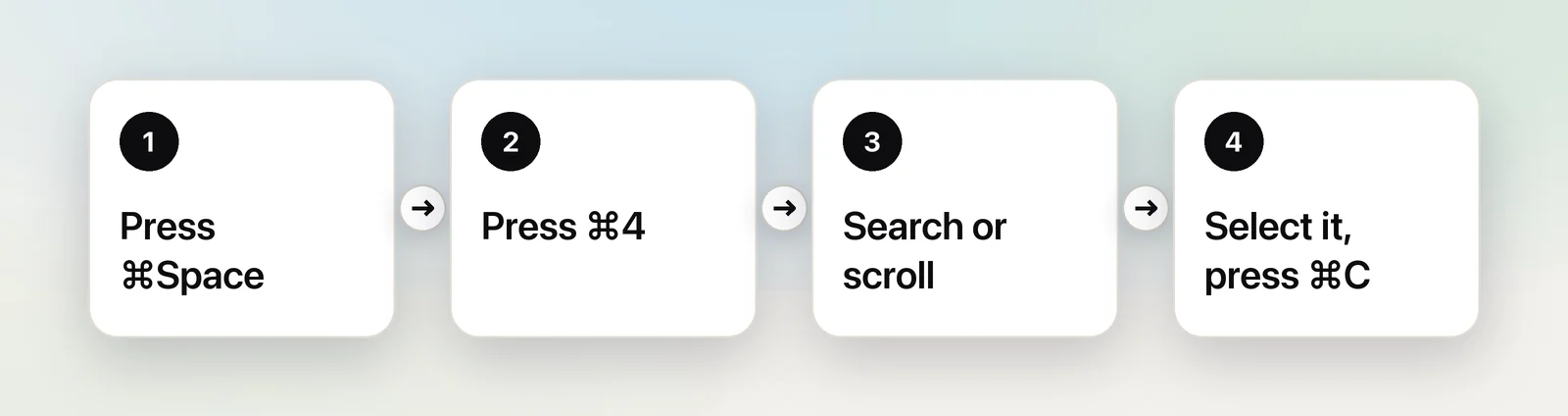
- Press ⌘Space to open Spotlight.
- Press ⌘4, or click the clipboard button at the right of the search field.
- The first time, macOS asks whether to allow Clipboard results. Click Allow. Only things you copy from then on are kept.
- Type a few letters to filter the list, or scroll through it.
- Select the item and press ⌘C, or click the copy button beside it. Then click where it should go and press ⌘V.
A few details make it easier to live with. Formatting isn’t kept, so text comes back plain, which is handy when you wanted to paste without formatting anyway. MacMost found that very long text and app-specific objects, such as shapes, are skipped. To remove a single entry, Control-click it and choose Delete. The neighbouring shortcuts, ⌘1 to ⌘3, jump to Spotlight’s other views for apps, files and actions.
Turn it on and choose how long it keeps items
Everything about the clipboard history is in one place:
- Choose Apple menu → System Settings, then click Spotlight in the sidebar.
- Scroll to the bottom, to Results from Clipboard.
- Use the switch to turn the history on or off. Turning it off removes it from Spotlight.
- On macOS Tahoe 26.1 and later, use the menu beside it to pick how long items stay: 30 minutes, 8 hours or 7 days. Eight hours is the default, and it was the only option before 26.1.
- Click Clear Clipboard History to empty it straight away.
Privacy: passwords and screen sharing
Apple’s own description of the setting is blunt: personal and sensitive information may appear in the results. A few habits keep that from becoming a problem.
- Passwords. In MacMost’s tests, copies from Apple’s Passwords app weren’t recorded. Don’t assume the same of every password manager. If you copy a password, card number or recovery code from somewhere else, clear the history afterwards.
- Screen sharing and recordings. Anything you open on screen during a call is visible to everyone watching. If you open Spotlight’s clipboard view while presenting, the whole list is on display. Clear the history, or switch it off, before a call where you’ll share your screen.
- Shared Macs. Lock the screen with ⌃⌘Q when you step away. The history is a quick way for someone at your desk to see what you’ve been copying.
When a clipboard manager is worth it
Spotlight’s history is deliberately simple. A dedicated clipboard manager earns its place if you need:
- items kept for weeks or months, not hours or days;
- pinned snippets you reuse every day;
- rich text and images kept with their formatting;
- a list of apps whose copies should never be recorded;
- one shortcut that pastes an older item straight into the front app.
As of October 2026, three common choices work quite differently. Maccy is free and open source, opens with ⇧⌘C and skips copies that apps mark as confidential. Raycast includes a Clipboard History that can keep items for up to three months, encrypted on your Mac, and ignores passwords from password managers by default. Alfred has a clipboard history as part of its paid Powerpack, with periods from 24 hours to 3 months and an ignore list that starts with Keychain Access and 1Password. Our clipboard manager roundup compares them in more detail.
Where capture history fits
Unpixel has a history too, and it’s easy to mistake it for a clipboard manager. It isn’t one. It only keeps the text Unpixel itself recognised, from a screen capture, an image or a PDF. What you copy with ⌘C in other apps never goes into it.
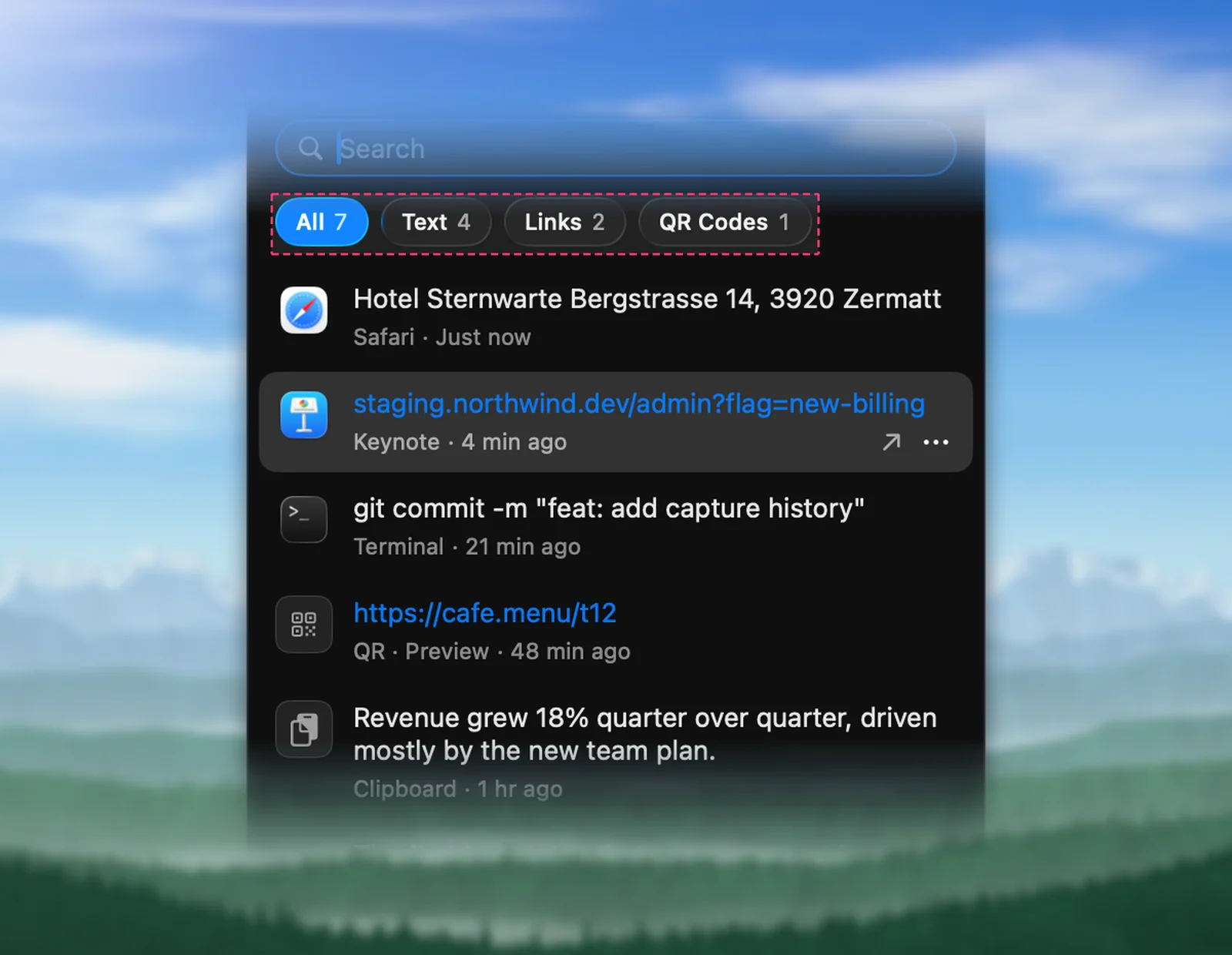
That makes the two lists complementary. Spotlight’s clipboard covers text you could already select and copy. Unpixel’s history covers words you could only see: a line from a paused video, a code in a screen share, an error dialog. Each capture shows the app it came from, such as “Safari · Just now”. You can search it and filter by Text, Links or QR Codes, and clicking a row copies it again. The history stays on your Mac, and you can cap its size or turn it off in Unpixel’s Settings → History.
Quick checklist
- See recent copies: ⌘Space, then ⌘4. Click Allow the first time.
- Copy an older item again: select it and press ⌘C.
- Change how long items stay, or turn it off: System Settings → Spotlight → Results from Clipboard.
- Before you share your screen: clear the history.
- Need months of history, pinned snippets or formatted copies: use a clipboard manager.
- Need text you can’t select: capture it, and it lands in the capture history.
Frequently asked questions
Why is my clipboard history empty?
Spotlight only keeps what you copy after you allow Clipboard results, and it removes items once they’re older than the period chosen in System Settings → Spotlight. If Results from Clipboard is off, nothing is kept.
Are passwords saved in the clipboard history?
In MacMost’s tests, passwords copied from Apple’s Passwords app weren’t kept, but other password managers may behave differently. Apple’s own setting warns that personal and sensitive information may appear, so clear the history after copying anything private.
How do I clear clipboard history on a Mac?
In Spotlight’s clipboard view, click the More button next to the search field and choose Clear History. On macOS Tahoe 26.1 and later, System Settings → Spotlight also has a Clear Clipboard History button.
Does the clipboard history sync to my iPhone?
No. It’s a list of what was copied on that Mac. Universal Clipboard can hand your latest copy to a nearby iPhone or iPad, but it doesn’t carry a history with it.
Sources
- Search your Clipboard history in Spotlight on Mac — Apple Support support.apple.com
- This macOS Tahoe 26.1 setting will eliminate embarrassing clipboard mishaps — Macworld macworld.com
- Tahoe 26.1 Updates Spotlight Options — 512 Pixels 512pixels.net
- How To Use the Spotlight Clipboard History In macOS Tahoe — MacMost macmost.com
- Maccy — open-source clipboard manager for macOS (GitHub) github.com
- Clipboard History — Raycast raycast.com
- Clipboard History — Alfred Help alfredapp.com