Most OCR mistakes are decided before the engine starts reading. Small text, a stray cursor or a selection that clips a letter all make the job harder, and no setting makes up for missing pixels. These habits work with any OCR tool on a Mac, and each comes with the reason it helps, so you can judge when it matters.
Give the engine more pixels and less clutter. Zoom the content before you capture, select just the text with a small margin, move the pointer and any overlays out of the way, and pause video on a sharp frame. Choose the recognition language when you know it, use the accurate mode, and proofread numbers, names and codes before you rely on them.
Zoom before you capture
OCR reads shapes, and small shapes don’t carry enough detail to tell an “e” from a “c”. The fix is to make the text bigger on screen, so it’s redrawn sharp, rather than enlarging a capture afterwards.
- Web pages: press ⌘+ a few times, capture, then ⌘0 to reset.
- PDFs and images in Preview: zoom in with ⌘+ until a line fills most of the window.
- Video: switch to full screen and the highest quality the player offers.
In a quick test on macOS 26, Apple’s Vision framework read a Helvetica sentence set in 9-pixel type with one wrong word, “moder” for “modern”. Enlarging that image to twice its size fixed that word but broke two others: “2026” became “2028” and “clearly” became “cleanly”. A second 9-pixel sentence came back empty; doubled, it read “betore” and “contirm”. At three times the size, one sentence was right and the other still had a wrong word. The same two sentences drawn at 18 pixels read perfectly. Upscaling can’t recover detail that was never captured, and the guesses it adds can be worse than none. Real zoom avoids the problem. Our guide to small text that won’t OCR goes further.
Select only what you need
An OCR engine has to decide what’s text, what’s decoration and what order to read it in. Every extra element in your selection is another decision it can get wrong.
- Leave out neighbours. Sidebars, icons, a second column and button labels get mixed into the result.
- Keep a small margin. A letter that touches the edge of the selection can be cut in half and dropped. A few pixels of space around the text is enough.
- Don’t slice through a line. If the bottom of a line is outside the selection, expect that line to vanish or garble.
- Capture columns one at a time. Reading order across columns is a guess, and a wrong guess interleaves the lines.
If words are disappearing rather than coming out wrong, OCR skipping part of the text covers that pattern.
Remove overlays and the pointer
Anything drawn on top of the text is, to the engine, part of the text.
- Move the pointer away before you capture, especially over a line of small print.
- Wait for video controls to fade. Most players hide the progress bar and buttons a second or two after the pointer stops moving.
- Close tooltips, banners and notifications. Turning on a Focus such as Do Not Disturb keeps notifications from landing on top of a slide.
- Clear any text selection or highlight in the source app. Blue highlighting lowers contrast.
Pause on a sharp frame
Video is the hardest everyday source. Compression smears fine detail, and text that’s moving or fading in is blurred in most frames.
- Pause when the text has fully appeared and stopped moving.
- Step a frame at a time to find a crisp one. In QuickTime Player, the Left and Right Arrow keys stop playback and move one frame; on YouTube, , and . do the same while the video is paused.
- Look closely before you capture: if the edges of the letters look soft or blocky, try a frame or two later.
There’s more on why video text fails in OCR on video frames.
Choose the language when you know it
Many engines can detect the language, but detection needs enough text to go on. A short label, small print or a line that mixes two scripts gives it very little.
In our test on macOS 26, Vision with automatic detection returned nothing for a line of Japanese set at 12 pixels; told the text was Japanese, it read it perfectly. From 14 pixels up, detection worked too. Lines that mix two scripts are another weak spot, covered in our Chinese, Japanese and Korean OCR guide. If your OCR tool has a language setting, set it for text you know is in one language, and switch back to automatic afterwards. Live Text has no language picker, so this tip only applies to apps that offer one. Which languages Mac OCR can read has the full list.
Use the accurate mode
Apple’s Vision framework offers two recognition levels. Apple describes fast as recognizing characters one by one, closer to traditional OCR, and accurate as a neural network that finds whole lines and words. Fast suits crisp interface text, but it falls apart on anything hard. In the same test, Fast mode returned nothing at all for either 9-pixel sentence, and even at 18 pixels it read “before 10:45 to” as “belore 10.4510”. On macOS 26 it also reads only six languages: English, French, German, Italian, Portuguese and Spanish. If your tool offers a choice, leave it on accurate unless speed really matters; fast vs accurate OCR explains the trade-off.
Proofread the risky parts
Even a near-perfect result can hide one wrong character, and it’s always in the place that matters. Before you rely on OCR output, check:
- Numbers: totals, dates, prices, decimal points and minus signs. Count the digits.
- Names: people, places and products the dictionary doesn’t know.
- Codes: licence keys, order numbers, URLs and email addresses, where O and 0 or l and 1 change everything.
For codes, also turn off language correction if your tool has it. Apple describes it as a language-processing pass that reduces misreadings. It does that by favouring likely words, which helps sentences and hurts identifiers. Common OCR errors lists the mix-ups to look for.
How we tested
The tests above used images we generated with a script. There were two English sentences in Helvetica, black on white, at 9 and 18 pixels, plus copies of the 9-pixel images enlarged two and three times with bicubic resampling. The Japanese line was set in Hiragino Sans at 10 to 24 pixels. We read them with Apple’s Vision text recognizer on macOS 26.6 on an Apple silicon Mac in October 2026, with language correction on, and asked Vision itself for the languages each mode supports. Clean, synthetic images are a best case, so expect real captures to do worse.
In Unpixel
Unpixel, which we make, reads with Apple’s Vision on your Mac, so everything above applies, and a few habits are built into the capture itself. While you drag, the live size label shows how big your selection is, and holding Space moves the selection without resizing it, which makes a tight frame with a small margin easy. Esc cancels if the pointer or a banner is in the way.
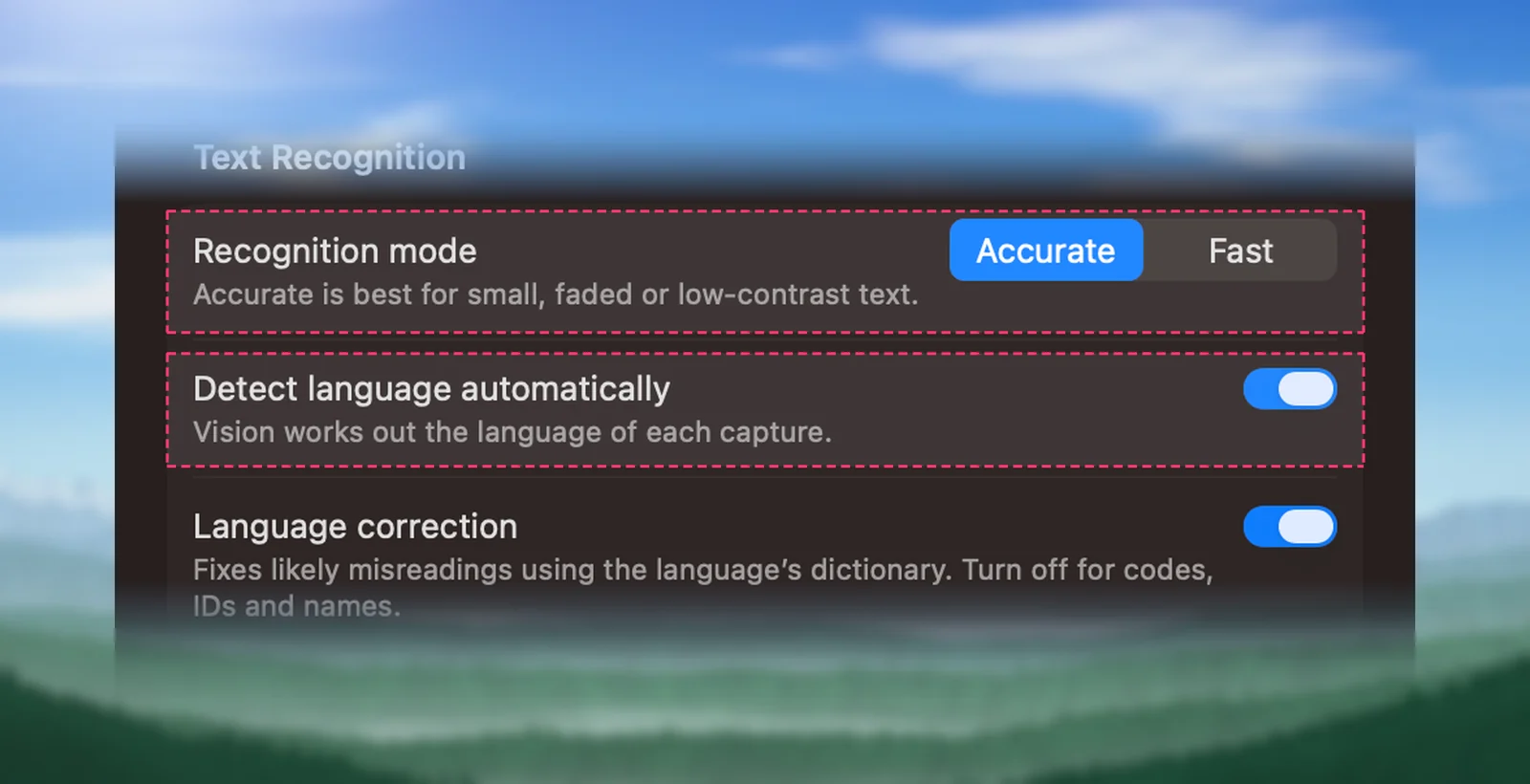
Three settings in Settings → Recognition matter most. Recognition mode is Accurate by default. Turn off Detect language automatically to choose a language for small or mixed text. Turn off Language correction for codes, IDs and names. Recognition mode and language correction suggests settings for each kind of task.
A 20-second checklist
- Is the text big and sharp on screen? If not, zoom first.
- Does the selection hold only the text, with a small margin?
- Is anything on top of it, such as the pointer, controls or a notification?
- For video: is this the sharpest frame?
- Is the language set, if the text is short or small?
- Have you checked every number, name and code?
Frequently asked questions
Does upscaling a screenshot improve OCR?
Sometimes, but it can’t add detail that wasn’t captured, and it can introduce new misreadings. Zooming the content itself before you capture is more reliable, because the text is redrawn sharp at the larger size.
What resolution is best for OCR?
For scans, 300 dpi is the usual baseline; Tesseract’s documentation recommends at least that. On screen, think in pixels instead: text that looks comfortably large on a Retina display usually reads well.
Why is OCR worse on photos than on screenshots?
A screenshot captures text exactly as the screen drew it. A photo adds blur, angle, glare and uneven light, each of which costs accuracy.
Should I turn off language correction?
Only for text that isn’t ordinary language, such as codes, IDs, product numbers and unusual names. For sentences, correction usually fixes more than it breaks.
Sources
- VNRequestTextRecognitionLevel (fast and accurate) — Apple Developer Documentation developer.apple.com
- Recognizing Text in Images (fast and accurate paths, language correction) — Apple Developer Documentation developer.apple.com
- usesLanguageCorrection — Vision framework, Apple Developer Documentation developer.apple.com
- Keyboard shortcuts and gestures in QuickTime Player on Mac — Apple Support support.apple.com
- YouTube keyboard shortcuts — YouTube Help support.google.com
- Improving the quality of the output — Tesseract documentation tesseract-ocr.github.io