Not all the text you need is on screen. It might be a screenshot a colleague pasted into chat, a folder of scanned receipts, or a 20-page PDF that’s nothing but pictures of pages. Unpixel can OCR image files and PDFs on your Mac too, with the same on-device recognition it uses for screen captures, and puts the text on your clipboard without changing the files.
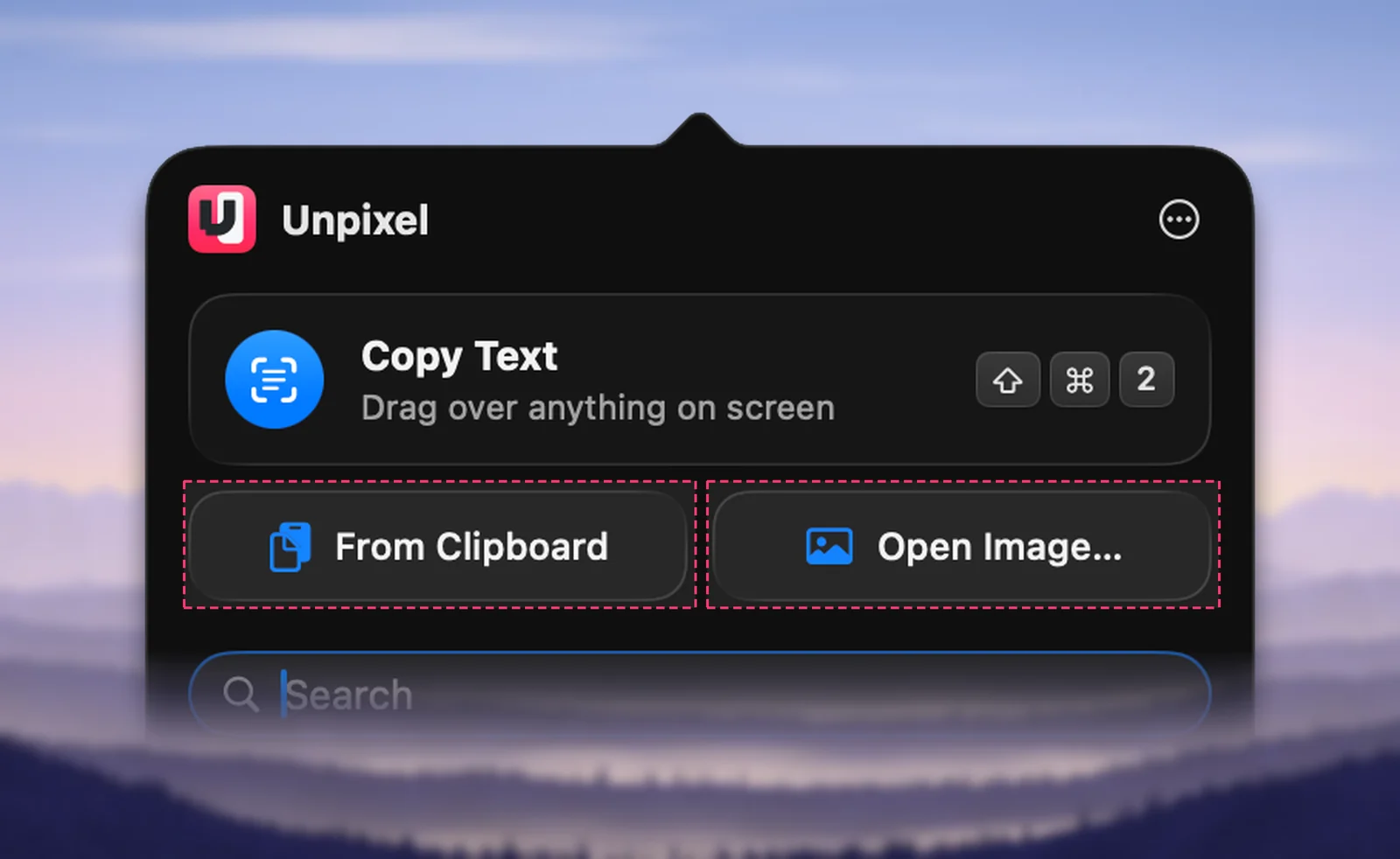
Click the Unpixel icon in the menu bar and choose From Clipboard to read an image you’ve copied, or Open Image… to pick PNG, JPEG, HEIC, TIFF, GIF, BMP, WebP or PDF files. PDFs and multi-page TIFFs are read page by page, up to 50 pages per capture, and several files become one capture. You can also drop files on the panel or the menu bar icon.
From Clipboard
Use this when the picture is already on your clipboard: an image you copied from a web page or a chat, a screenshot taken with ⌃⇧⌘4, or an image or PDF file you copied in Finder.
- Copy the image.
- Click the Unpixel icon in the menu bar and click From Clipboard. You can also right-click the icon and choose it from the menu.
- Paste the text wherever you need it.
The text replaces the image on your clipboard. If there’s no image there, the confirmation says No image on the clipboard and nothing changes. Automation tools can trigger the same command by opening unpixel://clipboard.
Open Image…
Open Image… shows the standard Open dialog and accepts PNG, JPEG, HEIC, TIFF, GIF, BMP, WebP and PDF. When the dialog closes, you’re back in the app you were using.
A file is read with the same settings as a screen capture, so everything else carries over. A QR code in the image is decoded, a table pastes as cells, and a single web address is copied as a link. In your history, the capture is labelled with the file name, such as “report.pdf”, so you can tell later where it came from.
Multi-page PDFs and TIFFs
A PDF is read page by page, up to 50 pages in one capture, with a blank line between pages. Multi-page TIFFs, the format many scanners and fax services produce, are read the same way. While a long job runs, the confirmation says “Reading 40 pages…” and the menu bar icon pulses.
You don’t have to wait. ⇧⌘2 keeps working, and if a later capture finishes first, the PDF’s text goes to your history instead of overwriting the newer clipboard. The confirmation then says Saved to History.
Some things to know:
- More than 50 pages: the first 50 are read, and the confirmation says so. Split the document and read the rest in a second pass.
- Scanned or digital, it’s all OCR: every page is rendered as an image and recognized, so scans work too. For a PDF whose text you can already select, copying it in Preview is exact, while OCR can still slip on a character.
- Locked PDFs that need a password to open can’t be read.
- No new file: Unpixel doesn’t create a searchable PDF or touch the original. It copies text.
Several files at once
Select several files in the Open dialog with ⌘-click, or drop several at once. They’re read as one capture, in the order given, up to 50 pages in total: one clipboard update and one history item.
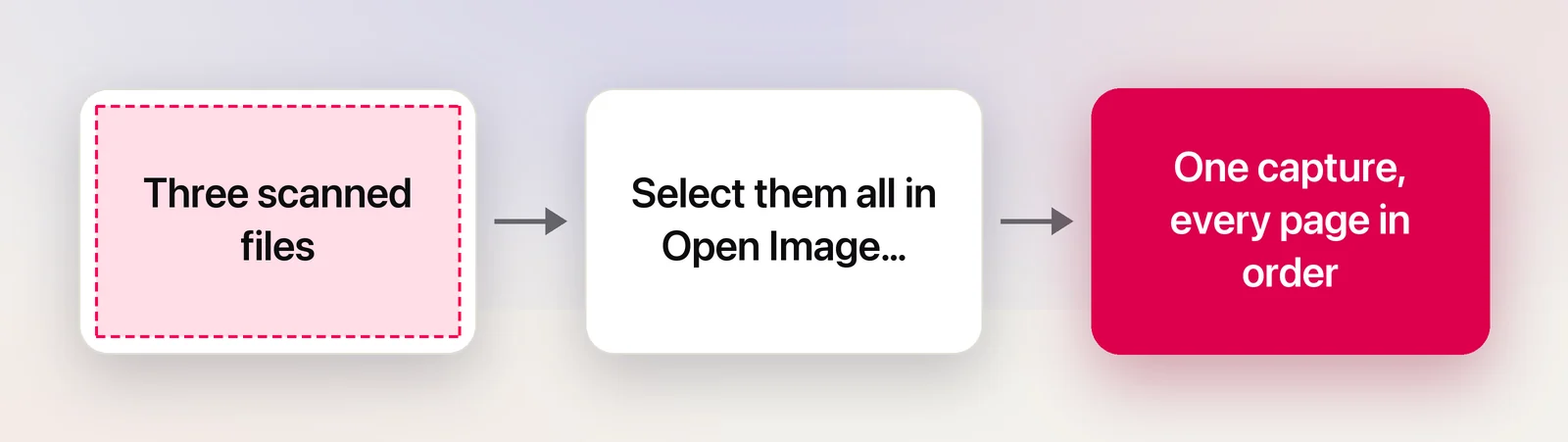
If one of the files can’t be read, the rest still are, and the confirmation tells you, for example “Copied text from 2 of 3 files”.
Drag and drop
When the file is already in front of you, skip the dialog:
- Drop it on the open menu bar panel.
- Drop it on the Unpixel icon in the menu bar.
- Drop it on Unpixel’s icon in your Applications folder.
- Or Control-click the file in Finder and choose Open With → Unpixel, or Services → Copy Text with Unpixel, which reads several selected files as one capture without opening anything. See the Services menu.
Unpixel lists itself as an alternative app for these file types, never as the default viewer, so double-clicking a PDF still opens it in Preview or whichever app you’ve chosen.
What Preview already does
For a single image or a PDF you’re keeping, Preview may be all you need. Apple’s guides cover two free tools:
- Live Text in Preview: open an image, drag across the words, Control-click and choose Copy Text.
- Embed Text: for a scanned PDF, choose File → Export and select Embed Text. Preview recognizes the text and saves it into the file, so you can select and search it in any PDF viewer. The option only appears when the PDF has no recognized text yet.
Unpixel is quicker when you want the text rather than a new file, from many pages or several files at once, or from an image that only exists on your clipboard. Copy text from a scanned PDF on Mac compares the routes in detail.
Frequently asked questions
Does Unpixel change my PDF or add a text layer to it?
No. It reads the pages and puts the text on your clipboard; the file stays exactly as it was. To add a text layer to a scanned PDF, use Preview’s Embed Text.
Can it read a password-protected PDF?
Not while it’s locked. Open it in Preview with the password, then capture the pages on screen with ⇧⌘2.
Which frame of an animated GIF is read?
The first frame. To read a later frame, pause it on screen and capture it with ⇧⌘2 instead.
Sources
- Embed text in a PDF in Preview on Mac — Apple Support support.apple.com
- Interact with text in a photo using Live Text in Preview on Mac — Apple Support support.apple.com