Chinese, Japanese and Korean text is harder for OCR than English, and the failures look different: a whole line returned empty, columns read in the wrong order, characters run together or split by stray spaces. Apple’s on-device recognition handles all three scripts well once a few conditions are met. Here’s what’s different about them, what we saw in tests on macOS 26, and the settings that make the difference.
Apple’s on-device OCR reads Simplified and Traditional Chinese, Cantonese, Japanese and Korean, but only in its accurate mode. Make the characters large on screen, choose the language for short or mixed-script text, and use Live Text for vertical columns, which Vision’s basic text request can miss. Join lines without spaces for Chinese and Japanese, with spaces for Korean.
What’s different about CJK text
English needs 26 letters in two cases. Chinese and Japanese use thousands of characters, many with a dozen or more strokes, and Korean builds each syllable from several letters stacked into one block. That changes the job in a few ways:
- Detail matters more. A missing stroke turns one character into another, so small or blurry text fails sooner than Latin text at the same size.
- No spaces between words in Chinese and Japanese. The engine can’t lean on word gaps to find its place, and you can’t use them to spot errors.
- Two writing directions. Japanese and Chinese can run vertically, in columns read top to bottom and right to left.
- Mixed scripts in one line. Japanese mixes kanji, hiragana, katakana and often Latin letters; menus and product labels mix all of them with prices.
- Full-width punctuation. CJK text uses its own wider colons, commas and brackets, which look similar to Latin ones but are different characters.
The fast mode of Apple’s Vision framework, which works character by character, doesn’t support these scripts at all. In our test, fast mode returned nothing for a line of Simplified Chinese, Traditional Chinese or Japanese, and a string of random Latin letters and digits for Korean. Accurate mode read all four lines perfectly.
Simplified, Traditional or Cantonese
Vision lists four entries for Chinese characters on macOS 26: Chinese Simplified, Chinese Traditional, Cantonese Simplified and Cantonese Traditional. The Cantonese entries matter for written Cantonese, which uses characters standard Chinese rarely does, as on Hong Kong signs and in chats.
Two results from our tests are worth knowing:
- Automatic detection copes well with clean text. In our test it read a Simplified and a Traditional sentence correctly without being told which was which.
- Recognition doesn’t convert. Telling Vision to expect Simplified Chinese didn’t turn a Traditional sentence into Simplified; it returned the Traditional characters as printed.
To convert after copying, macOS has it built in as a service. Select the text, then choose the app menu → Services → Convert Text to Simplified Chinese (or Convert Text to Traditional Chinese). If the items aren’t there, turn them on in System Settings → Keyboard → Keyboard Shortcuts… → Services, under Text. Telling the variants apart by eye, and translating them, is covered in translating Chinese text from an image.
Japanese: kana, kanji and furigana
Japanese is the most demanding of the three, because one sentence mixes three scripts and the text is often small, vertical or annotated.
- Short text needs the language set. In our test, a six-character label written only in kanji, 営業時間変更 (“change of opening hours”), came back wrong with automatic detection at both 11 and 22 pixels. The first character was misread or dropped, and 変 came back as 变, its Simplified Chinese form. Told the text was Japanese, Vision read it correctly at both sizes. A full sentence with kana read correctly at 11 pixels either way.
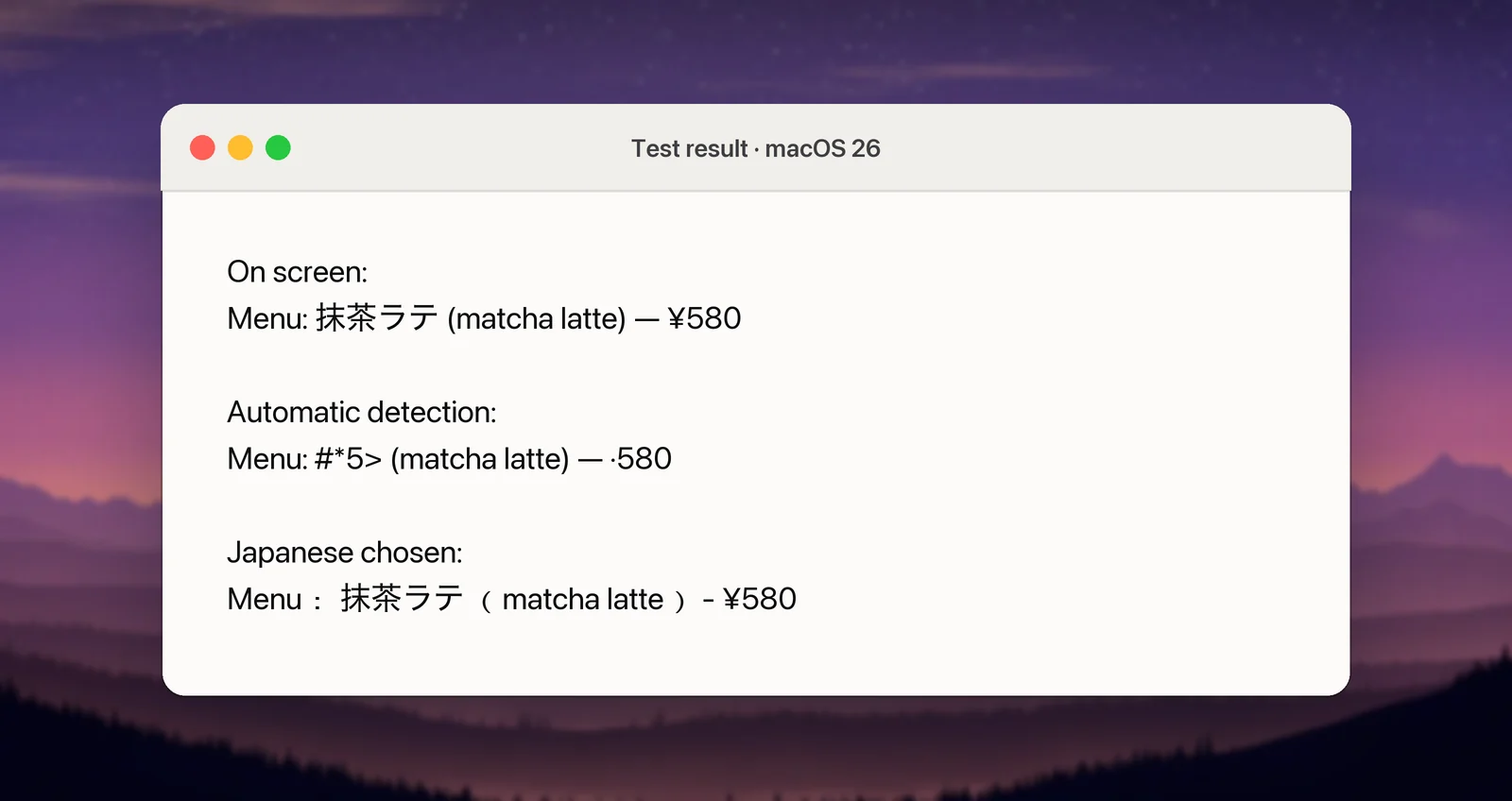
- Mixed lines need it too. The menu line in the image below, set at 28 pixels, lost its Japanese with automatic detection and came back complete with Japanese chosen. At 16 pixels, automatic detection happened to read it correctly.
- Furigana are the small kana printed beside kanji to show how they’re read; typographers call them ruby. OCR tends to either drop them or return them as extra short lines mixed into the text. In our test, with furigana at half the size of the main text, Vision kept one of three readings as its own line and dropped the others when the main text was 28 pixels. At 44 pixels it returned all three as separate lines, and Live Text’s engine returned all three both times. Delete the fragments, or keep them as a reading note.
Vertical text is the real trap. In our test with two columns of vertical Japanese, Vision’s standard text request, the one many Mac OCR apps call, returned nothing at all, even with Japanese chosen. Rotating the image a quarter turn either way didn’t help. Live Text’s engine, which Apple offers to apps separately, read the same columns correctly and in reading order, starting from the right. So for vertical Japanese, open the image in Preview and select it with Live Text. Single columns were hit and miss with the standard request: a four-character Chinese sign, 營業時間, read correctly, but a four-character Japanese one, 本日休業, and longer Chinese columns returned nothing. Live Text’s engine read them all. More on this in OCR for vertical and rotated text, and for comics, extracting text from manga.
Korean Hangul
Hangul is an alphabet, but its letters are grouped into square syllable blocks, so it looks as dense as Chinese at a glance. Two things to watch:
- Spaces matter. The W3C’s Korean layout requirements note that Korean words are, in principle, separated by spaces. OCR sometimes merges two words or splits one, especially in narrow speech bubbles or tight table cells, and a wrong space can change how a sentence reads. Compare spacing with the original.
- Lost strokes. In small or stylised text, a missing short stroke turns one syllable into another. Zoom before you capture.
In our test, a plain Korean sentence came back perfectly in accurate mode with automatic detection.
Line breaks without spaces
OCR returns text line by line. When you join those lines back into a paragraph, the rule depends on the script:
- Chinese and Japanese: join with no space. A space in the middle of a Chinese or Japanese sentence is an error, and it can confuse translators and search.
- Korean: usually join with a space, because Korean puts spaces between words. Check the join, though: some layouts wrap a line in the middle of a word.
- Mixed lines: keep a space where a Latin word meets another Latin word, and none where Chinese or Japanese characters meet.
If you joined lines by hand and ended up with stray spaces between characters, Find and Replace in any text editor removes them. macOS also has a Convert Text to Half Width service for wide colons and brackets, but use it with care: in our test it turned the katakana ラテ into the narrow half-width form ラテ as well. For Japanese, replacing the punctuation with Find and Replace is safer.
Settings that help
- Use accurate recognition. Fast modes can’t read these scripts.
- Make characters big on screen before capturing. Zoom the page, not the screenshot.
- Choose the language for short or mixed-script text, then switch back.
- Capture one block at a time: one caption, one paragraph, one bubble.
- For vertical Chinese or Japanese, use Live Text in Preview.
- Check names and numbers, and look for stray spaces.
How we tested
We drew the test images ourselves as black text on white, mostly at 28 pixels, in PingFang for Chinese, Hiragino Sans for Japanese and Apple SD Gothic Neo for Korean. Vertical columns were laid out the way Japanese and Chinese books set them. We read them on a Mac with an Apple M2 chip running macOS 26.6.2, with Vision’s standard text request and with VisionKit’s ImageAnalyzer, the engine Apple offers apps for Live Text. These are clean, computer-generated images, so photos and scans will do worse.
In Unpixel
Unpixel, which we make, reads with Apple’s Vision on your Mac, so it reads Chinese, Cantonese, Japanese and Korean in Accurate mode, the default. To set a language, turn off Detect language automatically in Settings → Recognition and choose it from the Language menu; if you pick one Fast mode can’t read, those captures use Accurate anyway. With Keep line breaks off, Unpixel joins Chinese and Japanese lines without spaces and Korean lines with one. It uses the standard text request, so for vertical Chinese and Japanese, Live Text is the better tool today. Recognition languages and automatic detection has the details. To copy a translation into your language instead, hold ⌥ as you let go; see translate while capturing.
Frequently asked questions
Can Live Text read vertical Japanese?
In our test on macOS 26, yes: Live Text’s engine read two columns of vertical Japanese in the right order. Vision’s standard text request, which many apps use, returned nothing for the same image.
Does OCR convert Traditional Chinese to Simplified?
No. It returns the characters that are printed. To convert, select the text and use Convert Text to Simplified Chinese in the app menu’s Services submenu.
Why does Chinese or Japanese OCR return nothing?
The usual causes are fast mode, which can’t read these scripts, vertical columns, which Vision’s standard text request skipped in our test, or text that’s too small. Short text can also come back wrong when the language is detected automatically. Use accurate mode, zoom in, choose the language, or try Live Text.
Can Mac OCR read furigana?
It often picks them up as extra short lines or drops them, depending on their size. Remove stray kana from the result, or keep them as a reading guide.
Sources
- VNRecognizeTextRequest (supported languages) — Apple Developer Documentation developer.apple.com
- ImageAnalyzer (Live Text in your app) — Apple Developer Documentation developer.apple.com
- macOS Ventura is now available (Live Text adds Japanese and Korean) — Apple Newsroom apple.com
- Requirements for Japanese Text Layout (vertical setting and ruby) — W3C w3.org
- Requirements for Hangul Text Layout and Typography (word spacing) — W3C w3.org
- Use services in apps on Mac — Apple Support support.apple.com