You want a picture of one thing on your screen — a chart, an error message, a single tweet — not your whole desktop with its 40 open tabs. macOS has had a shortcut for exactly that for years, plus a few variations that are easy to miss. Here are all of them, and what to do when what you actually need is the text inside the picture.
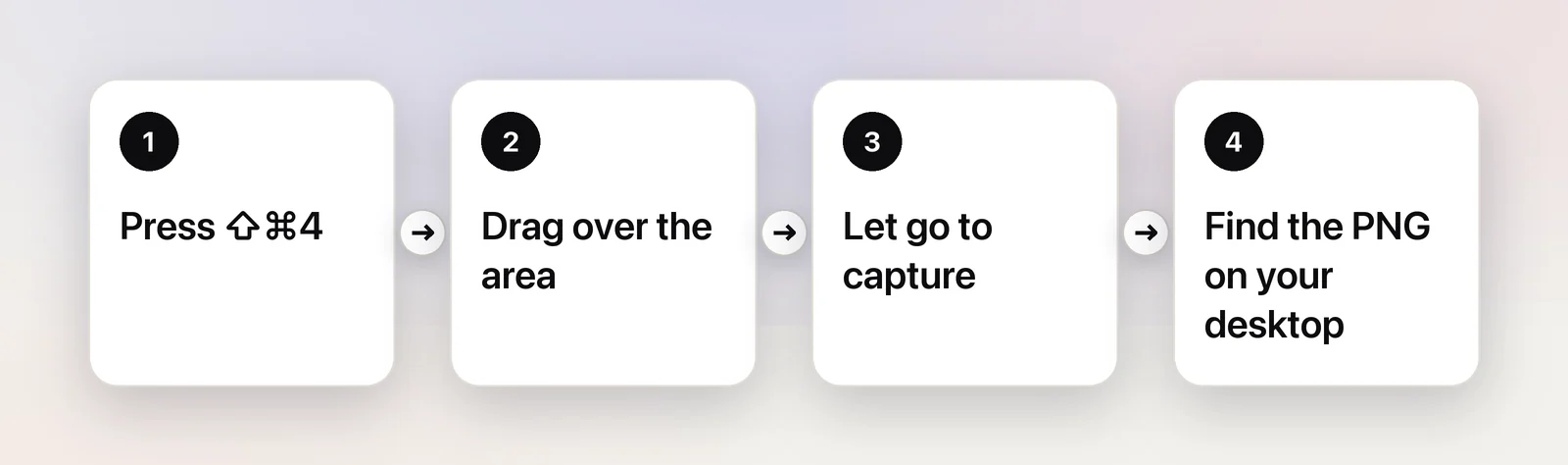
Press ⇧⌘4, drag over the part of the screen you want, and let go: macOS saves the screenshot to your desktop as a PNG. Hold Control as well (⌃⇧⌘4) to copy it to the clipboard instead of saving a file. Press ⇧⌘5 for a timer, a different save location or a screen recording.
The shortcut: Shift-Command-4

- Press ⇧⌘4. The pointer turns into a crosshair.
- Drag over the area you want to capture.
- Let go of the mouse or trackpad button. With sound on, you’ll hear a shutter click, and the screenshot is saved to your desktop.
While you’re dragging, two keys help:
- Hold Space to move the selection without changing its size — handy when you started the drag a few pixels off.
- Press Esc to cancel without taking a screenshot.
Copy it to the clipboard instead of saving a file
Most of the time a screenshot is on its way somewhere else: a Slack thread, an email, a bug report. Add Control to the shortcut — ⌃⇧⌘4 — and macOS copies the image to the clipboard instead of creating a file. Paste it with ⌘V wherever you need it, and there’s nothing to clean off your desktop later.
If you almost always want the clipboard, make it the default: press ⇧⌘5, click Options and choose Clipboard under Save to.
Capture one window
Press ⇧⌘4, then press Space. The crosshair becomes a camera, and whatever window is under the pointer is highlighted. Click to capture just that window, with its shadow. Hold ⌥ while you click to leave the shadow out.
Use the Screenshot toolbar for timers and other options
Press ⇧⌘5 to open the Screenshot toolbar. The buttons on the left capture the entire screen, a selected window or a selected portion; the next ones record the screen as video. The Options menu holds the settings the keyboard shortcuts can’t change:
| Option | What it does |
|---|---|
| Save to | Desktop, Documents, Clipboard, Mail, Messages, Preview or another folder |
| Timer | Waits 5 or 10 seconds before capturing, so you can open a menu or hover a tooltip first |
| Show Floating Thumbnail | The small preview in the corner after each screenshot |
| Remember Last Selection | Starts the next portion capture with the same frame |
| Show Mouse Pointer | Includes the pointer in the screenshot |
The timer is the one people miss: anything that disappears when you press a key, like a hover state, is easy to capture once you give yourself 5 seconds.
Where screenshots go, and what the thumbnail does
Shortcut screenshots land on your desktop as PNG files named “Screenshot” followed by the date and time. To send them somewhere else, use Save to in the toolbar’s Options menu.
After each capture, a floating thumbnail appears in the bottom-right corner for a few seconds. Click it to mark up or share the image, drag it straight into an email or document, or swipe it to the right to save it immediately.
When you need the text, not a picture
A screenshot of a sentence is a picture of a sentence. You can’t paste it into a search box, edit a typo in it or drop it into a spreadsheet.
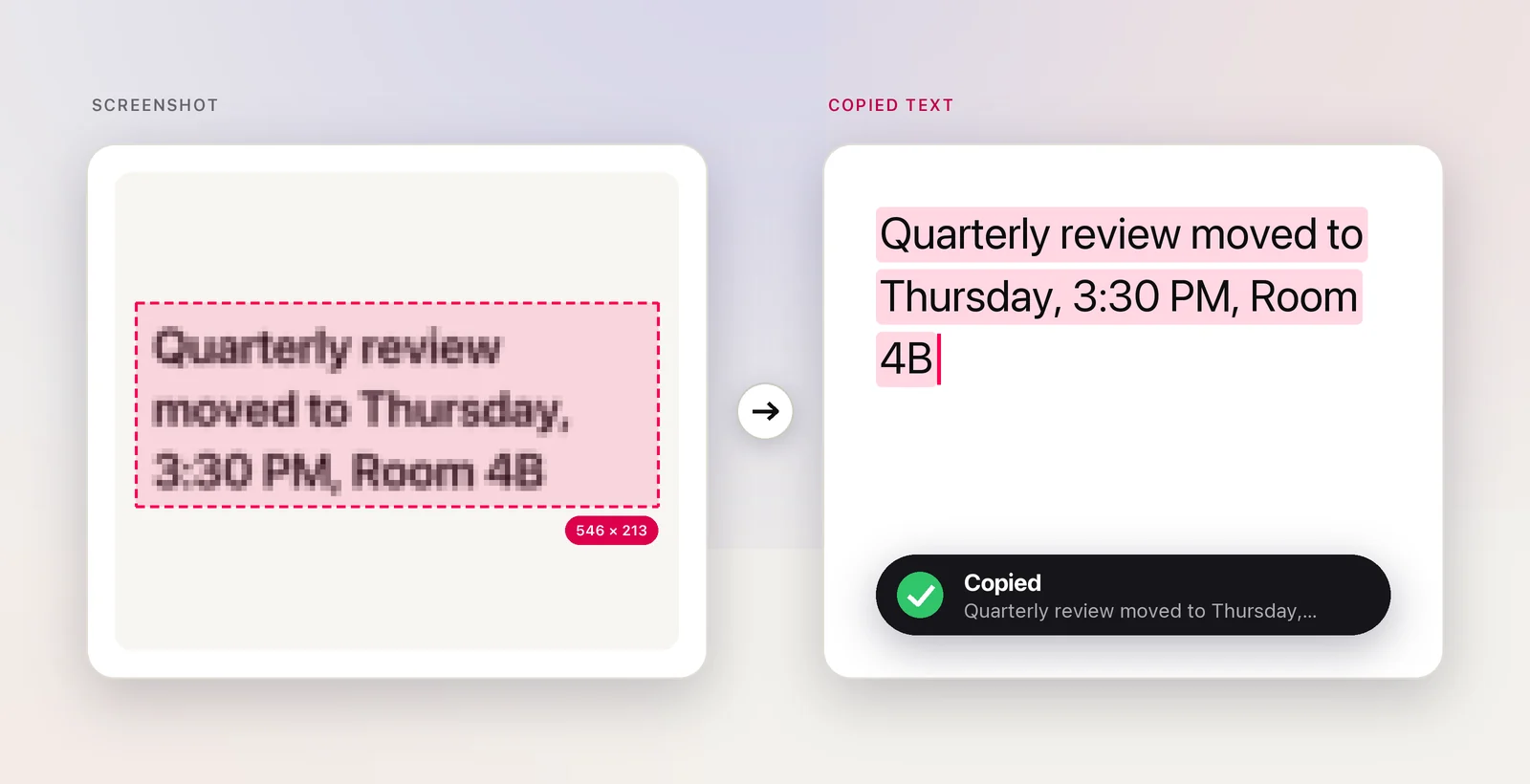
The built-in fix is Live Text: open the screenshot in Preview (or select it in Finder and press Space for Quick Look), then drag across the words to select and copy them. It works well, but it’s three steps and leaves a file behind.
In Unpixel
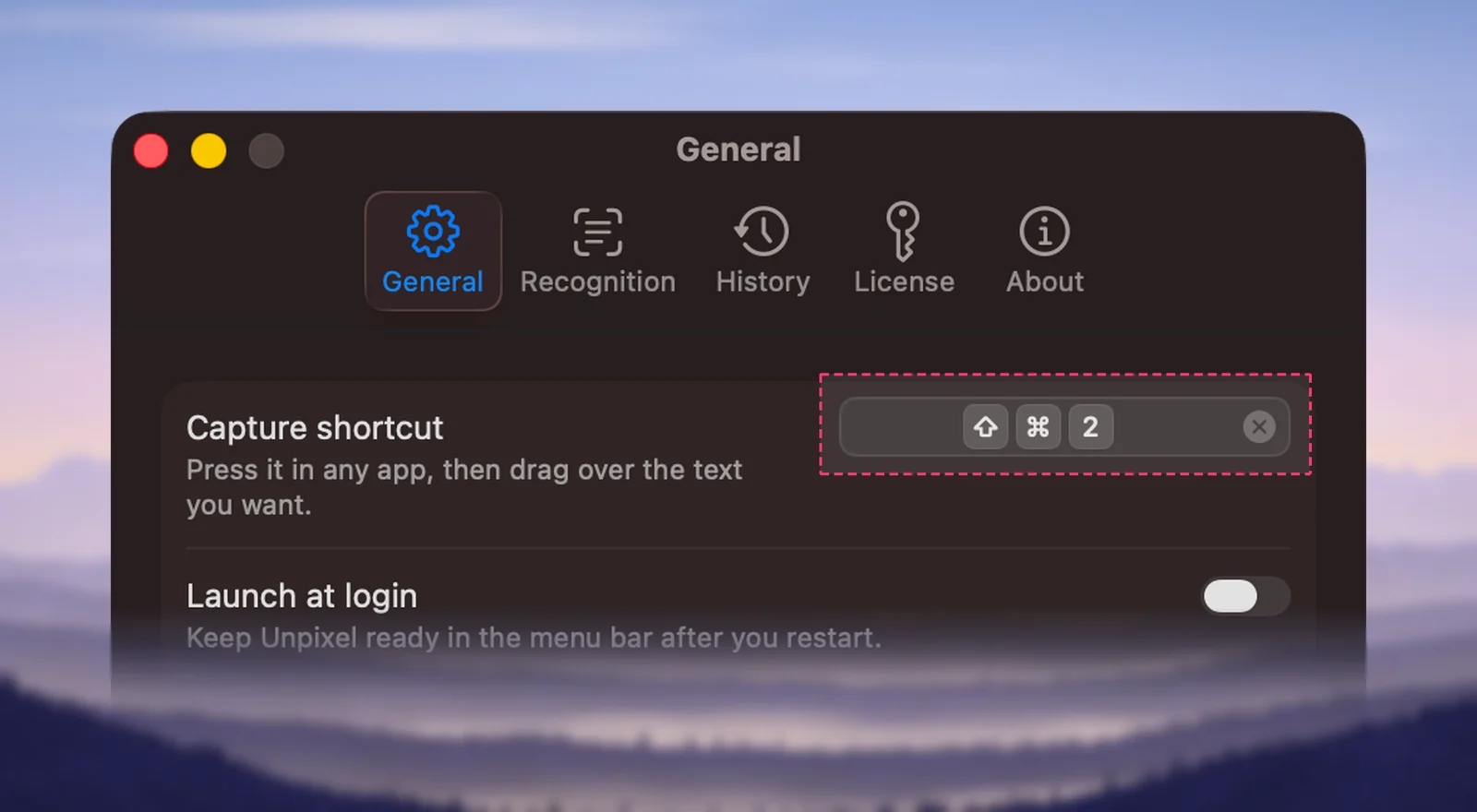
Unpixel puts that whole round trip on one shortcut. Press ⇧⌘2 and drag over the text, exactly as you would for a partial screenshot — Space moves the selection and Esc cancels here too. When you let go, the recognized text is on your clipboard, read on your Mac by Apple’s Vision framework. No file is saved.
It also handles a few things a screenshot can’t. A QR code or barcode comes back as its contents, and a table pastes into Numbers or Excel as real cells. Hold ⌥ as you let go, and you get a translation instead. It can’t read video that macOS protects from capture, for the same reason screenshots of it come out black.
Quick checklist
- Part of the screen, saved as a file: ⇧⌘4, drag, let go.
- Part of the screen, to paste right away: ⌃⇧⌘4.
- One window: ⇧⌘4, then Space, then click (⌥ for no shadow).
- Timer, save location, pointer: ⇧⌘5 → Options.
- The words, not the image: Live Text in Preview, or ⇧⌘2 with Unpixel.
Frequently asked questions
Why aren’t my screenshots showing up on the desktop?
The save location has probably been changed. Press ⇧⌘5, click Options and look at Save to: if Clipboard is ticked, screenshots are copied instead of saved; if another folder is ticked, they go there.
Can I screenshot part of the screen without the keyboard?
Yes. Open the Screenshot app (it’s in the Utilities folder inside Applications, or search for it with Spotlight), click Capture Selected Portion, drag the frame over the area and click Capture.
How do I screenshot an open menu?
Open the menu, press ⇧⌘4 and drag over the menu items you want. Apple’s guide also lists pressing Space after ⇧⌘4 to capture the menu bar with the camera pointer.
Why is part of my screenshot black?
Some apps and streaming services protect their video from screen capture, so it shows up black in screenshots and screen recordings. That’s by design, and no screenshot tool can capture those pixels.
Sources
- Take screenshots or screen recordings on Mac — Apple Support (Mac User Guide) support.apple.com
- Take a screenshot on Mac — Apple Support support.apple.com