Getting a paper document into editable text happens in two stages. First you get a clean image of each page onto your Mac, with your iPhone or a scanner. Then something recognizes the letters in that image. The first stage decides how well the second goes, so a few minutes on good scans saves a lot of proofreading.
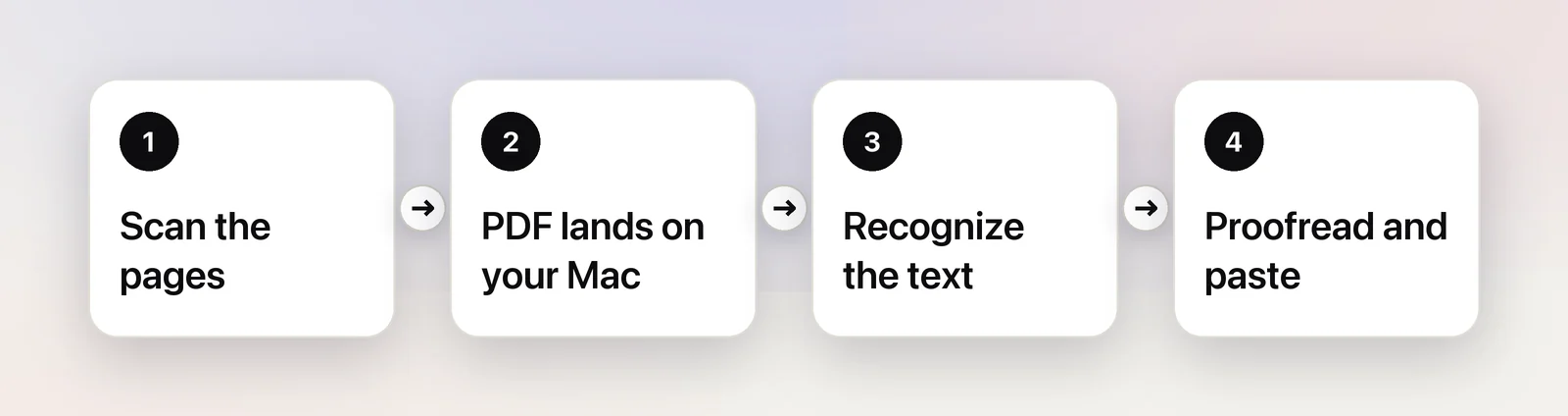
Control-click the desktop, choose Scan Documents from the Import (or Insert) from iPhone or iPad submenu, and scan the pages with your iPhone; a PDF appears on your Mac. With a scanner, open it from Printers & Scanners or Image Capture and save as PDF. Then select the text with Live Text in Preview, or recognize every page at once with OCR. Proofread names and numbers.
Option 1: Scan with your iPhone (Continuity Camera)
If you have an iPhone, you already have a decent document scanner. Continuity Camera lets your Mac ask the phone for a scan and puts the result straight into a folder or a document.
Both devices need to be signed in to the same Apple Account, with Wi-Fi and Bluetooth turned on, and close to each other; Apple says within 10 metres.
- On your Mac, Control-click the desktop or a folder in Finder and choose Scan Documents. Finder lists it under Import from iPhone or iPad; in apps such as Notes, Pages and Mail the submenu is Insert from iPhone or iPad, the name Apple’s current guide uses everywhere.
- The camera opens on your iPhone. Hold it over the first page; it detects the edges and takes the scan by itself.
- Drag the corners if the frame is off, then tap Keep Scan.
- Scan the next pages the same way, then tap Save.
A PDF with all the pages appears where you clicked. To put the scan straight into a note, an email or a document instead, Control-click where it should go and choose Insert from iPhone or iPad → Scan Documents.
For good results, lay the page flat on a darker surface so the edges stand out, use daylight or an even lamp, and avoid your own shadow across the page.
Option 2: A scanner with Image Capture
A flatbed or sheet-feed scanner gives sharper, more even pages than a phone, and a document feeder handles a stack without your help.
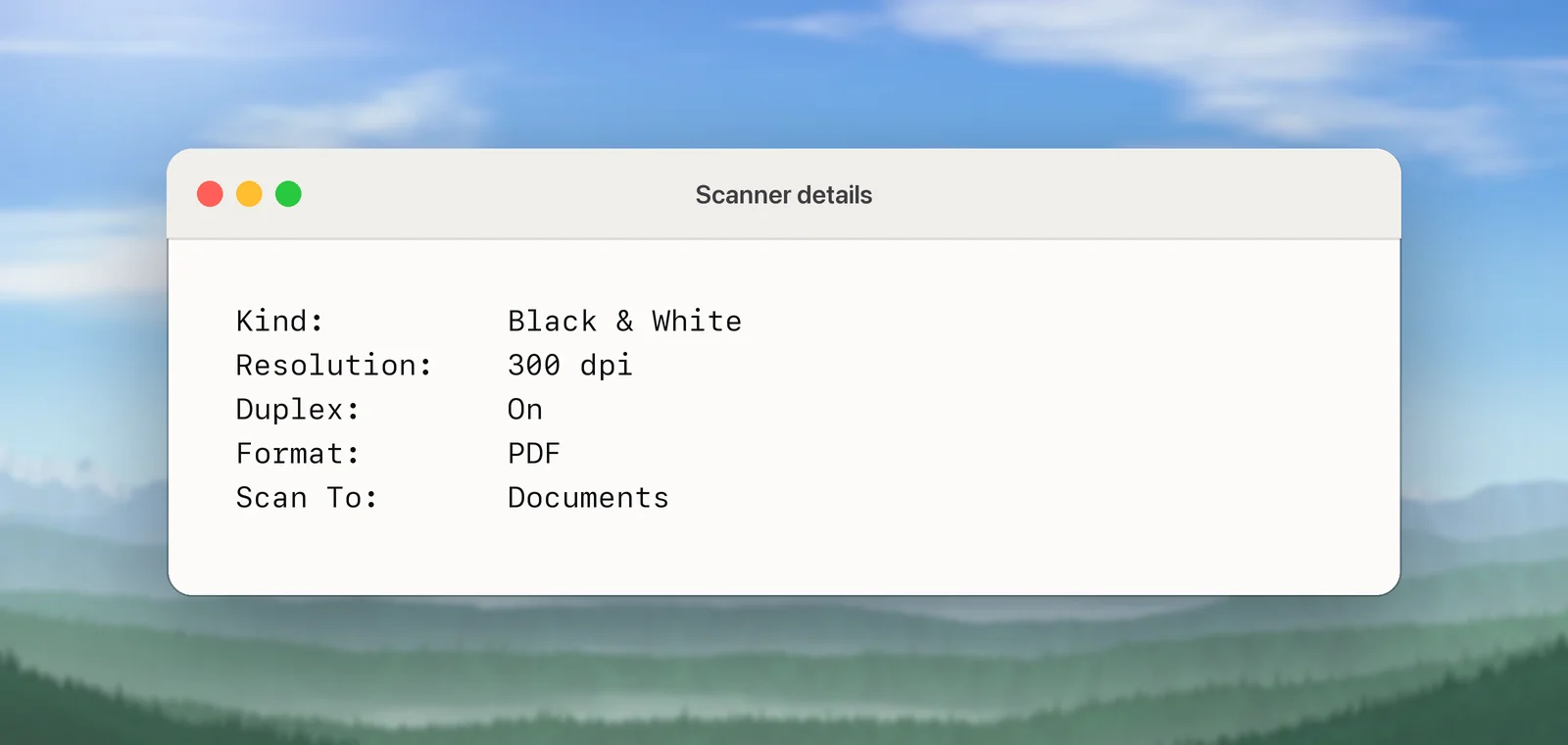
- Connect and turn on the scanner. Open System Settings → Printers & Scanners, select the scanner and click Open Scanner, or open the Image Capture app and select it in the sidebar.
- For a stack of pages, select Use Document Feeder. All pages in one batch use the same settings.
- Click Show Details to see the options.
- Set Format to PDF. Apple’s guide says that with PDF you can also scan the text with OCR to make it editable, and combine several scans into a single file. Turn on both if your scanner window offers them.
- Choose where to save under Scan To, then click Scan.
If you switched on the OCR option, the PDF already contains selectable text, and the next section is mostly done for you.
Scan settings that help text recognition
| Setting | Choose | Why |
|---|---|---|
| Resolution | 300 dpi; 400–600 for tiny print | Letters need enough pixels to be told apart |
| Kind | Black & White (grayscale) | Keeps faint or thin strokes that pure black-and-white Text mode can lose |
| Kind, for colour forms | Color | Coloured stamps and highlighting stay readable |
| Format | PDF for several pages, PNG or TIFF for one | No extra blur from compression |
| Duplex | On, if the pages are printed on both sides | Keeps the back pages in order |
Straight pages matter too. A skewed or curled page makes lines bend, and recognition reads bent lines worse. On a flatbed, push the page against the edge of the glass; for books, press the spine flat.
Turn the scan into text
Open the PDF in Preview. On recent versions of macOS, Live Text works on scanned pages: hold the pointer over the words, and if it turns into a text cursor, drag to select and press ⌘C. That’s ideal for a paragraph or a page.
For the whole document, give the PDF a proper text layer. In Preview, choose File → Export and select Embed Text. Preview recognizes every page and saves a PDF whose text you can select, search and copy in any PDF reader. Apple notes the option only appears when Preview hasn’t found text in the document already. Our guide to copying text from a scanned PDF goes further, including documents longer than 50 pages and a free option in the browser.
In Unpixel
When you want the words rather than a searchable PDF, Unpixel gets them in one step. Click Open Image… in its menu bar panel and choose the scanned PDF, or drag the file onto the panel or the menu bar icon. Up to 50 pages are recognized on your Mac and land on the clipboard as text, ready to paste into Pages, Word or an email.
Turn Keep line breaks off and the lines of each paragraph are joined, with words that were hyphenated across a line break put back together. The text then pastes as paragraphs rather than a column of short lines. A scan that’s mostly a table, like a price list, comes back as cells you can paste into Numbers or Excel. Unpixel doesn’t create a searchable PDF; for that, use Preview’s Embed Text above.
Multi-page scans and faxes
- Keep pages in order. Scan in order, and check Preview’s sidebar before you recognize anything. Drag thumbnails to reorder, and see combining PDFs if a document came in several files.
- Faxes and copies of copies are often low resolution with speckled backgrounds. Recognition will make mistakes on them; if you can, ask for the original file instead.
- Forms with boxes and lines can confuse the reading order. Copy one section at a time.
- Proofread what matters: names, numbers, amounts, dates and anything you’ll act on. Common misreads are 0 and O, 1 and l, and 5 and S.
- Sensitive papers like bank statements, medical letters and IDs are best handled with tools that work on your Mac, so the pages aren’t uploaded anywhere. Delete scans you no longer need.
Frequently asked questions
What resolution should I scan at for text recognition?
300 dpi suits normal printed text. Go higher for very small print, such as footnotes or the back of a receipt. Above that, files get much bigger without making the letters any clearer.
Can I get the text into Word or Pages?
Yes. Once the text is recognized, copy it and paste it into the document. Layout like columns and text boxes won’t be rebuilt, so expect to redo headings and spacing.
Do I need a scanner app?
No. Continuity Camera, Image Capture and Preview are all built into macOS, and the iPhone’s camera handles the scanning itself.
Does text recognition work on handwriting?
Neat handwriting often works. Messy writing, faint pencil and tightly joined cursive usually don’t, so type those parts or check them line by line.
Sources
- Insert photos and scans with Continuity Camera on Mac — Apple Support support.apple.com
- Use your iPhone or iPad to scan documents or take a picture on your Mac — Apple Support support.apple.com
- Scan images or documents using a scanner and your Mac — Apple Support support.apple.com
- Embed text in a PDF in Preview on Mac — Apple Support support.apple.com
- Interact with text in a photo in Preview on Mac — Apple Support support.apple.com