After trying different options, it can be hard to tell which setting causes a result you don’t expect. A reset puts every preference back to how Unpixel ships, in one step, and leaves your captures alone.
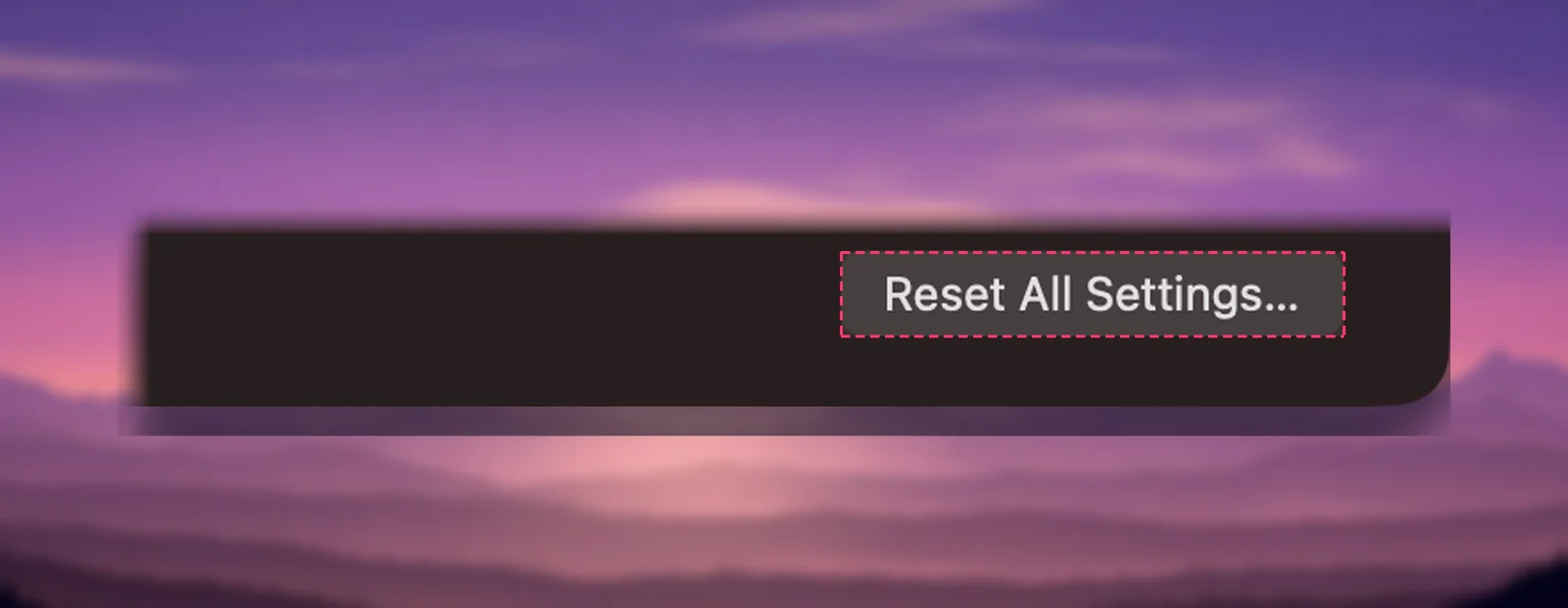
Open Settings → General, click Reset All Settings… at the bottom and confirm with Reset. The capture shortcut and every preference return to their defaults, and the translation language follows your Mac’s language again. Your capture history, how many captures are kept, your license and macOS permissions don’t change.
When a reset helps
- Lines come out joined, or tables paste as Markdown, and you don’t remember changing anything.
- Recognition misses text because a fixed language or Fast mode is still set from an earlier job.
- Captures translate when you don’t expect them to.
- You changed the capture shortcuts and want ⇧⌘2 and ⇧⌘1 back. For one shortcut alone, the curved arrow in its field is quicker: see Change or clear the capture shortcut.
Reset all settings
- Right-click the Unpixel icon in the menu bar and choose Settings….
- Click General and scroll to the bottom.
- Click Reset All Settings….
- The alert “Reset all settings?” explains what changes. Click Reset.
The new settings apply right away; there’s nothing to restart.
The defaults you get back
| Setting | Default |
|---|---|
| Capture shortcut | ⇧⌘2 |
| Capture Again shortcut | ⇧⌘1 |
| Separator when adding | New line |
| Show confirmation after capture | On |
| Play sound | Off |
| Automatically check for updates | On |
| Recognition mode | Accurate |
| Detect language automatically | On |
| Language correction | On |
| Keep line breaks | On |
| Detect tables | On, with Tables as plain text set to Tab-separated |
| Detect QR codes & barcodes | On |
| Open QR links automatically | Off |
| Always translate text that isn’t in your language | Off |
| Copy original and translation | Off |
| Save capture history | On |
If you had turned history off, the reset turns Save capture history back on. Nothing already saved is touched, but new captures are saved again, so switch it off in Settings → History if that’s what you want.
Your translation language
Translate into in Settings → Translation goes back to following your Mac’s preferred languages, set in System Settings → General → Language & Region. If you change them there, the target follows, until you pick a language in Unpixel yourself.
Languages that macOS downloaded for translation stay on your Mac.
What isn’t reset
- Your capture history, and the Keep limit for how many captures are saved. A reset never deletes captures.
- Your license. The Mac stays activated.
- Screen Recording permission, which belongs to macOS and is managed in System Settings → Privacy & Security.
- Launch at login, which macOS manages in System Settings → General → Login Items & Extensions. Change it with the switch in Settings → General.
- The welcome guide doesn’t reappear on its own after a reset.
To clear history as well, use Clear History… in Settings → History. History settings explains it.
Show the welcome guide again
The welcome guide is useful after a reset, or for walking someone else through setup. Open it in any of these ways:
- Right-click the menu bar icon and choose Show Welcome….
- Click … at the top of the menu bar panel and choose Show Welcome….
- Click Show Welcome Guide in Settings → About.
- Open
unpixel://onboardingfrom Terminal or a launcher.
Showing the guide doesn’t change any setting. On a Mac that’s already activated, its license page shows Activated on this Mac, so you can click through.
For a completely fresh start, including the stored preferences file, follow the settings step in Uninstall Unpixel completely while Unpixel is quit, then open it again.
Frequently asked questions
Can I undo a reset?
No. Note any settings you want to keep before you reset, such as a custom shortcut or a fixed recognition language, and set them again afterwards.
Does resetting fix a shortcut that does nothing?
Only if the shortcut had been changed or cleared. If another app owns ⇧⌘2, the field shows an orange warning after the reset too, and you’ll need to pick a different combination.