Unpixel keeps a list of your captures in the menu bar panel so you can search them and copy one again later. The History settings decide how long that list gets, whether new captures are saved at all, and how to wipe it. The whole list lives in one file on your Mac and is never uploaded or synced.
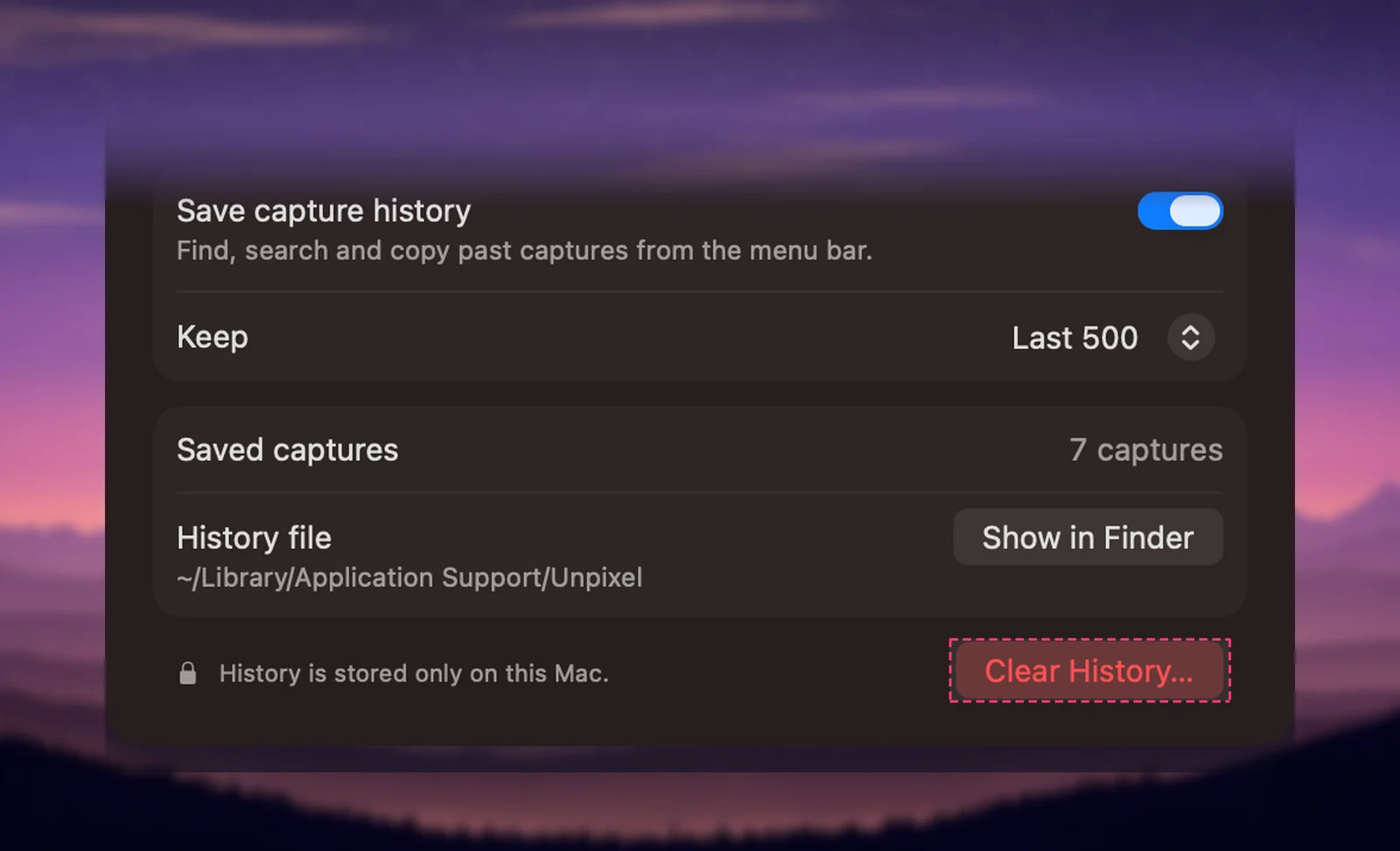
Open Unpixel’s Settings → History. Keep sets how many captures stay, from Last 100 to Last 5,000 or Forever (500 out of the box). Turn off Save capture history to stop saving new captures. Clear History… deletes every saved capture from this Mac after you confirm, and it can’t be undone.
Open the History settings
- Right-click the Unpixel icon in the menu bar and choose Settings….
- Click History in the toolbar.
You can also jump straight there with the link unpixel://settings/history, from Terminal or a launcher.
Turn history on or off
Save capture history is on out of the box. Its description says what it’s for: “Find, search and copy past captures from the menu bar.”
When you turn it off:
- Every capture is still copied to the clipboard as usual. It just isn’t added to the list.
- Captures you saved earlier stay put. The panel shows “History is off. New captures aren’t saved.” above them, with a Turn On… link.
- If the list is empty, the panel says History is off and offers Turn On in Settings….
- The Keep menu is dimmed until you turn saving back on.
Choose how many captures to keep
The Keep menu has five choices: Last 100, Last 500, Last 1,000, Last 5,000 and Forever. Last 500 is the default. Once the list is full, the oldest capture drops off each time a new one arrives. Forever never trims anything.
Picking a smaller number than you already have asks first. For example, “Keep only the last 100 captures?” followed by how many of the oldest captures would go. Click Delete Older Captures to go ahead, or Cancel to keep the old limit. Raising the limit never deletes anything.
The Saved captures row shows how many are stored right now. If you capture exactly the same text twice in a row, Unpixel keeps a single entry and updates its time and source app instead of listing it twice.
Clear history
There are two buttons that do the same thing:
- Settings → History → Clear History…, at the bottom right.
- Clear History in the footer of the menu bar panel.
Both ask “Clear capture history?” and say how many captures will be deleted. Click Clear History to confirm. The captures are deleted from the disk, not moved to the Trash, so there’s no undo. The button is dimmed when there’s nothing to delete.
Clearing doesn’t touch the clipboard: whatever you copied last is still there until you copy something else. To remove just one capture, see History row actions.
Where the history file is
The History file row shows the folder, ~/Library/Application Support/Unpixel. Click Show in Finder to open it with history.json selected.
- It’s a plain JSON file: the text of each capture plus details such as the app it came from and when.
- The Library folder is hidden in Finder. To go there by hand, choose Go → Go to Folder… (⇧⌘G) in Finder and paste the path.
- Quit Unpixel before you move, copy or edit the file. While it runs, Unpixel writes the file each time the list changes.
If the file ever gets damaged and can’t be read, Unpixel doesn’t delete it. It moves it aside as a backup and starts a fresh list, and Saved captures adds “Plus a backup of an earlier history file that couldn’t be read.” Clear History… deletes that backup too.
History stays on your Mac
History is never uploaded, there’s no account behind it, and it doesn’t sync between your Macs. Two things to keep in mind:
- Backups: Time Machine and other backup tools copy this folder along with the rest of your home folder. Clearing history in Unpixel doesn’t remove copies already in older backups.
- Uninstalling: dragging Unpixel to the Trash leaves the history folder behind. Uninstall Unpixel completely lists what to delete.
Frequently asked questions
Does turning history off delete what’s already there?
No. Captures you saved earlier stay in the panel until you clear them or delete them one at a time. Only new captures stop being added.
Can I delete a single capture instead of everything?
Yes. In the menu bar panel, select the row and press ⌘⌫, or right-click it and choose Delete.
Does Reset All Settings clear my history?
No. It never deletes captures or changes how many are kept. It does switch Save capture history back on if you had turned it off.