
Most captures are one quick drag. When text is small, packed tightly or surrounded by things you don’t want in the result, a few controls help you draw exactly the right rectangle.
Drag from one corner of the text to the opposite one; the label beside the selection shows its size in points. Hold Space while dragging to move the whole rectangle, then release Space to resize again. Press Esc or right-click to cancel. A selection stays on the display where you started it, and Unpixel’s own overlay is never part of the capture.
The crosshair and the size label
After you press ⇧⌘2, every display dims slightly and the pointer becomes a crosshair. Before you start dragging, faint guide lines follow the pointer, which helps you line up an edge with a row of text.
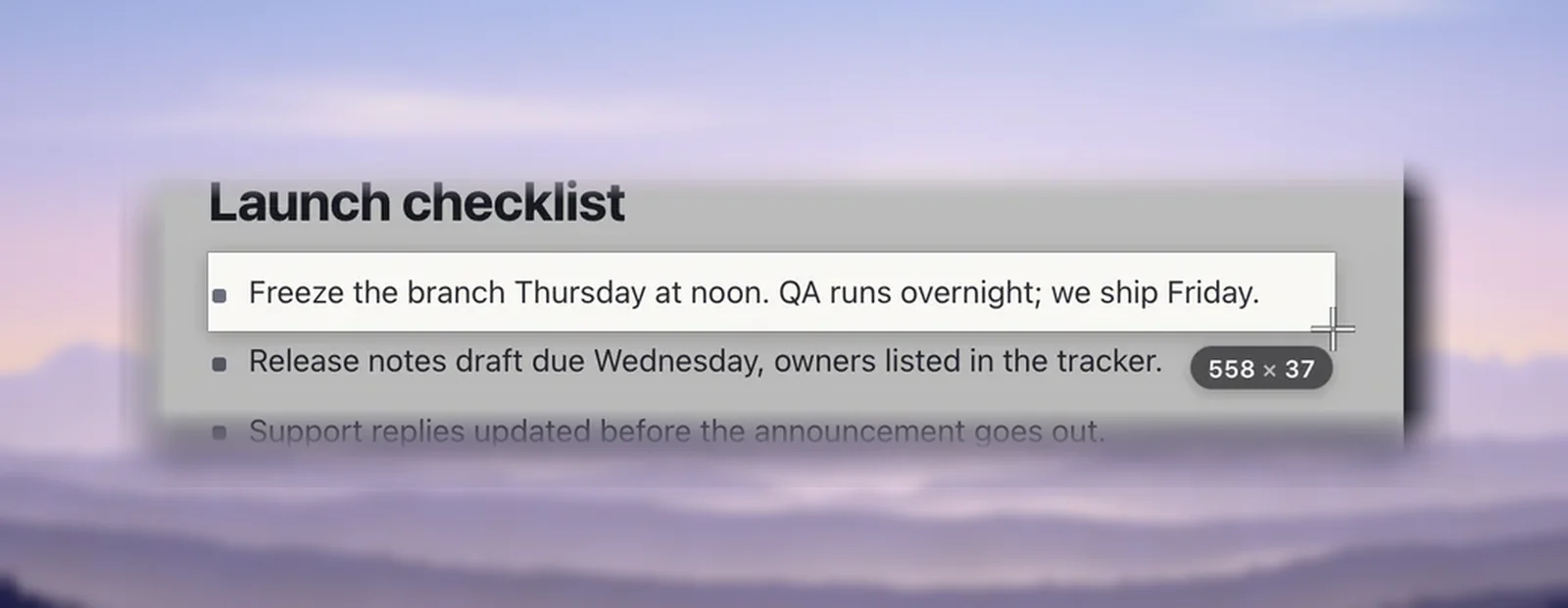
While you drag, the selected area stays bright with a thin white border, and a small glass label next to it shows the size, such as “188 × 40”. Those numbers are points, the units macOS uses for layout. On a Retina display one point is two pixels wide and two tall, and Unpixel reads the area at the display’s full resolution, so small text keeps its detail.
If you hold ⌥, the label adds “· Translate”: letting go then copies a translation. See Translate text while you capture. If you hold ⇧, it adds “· Add”, and the text goes after what’s already on the clipboard; see Collecting passages on the clipboard. Hold both and the label reads like “430 × 44 · Translate · Add”. Only the keys you hold at the moment you let go count.
Move the selection with Space
- Start dragging as usual.
- Without letting go of the mouse button or trackpad, hold Space. The rectangle keeps its size and follows the pointer.
- Release Space to go back to resizing from where the pointer is.
- Let go of the mouse button to capture.
Space only works once a drag has started; pressing it before that does nothing. The selection can’t be pushed past the edge of the display. This works the same way as in the macOS screenshot tool, where Apple’s guide describes holding Space to move a selection.

Cancel
Any of these ends the capture without copying anything:
- Esc, or ⌘. (Command-period)
- A right-click
- A click, or a drag smaller than 4 points in either direction
- Switching to another app with ⌘Tab or Mission Control, or the display going to sleep
Cancelling is silent: no message, no sound, and your clipboard stays as it was. Pressing the shortcut again while the crosshair is up does nothing, so a double press won’t start two captures.
Multiple displays
The crosshair appears on every connected display. Start the drag on the display that shows the text: the selection stays on that display, and dragging past its edge stops at the edge. For text that crosses from one display to another, move the window onto one display first, or capture each half separately.
Each display is read at its own resolution, so a Retina laptop next to a standard external monitor is fine. The confirmation appears at the top of the display you captured on.
What’s captured and what isn’t
- Included: whatever is visible inside the rectangle when you let go, from any app: a browser, a PDF reader, a paused video, a video call, a game.
- Left out: Unpixel’s own capture overlay (the dimming, the border and the size label), its confirmation bubble and its menu bar panel. They never end up in the text.
- Included as you see them: Unpixel’s Settings and its welcome guide, if they happen to be under your selection.
- Codes first: if the selection contains a QR code or barcode, Unpixel copies what the code contains instead of the text around it. Leave the code out of the rectangle when you want the words, or turn off Detect QR codes & barcodes in Settings → Recognition.
- Protected video: streaming services that block screen capture show up black, so there’s no text to read.
Tips for clean results
- Leave a small margin around the text, and don’t slice through letters.
- Select only what you need. Nearby buttons, icons and labels end up in the text too.
- Zoom in on tiny text first, with ⌘+ in a browser or by enlarging the window. Bigger letters read better.
- For a table, include the header row and every column you want, so it pastes as a complete table.
Frequently asked questions
Can I adjust the selection after I let go?
No. Letting go captures right away, like the macOS screenshot tool. If the result is wrong, press the shortcut again and redraw; the new capture replaces the old one on the clipboard.
Can I select a window with one click instead of dragging?
No. A click without a drag cancels the capture. Drag a rectangle around the part of the window you need.
Sources
- Take a screenshot on Mac — Apple Support support.apple.com