A capture is three moves: press the shortcut, drag over what you want, let go. Unpixel reads the text inside that rectangle on your Mac and puts it on the clipboard. If you’ve finished setting up, here’s your first one.
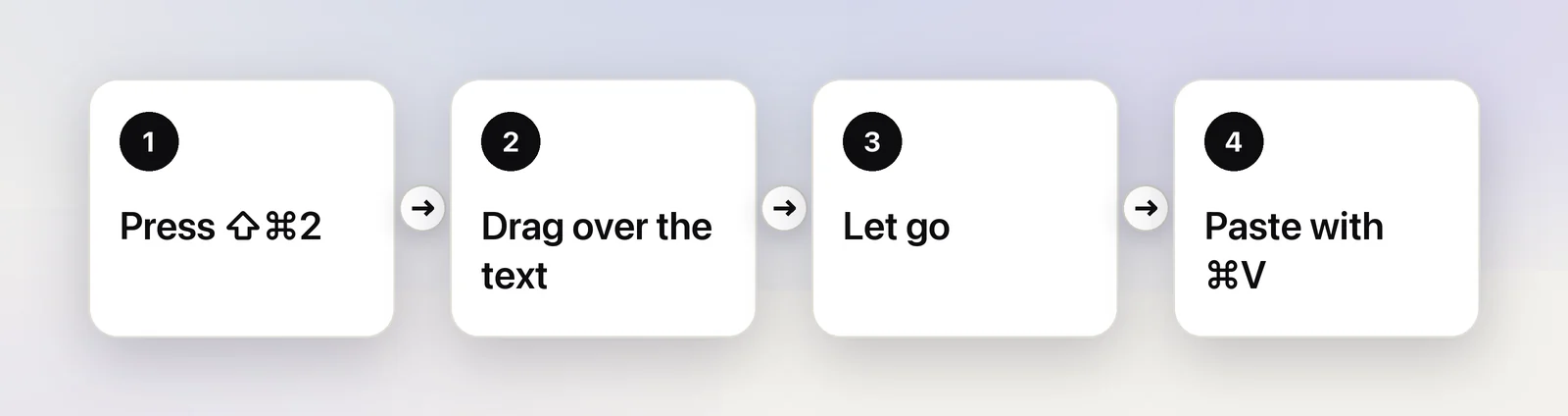
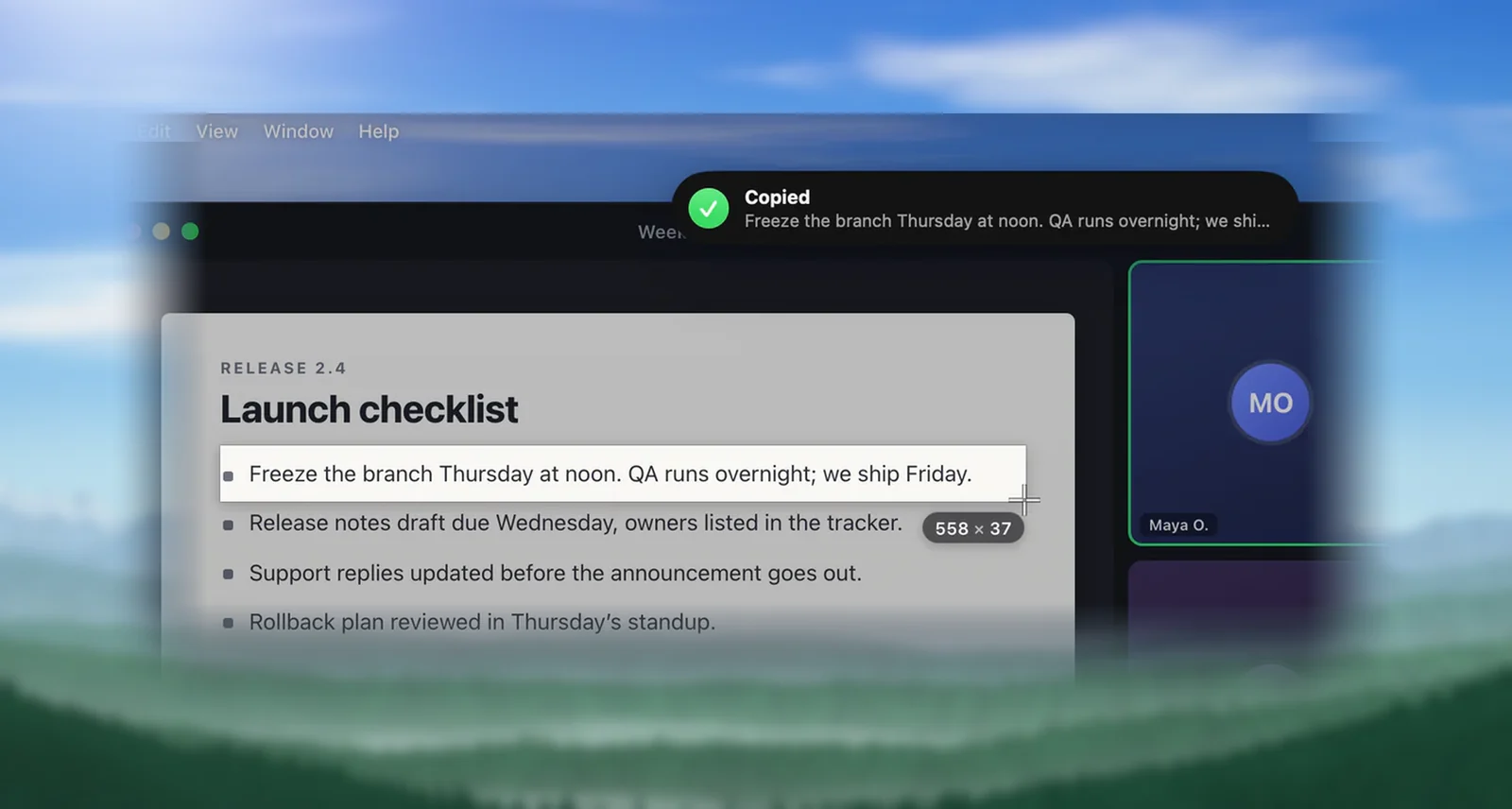
Press ⇧⌘2: the screen dims slightly and the pointer becomes a crosshair. Drag a rectangle over the text you want and let go. A “Copied” confirmation appears near the top of the screen with a preview, and the text is on your clipboard, so press ⌘V to paste it. To cancel before you let go, press Esc or right-click.
Press the shortcut
- Open something with text on screen: a web page, a PDF, a paused video, a photo, an error dialog.
- Press ⇧⌘2. Every display dims slightly and the pointer turns into a crosshair.
No shortcut set, or prefer the mouse? Click the Unpixel icon in the menu bar and choose Copy Text at the top of the panel.
If a Screen Recording needed message appears instead of the crosshair, see Allow Screen Recording for Unpixel. If nothing happens at all, the shortcut may be taken by another app: see Change or clear the capture shortcut.
Drag over the text
- Move the crosshair to one corner of the text, press and hold, and drag to the opposite corner.
- The area you’re selecting stays bright, with a thin white border, and a small label next to it shows its size, such as “188 × 40”.
Take whole words and leave a little room around them. A rectangle that cuts through a line of letters can drop or garble the characters on its edge.
Let go and paste
- Let go. A moment later a confirmation appears near the top of the screen: Copied, with the first words of the text.
- Click where you want the text, such as a note, an email or a search field, and press ⌘V.
The confirmation fades after about two seconds and never takes the focus away from the app you’re in, so you can keep typing.
Cancel or adjust
- Cancel: press Esc or right-click before you let go. Nothing is copied, and your clipboard stays as it was.
- Clicked by mistake? A click or a drag smaller than 4 points counts as a cancel too.
- Move the selection: hold Space while dragging to move the whole rectangle, then let go of Space to keep resizing.
- Translate instead: hold ⌥ as you let go to copy a translation. See Translate text while you capture.
Selecting an area covers the size label, multiple displays and what’s left out of a capture.
What lands on the clipboard
Unpixel looks at what you selected and copies the most useful form of it:
| You selected | Your clipboard gets | The confirmation says |
|---|---|---|
| Ordinary text | The text, as plain text | Copied |
| A single web address, like example.com/pricing | The address, also as a link | Link copied |
| A QR code or a barcode | What the code contains | QR code copied or Barcode copied |
| A table | Cells that paste into Numbers, Excel, Google Sheets and Notes | Table copied |
| Nothing readable | Nothing new; your clipboard is left alone | No text found |
By default, each line on screen stays a line in the copied text. To join the lines of a paragraph into one, turn off Keep line breaks in Settings → Recognition; Keep or join line breaks shows the difference.
Unless you’ve turned history off, each capture is also saved in your history. Click the menu bar icon to see it, and click any capture to copy it again.
Frequently asked questions
Where did my capture go if I didn’t paste it right away?
It’s still on the clipboard until you copy something else, and it’s saved in your capture history. Click the Unpixel icon in the menu bar and click the capture to copy it again.
Does Unpixel save a screenshot of what I selected?
No. The image of your selection is used to read the text and then discarded. Only the recognized text is kept, on the clipboard and in your local history.