Unpixel’s main job needs one shortcut, and a second one reads the same area again. A few more keys make it faster: some while you draw a selection, some in the menu bar panel. Here’s the full list. Key names follow Apple’s symbols: ⇧ Shift, ⌘ Command, ⌥ Option, ⌫ Delete.
Press ⇧⌘2 to start a capture and ⇧⌘1 to read the area of your last selection again. While dragging, hold Space to move the selection. As you let go, hold ⌥ to copy a translation or ⇧ to add to the clipboard; Esc cancels. In the menu bar panel, ⌘F searches, the arrow keys move through history and Return copies.
Capturing
| Keys | What it does |
|---|---|
| ⇧⌘2 | Start a capture from any app: the crosshair appears |
| ⇧⌘1 | Capture Again: read the area of your last selection again, without dragging |
| ⌥⇧⌘1 | Capture Again and copy a translation |
| Your own combinations | The same, if you changed either shortcut |
Copy Text and Capture Again in the menu bar icon’s right-click menu show their current shortcuts. Copy & Translate Text, Copy & Add Text, From Clipboard and Open Image… have no shortcut of their own. To give them one, use the URL scheme from a launcher, as the FAQ below explains. The Capture Text with Unpixel service can also get a key in System Settings; see Services.
While selecting
| Keys | What it does |
|---|---|
| Drag | Draw the selection; letting go copies the text |
| Hold Space while dragging | Move the whole selection instead of resizing it |
| Hold ⌥ as you let go | Copy a translation instead of the original; the size label adds “Translate” |
| Hold ⇧ as you let go | Add the text after what’s on the clipboard instead of replacing it; the label adds “Add” |
| Hold ⌥⇧ as you let go | Add a translation to the clipboard |
| Esc or ⌘. | Cancel without copying anything |
| Right-click | Cancel |
Only the keys held at the moment you let go count, so you can press ⌥ or ⇧ at the last second. Cancelling leaves your clipboard as it was. Selecting an area explains the size label and multiple displays, and Collecting passages on the clipboard covers collecting passages.
In the menu bar panel
Click the Unpixel icon to open the panel. It takes keyboard focus as it opens.
| Keys | What it does |
|---|---|
| ⌘F | Jump to the search field |
| ↑ / ↓ | Move the highlight through your history |
| Return | Copy the highlighted capture again |
| ⌘⌫ | Delete the highlighted capture |
| Esc | Clear the search; press again to close the panel |
While the search field holds text, ⌘⌫ edits that text instead of deleting a capture. To delete a search result, right-click its row and choose Delete.
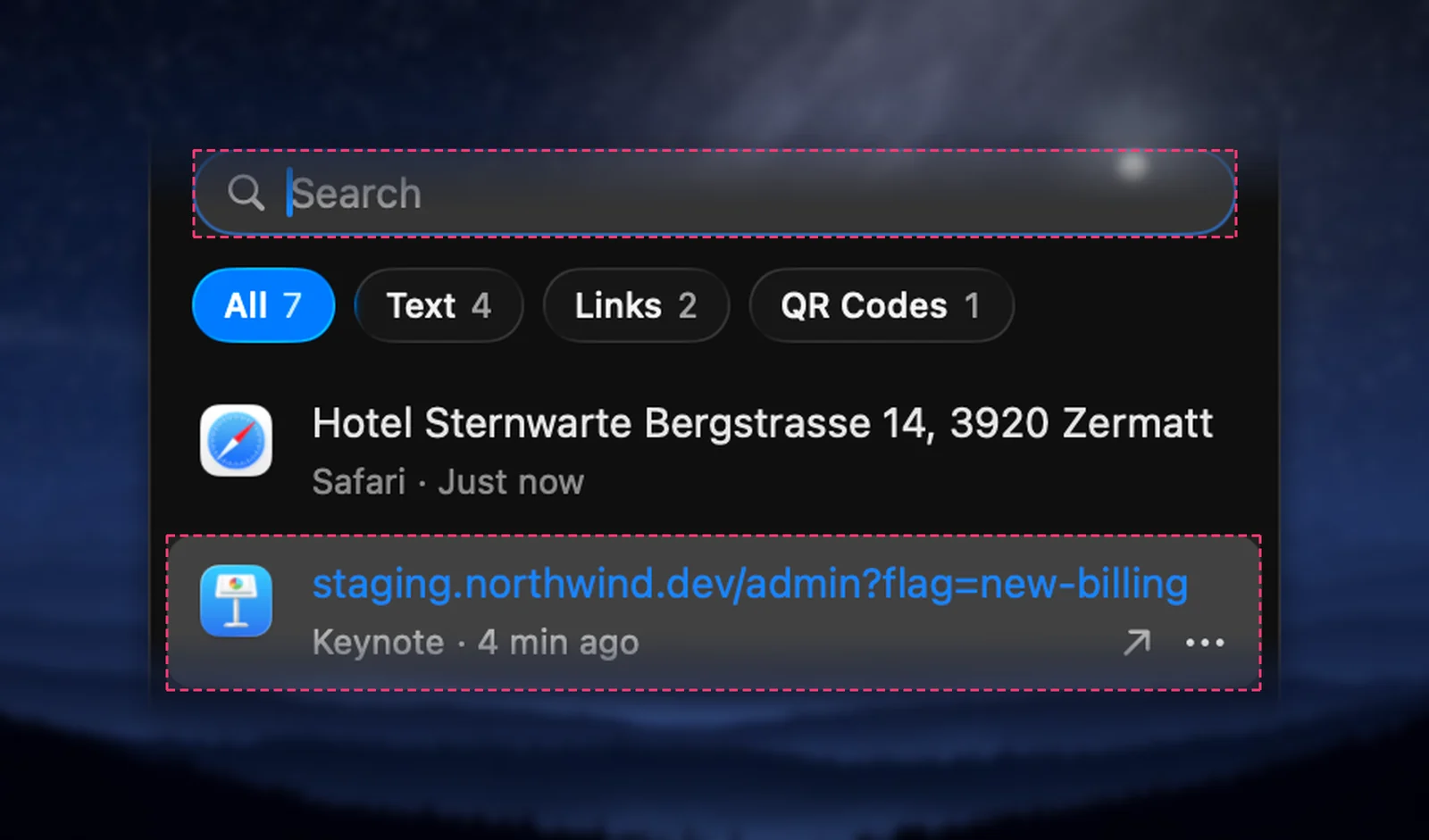
To open the panel without the mouse, give unpixel://history a hotkey in a launcher. The menu bar panel article covers everything else in it.
Menus and windows
| Keys | What it does |
|---|---|
| ⌘, | Settings… (shown in the right-click menu and the panel’s … menu) |
| ⌘Q | Quit Unpixel |
| ⌘W | Close the Settings window or the welcome guide |
| Return | Press the highlighted button, such as Activate in the welcome guide |
Unpixel is a menu bar app, so ⌘Q while its Settings window is in front quits the whole app, not just the window. Use ⌘W to close only the window. Standard editing keys (⌘C, ⌘V, ⌘A) work in its text fields, so you can paste a license key with ⌘V.
Change the shortcuts
Open Settings → General, click the Capture shortcut field and press the new combination. It needs ⌘, ⌥ or ⌃, or a function key on its own. While the field is recording, Esc keeps the old shortcut and Delete clears it. Change or clear the capture shortcut explains conflict warnings and the reset button.
The Capture Again shortcut sits right below it, as Capture Again shortcut, with its own field, reset button and ✕. Read the same area again has the details.
Frequently asked questions
Can I give From Clipboard or Copy & Translate Text their own shortcut?
Not inside Unpixel. Assign unpixel://clipboard, unpixel://capture?translate=1 or unpixel://capture?append=1 to a hotkey in Raycast or Alfred, or build a shortcut in the Shortcuts app that opens the link and give that shortcut a keyboard shortcut.
Why doesn’t ⇧⌘2 clash with the macOS screenshot shortcuts?
macOS uses ⇧⌘3, ⇧⌘4 and ⇧⌘5 for screenshots, but not ⇧⌘2 or ⇧⌘1 by default. If you’ve given either to something else, Unpixel’s shortcut field shows an orange warning.
An app I use needs ⇧⌘1. What can I do?
While Capture Again uses ⇧⌘1, the combination doesn’t reach other apps. Record different keys for it in Settings → General, or clear it and use the Capture Again menu item instead.
Sources
- Mac keyboard shortcuts — Apple Support support.apple.com