
Reading a menu, an error message or a slide in a language you don’t know usually takes two tools: one to get the text out, another to translate it. Unpixel does both in the same drag, on your Mac, so what you paste is already in your language. It’s on-device screen translation for the moments when the text can’t be selected at all.
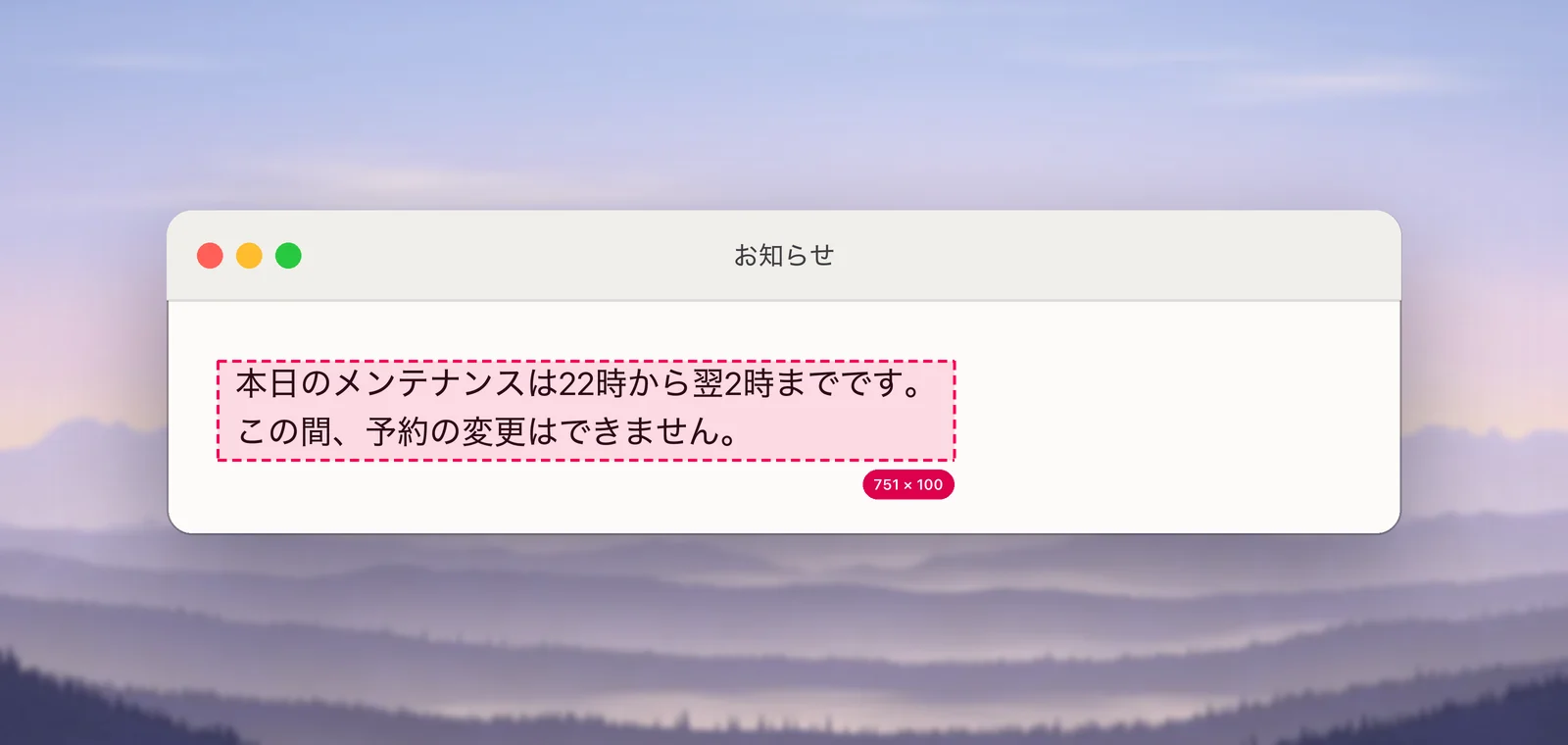
Drag over foreign-language text with ⇧⌘2 and hold ⌥ (Option) as you let go. Unpixel recognizes the text, translates it with Apple’s on-device Translation framework and puts it on your clipboard in your language. The confirmation reads like “Translated · Japanese → English”. macOS asks before it downloads a language. Tables are translated cell by cell, and numbers stay as they are.
Hold ⌥ and let go
- Press ⇧⌘2 and drag over the text.
- Before you let go, hold ⌥. The size label next to the selection adds “Translate”.
- Let go. The confirmation names the languages, such as “Translated · Japanese → English”, and previews the result.
- Paste with ⌘V.
Rather not hold a key? Right-click the Unpixel icon in the menu bar and choose Copy & Translate Text, then drag. Launchers can start the same thing by opening unpixel://capture?translate=1, so a Raycast, Alfred or Shortcuts action can be your translate key.

Only text is translated. A captured link or the contents of a QR code are copied exactly as they are. Text that’s already in your language is copied as it is too.
On-device translation
Unpixel uses Apple’s Translation framework, and the language of each capture is detected on your Mac as well. The text you capture isn’t sent to a translation service. That isn’t a given with every built-in route. Apple’s macOS Tahoe guide says that to keep translations on your Mac while you’re online, you turn on On-Device Mode in Translation Languages. It also notes that Siri and Safari always process translations online.
The first time you translate from a language, macOS asks before it downloads it. That question comes from macOS itself; Unpixel shows a small “Preparing Japanese → English…” panel while it waits, and Cancel copies the original text instead. To see or change what’s downloaded, open Settings → Translation and click Manage Languages…, which takes you to System Settings → General → Language & Region → Translation Languages.
If a pair of languages isn’t supported, or the language can’t be detected because the text is too short, you get the original and the confirmation says why.
Keep the original too
Translations are for reading, and sometimes you need the source next to them: to quote it, to check a term, or to send both to a colleague. Turn on Copy original and translation in Settings → Translation, and the clipboard gets the original, a blank line, then the translation.
Even with that setting off, nothing is lost. History keeps the original of every translated capture; right-click the row and choose Copy Original. Translated rows carry a small translate symbol and the source language, such as “Japanese · Safari”.
Tables stay tables
Translating a table doesn’t flatten it. Each cell with letters in it is translated on its own and put back in the same place, so the result still pastes as cells in Numbers, Excel, Google Sheets and Notes. Cells without letters, such as numbers, prices, dates and dashes, are never sent to the translator and stay exactly as they were. Repeated cells are translated once, so “Yes” in fifty rows comes out the same in all of them.
With Copy original and translation on, you get the original table, an empty row, then the translated table. Translate a table in an image and keep the cells shows the workflow end to end.
Translate older captures
Captured something an hour ago and only now need it in English? Open the menu bar panel, right-click the capture in your history and choose Translate & Copy. The row turns into the translated capture, and the original stays one click away under Copy Original. The command is hidden for captures that are already in your language, or too short to tell.
Translate without holding a key
If most of what you capture is in another language, turn on Always translate text that isn’t in your language in Settings → Translation. It’s off by default, and it only steps in when the case is clear:
- the language is detected with confidence,
- there are enough words to be sure,
- the language is already downloaded,
- and the text doesn’t look like code.
Short snippets such as “Menu” and commands such as npm install are copied as recognized. This setting also covers images you read with From Clipboard and files you open. If a language isn’t downloaded yet, you get the original with a note on how to translate it.
Machine translation is a reading aid, not a certified translation. For contracts, medical instructions or anything with legal weight, check with a person who knows the language. Translate text while you capture lists every setting.
Frequently asked questions
Is my text sent to a translation service?
No. Language detection and translation both run on your Mac. The only download is the language itself, and macOS asks before that happens.
Can it translate a link or a QR code?
No. Only text captures are translated. Links and code contents are copied exactly as they are, because a translated address or Wi-Fi password would be useless.
What if the text is already in my language?
You get the text as captured, and the confirmation says so, for example “Already in English”.
Sources
- Translate text on Mac (macOS Tahoe 26) — Apple Support support.apple.com
- Translation — Apple Developer Documentation developer.apple.com