Unpixel’s main command already has a keyboard shortcut, ⇧⌘2. Its links let you start the same things from the tools you already drive your Mac with: a launcher, a shortcut, a script or a button on your desk. In the Shortcuts app, they can also hand the recognized text back, so a capture becomes the first step of a bigger job. Each capture link starts something you finish by hand, so automation never reads your screen on its own.
Anything on your Mac that can open a link can start an Unpixel capture: save unpixel://capture as a Raycast Quicklink, an Alfred workflow or a Terminal command. In the Shortcuts app, Open X-Callback URL with unpixel://x-callback-url/capture waits for your selection and hands the text to the next action. In Finder, Services → Copy Text with Unpixel reads selected images and PDFs.
What macOS automates without an app
The Shortcuts app can already turn pixels into text. A shortcut with Take Screenshot (set to Interactive), then Extract Text from Image, then Copy to Clipboard gives you a basic drag-and-copy for free. The same text action runs on image files from a Finder Quick Action, and Terminal’s screencapture -i lets you pick an area for a script. Our guides to extracting text with Shortcuts and OCR from the command line walk through both.
What those routes don’t give you is the rest of the capture: QR codes, tables that paste as cells, joined paragraphs, translation and a searchable history. That’s what Unpixel’s links hand to your launcher or your shortcut.
The commands
| Link | What it does |
|---|---|
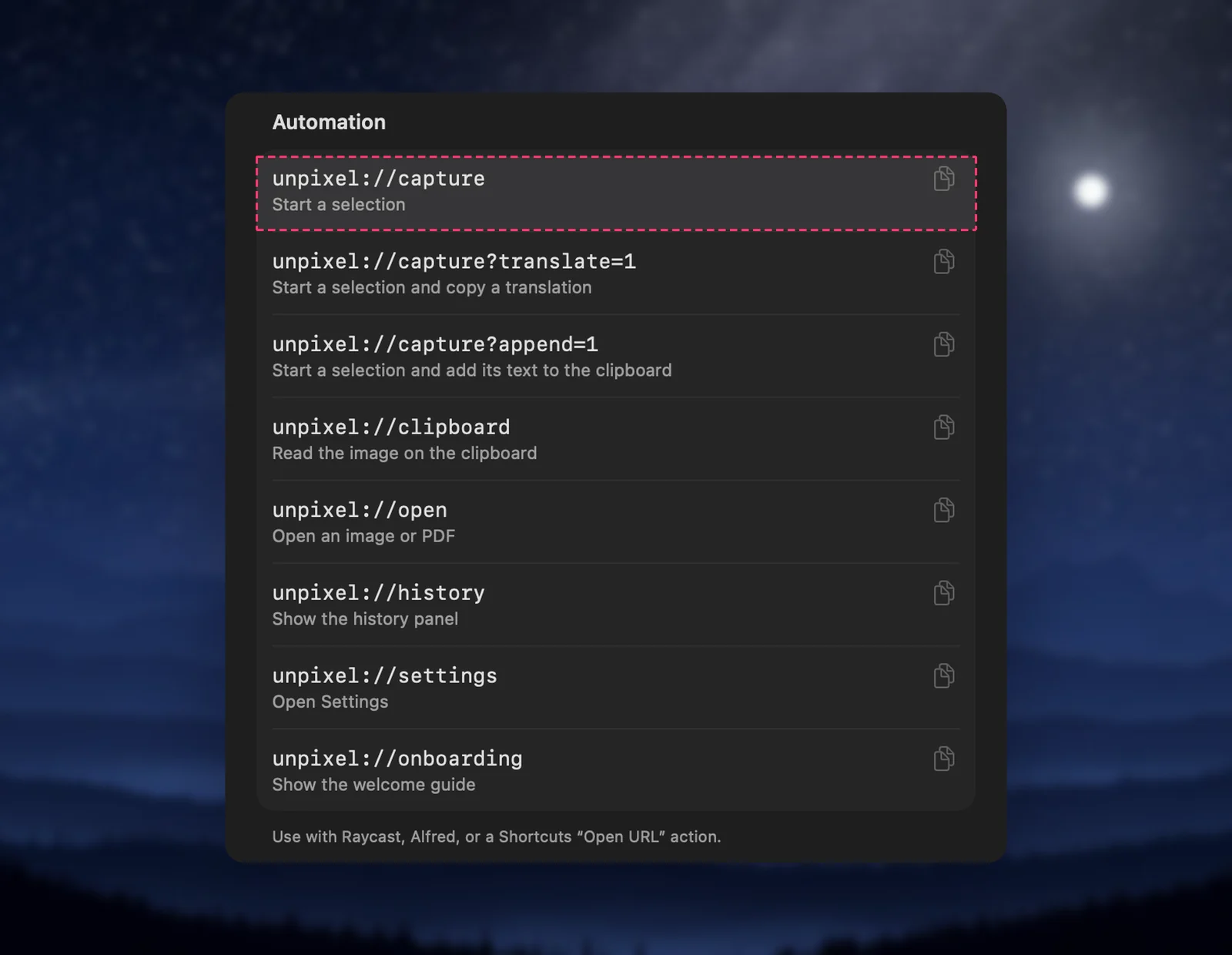
unpixel://capture |
Starts a selection, the same as ⇧⌘2 |
unpixel://capture?translate=1 |
Starts a selection that copies a translation into your language |
unpixel://capture?append=1 |
Starts a selection whose text is added to the clipboard instead of replacing it |
unpixel://clipboard |
Reads the text in an image you already copied |
unpixel://open |
Shows the Open dialog for images and PDFs |
unpixel://history |
Opens the menu bar panel with your history |
unpixel://settings |
Opens Settings; add /recognition, /translation, /history, /license, /about or /general for a tab |
unpixel://onboarding |
Shows the welcome guide again |
unpixel://x-callback-url/capture |
A selection whose text goes back to the app that asked, such as Shortcuts |
unpixel://x-callback-url/clipboard |
The same for the image on the clipboard |
unpixel://x-callback-url/file?path=… |
The same for an image or PDF at a full path |
A few behaviours are worth knowing before you wire them up:
- If Unpixel isn’t running, opening a link launches it, and the command runs once the app is ready.
- Capture links wait a moment before the crosshair appears, so a launcher window has time to close first.
- A misspelled or unknown link changes nothing; you only hear the system alert sound.
- Every capture needs an activated license, whichever way you start it.
Raycast and Alfred
Raycast calls saved links Quicklinks, and its manual says they can open app deeplinks as well as websites:
- Open Raycast and run Create Quicklink.
- Give it a name you’ll type, such as “Copy text from screen”, and enter
unpixel://captureas the link. - Save it, then assign an alias or a hotkey to it in Raycast’s settings.
A second Quicklink with unpixel://capture?translate=1 gives you a translate key, and one with unpixel://capture?append=1 collects passages for a single paste. Another with unpixel://clipboard reads a screenshot you just copied with ⌃⇧⌘4.
In Alfred, use a workflow, which is a Powerpack feature according to Alfred’s help. Start it with a Hotkey trigger or a Keyword input, and wire that to an Open URL action whose URL is unpixel://capture. If you prefer a script, a Run Script action with open "unpixel://capture" does the same. Not sure which launcher suits you? See Raycast vs Alfred.
Launchers open links but don’t wait for an answer, so the text lands on your clipboard. When you want to act on it, let a launcher run a shortcut, as below.
Shortcuts that get the text back
For a simple start, a URL action with any link and Open URLs after it is enough. To use the text in the same shortcut, use Open X-Callback URL instead:
- In the Shortcuts app, create a new shortcut and add Open X-Callback URL with
unpixel://x-callback-url/capture. - Add Get Dictionary Value for the key
textin X-Callback Result. - Add what should happen next: Append to Note, Translate Text, Show Result, a message.
- Open the shortcut’s details, click Add Keyboard Shortcut and press the keys you want. Apple’s guide shows where the button is.
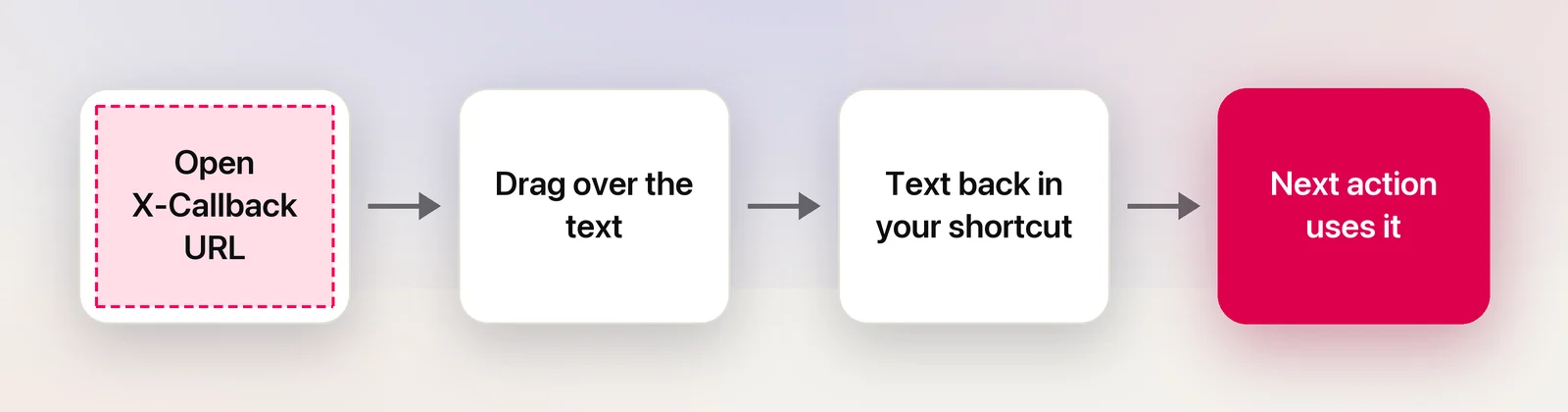
The action waits while you drag, then carries on with what you captured. The result also says what kind of thing it was (text, link, code or table), gives a table’s cells as tab-separated values, and names the app the text came from. Cancel with Esc and Unpixel reports a cancel rather than empty text. The full list is in Get captured text in Shortcuts.
Finder and the Services menu
Unpixel also adds two macOS services. In Finder, select images or PDFs, Control-click them and choose Services → Copy Text with Unpixel: they’re read as one capture and the text is copied. In any app’s menu, Services → Capture Text with Unpixel starts a selection. Both can get their own keys in System Settings → Keyboard → Keyboard Shortcuts… → Services. For many files with per-file output, a shortcut that repeats x-callback-url/file for each file is the better fit. See Copy text from Finder with the Services menu.
Terminal, scripts and buttons
Quote the link so zsh doesn’t treat ? as a file pattern:
open "unpixel://capture"
open "unpixel://capture?translate=1"
open "unpixel://x-callback-url/file?path=$HOME/Desktop/receipt.png"
open returns as soon as the link is handed over, before you’ve drawn anything or the file is read. Run pbpaste after the “Copied” confirmation to print the text, or pipe it on, as in pbpaste | wc -w.
For a short command, add alias grab='open "unpixel://capture"' to ~/.zshrc. Anything else that can open a link works the same way: a Keyboard Maestro macro, a BetterTouchTool gesture, or a Stream Deck key with a Website action. Our Stream Deck guide has the details for that one.
Safe by design
Any app or web page can try to open a URL, so a scheme that could read the screen silently would be a privacy hole. Unpixel’s links are limited on purpose:
- No link captures without you. Capture links bring up the crosshair; you choose the area, or press Esc to back out. Capture Again, which re-reads your last area, has no link at all.
- Text only goes back to apps. x-callback-url results are sent to app links such as
shortcuts://, never to a web page or a browser. A request that asks for that isn’t run. - No hidden commands. The table above is the complete list, apart from the license link on the purchase page. That one only fills in your key, and nothing is activated until you press Activate.
Browsers also ask before a web page opens another app. If you see that prompt for Unpixel and didn’t click a link yourself, choose Cancel. More background on how schemes work is in URL schemes on Mac.
Frequently asked questions
Can a script capture a fixed area of the screen without me dragging?
No. Every capture link brings up the crosshair, and you draw the area yourself. Capture Again re-reads your last area, but only from its own shortcut or menu item, never from a link.
Does unpixel://capture work when Unpixel isn’t running?
Yes. macOS launches Unpixel and the capture starts as soon as it’s ready. A keyboard shortcut can’t do that, because ⇧⌘2 only exists while the app runs.
Can a link pass a file to Unpixel?
Yes. unpixel://x-callback-url/file?path= followed by a full path reads an image or PDF, and returns the text to a shortcut that called it. From Terminal, open -a Unpixel with a file path does the same as Open With in Finder.
Sources
- Quicklinks — Raycast Manual manual.raycast.com
- Workflows — Alfred Help alfredapp.com
- Open URL action — Alfred Help alfredapp.com
- Run a shortcut while working on your Mac — Shortcuts User Guide (Apple Support) support.apple.com
- Use another app’s URL scheme in Shortcuts on Mac — Shortcuts User Guide (Apple Support) support.apple.com
- Use services in apps on Mac — macOS User Guide (Apple Support) support.apple.com