Every capture in Unpixel is read on your own Mac. There’s no OCR server and no account, so the text you capture goes nowhere until you paste it somewhere. This page explains what does the reading, how you can tune it, and what on-device OCR on a Mac can and can’t promise.
Unpixel recognizes text with Apple’s Vision framework, which runs on your Mac. The pixels you select are read in memory and turned into text on your clipboard; no image is uploaded, and recognition works with Wi-Fi off. You can pick Accurate or Fast mode, automatic or fixed language, and language correction. Large images are read in overlapping tiles so small print survives.
Recognition on your Mac
Apple ships the Vision framework with macOS so that apps can find text, barcodes and other features in images without sending them anywhere. Unpixel builds on it. When you let go of a selection:
- Unpixel asks macOS for just the pixels inside your rectangle, at the display’s full Retina resolution.
- Vision finds the lines of text in that image and recognizes them.
- Unpixel puts the lines in reading order, applies your line-break setting, and copies the result.

The image itself lives only in memory. It isn’t written to disk, and it isn’t uploaded. Side-by-side columns of prose are read one column at a time, so two columns don’t get shuffled into one.
You can check the offline part yourself: turn Wi-Fi off and capture something. Recognition works the same, because nothing in it needs a server. Unpixel’s only connections are license checks and an optional update check; Private by design lists exactly what they send.
Accurate or Fast
Vision offers two recognition levels, and Unpixel lets you choose in Settings → Recognition:
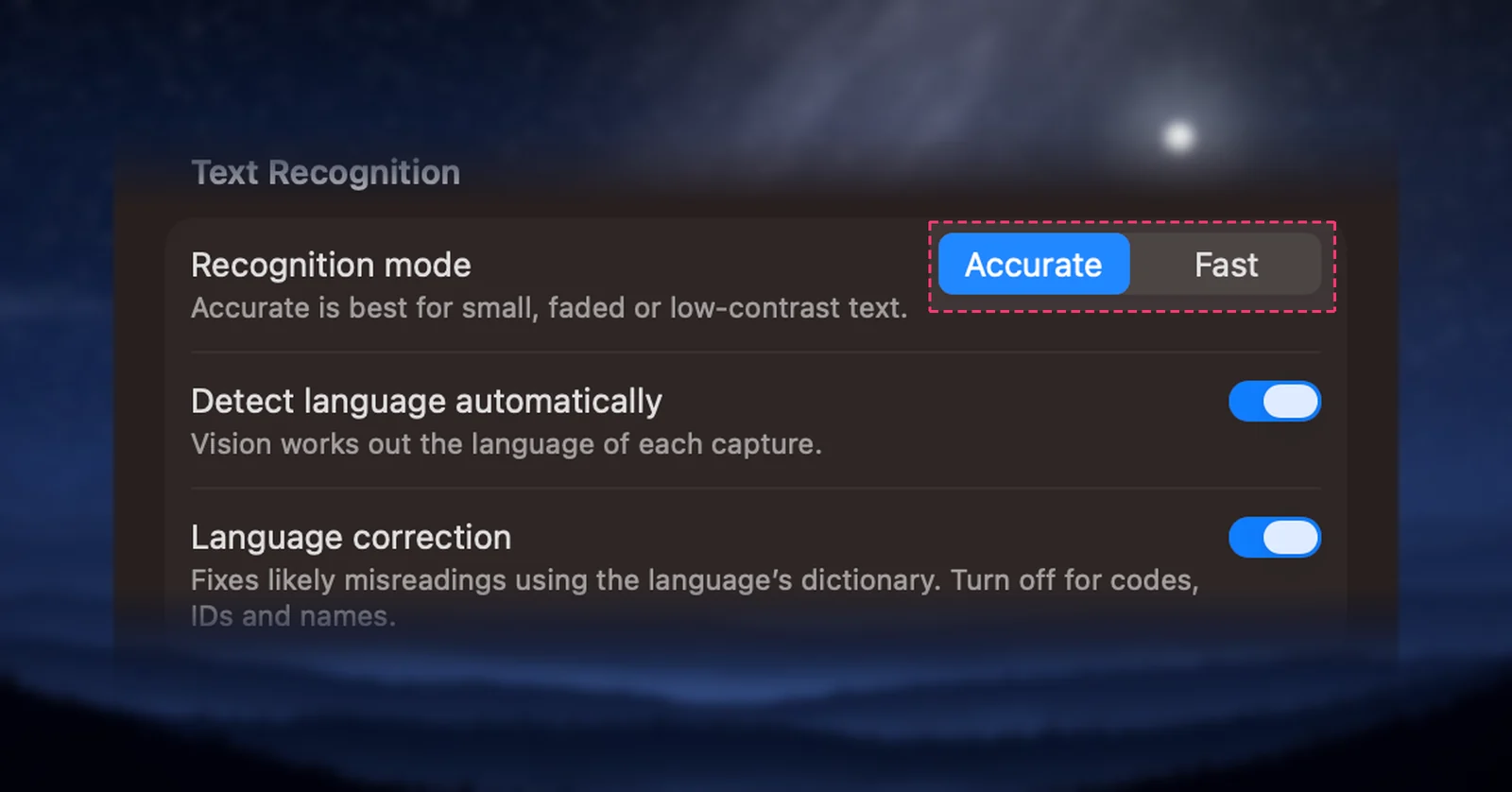
- Accurate is the default and the right choice for most captures. Apple describes it as a neural-network approach that reads whole words and lines. It copes with small, faded and low-contrast text, photos, scans and video frames.
- Fast recognizes characters one by one with a lighter model. It returns almost instantly on crisp interface text, but it only reads English, French, German, Italian, Portuguese and Spanish.
If you choose a specific language that Fast can’t read, such as Japanese, those captures use Accurate anyway, and a note in Settings tells you so. With automatic detection on, nothing switches for you, so stay on Accurate if you capture Chinese, Japanese, Korean, Cyrillic, Arabic or Thai text. Recognition mode and language correction goes through both modes in detail.
Languages
Vision reads about 30 languages on recent versions of macOS. Besides English and most Western European languages, that includes Chinese (Simplified and Traditional), Cantonese, Japanese, Korean, Russian, Ukrainian, Arabic, Thai, Vietnamese, Turkish and Indonesian. By default each capture’s language is detected automatically; if a mix of languages confuses it, pick one language in Settings → Recognition. Recognition languages and automatic detection lists them all.
Language correction is a dictionary pass that nudges uncertain words toward real ones. Keep it on for prose. Turn it off for serial numbers, product codes, variable names and unusual names, which it can “correct” into ordinary words.
Big images and small text
A full-page screenshot, a poster or a high-resolution scan has a lot of pixels, and a recognizer works on a scaled-down view of a very large image. Small print in it can shrink to a blur. Unpixel works around that:
- It trims a large image to the area that actually holds content.
- It reads that area in overlapping tiles, then stitches the lines back together. Headings and long links that cross a tile edge come from a pass over the whole image, so they aren’t cut in two.
- Images with big, clear type skip the tiles, because one pass already reads everything.
- PDF pages are rendered at three times their normal size before reading (less for very large pages), so 10-point body text gets about 30 pixels per line instead of 10.
On screen, the easiest win is still yours to make: zoom in before you capture. A screen capture is taken at full Retina resolution, so bigger text on screen means more pixels per letter.
On-device versus an online OCR site
With an online OCR site, you upload a file and the text is recognized on someone else’s computer. On-device recognition skips that trip:
- Nothing to upload. A contract, a bank statement or a private chat is read without leaving your Mac.
- No connection needed. It works on a plane, on a locked-down network, or with Wi-Fi off.
- Translation stays local too. Unpixel translates with Apple’s Translation framework on your Mac, once macOS has downloaded the language; see Translate on capture.
What on-device doesn’t mean is perfect. Messy handwriting, decorative fonts and tiny or blurred text cause mistakes in any OCR engine, including this one, so check names, numbers and codes before you rely on them. And if you need a searchable PDF file rather than text on your clipboard, Preview’s Embed Text is the better tool, because Unpixel doesn’t create files. For a broader look at the trade-offs, read Is online OCR safe?
Frequently asked questions
Does Unpixel need an internet connection to read text?
No. Recognition runs entirely on your Mac. Unpixel only goes online to activate and check your license and, if you leave it on, to look for updates.
Where are my captures stored?
In a history file in your user Library on this Mac. You can limit how many captures it keeps, clear it, or turn history off in Settings → History.
Is on-device recognition less accurate than an online OCR service?
Not necessarily, but no OCR is perfect. Results depend most on the source: sharp, large, high-contrast text reads well anywhere, while tiny, blurred or handwritten text causes mistakes in any engine.
Sources
- Recognizing Text in Images — Apple Developer Documentation developer.apple.com
- VNRecognizeTextRequest — Apple Developer Documentation developer.apple.com
- Embed text in a PDF in Preview on Mac — Apple Support support.apple.com