Raycast is good at starting things, and a text capture is one more thing to start. Unpixel answers to unpixel:// links and Raycast saves links as quicklinks, so a few keystrokes in Raycast can bring up the capture crosshair, a capture that translates, or a read of the screenshot you just copied. This page sets those up and shows where Raycast’s own clipboard history fits in.
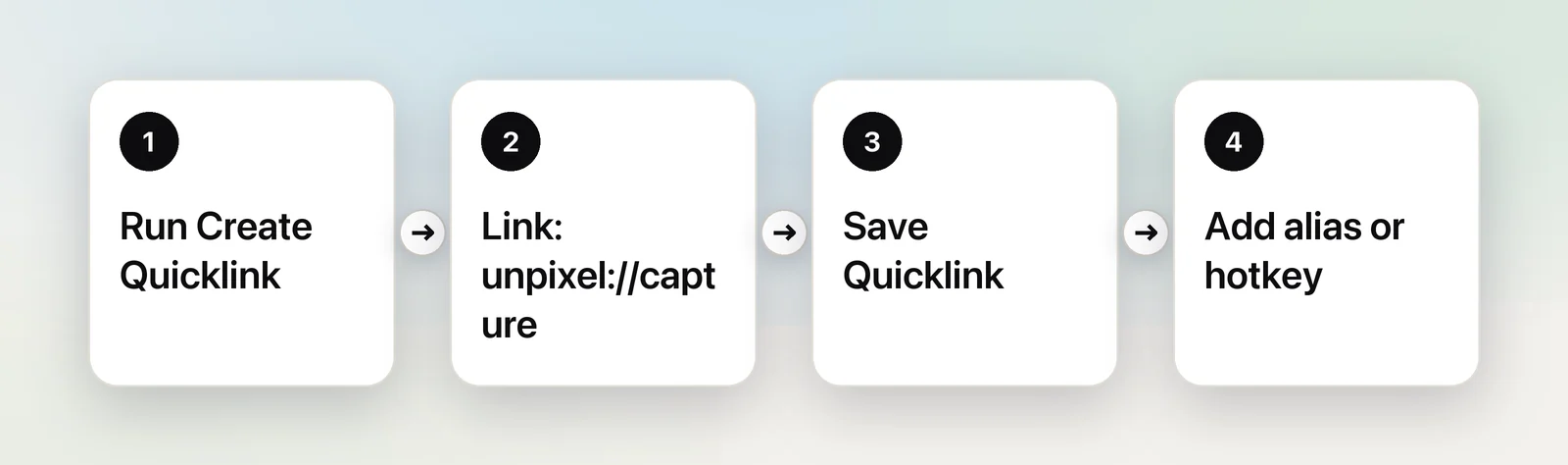
Raycast starts a capture through Unpixel’s URL scheme. Run Create Quicklink, enter unpixel://capture as the link, save it and give it an alias or a hotkey. Running it brings up Unpixel’s crosshair: drag over any text and it’s on your clipboard. Add ?translate=1 to copy a translation, or ?append=1 to add to what’s already copied.
Create a capture quicklink
- Open Raycast and run Create Quicklink.
- In Name, type what you’ll search for later, such as “Copy Text From Screen”.
- In Link, enter
unpixel://capture. In Open With, choose Unpixel, so Raycast hands the link straight to it. - Pick an icon if you like, then choose Save Quicklink (⌘Return).
Run it and Raycast’s window closes, the screen dims slightly and the pointer turns into a crosshair. Drag over the text and let go. Unpixel waits a fraction of a second before showing the crosshair, so Raycast is out of the way before you start dragging. If Unpixel wasn’t running, the link launches it and the capture starts once it’s ready.
Quicklinks that translate or add
Make another quicklink with the link unpixel://capture?translate=1 and a name like “Translate Text on Screen”. It behaves like holding ⌥ as you let go of a normal capture: the clipboard gets the text in your language, translated on your Mac by Apple’s Translation framework. Choose that language under Translate into in Unpixel’s Settings → Translation. The first time you translate from a new language, macOS asks before downloading it.
A third, unpixel://capture?append=1, is for collecting: each capture is added after what’s already on the clipboard instead of replacing it, so you can gather several passages and paste them once. It’s the same as holding ⇧ as you let go. The two combine: unpixel://capture?append=1&translate=1 adds a translation.
While you’re at it, two more links are handy: unpixel://history opens the menu bar panel with your past captures, and unpixel://settings opens Settings.
Aliases and hotkeys
Searching for a quicklink by name works, but an alias or a hotkey is faster. Open Raycast’s settings, go to Quicklinks, find yours in the list of quicklinks, and set an alias (for example ct for capture and tt for translate) or record a hotkey.
A few pairings that work well:
- Keep Unpixel’s own shortcut, ⇧⌘2, for plain captures, and put the translate quicklink on a neighbour such as ⌥⇧⌘2.
- If you’d rather manage every hotkey in Raycast, clear Unpixel’s shortcut in Settings → General and give the capture quicklink the key instead.
- Never give a Raycast hotkey the same combination as one of Unpixel’s shortcuts. Only one app can answer a key. Besides ⇧⌘2, that includes ⇧⌘1, Capture Again, which reads your last area again. It has no link, so it stays on Unpixel’s own key.
Read a screenshot you already copied
unpixel://clipboard reads the image on your clipboard, the same as From Clipboard in Unpixel’s panel. Save it as a third quicklink and pair it with the Mac’s clipboard screenshot:
- Press ⌃⇧⌘4 and drag to copy a picture of part of the screen.
- Run the clipboard quicklink. The picture’s text replaces it on the clipboard.
This pairs well with Raycast’s Clipboard History, which keeps images as well as text. To read a picture you copied earlier in the day, find it in Clipboard History, copy it back to the clipboard, then run the quicklink. A table in the picture comes out as cells you can paste into a spreadsheet, and a QR code gives you what it contains.
Send the captured text somewhere
Raycast quicklinks can contain dynamic placeholders, which Raycast fills in when the quicklink runs, and one of them inserts the clipboard. That makes a capture the first half of a lookup:
- Capture an error message, a part number or a tracking code with Unpixel.
- Run a quicklink whose link contains
{clipboard}, such ashttps://duckduckgo.com/?q={clipboard}, or one for your issue tracker or a courier’s tracking page.
Keep the two steps as two quicklinks. The capture link returns as soon as the crosshair appears, long before you’ve finished dragging, so one quicklink can’t wait for the text and then search for it.
Let a shortcut do the waiting
For one key that captures and then does something with the text, put the work in the Shortcuts app and start it from Raycast. A shortcut built on Open X-Callback URL with unpixel://x-callback-url/capture waits for your selection and gets the text back; Run Unpixel from the Shortcuts app builds one called “Screen to Note”. Then save a Raycast quicklink with this link, Apple’s documented way to run a shortcut by name:
shortcuts://run-shortcut?name=Screen%20to%20NoteRun the quicklink, drag over the text, and the shortcut appends it to your note. Unpixel’s x-callback links can send results to raycast:// links too, but Raycast deeplinks expect their own parameters, so a shortcut is the simpler middle step.
Raycast’s clipboard history and privacy
With Clipboard History turned on, every capture also lands in Raycast, next to everything else you copy. Raycast says its history stays on your Mac and is encrypted on disk; as of October 2026, the free plan keeps it for up to three months and Pro without a time limit. Unpixel keeps a separate history in its menu bar panel, showing the app each capture came from, with filters for links and QR codes and Copy as Markdown or Copy as CSV for tables.
So a sensitive capture, such as a recovery code or a password on a sticky note in a photo, ends up in two places. Delete it from both: in Raycast’s Clipboard History, and in Unpixel’s panel by right-clicking the row and choosing Delete. If you’d rather Unpixel kept nothing at all, turn off Save capture history in Settings → History.
Raycast extensions for text recognition
You may find community extensions in the Raycast Store that recognize text in screenshots. Extensions come and go, so check who maintains one, when it was last updated and what permissions it asks for. If plain text from an image is all you need and you like keeping everything inside Raycast, one of them may be enough.
Unpixel adds the parts around the text: tables that paste as cells, QR codes and barcodes, paragraphs joined back together, translation and a searchable history. The quicklinks above let you start all of it from Raycast. Weighing up launchers? Read Raycast vs Alfred, and if you use Alfred instead, the same links work in an Alfred workflow.
Frequently asked questions
Does a Raycast quicklink capture anything without me dragging?
No. The link only brings up Unpixel’s crosshair, exactly like pressing ⇧⌘2. Nothing is read until you choose an area and let go, and Esc backs out.
Do I need Raycast Pro for this?
No. As of October 2026, Raycast’s pricing page lists quicklinks and clipboard history in the free plan, and aliases and hotkeys are part of Raycast’s settings for every quicklink.
Will my captures show up in Raycast’s clipboard history?
Yes, if Raycast’s Clipboard History is on. A capture is ordinary text on the clipboard, so Raycast keeps it like anything else you copy.
Sources
- Quicklinks — Raycast Manual manual.raycast.com
- Dynamic Placeholders — Raycast Manual manual.raycast.com
- Clipboard History — Raycast raycast.com
- Run a shortcut using a URL scheme on Mac — Shortcuts User Guide (Apple Support) support.apple.com
- Raycast pricing (read October 2026) raycast.com