The Shortcuts app can’t reach into Unpixel’s settings, but it can open Unpixel’s links, and one kind of link sends the recognized text straight back. That turns a capture into the first step of a shortcut: drag over a slide, and the words land in a note, a translation or a search. This page builds those shortcuts, shows how to read files and copied images the same way, and says when Shortcuts’ own text recognition is all you need.
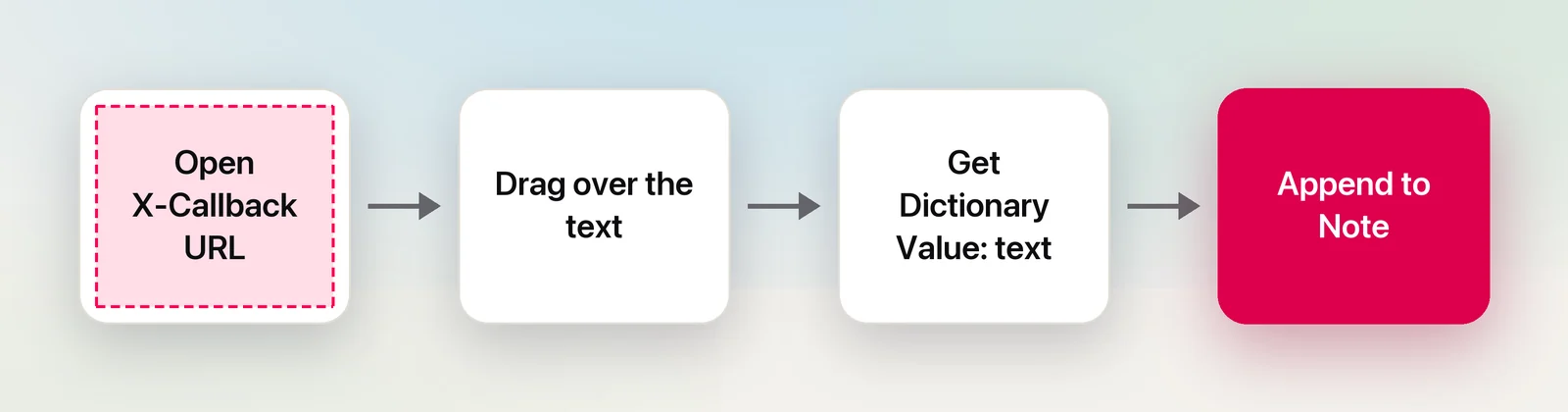
Shortcuts talks to Unpixel through links. Add Open X-Callback URL with unpixel://x-callback-url/capture: running the shortcut brings up Unpixel’s crosshair, waits while you drag, and returns the text as X-Callback Result. Get Dictionary Value with the key text passes it to the next action. Swap capture for clipboard or file?path= to read a copied image or a file.
Two actions, two jobs
Apple’s Shortcuts guide describes two ways to open another app’s link: Open URLs and Open X-Callback URL. Unpixel works with both.
- Open URLs with a link such as
unpixel://capturestarts a capture and moves on at once. The text goes to your clipboard, as with ⇧⌘2. Good for a key that just captures or translates. - Open X-Callback URL with a link that starts
unpixel://x-callback-url/waits for the capture to finish and returns the result to the shortcut. Use it whenever later actions need the text.
If Unpixel isn’t running, either link launches it, and the capture starts as soon as it’s ready. Like every capture, both need an activated license.
Capture and keep the text
- Open Shortcuts and click + to start a new shortcut. Name it “Screen to Note”.
- Add Open X-Callback URL and set its URL to
unpixel://x-callback-url/capture. - Add Get Dictionary Value. Set it to get the Value for the key
textin X-Callback Result. - Add Append to Note, choose a note such as “Screen notes”, and use Dictionary Value as the text.
- Run it. The crosshair appears; drag over the words and let go. They’re appended to the note, and they’re on your clipboard and in Unpixel’s history too.
Pressing Esc instead of dragging cancels the capture, and Unpixel reports that to Shortcuts as a cancel rather than as empty text.
Translate, add or read the clipboard
Duplicate the shortcut (Control-click it and choose Duplicate) and change only the link:
unpixel://x-callback-url/capture?translate=1returns the text in your language, translated on your Mac by Apple’s Translation framework. It’s the same as holding ⌥ as you let go.unpixel://x-callback-url/capture?append=1adds the text after what’s already on the clipboard, like holding ⇧, while the shortcut gets only the new passage.unpixel://x-callback-url/clipboardreads a picture you copied from a web page, a chat or a document, or a screenshot taken with ⌃⇧⌘4.
Besides text, the result holds kind (text, link, code or table) and, for a table, tsv with its cells. An If action on kind can send tables to a spreadsheet file and everything else to a note.
Read the whole screen at once
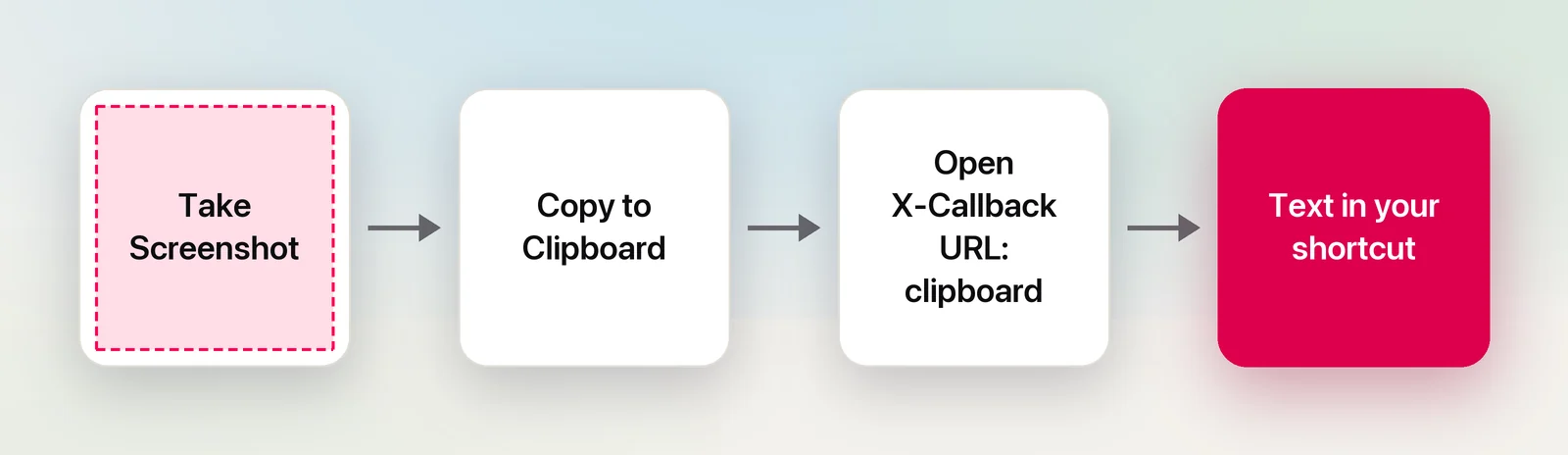
Shortcuts can take a screenshot itself, and Unpixel can read whatever image is on the clipboard. Chained together, they read everything on the display without a drag:
- Add Take Screenshot, set to capture the whole screen rather than an interactive selection.
- Add Copy to Clipboard.
- Add Open X-Callback URL with
unpixel://x-callback-url/clipboard, then Get Dictionary Value fortext.
Unpixel reads large images in overlapping sections, so small print on a big display isn’t lost. Expect everything to come along, though: menu bar items, sidebars and window titles mixed in with the text you wanted. And if a QR code or barcode is visible anywhere on screen, Unpixel returns what the code contains instead of the text. Scroll it away first, or turn off Detect QR codes & barcodes in Settings → Recognition. For one paragraph, dragging is still cleaner.
Files from Finder
To turn a batch of images or PDFs into one text file:
- In the shortcut’s details, turn on Use as Quick Action for Finder, receiving images and PDFs.
- Add Repeat with Each for the shortcut’s input, then Get Details of Files to get each file’s File Path.
- Add URL Encode on the path, then Open X-Callback URL with
unpixel://x-callback-url/file?path=followed by the encoded text. - Inside the repeat, Get Dictionary Value for
text. After End Repeat, use Combine Text with new lines and Save File.
For a quick copy without building anything, select the files and Control-click them: Services → Copy Text with Unpixel reads them all as one capture. Copy text from Finder with the Services menu has the details.
Run it your way
Apple lists several ways to run a shortcut on a Mac:
- A key: open the shortcut’s settings, click Add Keyboard Shortcut and press a combination. Pick one that doesn’t clash with Unpixel’s ⇧⌘2 or ⇧⌘1.
- Spotlight: type the shortcut’s name and run it from the results.
- Control Center: open Control Center, click Edit Controls at the bottom, add the Run Shortcut control from the gallery’s Shortcuts section and choose the shortcut it should run. Apple doesn’t document this step yet, so the control’s name may differ slightly on your Mac.
- The Dock: select the shortcut and choose File → Add to Dock.
- Siri: say the shortcut’s name, such as “Screen to Note”, then drag when the crosshair appears.
Siri is handy when one hand is busy, but the crosshair still needs a mouse or trackpad.
When Shortcuts alone is enough
Shortcuts has text recognition of its own. Extract Text from Image reads an image file or a screenshot with no other app, and it’s free. For plain words from a folder of clean images, it does the job, and you don’t need Unpixel’s links at all. Our guide to extracting text with Shortcuts builds one step by step, and translating the text in an image adds the Translate Text action.
Unpixel’s links are worth it when you want what the built-in action leaves out. That means dragging over exactly the part you need, tables that come back as cells or tab-separated values, QR codes and barcodes, paragraphs joined back together, multi-page PDFs, and a history of what you’ve captured. Every link and result field is listed in Get captured text in Shortcuts. New to Shortcuts? Start with the Shortcuts beginner’s guide.
Frequently asked questions
Can a shortcut get the captured text back from Unpixel?
Yes. Use Open X-Callback URL with an unpixel://x-callback-url link instead of Open URLs. The action waits for the capture, and Get Dictionary Value pulls the text out of its result.
Why use a shortcut when Unpixel already has ⇧⌘2?
For what happens after the capture: saving to a note, cleaning up, looking something up. Shortcuts also lets you start a capture from Siri, Control Center or Spotlight. For a plain copy, Unpixel’s own shortcut is quicker.
Does Unpixel have its own actions in the Shortcuts library?
No. It works through two built-in actions, Open URLs and Open X-Callback URL, so there’s nothing extra to install or update.
Sources
- Use another app’s URL scheme in Shortcuts on Mac — Shortcuts User Guide (Apple Support) support.apple.com
- Intro to URL schemes in Shortcuts on Mac — Shortcuts User Guide (Apple Support) support.apple.com
- Run a shortcut from another app — Shortcuts User Guide (Apple Support) support.apple.com
- Run a shortcut from Spotlight — Shortcuts User Guide (Apple Support) support.apple.com
- Run shortcuts with Siri — Shortcuts User Guide (Apple Support) support.apple.com
- 10 Tips To Customize Control Center On Your Mac — MacMost (read October 2026) macmost.com