A teammate drops a screenshot of a stack trace, a config file or a dashboard into a channel, and you need the words, not the picture. Or someone shares their screen in a huddle and the hostname you need is right there, with nothing to select. Here’s how to get that text out of Slack on a Mac: the free route first, then the faster one.
Slack doesn’t let you select the words inside a posted image. Click the file’s download icon, open the image in Preview and drag across the text with Live Text. A huddle screen share is a video stream with no file to download, so copy a screenshot with ⌃⇧⌘4 and read it in Preview, or capture the region with an on-screen OCR tool.
Screenshots in channels, DMs and canvases
Slack shows pictures in its own viewer, and as of October 2026 you can’t select the words in an image there the way Live Text lets you in Preview or Photos. Images embedded in a canvas behave the same way: they’re pixels. Move the picture somewhere Live Text works:
- Click the image to open it at full size and check that it’s the one you want.
- Download it with the file’s download icon. For a message with several files, hover over the message, click the three-dots icon and choose Download [number] files, for example Download 3 files.
- Open the file in Preview. If you lose track of it, ⌘⇧J in Slack lists your downloaded files.
- Move the pointer over the text until it turns into a text cursor, drag across the words and press ⌘C.
To skip the file, open the image in Slack, press ⌃⇧⌘4 and drag over the text. That copies a screenshot to the clipboard. In Preview, choose File → New from Clipboard and select the text there. Screenshots to the clipboard covers the shortcut in more detail.
Inline previews are often scaled down, so always capture from the full-size view. A screenshot that was itself resized or compressed before it was posted will blur thin fonts, and no recognizer can bring back detail that isn’t there. If a value matters, ask the sender for the text.
Huddle screen shares
A shared screen in a huddle is a live video stream. There’s no file to download, and Live Text can’t reach it. What helps:
- Expand the share. Slack lets anyone in the huddle click a shared screen to expand it. Bigger text on your screen means fewer misread characters.
- Pick the right share. Up to two people can share at once, so make sure you’re reading the screen you mean.
- Wait for the picture to settle. Text smears for a moment while the presenter scrolls or switches windows. Capture once it’s sharp again.
- Watch for drawings. In the Slack desktop app, people can click the pencil icon to draw on a shared screen. A mark across a word gets read as part of it, so capture a clean view.
- Ask for the text. If the presenter has the command or error in front of them, a paste in the huddle thread beats any capture.
A huddle can show things that aren’t meant to leave it, such as customer records, credentials or unreleased work. Capture only what you need, and follow your workspace’s rules on keeping copies.
Code and logs from screenshots
Once you’ve copied the text, give it back to Slack as code, so it keeps its line breaks and shows in a monospaced font where look-alike characters are easier to tell apart:
- Paste the text into the message field and select it.
- Press ⌘⌥⇧C to turn it into a code block, or ⌘⇧C for inline code.
- For something long, such as a whole config file, press ⌘⇧Return to create a snippet instead.
Before anyone runs it, compare it with the screenshot. The usual slips are 0 and O, 1, l and I, two hyphens read as one long dash, and indentation that comes back flush left. Copying code from a video has a table of these and how to catch each one.
Reply with text, not pictures
When you’re the one posting, paste the error message, the command or the log lines as text, in a code block. Add a screenshot only when the layout itself is the point. Text can be copied by the next person who hits the same problem, quoted in a reply, found by Slack search with the exact error string, and read aloud by a screen reader.
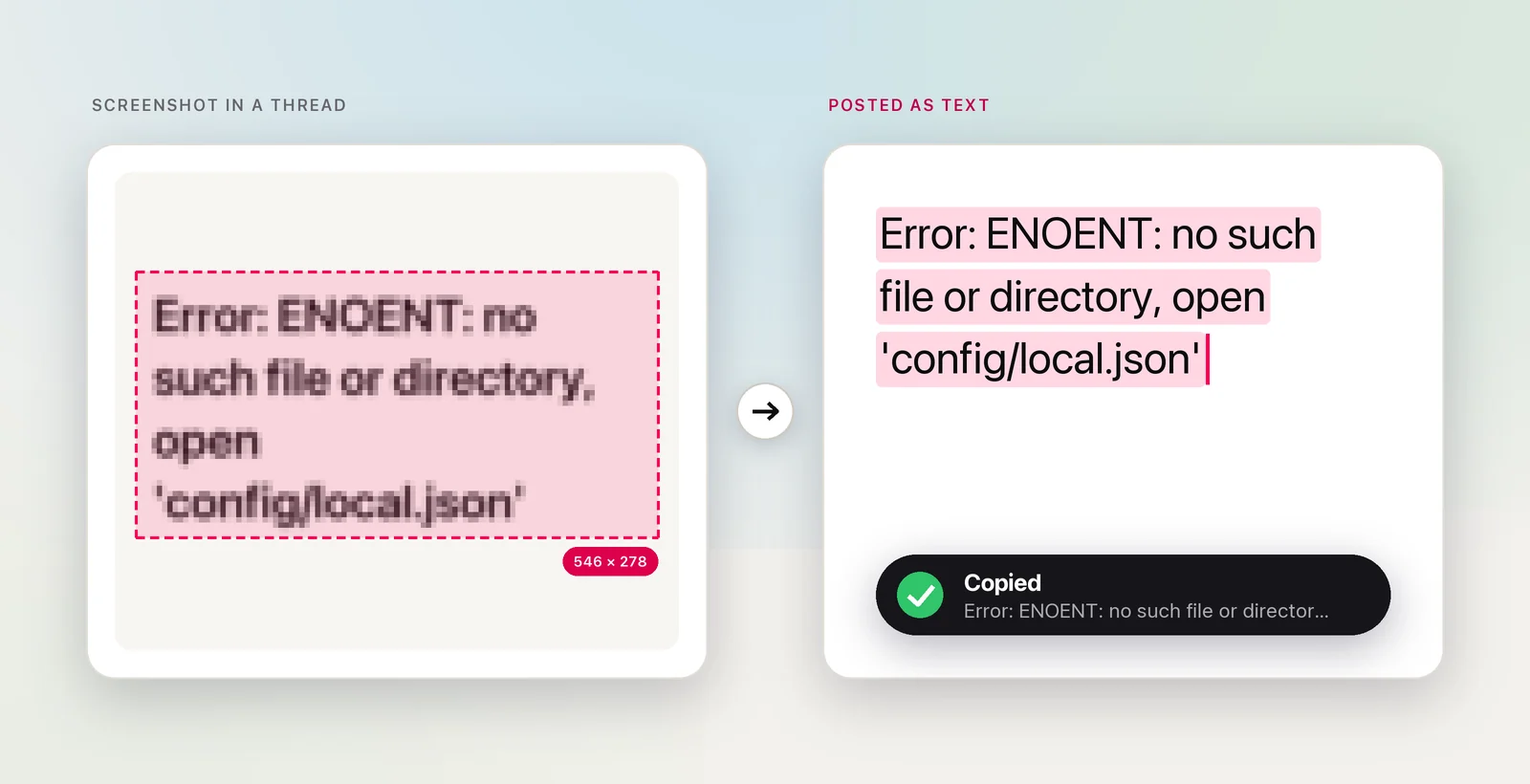
Sometimes the text only exists as pixels: an alert on a remote machine, a value in a locked dashboard, a frame from a recording. Capture it once, paste it as text, and the rest of the channel doesn’t have to repeat the work.
In Unpixel
Unpixel removes the download-and-Preview round trip. Press ⇧⌘2, drag over the image in Slack’s viewer or over the expanded huddle screen, and let go. The recognized text is on your clipboard, ready to paste into a code block.
A few details matter in Slack:
- Screen shares work like images. Unpixel reads the region you select when you let go, or again when you press Capture Again (⇧⌘1), which is handy for a shared slide that keeps advancing. Nothing is recorded, and the capture stays on your Mac.
- Your history remembers the source. Each capture is listed with the app it came from, such as “Slack · 4 min ago”, so the build number you grabbed during the huddle is easy to find again. History is local and searchable.
- Links and QR codes. A URL in a screenshot is recognized as a link and filed under Links. A QR code on an event poster someone posted gets its contents copied instead of the surrounding text.
- Stack traces and config. Turning off Language correction in Settings → Recognition stops hostnames and identifiers from being “fixed” into dictionary words.
- Other languages. Hold ⌥ as you let go to copy a translation into your language, handy in workspaces where not every channel speaks yours.
Frequently asked questions
Can I copy text from a screen someone shares in a Slack huddle?
Yes, from the pixels on your own screen. Click the shared screen to expand it, then copy a screenshot with ⌃⇧⌘4 and select the text in Preview, or capture the region with an OCR tool. Ask before you keep anything confidential.
Why does a command I copied from a Slack screenshot fail?
Text recognition can swap look-alike characters such as 0 and O or l and 1, and quotes can come back curly. Compare the text with the image and fix those before you run it.
Should I post errors as screenshots or as text?
As text, in a code block, with a screenshot only if the layout matters. Text can be copied, quoted and searched by everyone in the channel.