Most screenshots have a short life. You take one, drop it into a chat or a bug report, and never look at the file again, yet it stays on your desktop next to dozens like it. macOS can send a screenshot straight to the clipboard instead, so it’s ready to paste and there’s nothing to tidy up afterwards.
Hold Control with any screenshot shortcut. ⌃⇧⌘4 copies the area you drag over, ⌃⇧⌘3 copies the whole screen, and no file is saved. Paste with ⌘V. To send every screenshot to the clipboard, press ⇧⌘5, click Options and choose Clipboard under Save to. The image stays there only until you copy something else.
Add Control: Control-Shift-Command-4
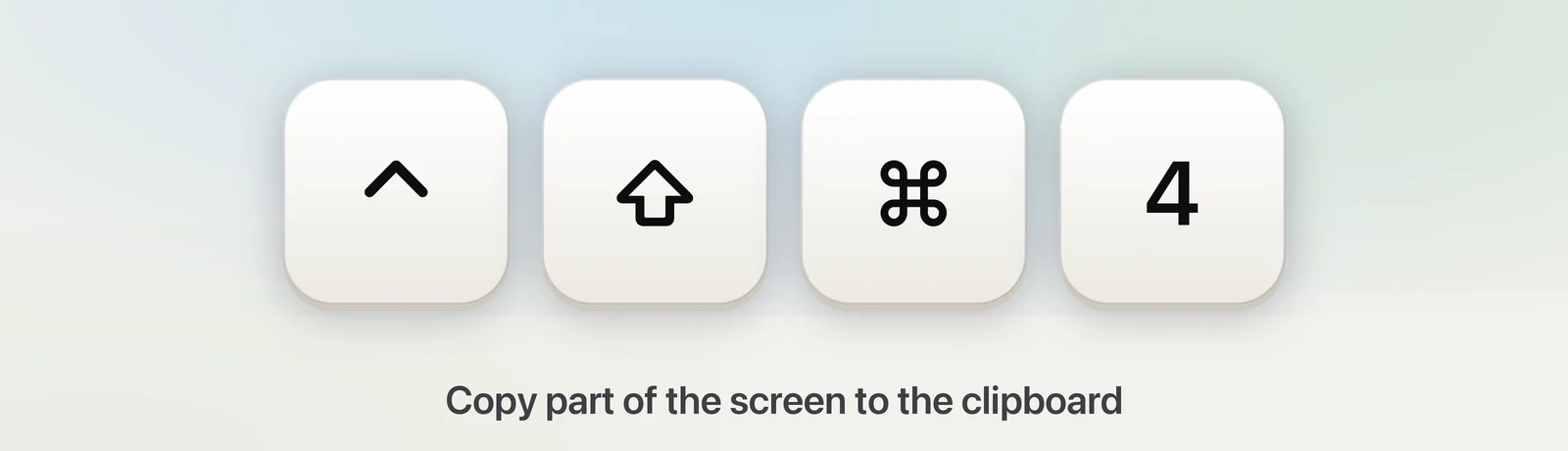
- Press ⌃⇧⌘4. The pointer turns into a crosshair, just as it does without Control.
- Drag over the area you want and let go.
- Click in the app where it should go and press ⌘V.
Nothing appears on the desktop, and there’s no thumbnail to wait for. If your sound is on, the shutter click is the only sign that it worked.
Control works with the other screenshot shortcuts too:
| Copy this to the clipboard | Press |
|---|---|
| The whole screen | ⌃⇧⌘3 |
| An area you drag over | ⌃⇧⌘4 |
| One window | ⌃⇧⌘4, then Space, then click the window |
Already took a normal screenshot? While its thumbnail is still in the corner, Control-click it and choose Save to Clipboard.
Make the clipboard the default
If you almost never keep screenshot files, change the destination once:
- Press ⇧⌘5 to open the Screenshot toolbar.
- Click Options.
- Under Save to, choose Clipboard.
- Press Esc to close the toolbar.
From now on, ⇧⌘3 and ⇧⌘4 copy instead of saving. When you want files again, go back to Save to and choose Desktop or another folder.
Four keys is a lot to hold. You can give the clipboard version a shorter combination of your own:
- Open System Settings → Keyboard and click Keyboard Shortcuts….
- Select Screenshots in the sidebar.
- Double-click the shortcut next to Copy picture of selected area to the clipboard, then press the new keys.
- Click Done.
Paste it where you need it
A clipboard screenshot pastes like any copied image: click in the message, document or field and press ⌘V. Messages, Mail, Notes, Pages, Keynote and most chat apps and web editors accept it, including Slack, Google Docs and issue trackers in your browser.
A few things to know:
- Text-only fields refuse images. Terminal, a search box or a plain-text form field has no way to hold a picture, so nothing appears.
- One item at a time. Copying anything else, even a single word, replaces the screenshot. Paste it first, then carry on copying.
- Your other devices can paste it. With Universal Clipboard on, a screenshot copied on your Mac can be pasted on a nearby iPhone or iPad signed in to the same Apple Account. See Universal Clipboard for the setup.
If ⌘V pastes something older than your screenshot, the capture probably didn’t reach the clipboard. Check that you held Control, or that Save to is set to Clipboard. Can’t paste a screenshot covers the rarer causes.
Save a clipboard image later
Sometimes a screenshot you meant to paste turns out to be worth keeping. As long as it’s still on the clipboard, open Preview and choose File → New from Clipboard (⌘N). The screenshot opens as an untitled image; choose File → Save to keep it. If New from Clipboard is greyed out, something else has been copied since. Our guide to saving a clipboard image covers formats and a one-step shortcut.
Read the text in a clipboard image
A screenshot of a paragraph is still a picture. To use the words, you need to recognise them first. The free route is Preview: open the image with File → New from Clipboard, drag across the text, Control-click and choose Copy Text. Our guide to copying text from a screenshot has the details and fixes for text that won’t select.
In Unpixel
Unpixel shortens that to one click. Copy the screenshot with ⌃⇧⌘4 as usual, then click From Clipboard in Unpixel’s menu bar panel. It reads the image on your Mac and replaces it on the clipboard with the recognised text, ready for ⌘V.
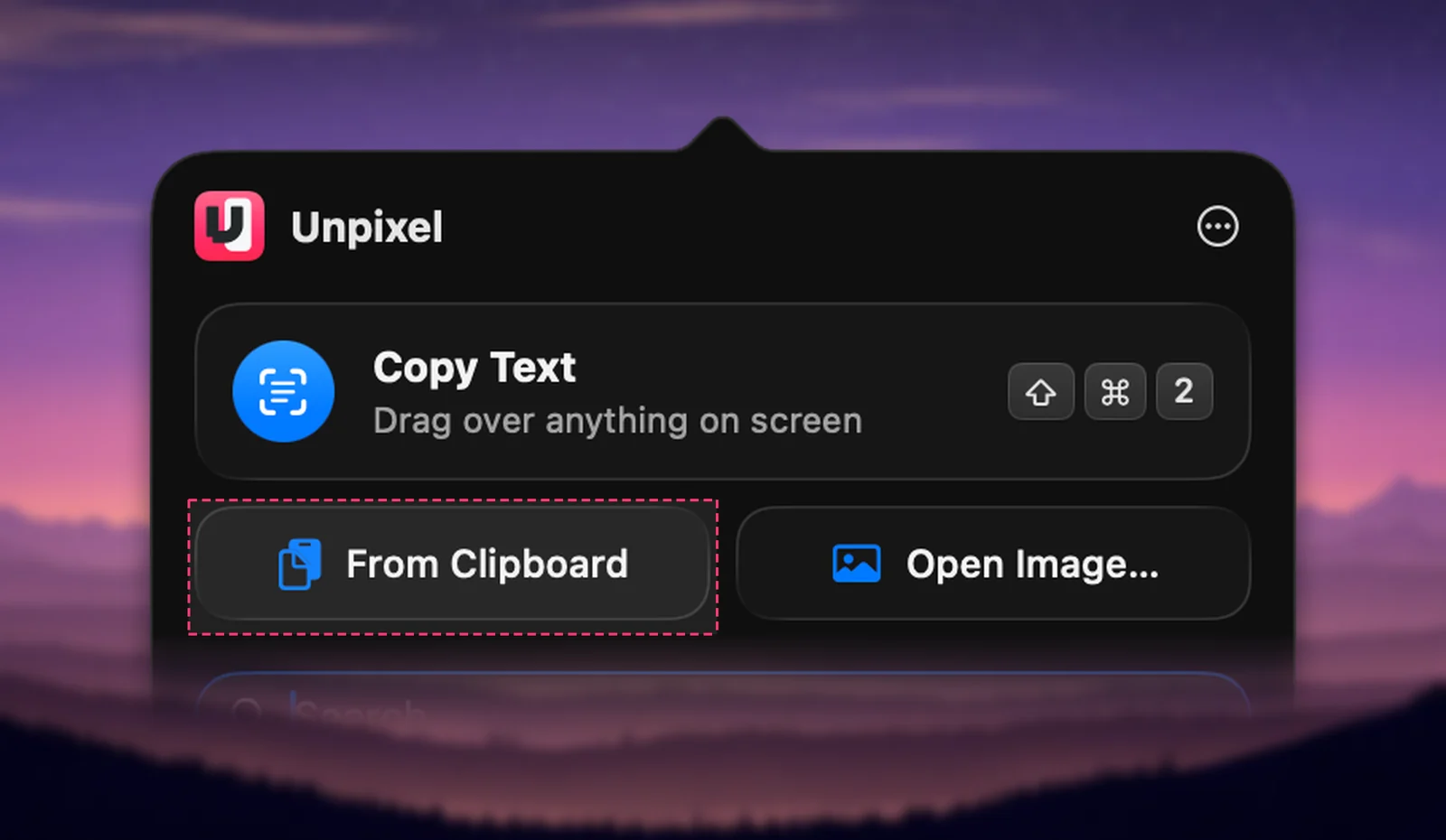
The same works for images that reach your clipboard in other ways, such as a picture copied from a web page or a chat. If you only took the screenshot to get at the words, Unpixel’s own shortcut, ⇧⌘2, does both steps at once: drag over the text and the words are copied, with no image in between. Automation fans can trigger From Clipboard with the unpixel://clipboard link from Shortcuts, Raycast or Alfred.
Quick checklist
- Copy part of the screen: ⌃⇧⌘4, drag, then ⌘V.
- Copy the whole screen: ⌃⇧⌘3.
- Always copy, never save: ⇧⌘5 → Options → Save to: Clipboard.
- Keep one after all: Preview → File → New from Clipboard → Save.
- Need the words, not the picture: Preview’s Live Text, or Unpixel’s From Clipboard.
Frequently asked questions
Where does a clipboard screenshot go?
Nowhere on disk. The image is held on the clipboard until you copy something else, log out or restart, so paste or save it before then.
Can I paste a screenshot into a Finder folder as a file?
Not directly: Finder doesn’t turn a clipboard image into a file. Open Preview, choose File → New from Clipboard, then save it wherever you like.
Is ⌃⇧⌘4 different from choosing Clipboard in the Screenshot options?
The result is the same: an image on the clipboard and no file. The Control shortcut does it once, while the Save to setting changes every screenshot until you switch it back.
Sources
- Take a screenshot on Mac — Apple Support support.apple.com
- Take screenshots or screen recordings on Mac — Apple Support (Mac User Guide) support.apple.com
- Use Universal Clipboard to copy and paste between your Apple devices — Apple Support support.apple.com