Terminal is where copied commands end up, and where the most damage is done when a copy is wrong. Most of the time you don’t need OCR there at all. It earns its place when the command only exists as pixels: in a tutorial video, on a colleague’s shared screen, in a screenshot pasted into a ticket. This page covers capturing those safely, and driving captures from the shell.
Text in your own Terminal window is already text: select it, or pipe output to pbcopy. OCR is for commands you can only see, in a video, a screen share or a screenshot. Capture them, paste at the prompt and read every character before pressing Return. To script a capture, run open "unpixel://capture", wait for the clipboard to change, then read it with pbpaste.
Your own Terminal is already text
Anything in your own Terminal window can be copied exactly, so use that first:
- Select and copy. Drag over the output and press ⌘C. Hold ⌥ while dragging to select a rectangle, such as one column of a listing.
- Pipe it.
some-command 2>&1 | pbcopyputs all of the output, errors included, on the clipboard.
Copying text from Terminal covers ssh, tmux and saving a whole session. Reach for recognition only when there’s nothing to select.
Commands from videos and screen shares
A command in a video or in someone else’s Terminal on a call is a picture of text. To get a clean capture:
- Look for the source. A gist, a README or the presenter’s notes are exact. Ask for a paste in the meeting chat before you capture anything.
- Pause on a sharp frame. Video compression smears small monospaced text, especially just after the picture moves.
- Make it big. Full-screen the video or expand the shared screen. More pixels per character means fewer look-alike mistakes.
- Select only the command. Leave out the prompt (
%,$oruser@host), line numbers and the output underneath.
A command split over several lines with \ at the ends is one command. Capture all of its lines together, and check that every backslash survived.
Read before you run
Paste the command at the prompt, but don’t press Return yet. With zsh, the default shell on macOS, a paste is inserted into the command line and waits for you. Then check:
- Look-alikes:
0andO;1,landI;rnread asm. - Punctuation: curly quotes instead of straight ones, a long dash where
--belongs, a missing~or/. - What it does:
sudo,rm -rf,chmod -R, anything piped intoshorbash, and any URL it downloads from. Make sure you’d run it if you’d typed it yourself.
For long commands, paste into a text editor first, fix them there, and copy the corrected version. Don’t rely on a shell to hold a multi-line paste for you over ssh or in other shells.
Start a capture from the shell
Unpixel opens unpixel:// links, so the shell can start a capture with open:
open "unpixel://capture"              # crosshair, the same as ⇧⌘2
open "unpixel://capture?translate=1"  # copy a translation instead
open "unpixel://clipboard"            # read the image on the clipboard
If Unpixel isn’t running, open launches it and the capture starts once it’s ready. The command returns straight away, though, before you’ve dragged anything. To use the result in the same command line, wait for the clipboard to change. Add this function to ~/.zshrc:
# grab: drag over text on screen, get it on stdout. grab -t translates.
grab() {
  local url="unpixel://capture" before now i
  [[ $1 == -t ]] && url+="?translate=1"
  before=$(pbpaste)
  open "$url"
  for i in {1..120}; do            # wait up to 60 seconds
    sleep 0.5
    now=$(pbpaste)
    if [[ $now != "$before" ]]; then
      print -r -- "$now"
      return 0
    fi
  done
  print -u2 "grab: the clipboard didn't change"
  return 1
}
Open a new Terminal window, type grab, and drag over the text. Some uses:
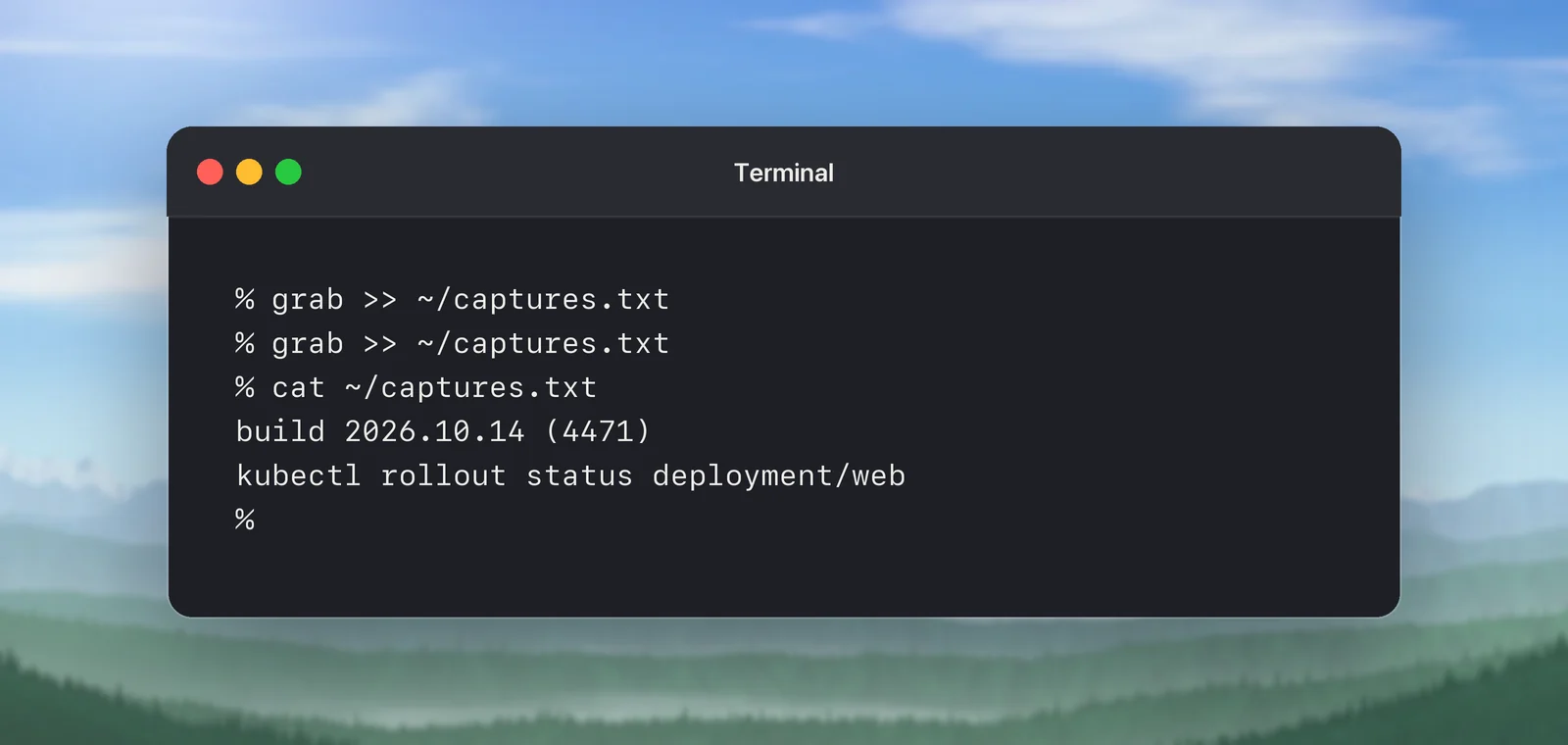
grab >> ~/captures.txtkeeps a running log of values from a call.dig +short "$(grab)"looks up a hostname you can only see on someone’s screen.grab -t | wc -wtranslates a passage and counts its words, a quick check before it goes into a fixed-size field.
Two limits: if you press Esc, or capture exactly what was already on the clipboard, the function waits out its 60 seconds and reports that nothing changed.
Pipe the clipboard
Captured text is on the clipboard as plain text, so pbpaste hands it to any command:
pbpaste | column -t -s $'\t'        # line up a captured table
pbpaste | tr '\t' ','               # quick CSV, if no cell holds a comma
pbpaste | grep -Eo '([0-9]{1,3}\.){3}[0-9]{1,3}' | sort -u   # IPv4 addresses
pbpaste | tr -d ' ' | pbcopy        # strip spaces from a serial number
A captured table reaches pbpaste as tab-separated text unless you’ve changed Tables as plain text in Unpixel’s settings. macOS’s column skips empty fields, so a row with a blank cell shifts left. For sparse tables, right-click the table in the history, choose Copy as CSV and run pbpaste > table.csv.
When you’re the one presenting
If people will copy commands from your screen, make it easy for them. Press ⌘+ to make Terminal’s font bigger, use a plain high-contrast profile, and clear old output with ⌘K before a demo. Best of all, paste the commands into the meeting chat as well.
In Unpixel
Inside a capture, Unpixel treats terminal text differently from tables. Listings such as ls -l output stay plain text, one line per row, even though their columns line up. For commands, two settings in Settings → Recognition matter: turn off Language correction, which can “correct” flags and file names into dictionary words, and keep Keep line breaks on so each command stays on its own line. Every capture also lands in the local history with the app it came from, so a command you grabbed from a video an hour ago is a search away.
Frequently asked questions
Does pasting a command into Terminal run it straight away?
In zsh, the default shell on macOS, a paste is inserted into the command line and waits for you to press Return. Other shells, older setups and some remote sessions can run each pasted line as it arrives, so paste long commands into an editor first.
Can a script read the screen without me selecting anything?
Not with Unpixel. Its URL scheme starts an interactive capture, and you drag the area yourself. There is no command that reads the screen on its own.
Why did a captured table lose columns when I piped it through column?
The column tool on macOS skips empty fields, so a row with a blank cell shifts left. Copy the table as CSV from the history instead, which keeps empty cells.
Sources
- Keyboard shortcuts in Terminal on Mac — Apple Support support.apple.com
- Zsh Line Editor (bracketed-paste) — zsh documentation zsh.sourceforge.io