Apple’s list of Mac shortcuts runs to hundreds of entries, and nobody needs all of them. A dozen or so do most of the work: they replace trips to a menu that you make many times a day. This guide groups them by job so you can learn a few at a time. Shortcuts for editing text, like moving by word or selecting to the end of a line, have their own guide.
Start with these: ⌘Tab switches apps, ⌘Space opens Spotlight, ⌘W closes a window, ⌘Q quits an app, ⌥⌘Esc force quits, ⌘, opens an app’s settings, ⇧⌘4 screenshots part of the screen and ⌃⌘Q locks your Mac. To find any other shortcut, press ⇧⌘/ and type the name of the command.
The symbols: ⌘ ⌥ ⌃ ⇧ and fn
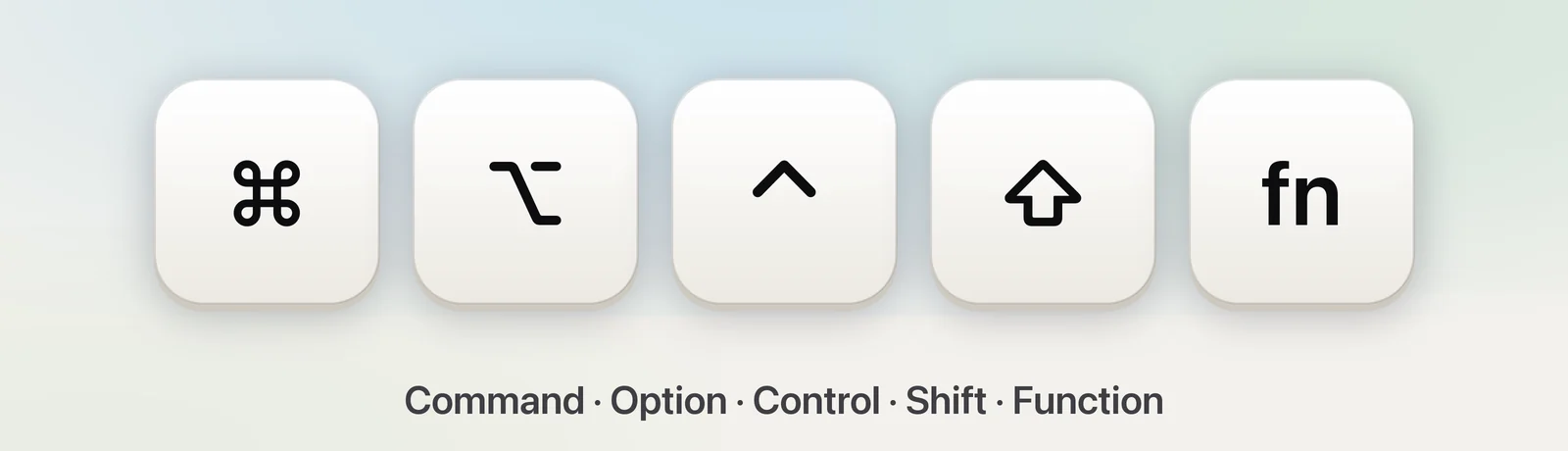
Menus and guides write shortcuts with symbols rather than key names. Five of them come up constantly:
| Symbol | Key | On a Windows keyboard |
|---|---|---|
| ⌘ | Command (Cmd) | Windows logo key, or Ctrl |
| ⌥ | Option (also labelled alt) | Alt |
| ⌃ | Control (Ctrl) | Ctrl |
| ⇧ | Shift | Shift |
| fn / 🌐 | Function, or Globe on newer keyboards | Varies |
You’ll also see ⎋ for Esc, ⌫ for Delete, ⇥ for Tab and ⏎ for Return. Press the modifier keys first and hold them, then tap the last key. For every symbol you might meet, see Mac keyboard symbols.
Apps and windows
| Shortcut | What it does |
|---|---|
| ⌘Tab | Switch to the app you used last; keep holding ⌘ and press Tab again to go further back |
| ⌘` | Switch between windows of the same app (the key above Tab) |
| ⌘W | Close the front window or tab |
| ⌘Q | Quit the app |
| ⌘H | Hide the app’s windows |
| ⌘M | Minimise the front window to the Dock |
| ⌘, | Open the app’s settings |
| ⌃⌘F | Enter or leave full screen, where the app supports it |
| ⌥⌘Esc | Force quit an app that’s stopped responding |
Window tiling has shortcuts too. On macOS Sequoia and later, hold fn and ⌃ and press an arrow key to move the front window to that half of the screen. fn⌃F fills the screen and fn⌃R puts it back. You’ll find the full set under Window → Move & Resize.
Finder
| Shortcut | What it does |
|---|---|
| Space | Preview the selected file with Quick Look |
| ⇧⌘N | New folder |
| ⌘D | Duplicate the selected files |
| ⌘I | Get Info: size, dates, sharing and permissions |
| ⌘Delete | Move the selection to the Trash |
| ⇧⌘G | Go to Folder: type or paste a path |
| ⇧⌘D / O / U | Open Desktop, Documents or Utilities |
| ⌥⌘V | Move files you copied, instead of duplicating them |
| ⌥⌘Space | Search from a new Finder window |
| ⇧⌘. | Show or hide hidden files |
Space is the one to learn first. It opens nearly any file for a look, including PDFs, images, videos and documents, without launching an app. Press it again to close the preview.
Screenshots and screen text
| Shortcut | What it does |
|---|---|
| ⇧⌘3 | Screenshot of the whole screen |
| ⇧⌘4 | Screenshot of an area you drag over |
| ⇧⌘5 | Screenshot toolbar: windows, timer, screen recording |
| Add ⌃ | Copy the screenshot instead of saving a file |
Our guide to taking screenshots covers each one in detail.
Screenshots capture pictures. When you need the words in them, Live Text reads text in images: select a screenshot in Finder, press Space, and drag across the text. Unpixel adds a shortcut of its own for this, ⇧⌘2. Drag over any text on screen, such as a paused video, a slide or an error message, and the words land on your clipboard. You can change or clear that shortcut in Unpixel’s settings if it clashes with one you already use.
System
| Shortcut | What it does |
|---|---|
| ⌘Space | Open Spotlight to find apps, files and answers |
| ⌘Space, then ⌘4 | Clipboard history in Spotlight (macOS Tahoe 26 and later) |
| ⌃⌘Q | Lock the screen |
| ⇧⌘Q | Log out (you’re asked to confirm) |
| ⌃⌘Space | Character Viewer for emoji and symbols |
| ⌥⌘D | Show or hide the Dock |
| fnC / N / Q | Control Center, Notification Center, Quick Note |
Lock the screen every time you walk away from your desk. ⌃⌘Q takes a second, and it keeps open mail, chats and your clipboard history away from anyone passing by.
Find any shortcut: the Help menu
You don’t have to memorise an app’s shortcuts to find them:
- Press ⇧⌘/ (in other words, ⌘?) to open the Help menu’s search field.
- Type part of a command’s name, such as “duplicate” or “zoom”.
- Move the pointer over a result. The menu that holds the command opens, an arrow points to it, and its shortcut is shown on the right.
Menus are the other cheat sheet: every command with a shortcut shows it next to its name. If a command you use often has none, you can add one. Open System Settings → Keyboard, click Keyboard Shortcuts…, choose App Shortcuts and click +. Type the menu command’s name exactly as it appears, then press the keys you want. See creating custom keyboard shortcuts for the details.
Make them stick
- Learn three at a time. Pick three from these tables, use them for a week, then add three more.
- Watch the menus. When you reach for a menu command, glance at its shortcut and use it next time.
- Start with the frequent ones. ⌘Tab, ⌘W and Space in Finder pay off fastest.
- Check for clashes. If a shortcut does nothing, another app may have claimed it. Shortcut not working walks through the fixes.
Frequently asked questions
What is the Option key on a Mac?
It’s the key marked ⌥, between Control and Command; some keyboards also label it alt. On a Windows keyboard connected to a Mac, the Alt key does the same job.
Where can I see every keyboard shortcut on my Mac?
Each app lists its shortcuts beside the commands in its menus, and system-wide ones are in System Settings → Keyboard → Keyboard Shortcuts…. Apple also keeps a long list on its support site.
How do I change a keyboard shortcut on a Mac?
Open System Settings → Keyboard → Keyboard Shortcuts…, choose a category such as Screenshots, double-click the shortcut and press the new keys. For an app’s menu command, select App Shortcuts and click +.
Sources
- Mac keyboard shortcuts — Apple Support support.apple.com
- Tile windows on Mac — Apple Support (Mac User Guide) support.apple.com
- Create keyboard shortcuts for apps on Mac — Apple Support support.apple.com
- Search your Clipboard history in Spotlight on Mac — Apple Support support.apple.com