Somewhere in a folder of files called “Screenshot” plus a date is the one with last month’s booking reference. Opening them one by one could take all afternoon. You don’t need the file name, though. If you remember a single word that was in the image, your Mac can usually find it, because macOS reads the text in your images and adds it to its search index.
Press ⌘Space and type a word you remember from the image; put kind:image in front of it to show only images. In Finder, press ⌘F, type the word and add a Kind is Image condition. In Photos, type the word in the search field. Text in new images is indexed in the background, so recent ones can take a while to appear.
Spotlight can search text inside images
macOS quietly runs Live Text over the images on your Mac and stores the words it finds in Spotlight’s index. That means a plain Spotlight search can turn up a screenshot because of what it says, not what it’s called.
- Press ⌘Space to open Spotlight.
- Type
kind:imagefollowed by a word from the image, such askind:image invoice. Apple documentskind:imageandkind:imagesfor exactly this. - Select a result and press Space to preview it, or Return to open it. Hold ⌘ to see where the file is.
Without kind:image, Spotlight mixes images in with documents, mail and web suggestions, so the filter saves a lot of scrolling. Whole words work better than fragments: recognition matches complete words, so “reference” finds more than “ref”.
Finder search: narrow it to images
Finder gives you more control, and a search you can save:
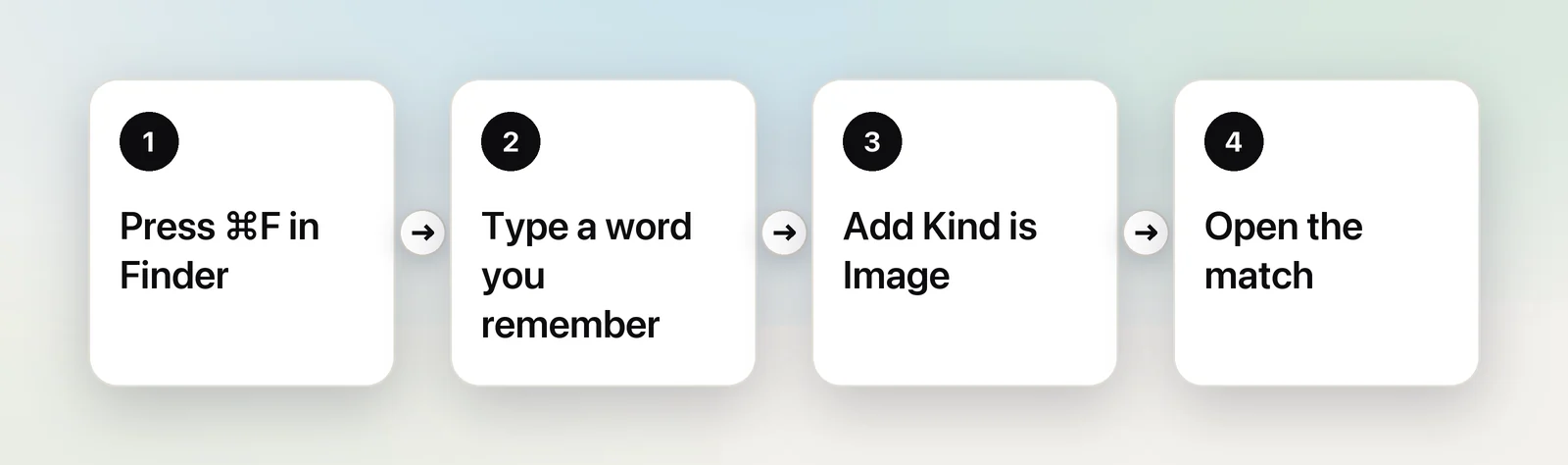
- In Finder, choose File → Find (⌘F).
- Type the word you remember in the search field and press Return.
- Click the + button on the right, below the search field.
- Set the first pop-up menu to Kind and the second to Image.
- At the top, choose This Mac, or the folder name to search only where you are.
To search only your screenshots, click + again and add Name contains “Screenshot”. When the search works, click Save to keep it as a smart folder in the sidebar, so next time it’s one click.
Matches can come from a file’s name as well as from text inside it. To match only the words inside the images, add a Contents contains condition with your word instead of typing it in the search field.
Photos: search text in your library
Screenshots taken on an iPhone or iPad are saved in Photos, and with iCloud Photos turned on they show up in Photos on your Mac as well. Photos can search them by their text too:
- Open Photos and click the search field in the toolbar, or press ⌘F.
- Type the word. Apple says Photos can find text within photos, which is handy for receipts and documents.
- To narrow it to screenshots, look under Media Types → Screenshots in the sidebar first.
Photos’ search also matches people, places and things it recognises, so a word like “menu” may bring up photos of menus as well as photos with the word written in them.
Why some images aren’t found
Image text search is useful, but it’s not instant and not perfect.
- Indexing takes time. Basic file details are indexed almost at once, but the text inside images is added later in the background. The Eclectic Light Company found that can take hours or even days for new images.
- PDFs are handled differently. Text recognition for images doesn’t run on PDFs. A scanned PDF needs its own text layer before Spotlight can find words in it; searchable PDFs explained shows how to tell and how to add one.
- The text has to be readable. Small, blurry, low-contrast or decorative text, and most handwriting, often isn’t recognised.
- Some places aren’t indexed. Folders listed under System Settings → Spotlight → Search Privacy… are skipped, and so are drives Spotlight doesn’t index.
- Results vary between Macs. In tests on macOS Sequoia published by The Eclectic Light Company in August 2025, the same kind of search found image text on one Mac and not on another. If you rely on it, test it with a recent screenshot of your own.
- The language matters. Text in a language Live Text doesn’t read is unlikely to turn up in a search.
If search can’t find it, the old-fashioned route still works: sort the folder by date, switch to Gallery view, and look around the time you remember taking it.
Keep a searchable record of what you copied
Many screenshots exist only to keep a few words: an order number, a quote, an error message. If that’s why you take them, it’s faster to save the words themselves. Pasting them into a note in Notes works, and the note is searchable straight away.
Unpixel makes that automatic for text you capture. Press ⇧⌘2 and drag over the words, and the recognised text is copied and also saved in its history. The history search finds it at once, with no indexing delay, and each entry shows the app and time it came from, such as “Safari · Just now”.
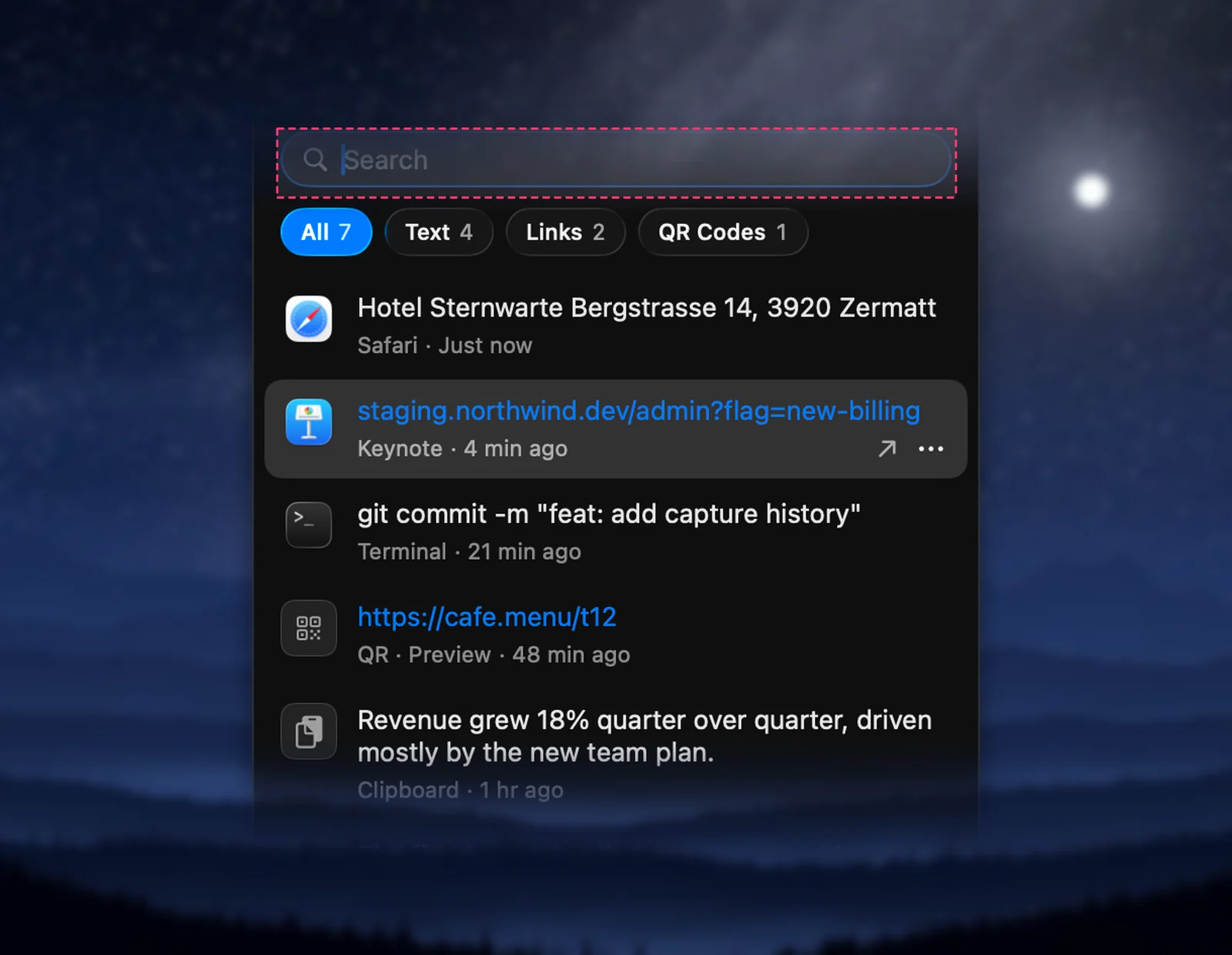
The history lives only on your Mac. It doesn’t index your old screenshots, but when Spotlight finds one, Open Image… in Unpixel’s panel reads the text out of it so you can paste it. Our guide to copying text from a screenshot shows the free ways to do that too.
Tips for finding screenshots later
- Rename the important ones. A name like “Flight booking ABC123” beats any search.
- Use Finder tags. Control-click a file and pick a tag; tags appear in Finder’s sidebar and in searches.
- Change where screenshots go. A dedicated folder is easier to search than a cluttered desktop. See changing the screenshot location.
- Save the search. A smart folder for “Kind is Image” plus “Name contains Screenshot” shows every screenshot in one place.
Frequently asked questions
Can Spotlight really search the text inside screenshots?
Yes. macOS recognises text in images in the background and adds it to the Spotlight index, so a word from a screenshot can find the file. New images can take hours or longer to become searchable.
Why doesn’t Spotlight find a word I can see in an image?
The image may not be indexed yet, the text may be too small or stylised to recognise, or the folder may be excluded in System Settings → Spotlight → Search Privacy…. Try another word from the same image.
Does this work for text in scanned PDFs?
Not in the same way. Spotlight searches a PDF’s text layer, and a scan without one has nothing to find. Run the scan through OCR software that adds a text layer first.
Sources
- Narrow your search results in Spotlight on Mac — Apple Support support.apple.com
- Narrow your search results in Finder on Mac — Apple Support support.apple.com
- Search for photos and videos on Mac — Apple Support (Photos User Guide) support.apple.com
- How to search Spotlight for Live Text and objects in images — The Eclectic Light Company eclecticlight.co
- Last Week on My Mac: Spotlight sorcery — The Eclectic Light Company eclecticlight.co