Copy and paste on a Mac works the way you’d expect, with one twist if you’re coming from Windows: the key is Command (⌘), not Control. Once that clicks, there are a few extras worth knowing, like pasting without the original formatting and pasting on the Mac what you copied on your iPhone.
Select what you want, press ⌘C (Command-C) to copy or ⌘X to cut, click where it should go, and press ⌘V to paste. The Command key sits right next to the space bar and does on a Mac what Ctrl does on Windows. Without the keyboard, use Edit → Copy and Edit → Paste, or click with two fingers on the trackpad.
The shortcuts: ⌘C, ⌘X and ⌘V
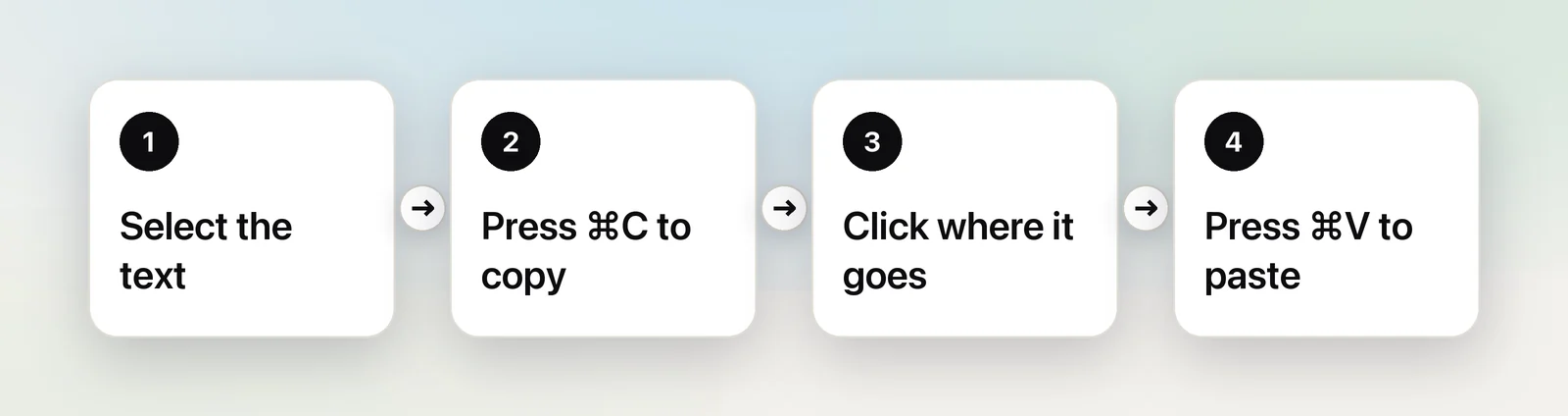
- Select the text, image or file. Drag across text, or double-click a word.
- Press ⌘C to copy it, or ⌘X to cut it (copy and remove).
- Click where it should go: another document, a message, a search field.
- Press ⌘V to paste.
The Command key has ⌘ on it and sits on both sides of the space bar. Hold it down, then tap the letter.
| Shortcut | What it does |
|---|---|
| ⌘C | Copy |
| ⌘X | Cut |
| ⌘V | Paste |
| ⌥⇧⌘V | Paste and Match Style (no original formatting) |
| ⌘A | Select all |
| ⌘Z | Undo, including a paste you didn’t mean |
Files in Finder
The same shortcuts copy files: select a file, press ⌘C, open another folder and press ⌘V for a copy. To move a file instead, press ⌥⌘V in the destination. In Finder’s Edit menu, holding ⌥ turns Paste Item into Move Item Here. Finder doesn’t cut files with ⌘X the way File Explorer on Windows does; our guide to cutting and pasting files explains the Mac way in full.
With a trackpad or mouse
You don’t need the keyboard at all:
- Edit menu: select something, then choose Edit → Copy in the menu bar. Click where it should go and choose Edit → Paste.
- Shortcut menu: click with two fingers on the trackpad, Control-click, or right-click with a mouse, then choose Copy or Paste. If a two-finger click does nothing, turn on Secondary click in System Settings → Trackpad.
- Drag and drop: drag selected text into another app’s window to copy it there. Inside the same document, dragging moves the text; hold ⌥ while you drop to copy it instead.
Paste without the formatting
Copy a paragraph from a web page into an email and it often brings its font, size, colour and links along. To paste just the words in the style of their new home, use Paste and Match Style: ⌥⇧⌘V, or Edit → Paste and Match Style.

Apple’s apps and many others support it, though not every app uses the same shortcut. Google Docs in a browser, for example, uses ⇧⌘V. Our guide to pasting without formatting covers the common apps one by one.
Copy on your iPhone, paste on your Mac
With Universal Clipboard, what you copy on an iPhone or iPad can be pasted on your Mac, and the other way round. It needs:
- The same Apple Account on both devices.
- Wi-Fi and Bluetooth on, with the devices within about 10 metres (30 feet) of each other.
- Handoff on both. On the Mac it’s in System Settings → General → AirDrop & Continuity; on the iPhone, in Settings → General → AirPlay & Continuity.
Copy as usual on one device, then paste on the other within a short time. There’s nothing to open in between. The Universal Clipboard guide has the details, and Universal Clipboard not working the fixes; for larger files, AirDrop is the better tool.
What’s on the clipboard right now?
The clipboard holds the last thing you copied, and each new copy replaces it. To look at it, open Finder and choose Edit → Show Clipboard. On macOS Tahoe and later, Spotlight can also keep a short history of what you copied: press ⌘Space, then ⌘4. Our guide to where the clipboard is on a Mac explains what you see there.
Copy text that won’t select
Sometimes the drag-to-select step simply doesn’t work: the words are part of a photo, a screenshot, a paused video, a slide in a screen share, or a button label. There’s no text to copy, only pixels.
For images, macOS has Live Text built in. Open the picture in Preview or Photos and drag across the words as if they were normal text, then press ⌘C. It doesn’t reach a video call, most interface labels or a game, though.
In Unpixel
Unpixel works on anything you can see. Press ⇧⌘2, drag a rectangle over the words and let go; the text is recognized on your Mac and placed on the clipboard, ready for ⌘V. Unless you turn it off, each capture also lands in Unpixel’s local history, so you can copy an earlier one again. Text that can’t be selected gets its own guide: how to copy non-selectable text on Mac.
Quick checklist
- Copy, cut, paste: ⌘C, ⌘X, ⌘V.
- No keyboard: Edit menu, or a two-finger click.
- Plain text only: ⌥⇧⌘V.
- Move a file: ⌘C, then ⌥⌘V.
- From iPhone: Universal Clipboard, with Handoff on.
- Text in a picture: Live Text, or ⇧⌘2 with Unpixel.
Frequently asked questions
What is Ctrl+C on a Mac?
On a Mac it’s ⌘C (Command-C). Control-C does nothing in most apps, and in Terminal it stops the command that’s running.
How do I copy and paste without a keyboard?
Select the item, click with two fingers on the trackpad (or Control-click) and choose Copy. Then do the same where you want it and choose Paste. The Edit menu in the menu bar has the same commands.
How long does my Mac keep what I copied?
Until you copy something else, log out or restart. Items copied on an iPhone with Universal Clipboard are only available on the Mac for a short time.
Why does pasted text look different from the original?
The app you paste into keeps fonts, colours and links if it can. Use Paste and Match Style (⌥⇧⌘V) to make the text match its new surroundings instead.
Sources
- How to copy and paste on Mac — Apple Support support.apple.com
- Mac keyboard shortcuts — Apple Support support.apple.com
- Copy and paste between devices on Mac (Universal Clipboard) — Apple Support (macOS Tahoe 26) support.apple.com