
You select a neat table in a PDF, paste it into Excel, and get one long column. Sometimes it’s worse: a whole row of figures jammed into a single cell. The table looked like a grid, but the PDF never stored it as one. Here’s how to get real rows and columns into Excel on a Mac, starting with the fixes that cost nothing.
A PDF stores positioned text, not cells, so a table copied from Preview usually pastes into Excel as one column. For a small table, hold ⌥ in Preview to copy one column at a time. Otherwise, fix the paste with Data → Text to Columns or WRAPROWS, or capture the table with a tool that puts tab-separated cells on the clipboard.
Why PDF tables paste into one column
A PDF records where each piece of text sits on the page. It has no idea that “1,284” belongs in column B. When you copy, the viewer has to guess the reading order, and it hands the clipboard plain lines of text. Excel only splits pasted text into cells at tab characters, so everything lands in column A.
Depending on how the PDF was made, you’ll see one of two shapes:
- One line per row. “Europe 977 1,040”, with the cells separated by spaces.
- One line per cell. “Europe”, then “977”, then “1,040”, each in its own row.
Work out which one you have, because the fix is different. This guide covers PDFs with real text: files exported from Word, Excel, accounting software or a browser. If you can’t select any text at all, the PDF is a scan, and copying a table from a scanned PDF is the guide you need.

Excel’s own PDF import isn’t on the Mac
On Windows, Excel can read tables straight out of a PDF with Data → Get Data → From File → From PDF. On the Mac, Power Query lives under Data → Get Data (Power Query). As of October 2026, Microsoft’s table of sources for Excel for Mac lists workbooks, text and CSV files, XML, JSON, folders, SharePoint, SQL Server and OData feeds. PDF isn’t one of them.
So on a Mac, you have three routes: copy carefully, reshape the paste, or capture the table as cells.
Free: copy one column at a time in Preview
Preview has a selection mode that suits small tables. Apple’s guide calls it copying text vertically, which is exactly what one column of a table needs:
- Open the PDF in Preview and choose Tools → Text Selection.
- Hold ⌥ and drag a rectangle over one column, header included.
- Choose Edit → Copy, click the top cell of an empty column in Excel, and paste.
- Repeat for the next column, pasting it one column to the right.
Compare row counts as you go. If a cell wraps onto two lines in the PDF, it becomes two rows in Excel, and that column drifts out of step with its neighbours. Join the halves before you paste the next column. For a table of four or five columns, this takes a couple of minutes and needs no other tools.
Fix a pasted mess: Text to Columns or WRAPROWS
One line per row. Excel’s Text to Columns splits each line at a character you choose:
- Select column A.
- Choose Data → Text to Columns.
- Choose Delimited and click Next.
- Tick Space, and tick Treat consecutive delimiters as one.
- Click Finish.
Spaces are the weak point. “North America” becomes two cells and pushes the rest of that row one column to the right. Fix those rows by hand, or replace the spaces inside names with an underscore before you split. Our guide to splitting pasted text into columns covers other separators, fixed-width text and the same job in Numbers and Google Sheets.
One line per cell. If every value landed in its own row, reshape the column with WRAPROWS, available in Excel for Microsoft 365 and Excel 2024 on the Mac. For a four-column table pasted into A1:A48:
=WRAPROWS(A1:A48, 4)The result spills into a block of 12 rows and 4 columns. To keep plain values, copy the block and choose Edit → Paste Special…, then Values. It only works if the paste kept every cell, though. An empty cell in the PDF produces no line at all, so every value after it shifts one column. If the last row ends in #N/A, something went missing higher up.
Capture the table as cells
Copying text from a PDF loses the grid because it copies text. Table recognition works from what the page looks like instead: it finds the rows and columns, reads each cell, and gives the spreadsheet cells.
In Unpixel
Unpixel does this from the screen, so the PDF can be open in Preview, a browser or any other viewer. Press ⇧⌘2, drag over the table with its header row, and let go. The confirmation says “Table copied” with the shape, such as “12 rows × 4 columns”. Click a cell in Excel and paste: one value per cell, with no splitting afterwards.
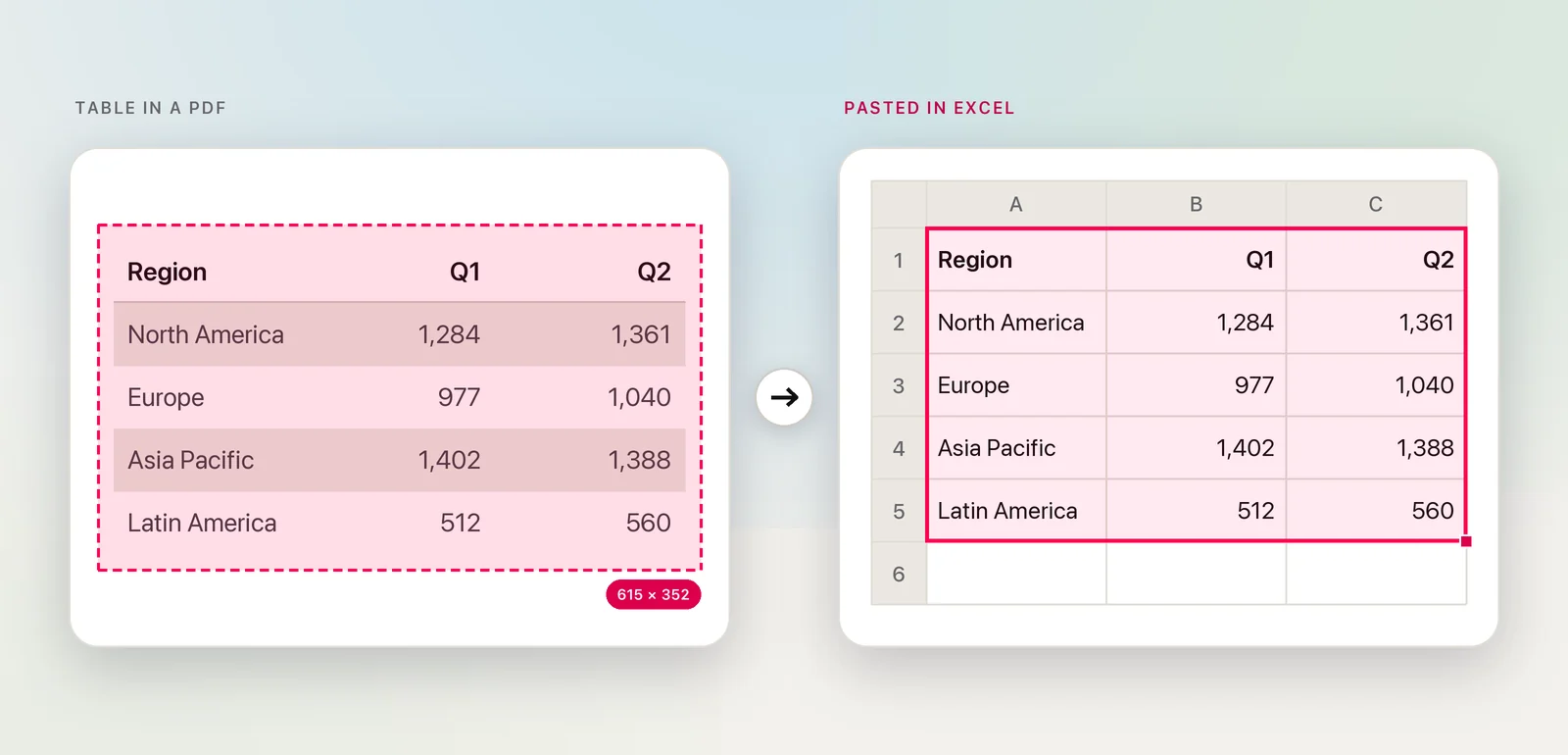
A few details matter with PDFs:
- Zoom in first. Small print reads more reliably when it’s larger on screen.
- Select tightly. A title above or a source line below the table comes along as a one-cell row.
- Merged headers. A heading such as “2025” spanning two columns lands in the first of them; the cell next to it stays empty.
- Not really a table? If a capture came back as a table when you wanted plain text, right-click it in the history and choose Copy as Text.
The same capture works on a table that’s only a picture inside the PDF, which no copy command can reach.
Tables that span pages
Treat each page’s part as its own capture. Paste the first part, then paste each following part directly underneath. Before you paste a continuation, delete its repeated header row in the destination. Then look at each join: a description that starts at the bottom of one page and finishes at the top of the next becomes two half-rows that need merging.
For long tables, reading the whole file can be faster. Open Image… in Unpixel reads up to 50 pages in one capture. Each page’s table arrives as its own block, separated by an empty row, with page headers and footers as single-cell rows in between. The scanned PDF guide shows a quick way to filter those out.
Check the numbers
Crisp PDF text is rarely misread, but the shape of the table can still go wrong, whichever route you took. Before you build anything on the data:
- Rows: compare the row count with the PDF.
- Totals: recalculate any total the PDF prints and compare.
- Alignment: numbers that sit on the left of their cells are stored as text and won’t add up.
- Negatives: values such as (1,200) or 1,200- need converting before they sum correctly.
Cleaning up pasted table data walks through those fixes, plus stray spaces, currency symbols and dates that won’t sort.
Frequently asked questions
Can Excel for Mac import a PDF directly?
Not as of October 2026. Microsoft’s list of Power Query sources for Excel for Mac covers files such as workbooks, text and CSV, XML and JSON, plus folders, SharePoint, SQL Server and OData feeds, but not PDF. The From PDF connector is an Excel for Windows feature.
Is there a way to keep the PDF’s formatting?
Not the styling. Copying, splitting and capturing all bring over values, not fonts, shading or borders. Get the cells right first, then select them and use Home → Format as Table to restyle them in a few clicks.
Why are some pasted numbers left-aligned?
Excel is treating them as text, usually because of a stray space, a currency sign or a separator it didn’t expect. Select them and choose Convert to Number from the warning icon next to the cells.
Sources
- Select and copy text in a PDF in Preview on Mac — Apple Support support.apple.com
- Power Query data sources in Excel versions — Microsoft Support support.microsoft.com
- Split text into different columns with the Convert Text to Columns Wizard — Microsoft Support support.microsoft.com
- WRAPROWS function — Microsoft Support support.microsoft.com