A lecture slide, a command in a tutorial, an address flashed for two seconds in a travel vlog: video is full of text you can read but can’t select. A Mac gives you three dependable ways to get that text onto the clipboard. Which one fits depends on the player you’re watching in.
Pause the video on a sharp frame. In QuickTime Player or a Quick Look preview, hold the pointer over the text, drag to select it with Live Text and press ⌘C. In any other player, copy a screenshot with ⌃⇧⌘4 and read it in Preview with File → New from Clipboard, or press ⇧⌘2 with Unpixel and drag over the text.
Start with a sharp frame
All three methods read a still picture, so the frame you stop on decides how good the result is. Compressed video often smears small letters for a moment after a cut or a scroll. Pause once the text has settled.
- Make it big. Switch to full screen or the largest window size. More pixels per letter means fewer misread characters.
- Pick the highest quality. A 1080p stream carries far sharper text than a 360p one.
- Step frame by frame. In QuickTime Player, the Left and Right Arrow keys step one frame back or forward. Many web players have their own frame-step keys.
- Hide captions if they sit on top of the words you want.
Way 1: Live Text on a paused video
Live Text reads paused video frames the same way it reads photos. Apple added this in macOS Ventura, and its feature list names Photos, Quick Look and Safari. Apps built on Apple’s standard video view, which include QuickTime Player, get it too, because that view analyzes paused frames unless the developer turns it off.
- Open the video in QuickTime Player, or select the file in Finder and press Space for Quick Look.
- Pause on the frame with the text.
- Move the pointer over the words. When it turns into a text cursor, drag across the part you want.
- Press ⌘C. Control-click the selection instead for more options, such as translating it.
Safari can do the same with web video on a Mac with Apple silicon: pause, then drag across the words in the frame. Sites that lay their own controls or overlays over the picture can get in the way, so it doesn’t work on every player.
If nothing becomes selectable anywhere, check that Live Text is switched on: open System Settings → General → Language & Region and look for Live Text (“Select text in images to copy or take action”). Apple also notes that Live Text isn’t available in every language or region. More checks are in Live Text not working on Mac.
The real limit is the player. Apps that draw video their own way, which includes many third-party players and course platforms, usually don’t offer Live Text at all. Apple’s developer session on the feature also notes that paused-frame support excludes FairPlay-protected video.
Way 2: Screenshot the frame, then read it in Preview
This one works in every player, browser and course site, at the cost of a few extra clicks.
- Pause the video and press ⌃⇧⌘4. Holding Control sends the screenshot to the clipboard instead of the desktop.
- Drag over the area with the text and let go.
- Open Preview and choose File → New from Clipboard.
- Drag across the text in the new image. If the pointer doesn’t change to a text cursor, choose Tools → Text Selection first.
- Press ⌘C, then close the window without saving.
It’s reliable, but it’s five steps for a single line. Across a long tutorial or a whole lecture series, those steps add up.
Way 3: One shortcut in any player
In Unpixel
Unpixel is a menu bar app that turns way 2 into a single gesture. It reads the pixels on your screen, so it doesn’t matter what is showing them: QuickTime Player, VLC, IINA, a browser tab, a course platform or a recorded meeting.
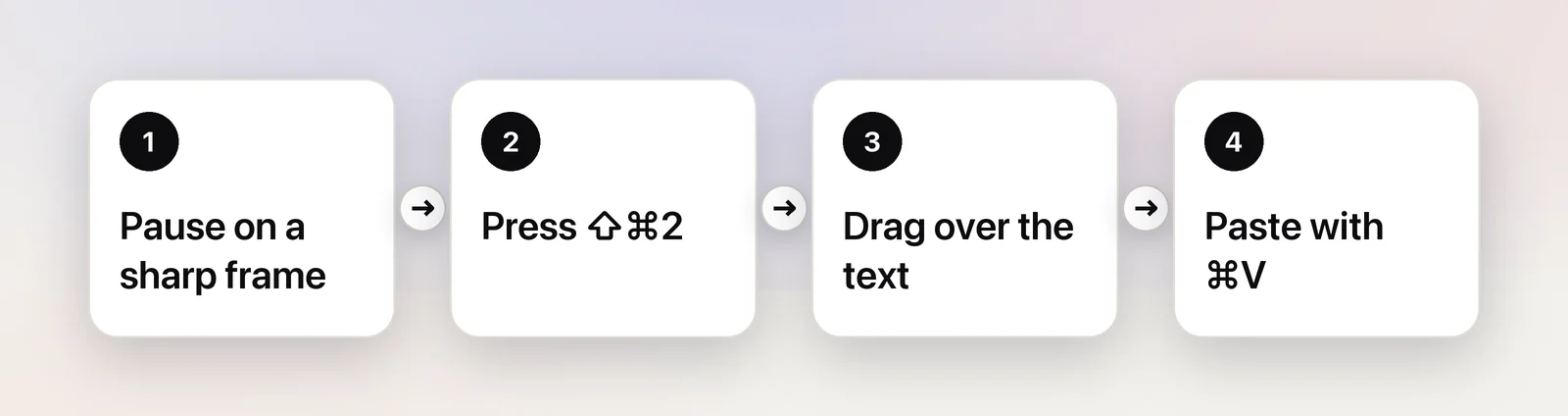
- Pause the video on a clear frame.
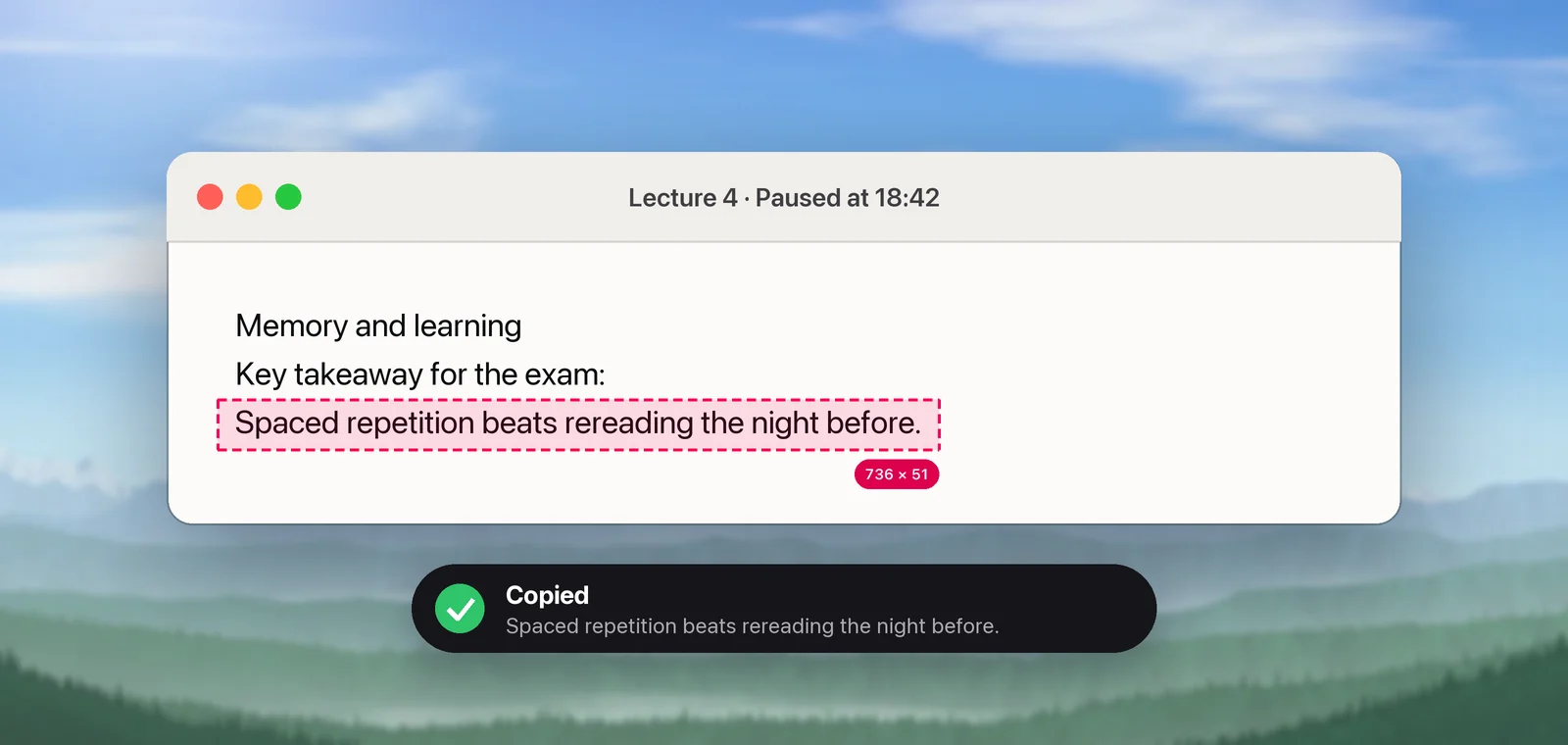
- Press ⇧⌘2. The screen dims slightly and the pointer becomes a crosshair.
- Drag over the text and let go. A small “Copied” confirmation shows a preview of what was read.
- Paste with ⌘V.
Recognition runs on your Mac with Apple’s Vision framework, and the frame is never saved or uploaded. A few extras matter for video in particular. Hold ⌥ as you let go and you get a translation of a foreign-language slide instead of the original. A QR code in the frame comes back as its contents. Captures also go into a local, searchable history (unless you turn it off), so the line you grabbed ten minutes ago is still there.
Getting clean text out of a frame
Whichever method you use, a little care at capture time saves editing later.
- Paragraphs: a slide wraps its lines to fit the frame. In Unpixel, turning off Keep line breaks in Settings → Recognition joins those lines back into one paragraph.
- Code, commands and IDs: turn off Language correction in the same pane so names aren’t “corrected” into dictionary words. Our guide to copying code from a video tutorial covers the rest.
- Look-alike characters: l, 1 and I, or O and 0, can be identical in some fonts. Check URLs and commands before you open or run them.
- Long passages: capture one screenful at a time, in order, and paste them one after another.
For the spoken words rather than text on screen, captions are the better source. See how to copy subtitles from a video, or use YouTube’s transcript when the video is there.
When nothing works: protected video
Streaming services that protect their video ask macOS to keep it out of screenshots and screen recordings. You get a black rectangle where the picture should be, and the same black frame is all that Live Text, a screenshot or Unpixel can see. That’s deliberate, and no capture tool gets around it.
For those videos, turn on the service’s subtitles and read them, look for a transcript or show notes, or type the few words you need. Our explainer on why screenshots of videos turn black covers which apps do this and why.
Frequently asked questions
Can I copy text while the video is still playing?
Live Text needs a paused frame. A screen-capture tool reads whatever is on screen at the moment you let go, so it can work on a playing video when the text holds still, but pausing gives cleaner results.
Why does the video turn black when I try to capture it?
Some streaming services protect their video, and macOS then hides it from screenshots and screen capture. No capture tool can read those pixels; use the service’s subtitles or another source for the text.
Is the video frame saved or uploaded anywhere?
Not with Live Text or Unpixel: both read the frame on your Mac. A screenshot does leave a file on your desktop unless you add Control to the shortcut, which sends it to the clipboard instead.
Sources
- macOS Ventura is now available (Live Text in paused video frames) — Apple Newsroom apple.com
- macOS Ventura — New Features: Live Text in videos (archived November 2022) — Apple web.archive.org
- Add Live Text interaction to your app — WWDC22, Apple Developer developer.apple.com
- allowsVideoFrameAnalysis (AVPlayerView) — Apple Developer Documentation developer.apple.com
- Release Notes for Safari Technology Preview 147 with Safari 16 features (Live Text in video) — WebKit webkit.org
- Keyboard shortcuts and gestures in QuickTime Player on Mac — Apple Support support.apple.com
- Change Language & Region settings on Mac (Live Text) — Apple Support support.apple.com
- Interact with text in a photo using Live Text in Preview on Mac — Apple Support support.apple.com