
Markdown tables are plain text, which is why they’re easy to review, diff and keep in a repository, and why they’re tedious to type. If the table you need is in a screenshot, a slide or a PDF, there’s no need to type it at all. Recognize the text, then let a formula or a tool add the pipes.
Recognize the table first, then format it. Free: copy the text with Live Text, split it into spreadsheet columns, and build each row with a TEXTJOIN formula. Faster: capture the table with a tool that outputs Markdown directly. In Unpixel, set Tables as plain text to Markdown, or right-click a table in the history and choose Copy as Markdown.
Where Markdown tables are useful
Markdown tables shine where text lives next to code or in plain files: README files and docs folders, issues and pull requests on GitHub, wikis, Obsidian vaults, and static site generators. They survive version control, render in most developer tools and can be edited in any text editor.
They’re not the right tool for everything. A table with hundreds of rows belongs in a CSV file. GitHub-flavored Markdown has no merged cells and no multi-line cells, so a complex report table loses some structure. For a reference table of 5 to 30 rows, though, it’s ideal.
What a valid table needs
A GitHub-flavored Markdown table has a header row, a separator row and the body:
| Plan    | Seats |  Price |
| ------- | ----: | -----: |
| Starter |     1 |  $4.99 |
| Team    |     5 | $19.00 |
The rules that trip people up, from GitHub’s documentation and spec:
- A blank line before the table, or it won’t render.
- At least three hyphens for each column in the separator row. Obsidian accepts two.
- The same number of cells in the header and separator rows. Later rows can be shorter or longer: missing cells become empty, extra cells are dropped.
- Colons set the alignment:
:---left,---:right,:---:centered. - A pipe inside a cell is escaped as
\|, even inside inline code.
The columns don’t have to line up in the source. Padding them just makes the file easier to read.
The free way: Live Text plus a formula
Without extra tools, it takes three steps:
- Get the text. Open the image in Preview, drag across the table, Control-click and choose Copy Text. Live Text copies lines, not cells.
- Get it into columns. Paste into Excel, Numbers or Google Sheets and split the lines into columns. Splitting pasted text into columns shows how in each app.
- Build the rows. In an empty column, join each row’s cells with pipes, then fill the formula down:
="| "&TEXTJOIN(" | ", FALSE, A1:C1)&" |"The FALSE keeps empty cells, so the columns don’t shift. Copy the results, paste them into your editor, and type the separator row under the first line yourself. Escape any pipes in the data before you join, or the table will grow a column.
It works, but for more than one table it gets old quickly.
In Unpixel: tables straight to Markdown
Unpixel recognizes tables on your Mac with Apple’s Vision framework and can write them as Markdown. There are two ways to ask for it.
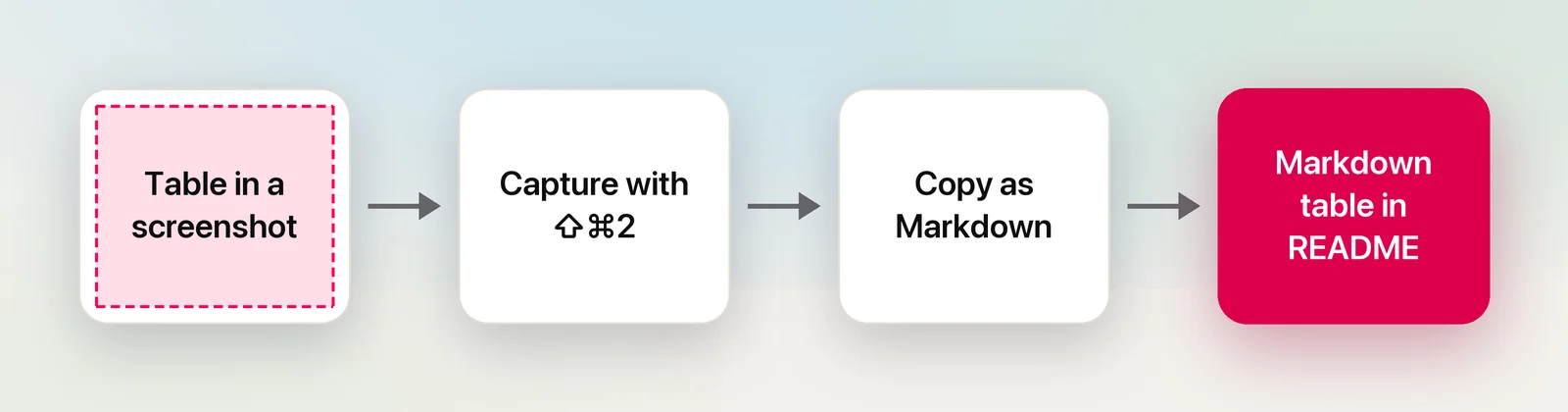
Make Markdown the default for text editors
In Unpixel’s Settings → Recognition, set Tables as plain text to Markdown. That setting is for code editors and other text-only apps. Spreadsheets, Notes and other apps that accept tables still get real cells. After that:
- Press ⇧⌘2 and drag over the table, header row included.
- Paste into VS Code, Xcode, BBEdit or a comment box on GitHub. You get a GitHub-flavored table.
Or copy one capture as Markdown
Leave the setting alone and convert one table at a time. Click the Unpixel icon in the menu bar, find the table in the history (its row says “Table” with the number of rows and columns), right-click it and choose Copy as Markdown. The clipboard then holds only the Markdown text, so even an editor that would normally take the formatted version pastes the pipes. The same menu has Copy as CSV if you change your mind.
For a table inside a PDF, open the file with Open Image… and copy the result as Markdown from the history in the same way.
Alignment and escaped pipes
Unpixel’s Markdown follows the rules above, and a few details are worth knowing:
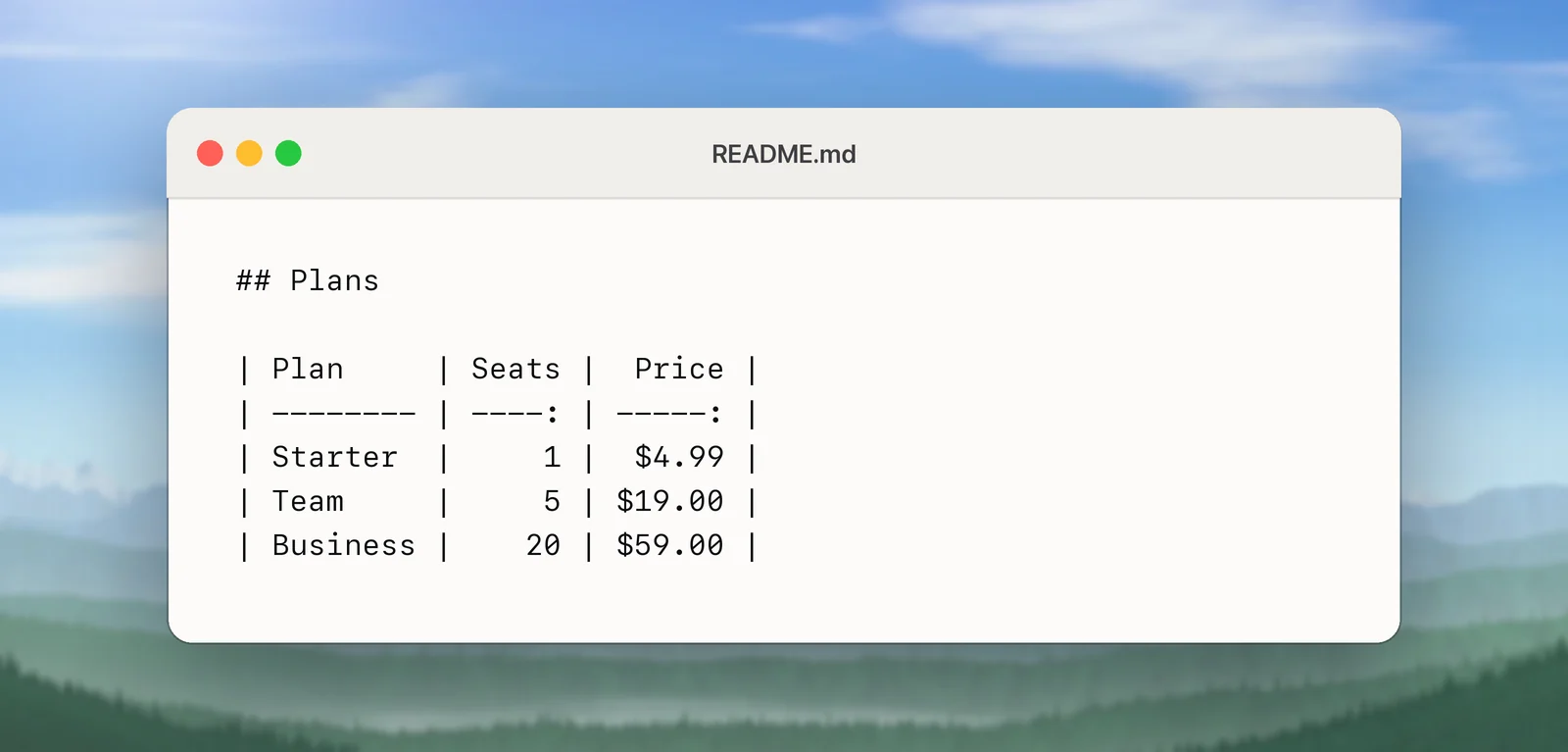
- The first row becomes the header. If the image has no header row, the first data row is promoted. Add a header line yourself in that case.
- Number columns are right-aligned. A column counts as numeric when every filled cell below the header is a number, a price or a percentage. One “n/a” keeps it left-aligned; change
---to---:by hand if you want. - Pipes are escaped. A cell such as
A|Bcomes out asA\|B. - Columns are padded with spaces so the source reads as a grid, with at least three hyphens per column.
- Text around the table, such as a caption you included in the selection, stays as a paragraph above or below it.
Paste into GitHub, Obsidian and Notion
GitHub. Paste into a README, an issue or a pull request comment, leaving a blank line above the table. Use the Preview tab to check it before you commit or post.
Obsidian. Paste into a note in Source mode or Live Preview. Obsidian renders the table, and in Live Preview you can right-click it to add or delete rows and columns. In a table, escape the pipe in a wikilink alias too, as in [[Note\|alias]].
Notion. Notion stores pages as blocks, not Markdown files, so Markdown is only a way in, and how it treats a pasted table has changed over time. Paste, then look at what you got. If the pipes stay as plain text, paste a fresh capture instead of the Markdown copy: a normal capture also carries the table as HTML cells, which apps that understand tables can use. Keep Markdown for files you’ll commit, publish or open in other editors.
Quick checklist
- Blank line before the table.
- Header and separator rows with the same number of cells.
---:for number columns you want right-aligned.\|for every pipe inside a cell.- No merged cells: repeat or rename spanning headers.
Frequently asked questions
Can a Markdown table have merged cells?
Not in GitHub-flavored Markdown. A heading that spans two columns in the image ends up in the first of them, with an empty cell beside it; repeat the label or rename the columns, such as “2025 Q1” and “2025 Q2”.
Why does my table show up as plain text on GitHub?
Usually there’s no blank line before it, or the separator row doesn’t have the same number of cells as the header row. GitHub’s spec says a table isn’t recognized when those two rows don’t match.
Can I put a line break inside a cell?
Not in Markdown itself: each cell is one line, and lists or paragraphs can’t go inside it. GitHub does render an HTML <br> tag in a cell, so type one where you want the break. Text that wrapped onto two lines in the image is joined with a space when Unpixel reads it.
Sources
- Organizing information with tables — GitHub Docs docs.github.com
- GitHub Flavored Markdown Spec: Tables (extension) github.github.com
- Advanced formatting syntax — Obsidian Help obsidian.md
- Interact with text in a photo using Live Text in Preview on Mac — Apple Support support.apple.com