You drag across a paragraph in a PDF and nothing highlights. Or the text highlights, but ⌘C does nothing, or the paste comes out as a jumble of symbols. Each of those has a different cause, and once you know which one you’re dealing with, the fix usually takes a minute.
First make sure Preview’s Text Selection tool is on: Tools → Text Selection. If nothing highlights, the page is probably a scan: choose File → Export and select Embed Text to add a text layer, or screenshot the passage and use Live Text. If the file is secured, enter its password under Tools → Show Inspector → Encryption.
First, find out what kind of PDF you have
A PDF can hold real text, pictures of text, or both on the same page. What happens when you try to select tells you which.
| What you see | Likely cause | What to do |
|---|---|---|
| The pointer stays an arrow or a hand; nothing highlights anywhere | The Text Selection tool isn’t on | Tools → Text Selection |
| Nothing highlights, and ⌘F can’t find words you can see | A scanned or photographed page: it’s a picture | Embed Text, or read it with OCR |
| Nothing copies, and Tools → Show Inspector → Encryption shows the file is secured | The author restricted copying | The password, or an unrestricted copy |
| Text highlights but pastes as symbols or broken words | Fonts embedded without a proper character map | Read the page with OCR |
| Only part of the page selects | The rest is a chart, a figure or an embedded image | Capture that area with OCR |
If your text pastes as symbols, why PDF text pastes as gibberish explains the font problem in more depth.
Fix 1: switch on Text Selection in Preview
This is Apple’s first suggestion, and it’s easy to miss. If you last used Preview to draw a rectangle or sign a form, a different tool may still be active.
- Choose Tools → Text Selection, or click Show Markup Toolbar and then the Text Selection button.
- Drag across the text you want.
- Press ⌘C.
If the text now highlights, you’re done. If it still doesn’t, the page is almost certainly a picture.
Fix 2: let Preview recognize a scanned PDF
Preview can recognize the text in an image-based PDF and add it to the file as an invisible layer, so you can select, search and copy it in any PDF app.
- Open the PDF in Preview and choose File → Export.
- Select Embed Text.
- Give the copy a new name, so the original stays as it was, and click Save.
- Open the new file and select the text as usual.
The Embed Text option only appears when the document has no recognized text yet. Recognition can still misread faint or skewed scans, so check names and numbers against the page. For a long document, our guide to copying text from a scanned PDF goes further.
Fix 3: screenshot one passage, then use Live Text
When you only need a paragraph, a figure caption or a label inside a chart, a screenshot is quicker than exporting the whole file.
- Zoom in on the passage (⌘+) so the letters are large on screen.
- Press ⌃⇧⌘4 and drag over it. The screenshot goes to the clipboard.
- In Preview, choose File → New from Clipboard, drag across the text and press ⌘C.
This also gets around fonts that paste as gibberish, because Live Text reads the shapes on screen rather than the broken character data in the file.
Fix 4: read the page with Unpixel
In Unpixel
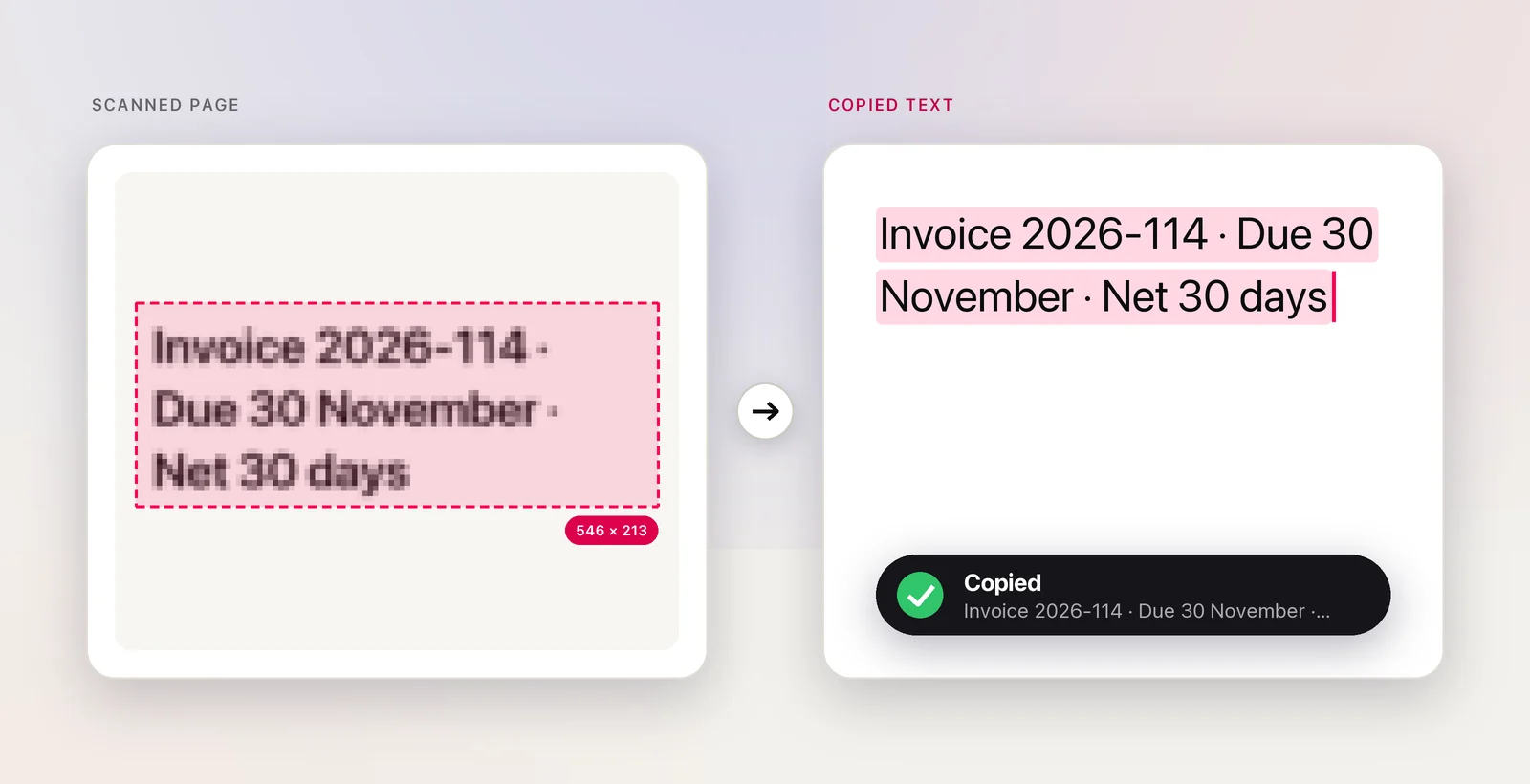
Unpixel reads text from the pixels on screen, so it doesn’t matter whether the PDF has a text layer or which app is showing it.
- One passage: press ⇧⌘2 in Preview, a browser or a document portal, drag over the text and let go. It’s on your clipboard.
- The whole file: click the menu bar icon, then Open Image…, and pick the PDF, or drop the PDF on the icon. Unpixel reads up to 50 pages, in order, with a blank line between pages.
For clean paragraphs, turn off Keep line breaks in Settings → Recognition. Unpixel then joins the lines of each paragraph and re-joins words that were hyphenated across a line break. List items keep their own lines. A table on the page pastes into Numbers or Excel as cells. The PDF itself is never changed.
More on tidying pasted text is in removing line breaks from text copied from a PDF.
When the PDF is locked
If the PDF needs a password before you can select or copy text, the person who made the file chose to restrict copying, and Preview respects that choice. To check, choose Tools → Show Inspector and click the Encryption button. If you have the password, enter it there.
The straightforward fixes are to ask the sender for the password or an unrestricted copy, or to find the original document. A PDF that needs a password just to open can’t be read at all without it. Our guide to protected PDFs explains the different locks and what you can fairly do with the text.
Frequently asked questions
How can I tell whether a PDF is scanned?
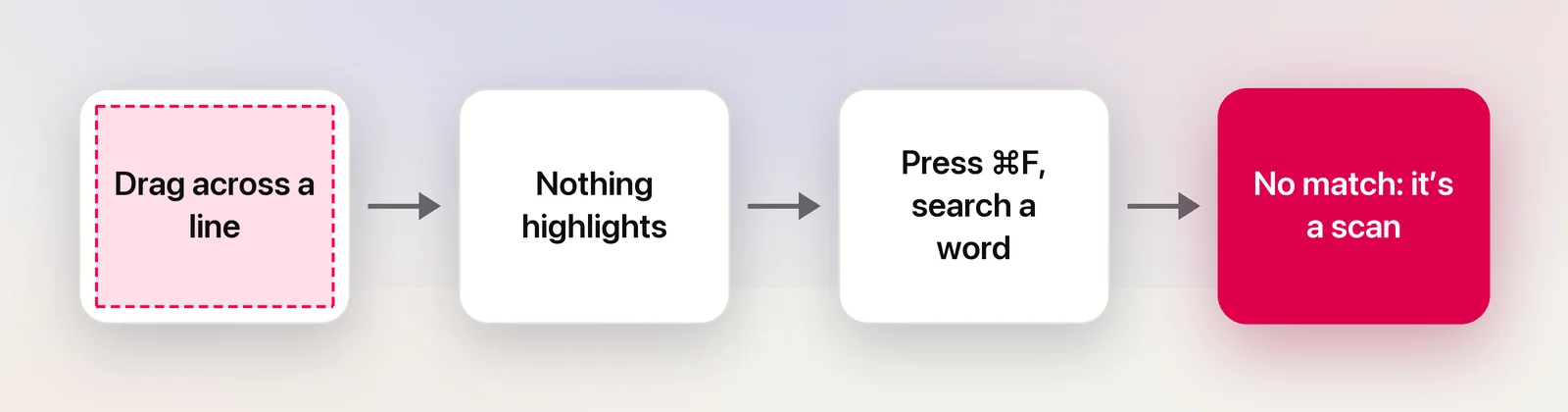
Press ⌘F and search for a word you can clearly see on the page. If Preview finds nothing, the page is an image with no text layer behind it.
Why does text copied from a PDF paste as gibberish?
Some PDFs embed fonts without a proper map from shapes back to letters, so the copied characters are wrong even though the page looks fine. Reading the page with text recognition skips that broken map.
Does Unpixel change my PDF?
No. It reads the pages and puts the text on your clipboard; the file stays exactly as it was. To add a text layer to the file itself, use Preview’s Embed Text.
Sources
- If you can’t select or copy text in a PDF in Preview on Mac — Apple Support support.apple.com
- Embed text in a PDF in Preview on Mac — Apple Support support.apple.com
- Interact with text in a photo using Live Text in Preview on Mac — Apple Support support.apple.com