A poster you photographed, an infographic, a receipt, a picture someone posted in a group chat: the words are right there, but you can’t click into them. macOS can read text in images by itself, in more places than most people realize. Here’s where that works, and what to do when the picture lives somewhere it doesn’t.
Open the image in Preview or Photos, or select it in Finder and press Space for Quick Look. Hold the pointer over the text, drag to select it, and press ⌘C. Live Text also works on pictures in Safari. For an image inside another app, copy the image, then paste it into Preview with File → New from Clipboard and select the text there.
Live Text in Preview, Photos, Quick Look and Safari
Live Text is the Mac’s built-in text recognition for images. It works the same way in each of Apple’s apps: hold the pointer over the text, and when it turns into a text cursor, drag to select.
Preview
- Double-click the image to open it in Preview.
- Drag across the words you want.
- Press ⌘C, or Control-click the selection and choose Copy Text. The same menu offers Look Up, Translate and a web search.
If the pointer never changes, choose Tools → Text Selection; another tool, such as a selection rectangle, may still be active. Phone numbers, email addresses and web links get a small arrow beside them with actions such as calling or opening the link.
Photos
Open the photo, hold the pointer over the text, drag to select it, then Control-click and choose Copy Text. Camera photos bring their own problems, like tilt, glare and curved pages. Our guide to copying text from a photo covers those.
Quick Look
For a quick grab without opening any app, select the image in Finder and press Space. Drag across the text in the preview and press ⌘C, then press Space again to close it.
Safari
Pictures on web pages work too. In Safari, drag across the text inside an image, then copy it, look it up or translate it.
If none of this works anywhere, check the switch: System Settings → General → Language & Region → Live Text. Apple also notes that Live Text isn’t available in every language or region. Live Text not working on Mac goes through the other causes.
Images inside chat and web apps
Slack, Discord, Microsoft Teams, Chrome and many other apps show pictures inside their own views, where Live Text often doesn’t reach. The fix is to move the picture somewhere it does:
- Control-click the image and choose the app’s copy command, usually Copy Image.
- Open Preview and choose File → New from Clipboard.
- Select the text in the new window and copy it, then close the window without saving.
If an app has no copy command for images, press ⌃⇧⌘4 and drag over the picture on screen. That copies a screenshot of it to the clipboard, and step 2 works the same.
In Unpixel
Unpixel shortens that round trip. After copying an image, click From Clipboard in Unpixel’s menu bar panel, and the text replaces the picture on your clipboard. It also accepts an image or PDF file you copied in Finder.
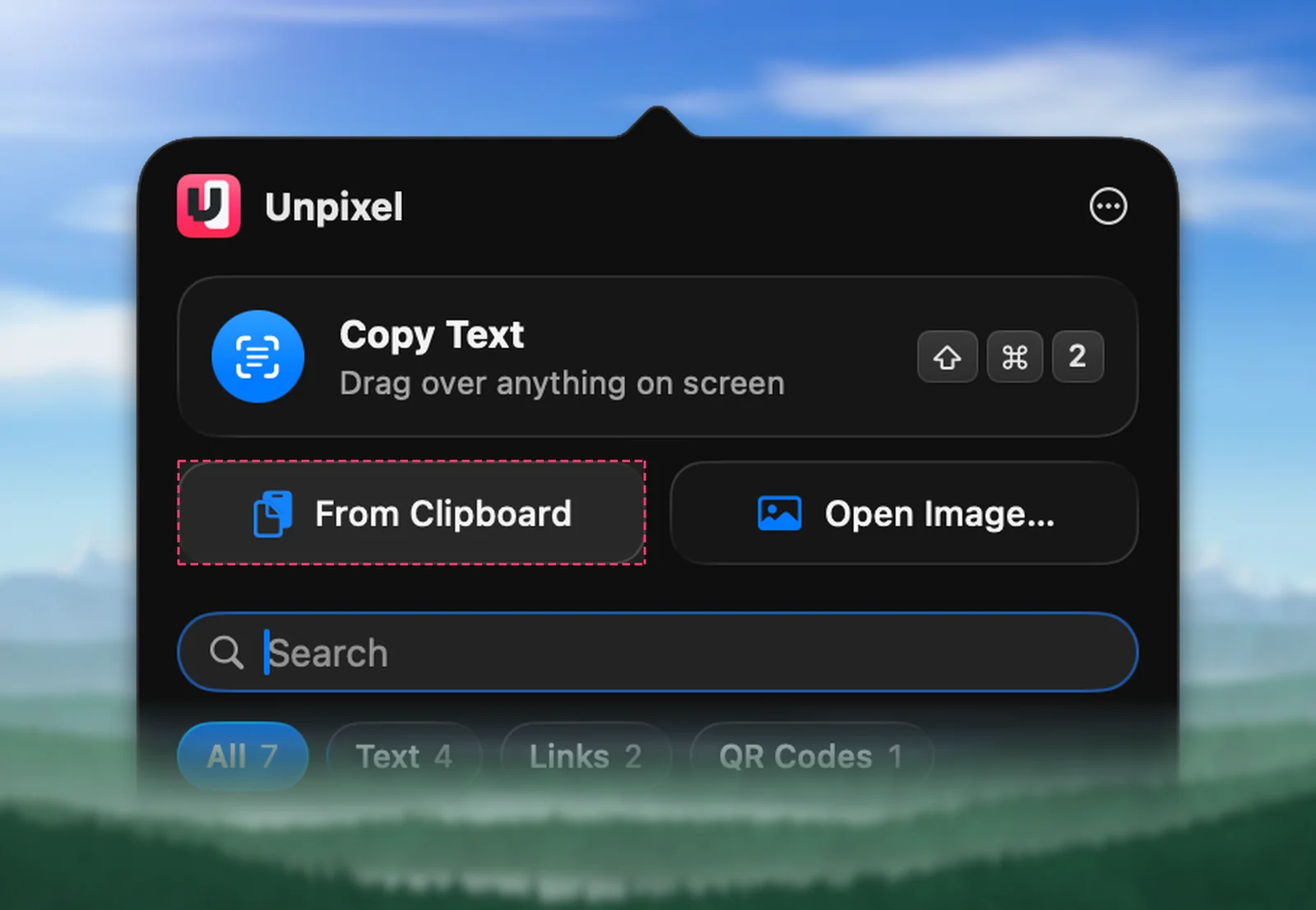
Or skip the copying altogether: press ⇧⌘2 and drag over the picture where it sits, in any app. Recognition runs on your Mac with Apple’s Vision framework, so the picture isn’t uploaded anywhere.
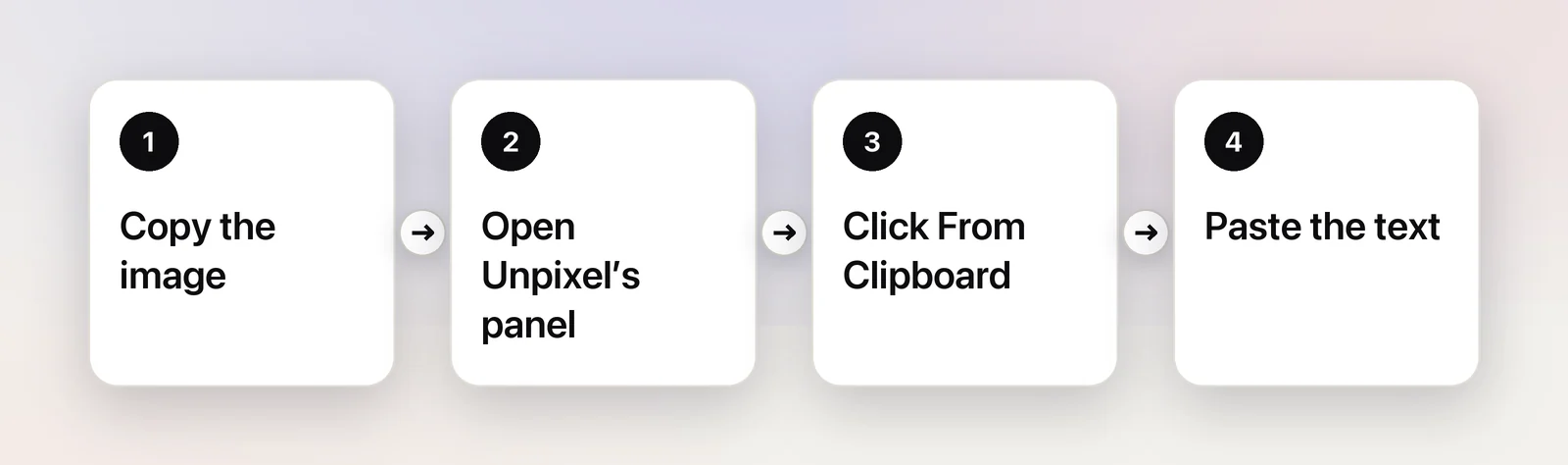
Image files, including HEIC, WebP and TIFF
Different sources produce different formats. iPhone photos are often HEIC, many websites serve WebP, and scanners and fax software like TIFF. You don’t need to convert any of them first: Preview opens them all, and Live Text works as soon as the image is on screen. A TIFF with several pages shows them in Preview’s sidebar; select the text one page at a time.
Unpixel’s Open Image… reads PNG, JPEG, HEIC, TIFF, GIF, BMP and WebP files, and PDFs. You can also drop files on its panel or menu bar icon, or Control-click a file in Finder and choose Open With → Unpixel. More on iPhone photos is in HEIC to text on Mac.
Several images at once
Live Text handles one picture at a time, which gets tedious for a folder of receipts or a set of slide photos.
- Shortcuts: the free Shortcuts app has an Extract Text from Image action that you can build into a Finder Quick Action. It takes some setup; see our guide to the Shortcuts Extract Text from Image action.
- Unpixel: select several files in Open Image… and they’re read as one capture, in order, up to 50 pages in total. If one of them can’t be read, the confirmation says so, for example “Copied text from 2 of 3 files”.
For bigger batches, see batch OCR on Mac.
Tips for better recognition
- Bigger is better. Tiny text in a large image is the most common failure. Zoom in, or crop the image to the part you need.
- Contrast helps. Dark text on a plain light background reads best. Text over a busy photo or a gradient is much harder.
- Fancy fonts struggle. Heavy outlines, shadows and decorative scripts often fail, and so does text that is curved or rotated a long way.
- Handwriting varies. Neat print often works; quick cursive and faint pencil often don’t.
- Mixed languages. If automatic detection picks the wrong language, Unpixel lets you set one in Settings → Recognition.
- Check the numbers. Proofread amounts, dates and codes before you rely on them.
Frequently asked questions
Which image formats can I copy text from?
Preview opens all the common ones, including JPEG, PNG, HEIC, TIFF, GIF and WebP, and Live Text works on the image once it’s open. Unpixel’s Open Image… reads the same formats, plus BMP and multi-page PDFs.
Why can’t I select the text in an image?
Live Text may be switched off in System Settings → General → Language & Region, or the language may not be supported. Text that is very small, blurry or heavily stylized can also go unrecognized; try a larger or sharper copy of the image.
Can I copy text from several images at once?
Not with Live Text, which works on one image at a time. A Shortcuts automation, or Unpixel’s Open Image… with several files selected, can read a batch in one go.
Sources
- Interact with text in a photo using Live Text in Preview on Mac — Apple Support support.apple.com
- Use Live Text to interact with text in a photo on Mac (Photos) — Apple Support support.apple.com
- Interact with text in a picture in Safari on Mac — Apple Support support.apple.com
- View and edit files with Quick Look on Mac — Apple Support support.apple.com
- macOS Ventura — New Features: Live Text works in Photos, Quick Look and Safari (archived November 2022) — Apple web.archive.org
- Change Language & Region settings on Mac (Live Text) — Apple Support support.apple.com