Obsidian is built on plain Markdown files, which is why it’s so good at finding things again. Images are the gap. Paste a screenshot of a slide or a photo of a book page into a note and Obsidian stores it as an attachment; the words in it don’t show up in search and can’t be quoted or linked. Getting them into your vault means turning the pixels into text, ideally before the image lands in a note.
Obsidian keeps images as attachments and doesn’t search the words inside them. Copy the text out instead: open the image in Preview and use Live Text, try a community plugin such as Text Extractor, or press ⇧⌘2 in Unpixel and drag over the text. For a table, choose Copy as Markdown in Unpixel’s history, then paste it into your note.
Image text in Obsidian today
As of October 2026, Obsidian has no built-in text recognition. You have a few free routes:
- Live Text in Preview. Control-click the image in Obsidian’s file list and open it in your default app, usually Preview. Drag across the words, Control-click and choose Copy Text, then paste them under the image in your note.
- A community plugin. Text Extractor reads text in images with Tesseract.js, and in PDFs, and the Omnisearch plugin can use it to make image text searchable. Its README says processing happens on your computer, that language files are downloaded when needed, and that extraction works on desktop only. The project is marked as unmaintained, so check it still works with your version of Obsidian before relying on it.
- Type it. For a two-line caption, typing is often the quickest.
Paste text that reads like your notes
Text copied from an image or a PDF tends to arrive broken: a line break at the end of every line, words split with a hyphen, bullets as “•” characters that Markdown doesn’t treat as a list. Unpixel can fix most of that before you paste:
- In Unpixel’s Settings → Recognition, turn off Keep line breaks. The lines of each paragraph are joined, words split across lines are put back together, and list items stay on their own lines.
- Press ⇧⌘2, drag over the text, and paste into your note.
- If the source used “•” bullets, replace them with
-and Obsidian renders a proper list.
Switch Keep line breaks back on for poems, addresses and code, where each line matters.
Tables as Markdown
A table in a screenshot, a scanned report or a web page can become a Markdown table that Obsidian renders:
- Press ⇧⌘2 and drag over the table, header row included. Unpixel’s confirmation says “Table copied”.
- Click the Unpixel icon in the menu bar, right-click the capture and choose Copy as Markdown. The clipboard now holds only the Markdown text.
- Paste into your note.
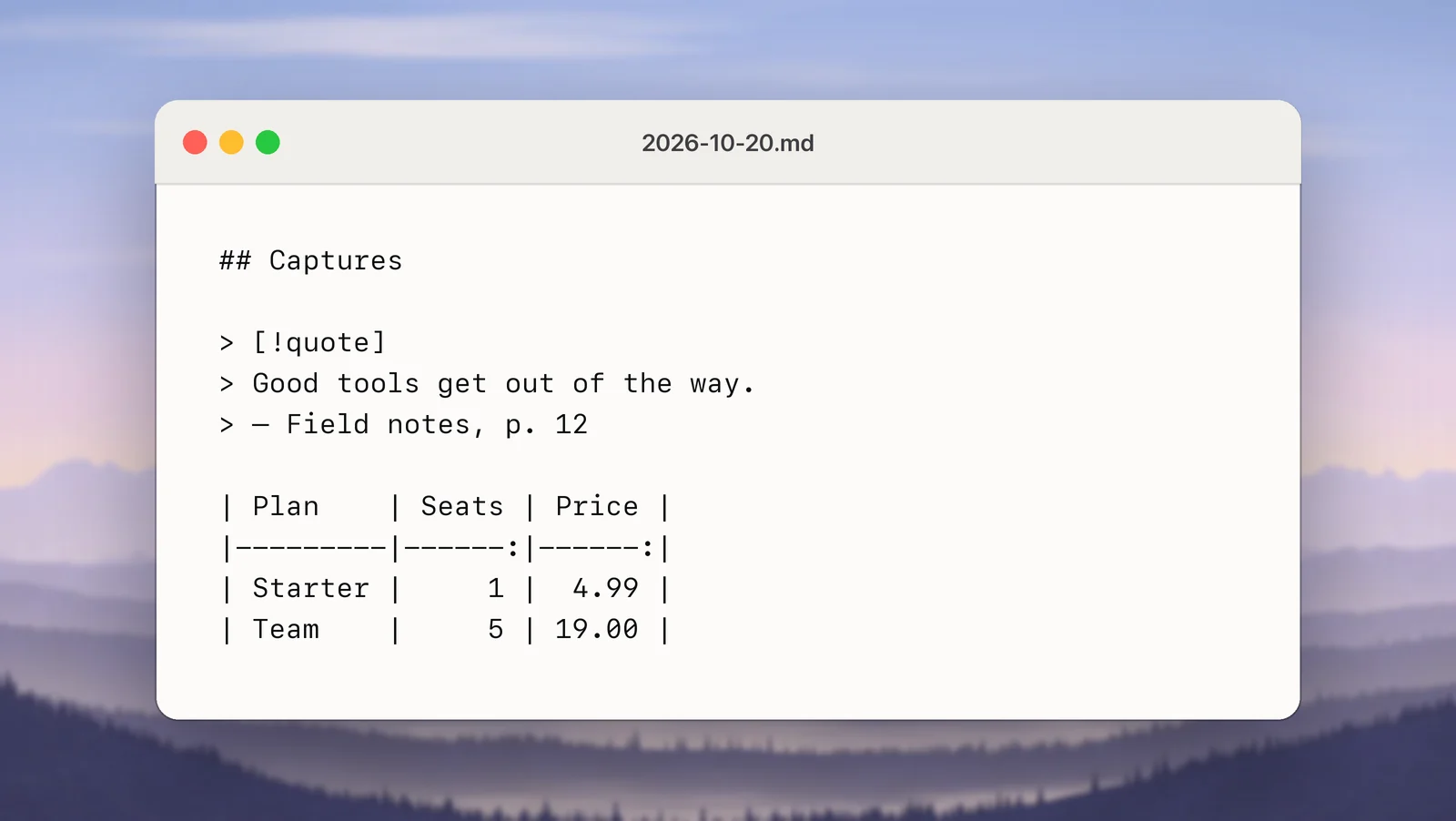
Obsidian’s help says a table needs a header row followed by a row of hyphens, and Unpixel’s Markdown always has both, with number columns right-aligned. In Live Preview, right-click the table to add, delete, sort or move rows and columns. If a cell contains a wikilink with an alias, escape its pipe as \| so it doesn’t split the cell. More detail, including the Tables as plain text setting for code editors, is in image to Markdown table.
Quotes with their source
When you capture a passage from an ebook, a PDF or a video, keep the source with it, or you’ll never find the context again. Obsidian’s quote callout keeps it tidy:
> [!quote]
> The captured passage, exactly as it appeared.
> — Author, *Title*, p. 112
Unpixel’s history remembers which app each capture came from (“Safari · 5 min ago”), but not the page or file, so add the link or page number yourself. In Safari, ⌘L then ⌘C copies the address. Saving book quotes on a Mac has a fuller routine.
Add captures to today’s daily note
Obsidian has its own URL scheme. Its daily action opens or creates today’s note and accepts the same options as new, including clipboard (use the clipboard as the content) and append (add to the end of an existing note). With the core Daily notes plugin turned on, this link appends whatever is on your clipboard to today’s note:
obsidian://daily?vault=Notes&clipboard=true&append=trueReplace Notes with your vault’s name, writing spaces as %20. Then:
- Capture something with ⇧⌘2.
- Open the link from a launcher or a shortcut, such as a Raycast quicklink, an Alfred keyword or a Shortcuts Open URLs action.
Add &silent=true if you don’t want Obsidian to come to the front each time. Keep the capture and the link as two steps: the capture has to finish before the link reads the clipboard. Over a day of reading, the daily note becomes a log of everything you pulled off the screen.
Scanned PDFs in your vault
Obsidian shows PDFs in its own viewer, where text in a normal PDF can be selected and copied. A scan is a picture of each page, so nothing selects. Control-click the file in Obsidian’s file list, reveal it in Finder, and drop it on Unpixel’s menu bar icon, or choose Open Image… in Unpixel’s panel. Up to 50 pages are read in one go, with a blank line between pages. Paste the result into a note next to the PDF, and the scan’s words become searchable in your vault.
Frequently asked questions
Does Obsidian search text inside images?
Not on its own, as of October 2026. Community plugins such as Text Extractor, used together with the Omnisearch plugin, can index image text. Otherwise, keep a typed copy of the important words under the image.
Can I paste a table from a screenshot into Obsidian?
Yes, as a Markdown table. Capture it with Unpixel, right-click the capture in its history and choose Copy as Markdown, then paste. Obsidian renders it, and in Live Preview you can right-click the table to add, move or sort rows and columns.
Why does my pasted text have a line break after every line?
It was copied line by line from an image or a PDF. Turn off Keep line breaks in Unpixel’s Recognition settings before you capture, and the lines of each paragraph come back joined.
Sources
- Obsidian URI — Obsidian Help obsidian.md
- Daily notes — Obsidian Help obsidian.md
- Advanced formatting syntax (tables) — Obsidian Help obsidian.md
- Text Extractor plugin for Obsidian — GitHub (read October 2026) github.com
- Interact with text in a photo using Live Text in Preview on Mac — Apple Support support.apple.com