A definition on slide 14, a key paragraph in a scanned chapter, a list the lecturer showed for ten seconds in a recording: a lot of course material reaches you as pictures of text. Retyping it eats the time you meant to spend studying. Text recognition (OCR) turns those pictures into text you can paste, and your Mac already does most of it for free.
Ask for the real file first: slide decks and transcripts beat any copy. Otherwise, pause the lecture on a clear frame and use Live Text in QuickTime Player or Preview, or take a screenshot to the clipboard and open it in Preview. For scanned readings, Preview’s Embed Text export makes a whole chapter selectable. Note the slide, page or timestamp as you go.
Where students lose time retyping
It helps to know which kind of “stuck” text you’re dealing with, because each has a different fix:
- Slides shared as images or locked PDFs. The deck exists somewhere as real text, but you got a flattened copy.
- Lecture recordings. The slide is only on screen while the video plays, and the player won’t let you select anything.
- Live classes on Zoom or Teams. The shared screen is a video stream, so nothing on it can be selected.
- Scanned readings. The course site has a PDF made on a photocopier: each page is a photo.
- Whiteboards and handwriting. The hardest case. Neat print sometimes works; quick scrawl usually doesn’t.
First, ask for the real file
The cheapest OCR is the one you don’t need. Before you capture anything, check the course page for the original slide deck, a lecture transcript or captions, and the publisher’s e-book of the set text. A PowerPoint or Keynote file gives you every bullet at once through its outline view, which our guide to copying text from PowerPoint slides explains. Many lecturers will share a deck if you ask.
Lecture recordings and live classes
For a recording you can pause, Live Text is the built-in route. It works on paused frames in apps that support it, such as QuickTime Player.
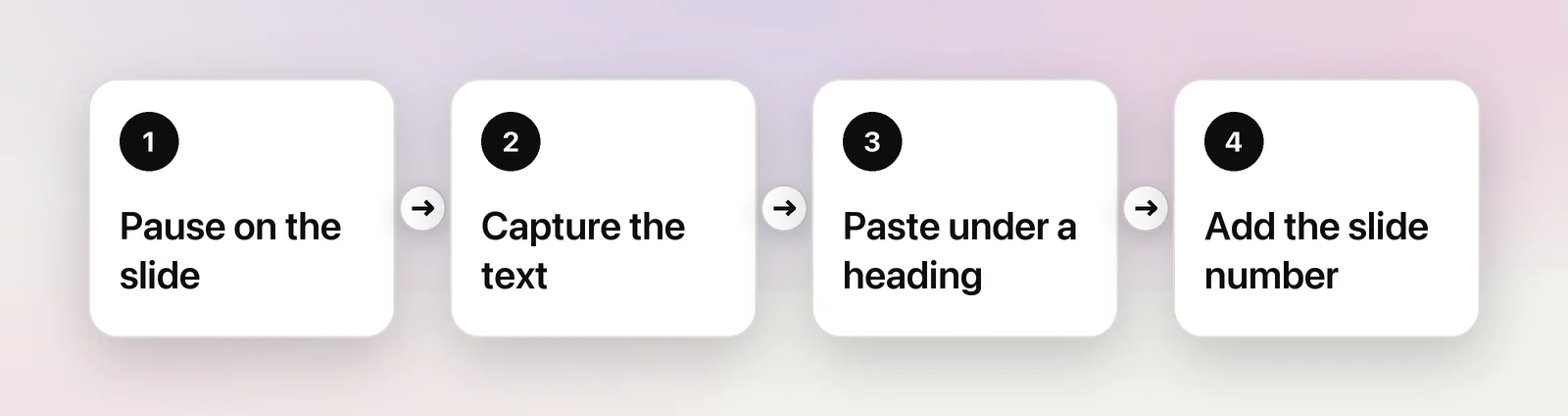
- Pause on a frame where the slide is sharp and fully built, not halfway through an animation.
- Make the video full screen so the text is as large as possible.
- Move the pointer over the words. When it turns into a text cursor, drag across them.
- Press ⌘C and paste into your notes under a heading for that slide.
A course player in the browser, or a live class in a video call, usually won’t give you Live Text. Take a screenshot to the clipboard instead: press ⌃⇧⌘4 and drag over the slide. Then open Preview, choose File → New from Clipboard, and select the text in the new image. It’s more steps, but it works on anything you can see. Course platforms have their own quirks, covered in copying text from online course videos.
Scanned readings from the course site
First, find out whether the PDF really is a scan. Open it in Preview, press ⌘F and search for a word you can see on the page. If nothing is found, there’s no text behind the picture.
For a whole chapter, Preview can add a text layer in one pass:
- Open the scanned PDF in Preview and choose File → Export.
- Select Embed Text, give the copy a new name, and click Save.
- Open the new copy. You can now select, search and copy text on every page.
Apple notes that Embed Text only appears when the PDF doesn’t already have recognized text. Readings often have two columns, running headers and footnotes, so copy one column at a time and delete the page furniture. Copying text from a scanned PDF covers longer documents.
Slides into structured notes
Pasted slide text is raw material, not notes. A simple structure keeps it useful at exam time:
- One heading per slide or topic, with the slide number or timestamp in brackets.
- The pasted text underneath, trimmed to what matters.
- A line in your own words that says what the slide means. This is the part you’ll actually remember.
Text copied from a paragraph often arrives with a line break wherever the original line ended. Join those lines before you edit, or the paragraph won’t reflow; removing line breaks from copied text shows quick ways. Equations and chemical formulas are where OCR is weakest, so retype those and check each symbol.
In Unpixel
The screenshot-then-Preview routine works, but in a 90-minute lecture you might do it thirty times. Unpixel puts it on one shortcut: press ⇧⌘2, drag over the slide in the recording, the video call or the PDF, and let go. The text is on your clipboard, ready to paste into your notes.
A few details help with coursework:
- Joined lines. Turn off Keep line breaks in Settings → Recognition, and the lines of a paragraph are joined, with words split across lines put back together. Lists keep their own lines.
- Whole readings. Open Image… reads a PDF of up to 50 pages in one go and copies all of its text.
- Tables on slides paste into Notes, Numbers or Google Sheets as real cells.
- History. Every capture stays in a searchable list on your Mac, with the app it came from, so the definition you copied in week three is still there before the exam.
- Readings in another language. Hold ⌥ as you let go of the selection to copy a translation instead.
It reads what’s on your screen, so it can’t see protected video that shows up black, and it won’t make sense of messy handwriting either.
Quotes, citations and academic integrity
Copying text for your own study is normal. What matters is what happens when copied words end up in work you hand in.
- Mark quotes the moment you paste them. Put quotation marks around copied wording in your notes, so you can’t later mistake it for your own phrasing.
- Record where it came from: author, title, page number, or the lecture date and slide number. Finding a page again in a 300-page reader is much harder than noting it now.
- Check the quote against the original. OCR can swap look-alike characters, drop a word at a line break or misread a name. One wrong word in a quotation is still a misquotation.
- Paraphrase from understanding, not from the pasted text. Close the source, write the idea in your own words, then compare.
Your course’s rules on recording, sharing slides and using copied text are the final word, and they differ between institutions.
A semester checklist
- Ask for slide decks and transcripts before capturing anything.
- Recordings: pause on a sharp, fully built slide, full screen.
- Scanned readings: export with Embed Text once, then copy freely.
- Paste under a heading with the slide number, page or timestamp.
- Put quotation marks on copied wording straight away.
- Retype equations and check names, numbers and dates against the source.
Frequently asked questions
Can OCR copy math equations from lecture slides?
Only roughly. Text recognition reads symbols in a line but loses fractions, superscripts and layout, so retype equations you’ll reuse, for example in LaTeX, and check every symbol against the slide.
Will the copied text keep a slide’s bullet points?
Each bullet usually comes back as its own line, but the bullet symbol itself may turn into a stray character or disappear. Tidy them up with your notes app’s list formatting.
Is it OK to copy text from my professor’s slides?
Copying slides into your own study notes is normal. Sharing the slides or copied text publicly, or submitting copied wording as your own, is a different matter: check your course’s rules and quote with a citation.
Sources
- macOS Ventura is now available (Live Text in paused video frames) — Apple Newsroom apple.com
- Interact with text in a photo using Live Text in Preview on Mac — Apple Support support.apple.com
- Embed text in a PDF in Preview on Mac — Apple Support support.apple.com
- Take screenshots or screen recordings on Mac (macOS Tahoe 26) — Apple Support support.apple.com