
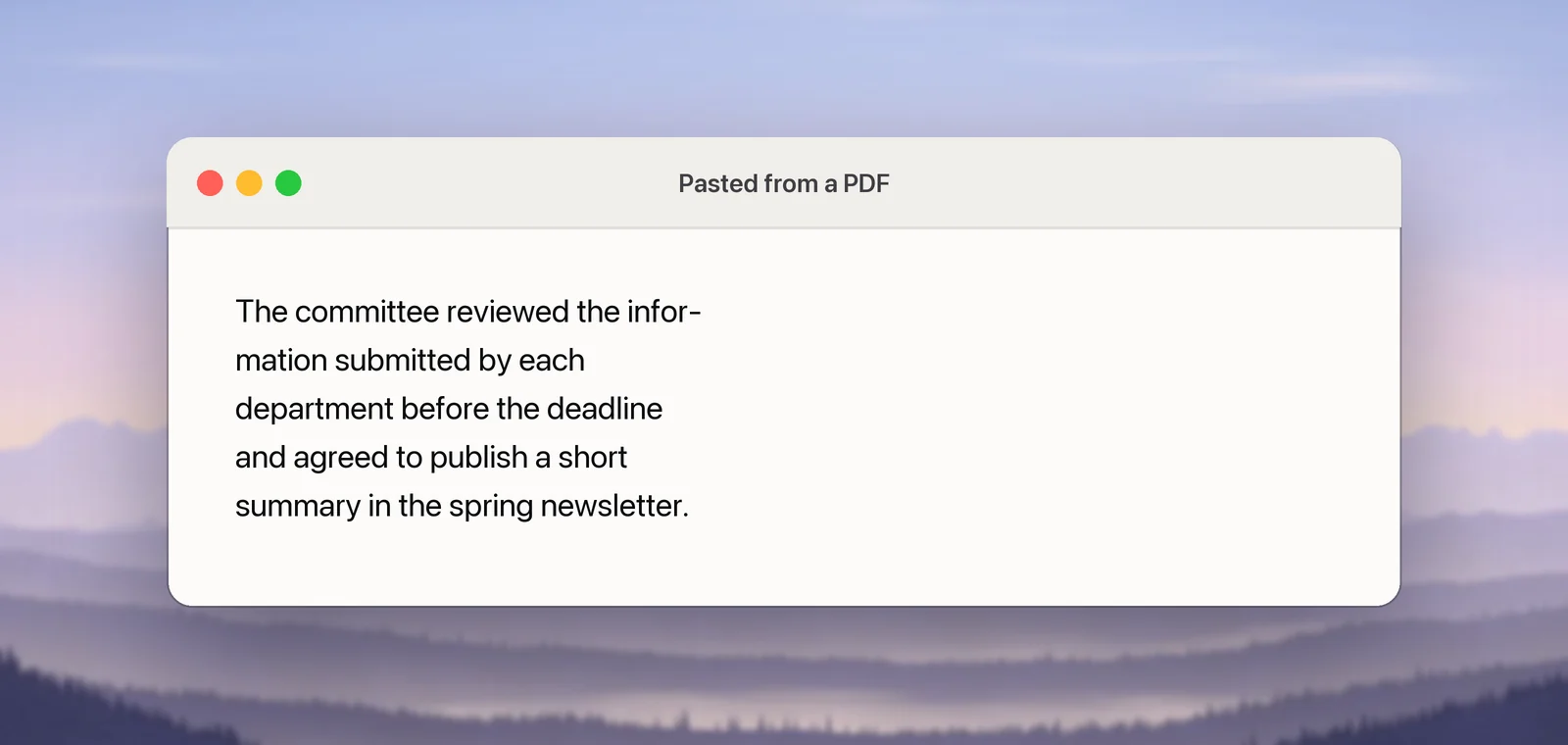
You copy a paragraph out of a PDF, paste it into an email, and it lands as a ragged column of short lines, with “infor-” on one line and “mation” on the next. Nothing is wrong with your Mac. The PDF never knew where its paragraphs were. Here’s why that happens, and how to join the lines again without merging every paragraph into one block.
PDFs store text line by line, so a copied paragraph pastes with a break at the end of every line. Replace those breaks with spaces: in Pages, search for the paragraph-break code; in Word, use ^p; or run one regular expression in a code editor. Protect the real paragraph breaks first, and check words that were hyphenated across lines.
Why PDF text pastes in broken lines
A PDF is built to look the same everywhere, on screen and on paper. It records which characters go where on the page, line by line, and in most files that’s all it records. Nothing says “this sentence continues on the next line”. When you copy, the PDF viewer rebuilds the reading order from those positions, so it ends every visual line with a break.
Two side effects make the cleanup harder:
- Paragraph ends look like line ends. The copied text often has no blank line between paragraphs, just one more break. A blanket “replace every break with a space” then turns a whole page into one paragraph.
- Hyphenated words stay split. Justified text often breaks long words across lines with a hyphen, and the hyphen comes along in the copy.
Some PDFs are tagged for accessibility, which adds a hidden structure marking paragraphs, headings and lists. Many aren’t, especially scans, older files and anything exported in a hurry.
Before you replace anything, protect the real paragraphs
Every method below uses the same three moves, so it helps to know them up front:
- Turn each real paragraph break into a marker that doesn’t appear in the text, such as
§§. - Turn every remaining line break into a space.
- Turn the markers back into paragraph breaks.
Step 1 only works when paragraphs are separated by a blank line. If your paste has none, skip it: join all the lines, then press Return at the few places where a new paragraph should start. For a page or two, that’s quicker than any clever pattern.
Quick fix in Pages
Pages is free from Apple, and its Find & Replace understands codes for invisible characters. Apple’s guide lists \n for a paragraph break and \i for a line break.
- Paste the text into a new Pages document.
- Press ⌘F, click the pop-up menu to the left of the search field and choose Find & Replace.
- To protect paragraphs, type
\n\nin the top field and§§in the bottom field, then click Replace All. - Type
\nin the top field and a single space in the bottom field, then click Replace All. If you leave the bottom field empty, Pages deletes the breaks without adding spaces and glues words together. - Search for
§§and replace it with\n. Click Replace once and check that a new paragraph appears before you click Replace All.
If the count stays at zero, the paste may use line breaks rather than paragraph breaks; search for \i instead. To see which you have, choose View → Show Invisibles.
Word for Mac: the ^p code
Word uses caret codes instead: ^p is a paragraph mark and ^l a manual line break. You don’t have to memorise them, because the Special pop-up menu in Advanced Find & Replace inserts them for you.
- Paste the text into a Word document.
- Choose View → Navigation Pane, click the magnifying glass, click the gear and choose Advanced Find & Replace. Click Replace at the top of the dialog.
- Find
^p^p, replace with§§, and click Replace All. - Find
^p, replace with a space, and click Replace All. If nothing is found, try^l. - Find
§§and replace with^p.
Microsoft suggests clicking Replace a few times before Replace All, so you can confirm each change. That matters most in step 4, where a wrong pattern touches every line.
One pass with a regular expression
If you clean up PDF text often, a code editor with regular expressions does the job in one go. Visual Studio Code, BBEdit and CotEditor all work. Turn on regular expressions in the find bar (BBEdit calls the option Grep) and run these two replacements in order:
| Find | Replace with | What it does |
|---|---|---|
(\w)-\n(\w) |
$1$2 |
Rejoins a word hyphenated across two lines |
(?<!\n)\n(?!\n) |
a single space | Joins single line breaks and leaves blank lines between paragraphs alone |
BBEdit writes the replacement as \1\2 rather than $1$2.
From Terminal, straight on the clipboard
macOS includes perl, so you can clean what you just copied without opening any editor. This rejoins hyphenated words, joins single line breaks and puts the result back on the clipboard:
pbpaste | perl -CSD -Mutf8 -0777 -pe 's/(\w)-\n(\w)/$1$2/g; s/(?<!\n)\n(?!\n|\z|[•*-] |\d+[.)] )/ /g' | pbcopyThe last part of the pattern stops it joining a line that starts with a bullet or a number, so lists keep one item per line. Paste with ⌘V and read the result before you send it anywhere.
Hyphenated words split across lines
Hyphens are where automatic fixes go wrong. “infor-mation” should become “information”, but “well-known” and “follow-up” should keep their hyphens, and a pattern can’t tell the difference. After any automatic join:
- Run the spell checker. A compound that lost its hyphen, like “wellknown”, is usually flagged.
- Look at names and number ranges. “Smith-Jones” and “2019-2024” can end up glued together.
- On a short text, search for words that were split but not joined, such as a hyphen followed by a space.
Keep lists and headings separate
Lists and headings are lines that should stay lines. Bullets and numbers are easy to protect, as the Terminal command shows. Headings are harder: a short heading without a full stop looks exactly like the last line of a paragraph. After joining, scan for a heading glued to the start of the next paragraph and press Return after it.
Tables don’t survive any of this. If the PDF has one, copy it on its own: Copy a table from a PDF to Excel covers that.
Copy it clean from the start
The tidiest fix is not needing one. If the PDF came from a Word file, a web page or a Google Doc, ask for the original: its paragraphs are intact. And copy smaller pieces. One paragraph at a time pastes with fewer surprises than a whole page.
In Unpixel
Unpixel reads text from the screen rather than from the PDF’s text layer, so it sees the page the way you do, including the larger gaps between paragraphs. Turn off Keep line breaks in Settings → Recognition, and each capture comes out with the lines of every paragraph joined:
- Paragraphs stay separate.
- List items keep their own lines.
- A hyphen at a line end is removed only when the joined word is in the dictionary, so “infor-mation” becomes “information” while “well-known” keeps its hyphen.
- Chinese, Japanese and Thai lines are joined without adding spaces.
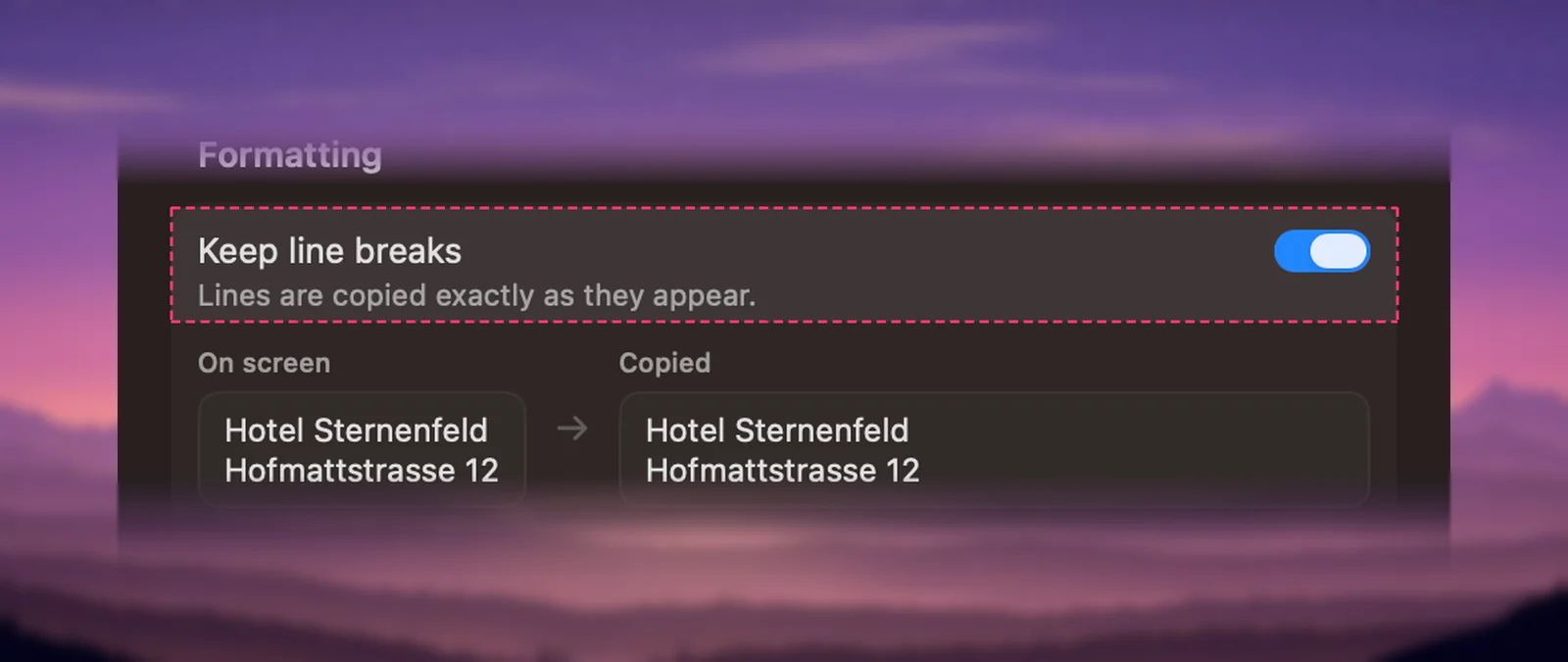
Press ⇧⌘2, drag over the paragraph in Preview or your browser, and paste. This also covers scanned PDFs, where there’s no text layer to copy at all. Leave Keep line breaks on for addresses, poems and code, where every line matters.
Checklist
- A short paste: Pages Find & Replace,
\nto a space. - Paragraphs to keep: protect
\n\n(or^p^pin Word) with a marker first. - You do this often: a regular expression in a code editor, or the perl command on the clipboard.
- Hyphens: rejoin, then check compounds, names and number ranges by eye.
- Next time: ask for the source file, or capture with Keep line breaks off.
Frequently asked questions
Does Paste and Match Style remove line breaks?
No. ⌥⇧⌘V drops fonts, sizes and colours, but every line break stays where it was. You still need find and replace, a regular expression, or a capture setting that joins lines.
Why does text from one PDF paste fine and text from another doesn’t?
Some PDFs are tagged: they carry an invisible structure that marks paragraphs, headings and lists, and some apps use it. Many PDFs have no tags, only lines of text placed on a page, so every line end turns into a break.
Can I fix the line breaks without installing anything?
Yes. Pages is free from Apple and its Find & Replace can search for paragraph breaks. Terminal also includes perl, which can clean the text on your clipboard with one command.
Sources
- View formatting symbols on Mac — Pages User Guide (Apple Support) support.apple.com
- Find and replace text in Word — Microsoft Support support.microsoft.com
- The power of tags: making PDFs accessible and compliant — PDF Association pdfa.org