The film plays perfectly on your screen, yet the screenshot shows a black rectangle where the picture should be. Screen recordings and screen shares come out the same way. In most cases nothing is broken: the video is copy-protected, and macOS keeps protected video out of anything that captures the screen.
A black rectangle where a video should be usually means the video is copy-protected. macOS shows it on your display but leaves it out of screenshots, recordings and screen shares, and no capture app can read it. If ordinary, unprotected video is black too, the capturing app probably lacks Screen Recording permission. For the words, use subtitles or an official transcript.
What you’re seeing
Protected video goes black in a recognizable way:
- Only the video area is black. The player’s controls, the web page around it and your other windows look normal.
- It happens in every capture. Screenshots, screen recordings, screen sharing in a call and text-capture tools all get the same black frame.
- The video still plays for you. Nothing changes on your own display.
Protection or permission? A one-minute test
A black capture can also mean the capturing app isn’t allowed to see your screen. A quick test tells the two apart:
- Pause the video.
- Press ⇧⌘4 and drag over the video plus some of the window around it. macOS’s own screenshot shortcut doesn’t depend on any app’s permission.
- Open the screenshot.
If only the video area is black and the rest of the window is fine, the video is protected. If macOS’s screenshot shows the frame clearly but your recording app or screen share is black or shows only your wallpaper, that app needs permission. Our guide to Screen Recording permission not working covers the fixes.
Why protected video goes black
Studios and streaming services license their films and series on the condition that copies can’t easily be made. To meet that, video services encrypt their streams with digital rights management (DRM) and ask the operating system to keep the decoded picture out of captures. On Apple’s platforms, the protection system for streamed video is FairPlay Streaming.
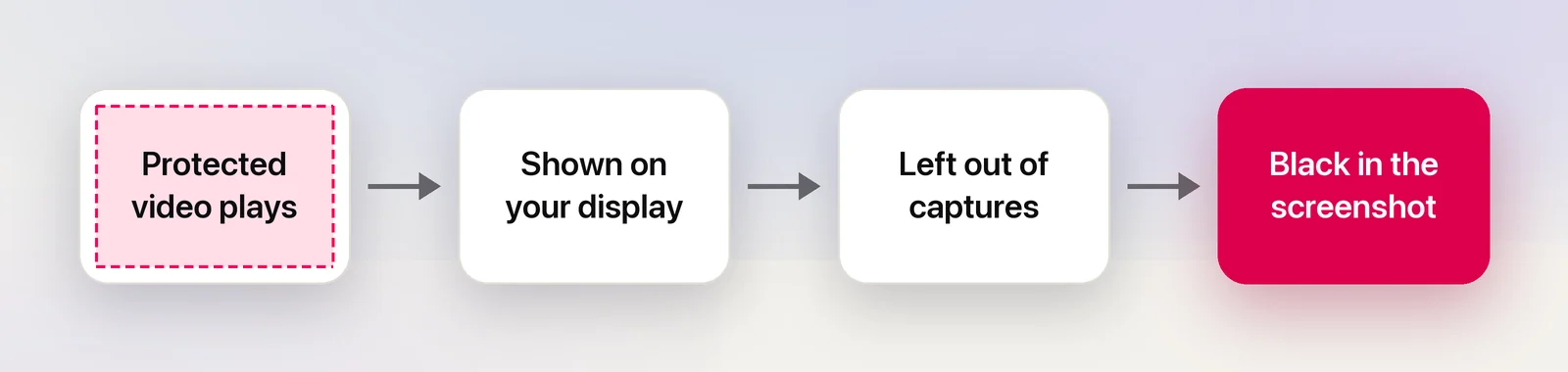
Apple’s developer documentation is explicit about it: an app that wants to keep content from being captured should use FairPlay Streaming rather than window settings. In practice, macOS draws the protected frames on your display and hands black to anything that reads the screen. That includes the built-in screenshot tools, QuickTime Player’s screen recording, video-call apps and third-party capture tools alike.
It isn’t limited to streaming, either. Apple’s screenshot guide notes that you may not be able to capture windows in some apps, such as DVD Player.
Which apps and sites do this
As of October 2026, you’re most likely to see black captures with:
- The Apple TV app, for films and shows you buy, rent or stream.
- Subscription streaming services played in Safari or another browser. How each one protects its video varies by service and browser, so a capture may be black in one browser and blocked differently in another.
- Rented or purchased films on general video sites.
- Disc playback, as Apple’s note about DVD Player says.
Usually not protected: free videos on most video and social sites, recorded meetings, screen recordings and video files you made yourself. If one of those comes out black, go back to the permission test above.
Legitimate ways to get the text
Most people capturing a protected video want something specific: a line of dialogue, an on-screen title, a recipe, a slide from a course. There are fair ways to get each:
- Subtitles and captions. Turn them on in the player and type the line you need. Some services and platforms publish transcripts or downloadable captions; our guide to copying subtitles from video explains the kinds of subtitle files and where to find them.
- Official sources. Published screenplays, show notes, the broadcaster’s website, press materials and the creator’s own blog often contain exactly the text on screen.
- Course and training videos. Ask the provider for a transcript. Many offer them for accessibility, and slides are often downloadable.
- Short on-screen text. For a product name, a book title or an address, typing it or searching the web for the scene is usually quickest.
- An unprotected copy. If the same clip is published freely, for example a trailer on the studio’s own channel, that version can usually be paused and read like any other video.
For quotes, keep to short excerpts and credit the source. Copyright still applies to the words, however you got them.
What won’t work, and shouldn’t
Swapping tools doesn’t change the result. Other screenshot apps, screen recorders and screen-sharing tools all ask macOS for the same pixels and get the same black frame. Tools and tricks that claim to get around the protection do it by defeating the DRM. That breaks the service’s terms of use and, in many countries, laws against circumventing copy protection. We don’t cover them, and no legitimate capture tool should.
In Unpixel
Unpixel reads what macOS lets it see, so on a protected video it gets the same black rectangle as everything else and usually reports “No text found”. That’s expected, and nothing in Unpixel’s settings changes it.
Everything around the video still works. Press ⇧⌘2 and drag over the episode description on the page, a paused frame of an unprotected video, a recorded lecture or the slides in a screen share, and the text is on your clipboard. Our guide to copying text from video has tips for getting a clean frame.
Quick checklist
- Only the video area black, everything else fine: protected video.
- macOS’s own screenshot fine, your app black or wallpaper only: permission.
- Get the words from subtitles, transcripts or official sources.
- Don’t look for ways around the protection.
Frequently asked questions
Why do people see a black box when I share a streaming video on a call?
Screen sharing captures your screen the same way a screenshot does, so protected video reaches the call as black. Everyone has to watch on their own account, or use a watch-together feature if the service offers one.
Is something wrong with my Mac?
No. A black frame on protected video is the protection working as designed. If other windows or unprotected videos are black too, that points to a permission problem in the capturing app instead.
Can I take screenshots of videos I recorded myself?
Yes. Your own recordings and most video files without copy protection capture normally. In QuickTime Player you can also pause and select text in the frame with Live Text.
Sources
- NSWindow.SharingType.none (use FairPlay Streaming to keep content from being captured) — Apple Developer Documentation developer.apple.com
- FairPlay Streaming — Apple Developer developer.apple.com
- Take screenshots or screen recordings on Mac — Apple Support (Mac User Guide) support.apple.com