If you read in more than one language, a text grabber that assumes English isn’t much use. Unpixel uses Apple’s own text recognition, so it reads every language Vision supports on your Mac, works out which one it’s looking at, and can hand you a translation in the same step.
Unpixel reads the languages Apple’s Vision framework supports on your Mac: about 30 on macOS 26, including Chinese, Japanese, Korean, Russian, Ukrainian, Arabic, Thai, Vietnamese and most Western European languages. It detects each capture’s language by itself, or you can fix one. Keep Accurate mode for anything beyond the six languages Fast reads, and hold ⌥ as you let go to copy a translation.
Live Text: the free starting point
macOS has multilingual text recognition built in. Live Text lets you select text in photos and images in Preview, Photos, Safari and Quick Look. To check that it’s on, open System Settings → General → Language & Region. The Live Text option there reads “Select text in images to copy or take action.” Apple lists the languages Live Text supports, region by region, on its macOS feature availability page.
Live Text only works inside apps that support it, though. It can’t read a slide in a screen share or the menu of a game. Unpixel reads whatever is on screen with Apple’s Vision framework, so the same kind of language support goes with you from app to app.
Automatic detection, or one fixed language
Out of the box, Unpixel lets Vision decide the language of each capture. A Spanish email, then a Japanese product page, then a Russian error message need no change of settings between them.
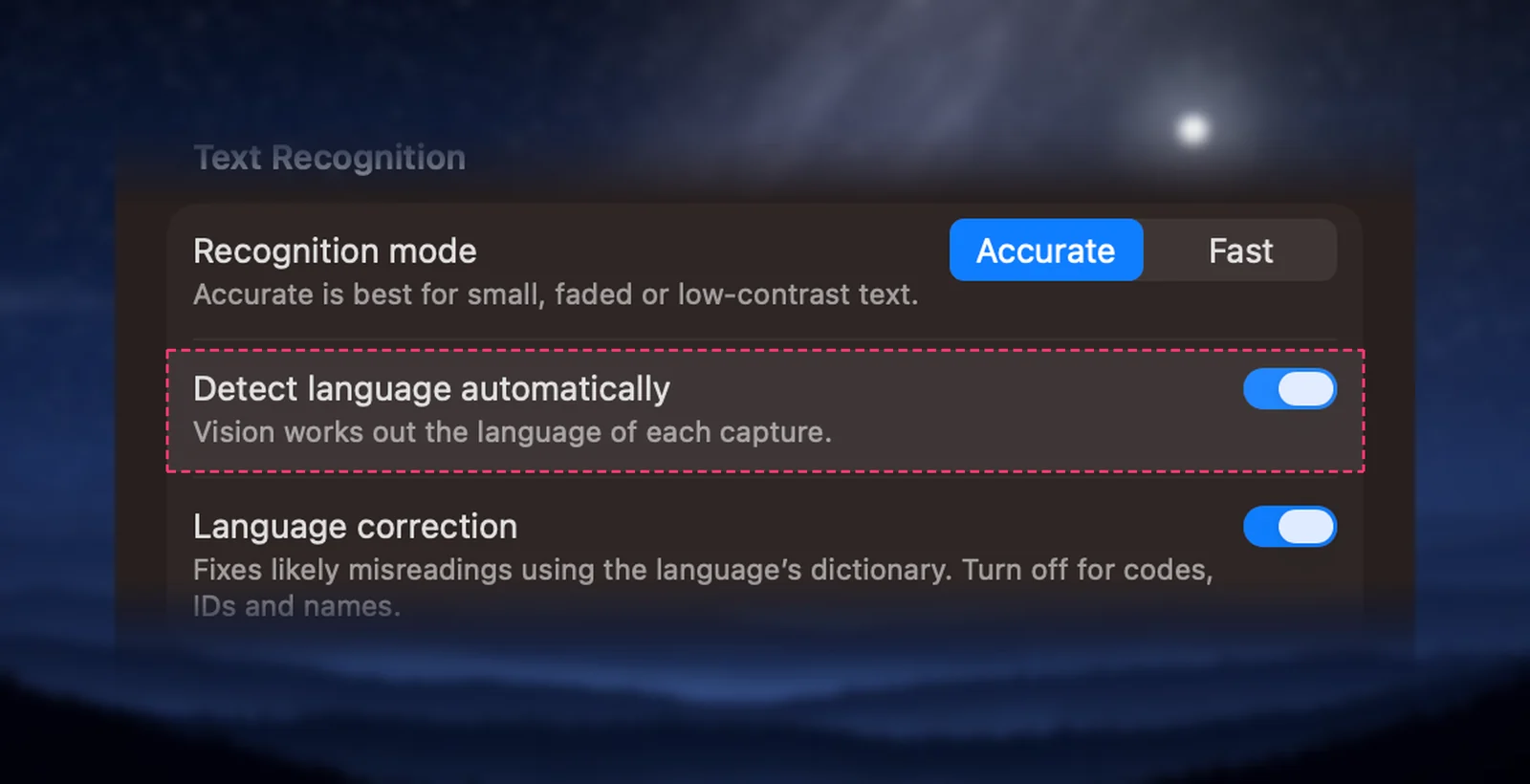
To fix one language instead, open Settings → Recognition (right-click the menu bar icon, then Settings…), switch off Detect language automatically, and pick from the Language menu that appears below the switch.
Fixing a language pays off for captures of a word or two, which give detection little to work with, and for text it keeps assigning to the wrong language. The catch is that Vision then reads everything as that language, so switch detection back on before you capture anything else.
Mixed text is the hardest case. In a selection that’s mostly one language, a short quote in another can come out garbled. Select the quote on its own and it gets a detection of its own.
Which languages it reads
On macOS 26.6, Vision’s Accurate mode lists 30 language codes, counting regional variants such as Norwegian Bokmål and Nynorsk. Grouped by where they’re written:
- East Asia: Chinese (Simplified and Traditional), Cantonese, Japanese, Korean
- Cyrillic: Russian, Ukrainian
- Middle East: Arabic
- Southeast Asia: Thai, Vietnamese, Indonesian, Malay
- Europe: English, French, German, Spanish, Portuguese, Italian, Dutch, Polish, Czech, Romanian, Turkish, Swedish, Danish, Norwegian
The list belongs to macOS, not to Unpixel, so it can grow with system updates. With Accurate selected, the Language menu shows the current list for your Mac. Greek, Hebrew and Hindi weren’t on it as of macOS 26.6.
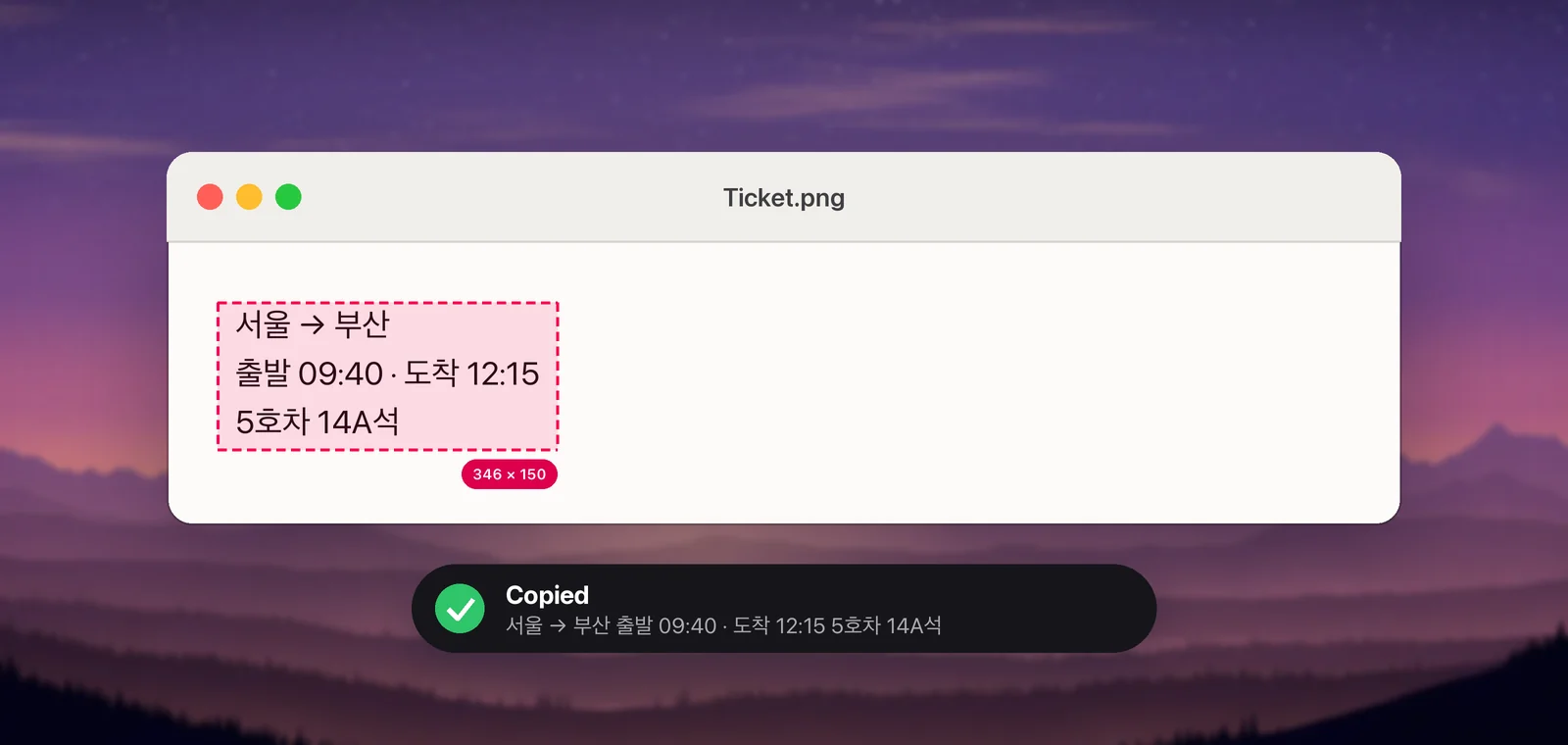
When lines are joined into paragraphs, each script gets the spacing it expects. Chinese, Japanese and Thai are joined without spaces, and Korean keeps them. Clean paragraphs or exact line breaks explains the setting.
Which mode reads which language
Unpixel has two recognition modes. Fast is near-instant on clean interface text, but on macOS 26.6 it reads only English, French, German, Italian, Portuguese and Spanish. Accurate reads the whole list.
- In Fast mode, the Language menu offers only those six. If you fixed another language, such as Japanese, before switching to Fast, its captures use Accurate anyway. A note under the menu says so (“Fast mode can’t read Japanese (Japan), so captures use Accurate.”), with a Use Accurate button next to it, and the Language menu marks your choice “Accurate only”.
- With automatic detection on, Fast stays Fast. Leave Recognition mode on Accurate, the default, if you capture anything outside those six languages. That includes Latin-script languages such as Polish, Turkish and Vietnamese, not just Chinese, Japanese, Korean, Cyrillic, Arabic or Thai.
Language correction is language-specific too: it nudges uncertain words toward real words in the capture’s language. That helps prose and hurts product codes and unusual names, so switch it off for those. For Chinese it makes no difference, because Vision doesn’t support correction for Chinese at all, according to Apple’s developer documentation.
Then translate
Reading a language isn’t the same as understanding it. Hold ⌥ as you let go of a selection, and the clipboard gets the text translated into your language instead. Apple’s Translation framework does the work on your Mac, and the first time you need a language, macOS asks before downloading it.
The languages Apple can translate aren’t quite the same as the ones Vision can read. When a pair isn’t supported, Unpixel copies the original and says why. Translate on capture covers the details, including copying the original and the translation together.
Frequently asked questions
Do I have to download anything to read another language?
No. The recognition languages are part of macOS. Downloads only come up when you translate, and macOS asks before each one.
Can Unpixel read Greek, Hebrew or Hindi?
Not as of macOS 26.6, because Apple’s Vision framework doesn’t list them. Unpixel can only read the languages Vision supports on your Mac.
Why did a short word come out in the wrong language?
A word or two gives automatic detection little to go on. Turn off Detect language automatically and choose the language, then switch detection back on afterwards.
Sources
- Recognizing Text in Images — Apple Developer Documentation developer.apple.com
- VNRecognizeTextRequest — Apple Developer Documentation developer.apple.com
- Change Language & Region settings on Mac (Live Text) — Apple Support (macOS Tahoe 26) support.apple.com
- macOS feature availability (Live Text) — Apple apple.com