Preview is where most Mac users first meet text recognition, often without noticing. Open a screenshot or a scanned page, drag across the words, and they select like a document. For one paragraph that’s all you need. This page is about the edges: a 30-page scan, a table that pastes as a jumble, a selection that copies a picture, and what to remove before a PDF leaves your Mac.
Preview reads text in images and scanned pages with Live Text: choose Tools → Text Selection, drag across the words and copy them. To make a whole scanned PDF searchable, use File → Export with Embed Text. When you want every page’s text on the clipboard at once, or a table as cells, Unpixel’s Open Image… reads up to 50 pages per capture.
What Preview already does
| You have | Preview’s tool | What you get |
|---|---|---|
| A photo or screenshot | Live Text | The words you drag across |
| A PDF with real text | Text Selection | Exact text, no recognition needed |
| A scanned PDF | Live Text, or File → Export with Embed Text | Words from a page, or a searchable copy of the file |
| One column of a multi-column page or table | Hold ⌥ while you drag with Text Selection | A vertical block of text instead of whole lines |
For Live Text in an image, hold the pointer over the words until it turns into a text cursor, then drag and press ⌘C. If nothing selects, choose Tools → Text Selection first. Control-click the selection for more, such as Translate or Look Up.
Embed Text is the one people miss. It only appears when the document has no recognized text yet, and it writes a new copy of the PDF with text you can search and select in any viewer. Our guide to copying text from a scanned PDF walks through it.
One page or the whole document
Live Text works on what you select, so a long scan means selecting and copying page after page, and selections that run across a page break don’t join up. Embed Text covers every page, but you get a new file to open, select all, copy and tidy, rather than text you can paste right away.
In Unpixel
When the goal is all the text, on the clipboard, Unpixel’s Open Image… reads a PDF page by page and copies the result in one go, up to 50 pages per capture. There are three ways to hand it a file:
- Click Unpixel’s menu bar icon and choose Open Image….
- Drag the PDF from Finder onto the menu bar icon, or onto the panel while it’s open.
- Control-click the file in Finder and choose Open With → Unpixel.
Turn off Keep line breaks in Settings → Recognition first if you want running paragraphs: lines of a paragraph are joined and words hyphenated across lines are put back together, while list items stay on their own lines. Recognition runs on your Mac, which matters for contracts and medical letters. Unpixel doesn’t touch the original or create a new PDF; for a searchable file to keep, Embed Text is still the tool.
Tables from PDFs
Copy a table from a PDF in Preview and paste it into a spreadsheet, and you often get every value on its own line, or whole rows in a single cell. That’s because a PDF stores positioned text, not rows and columns, even when the text is real.
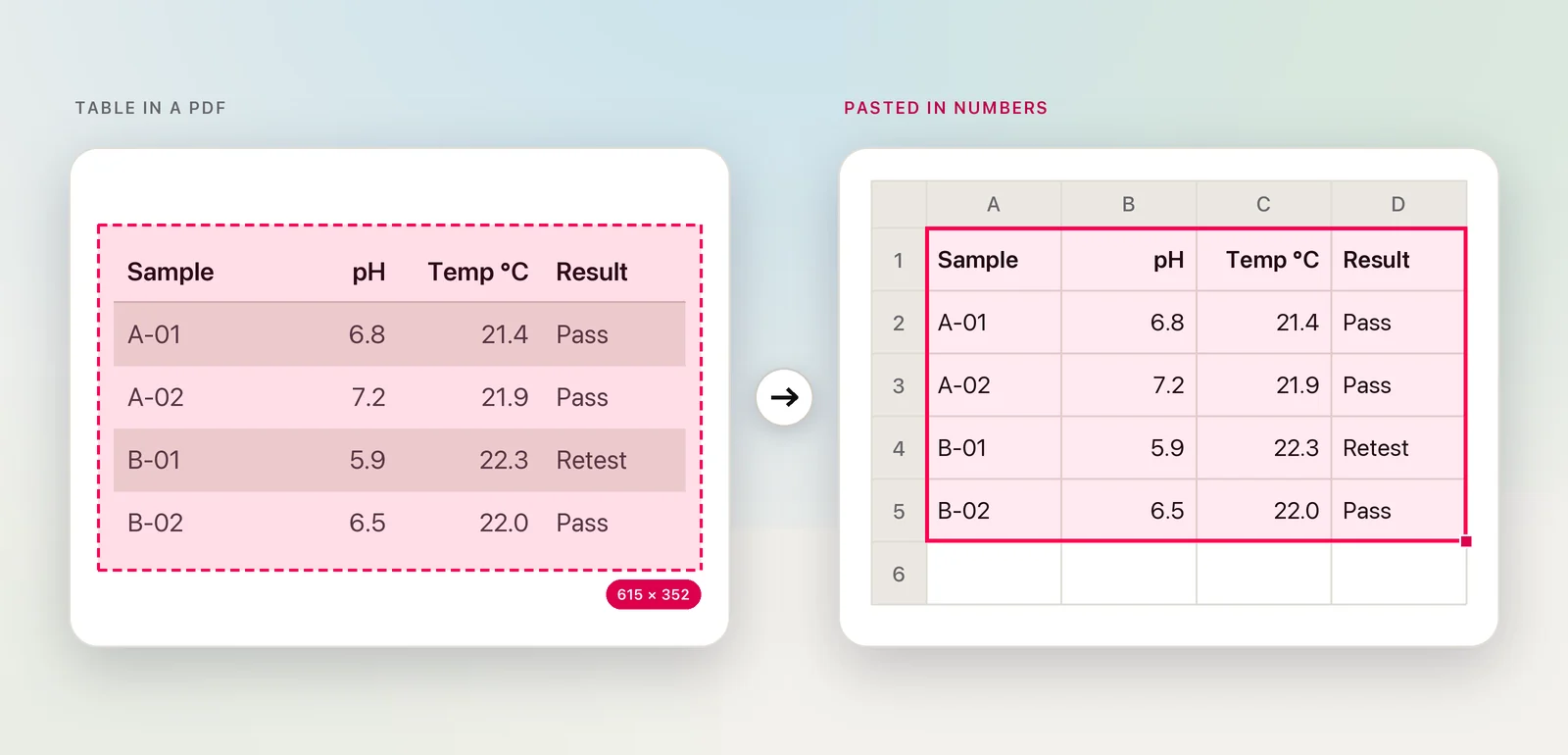
Press ⇧⌘2 in Unpixel and drag over the whole table on the page instead. Unpixel recognizes it as a table and puts real cells on the clipboard, so it pastes into Numbers, Excel or Google Sheets with its rows and columns. The setting is Detect tables in Settings → Recognition. The history can copy the same table again as Markdown or CSV. Merged cells and tables without ruled lines are where table recognition most often goes wrong, so glance over the result before you rely on it. The PDF table to Excel guide has more on messy layouts.
Selection tool mix-ups
Most “Preview won’t copy text” problems come down to the selection tool. Rectangular Selection, which draws a box, copies a picture of that part of the page. A markup tool left active after signing or annotating moves things instead of selecting them. Choose Tools → Text Selection in both cases. If nothing copies even then, the PDF may restrict copying. Can’t select text in Preview? works through each case.
A capture doesn’t depend on any of this, since it reads the page as you see it. That’s also why it works on a page Preview won’t let you select. Respect the document’s terms, though: a restriction is often there for a reason.
Redact before you share
The same tools work for whoever receives your PDF. A black box drawn with Markup’s shapes only sits on top of the page, so the words underneath can still be selected, copied or found with a search. Use Preview’s Tools → Redact instead, keep the original, and search the saved copy for the hidden words before you send it. Our guide to redacting a PDF on a Mac covers the checks.
Often the simpler move is not to send the file at all. If someone needs one clause or one figure, copy just that passage and paste it into your message. The rest of the document, with its account numbers and signatures, stays on your Mac.
Frequently asked questions
Does Preview do OCR on scanned PDFs?
Yes, in two ways. Live Text lets you select words on a scanned page, and File → Export with Embed Text saves a copy of the PDF with a text layer you can search and select in any PDF viewer.
Why does Preview copy a picture instead of the text?
Rectangular Selection is active. Choose Tools → Text Selection, select the words again and copy.
Does Unpixel change my PDF?
No. Unpixel reads the pages and puts the text on your clipboard; the original file stays as it was, and no new PDF is created. For a searchable copy, use Preview’s Embed Text.
Sources
- Interact with text in a photo using Live Text in Preview on Mac — Apple Support support.apple.com
- Select and copy text in a PDF in Preview on Mac — Apple Support support.apple.com
- Embed text in a PDF in Preview on Mac — Apple Support support.apple.com