Preview is the PDF tool every Mac already has, and for text it does more than most people expect. It copies real text exactly, reads scanned pages with Live Text, and can add a searchable text layer to a scan. Unpixel, the app we make, overlaps with only part of that. This page sets out which jobs belong to which, so you don’t pay for something Preview already does.
Preview is enough for PDFs with real text, for a page or two of a scan, and for making a searchable copy with File → Export and Embed Text. Unpixel saves time when you want all of a long scan’s text on the clipboard at once, a table as spreadsheet cells, a translation, or text from a PDF that won’t let you select.
Preview’s Live Text and text tools
Three cases cover nearly every PDF:
- The PDF has real text, like most exported documents. Choose Tools → Text Selection, drag across the words and press ⌘C. Nothing is recognized, so nothing can be misread. No app beats this.
- The PDF is a scan or a photo. Preview recognizes the words with Live Text, so you can drag across them on the page and copy, look up or translate them.
- You want the scan searchable for good. File → Export with Embed Text saves a copy with a text layer that any PDF app can search and select. Apple notes the option appears only when Preview hasn’t already recognized text in the document.
All three are free, and recognition happens on your Mac. If your PDFs are mostly exported documents, or you need a passage from a scan now and then, stop here.
Whole documents
Preview works on what you select. A 30-page scan means 30 rounds of selecting and copying, and selections don’t always join up across page breaks. Embed Text covers every page, but leaves you with a second file to open, select and copy from, and line breaks to tidy.
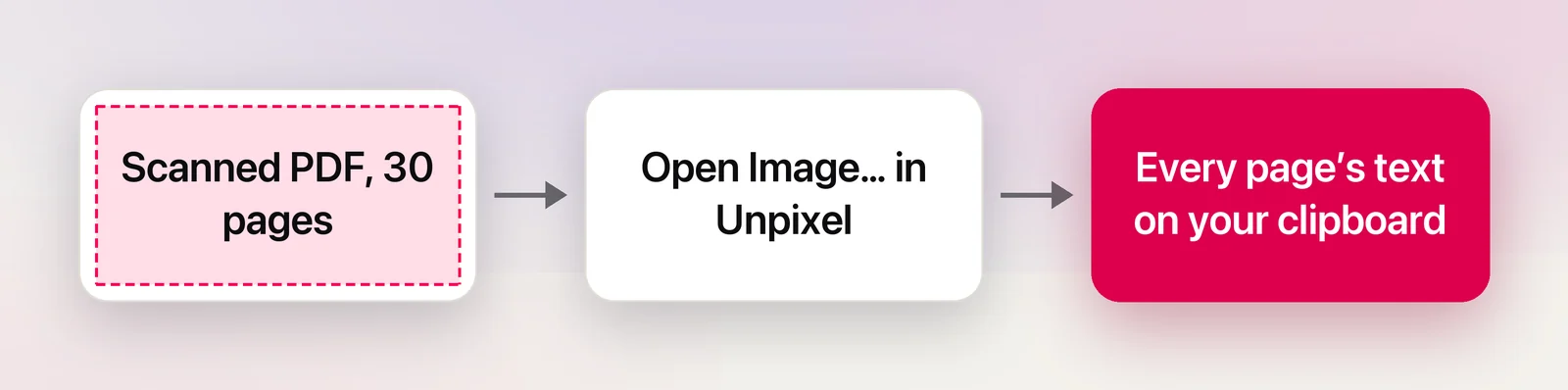
Unpixel takes the whole file in one step. Click Open Image… in its menu bar panel, drag the PDF onto the menu bar icon, or Control-click it in Finder and choose Open With → Unpixel. It reads every page, up to 50 per capture, and copies the text with a blank line between pages. With Keep line breaks off in Settings → Recognition, the lines of each paragraph are joined and words split by a hyphen at a line end are put back together.
It reads each page as an image, so for PDFs that already contain real text, Preview’s copy is exact while a capture may not be. Keep Unpixel for scans, photos and text that won’t select.
Tables from PDFs
This is where the gap is widest. Copy a table out of a PDF in Preview, real text or scan, and paste it into a spreadsheet, and the rows often arrive as a column of single values or whole rows crammed into one cell. A PDF stores words at positions on a page, not cells.
Unpixel recognizes a grid when it makes up most of your selection. Press ⇧⌘2, drag over the table on the page, and it pastes into Numbers, Excel or Google Sheets as rows and columns. Tables inside files you open are handled the same way. Check the numbers against the original afterwards, especially with merged cells or faint ruling; the guide to PDF tables in Excel covers the awkward layouts.
Two smaller differences: Unpixel can copy the text translated into your language, made on your Mac, and it keeps each capture in a searchable history. Preview can translate a selection from the Control-click menu, but doesn’t keep a record.
What Preview does that Unpixel doesn’t
Unpixel only reads. Everything that changes a PDF belongs to Preview:
| Job | Preview | Unpixel |
|---|---|---|
| Copy real text exactly | Yes | Reads it as an image |
| Read a scanned page | Yes, with Live Text | Yes |
| A long scan’s text on the clipboard in one step | No | Up to 50 pages per capture |
| Make a searchable copy | Embed Text | No |
| Tables as spreadsheet cells | Not documented by Apple | Yes |
| Highlight, annotate, add notes | Yes | No |
| Fill in forms and sign | Yes | No |
| Redact text | Yes, the Markup redaction tool | No |
| Combine, reorder or delete pages | Yes | No |
Redaction deserves a note. Apple says the redaction tool removes the selected text from view and that the redaction becomes permanent once you close the document. A black box drawn with a shape tool only hides the words. Our guide to redacting a PDF shows how to check the result before you share it.
Verdict
- Exported PDFs with real text: Preview, every time.
- A page or two from a scan: Preview’s Live Text.
- A searchable archive of scans: Preview’s Embed Text.
- All the text of a long scan, right now, or a table into a spreadsheet: Unpixel.
- Annotating, signing, redacting or rearranging: Preview, which Unpixel doesn’t try to replace.
Either way, you’ll keep using Preview. A capture app is an addition for the reading jobs, not a replacement.
Frequently asked questions
Can Preview make a scanned PDF searchable?
Yes. Open the PDF, choose File → Export and select Embed Text. Apple notes the option only appears when no text has been recognized in the document yet.
Does Unpixel change or save my PDF?
No. It reads the pages and puts the text on your clipboard and in its history. The file stays as it was, and no new PDF is created.
Which is more accurate for a PDF that already has text?
Preview. Selecting real text copies it exactly, while Unpixel reads every page as an image and recognizes the text, which can introduce small errors. Use Unpixel for scans and for text that won’t select.
Is there a page limit in Unpixel?
One capture reads up to 50 pages. For a longer file, the confirmation says it read the first 50; split the PDF and open the rest.
Sources
- Select and copy text in a PDF in Preview on Mac — Apple Support support.apple.com
- Interact with text in a photo in Preview on Mac — Apple Support support.apple.com
- Embed text in a PDF in Preview on Mac — Apple Support support.apple.com
- Annotate a PDF in Preview on Mac (redaction tool) — Apple Support support.apple.com
- Fill out and sign PDF forms in Preview on Mac — Apple Support support.apple.com