Capture Again reads the exact area of your last selection a second time, without the crosshair and without dragging. It’s for text that changes in one place: live captions, slides advancing in a call, a ticker, a status line or dialogue in a game.
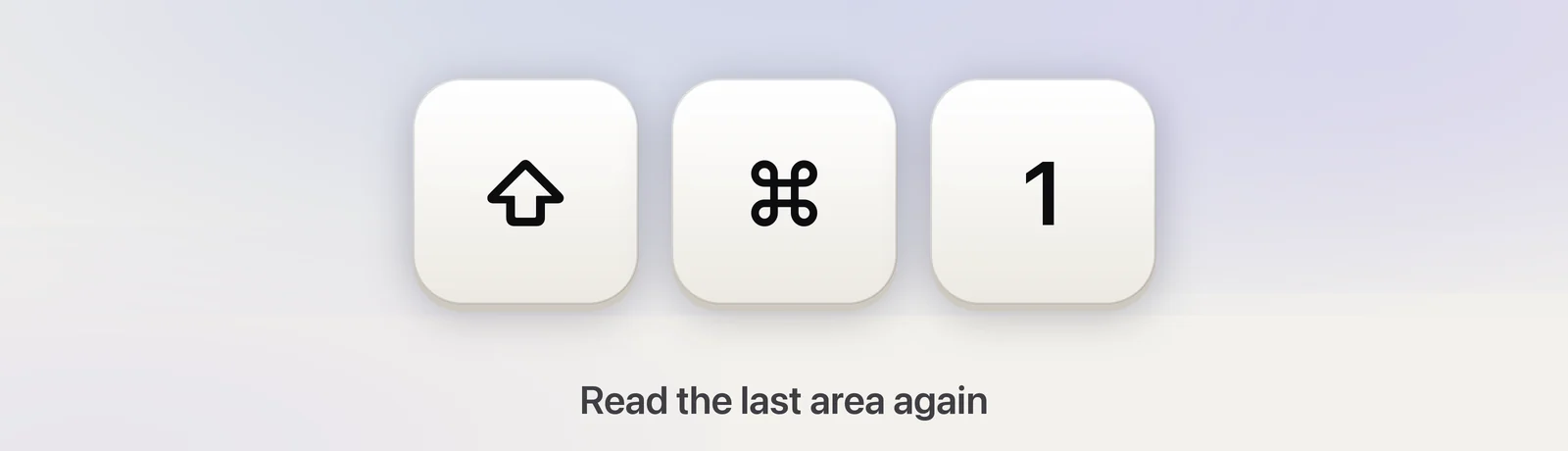
Make one capture with ⇧⌘2 as usual. When the text in that spot changes, press ⇧⌘1: Unpixel outlines the same area for a moment, reads it again and copies the text, with the confirmation Copied again. Press ⌥⇧⌘1 to copy a translation instead. Change or clear the shortcut in Settings → General → Capture Again shortcut.
Read the area again
- Make a normal capture: press ⇧⌘2, drag over the text and let go.
- Wait for the text in that spot to change, such as the next caption line or the next slide.
- Press ⇧⌘1. A thin outline appears around the area for about a second, so you can see what’s being read.
- The confirmation says Copied again with a preview, and the new text is on your clipboard.
Press it as often as you like. Each press reads the area once. If the text hasn’t changed, the same text is copied again and your history keeps a single entry for it. Links, QR codes and tables keep their usual confirmations, such as Table copied.
From the menus
Right-click the Unpixel icon in the menu bar, or click … at the top of the menu bar panel, and choose Capture Again. The item stays greyed out until there’s an area to read. Hold ⌥ while the menu is open and it changes to Capture Again & Translate.
Copy a translation
Press ⌥⇧⌘1, the Capture Again shortcut with ⌥ added. The clipboard gets the text in your language, as when you hold ⌥ while letting go of a selection. Translate text while you capture covers the target language and downloads.
If you give Capture Again a shortcut that already contains ⌥, there’s no translate variant. The line under the shortcut in Settings only says “Add ⌥ to translate.” while that combination works.
Change or clear the shortcut
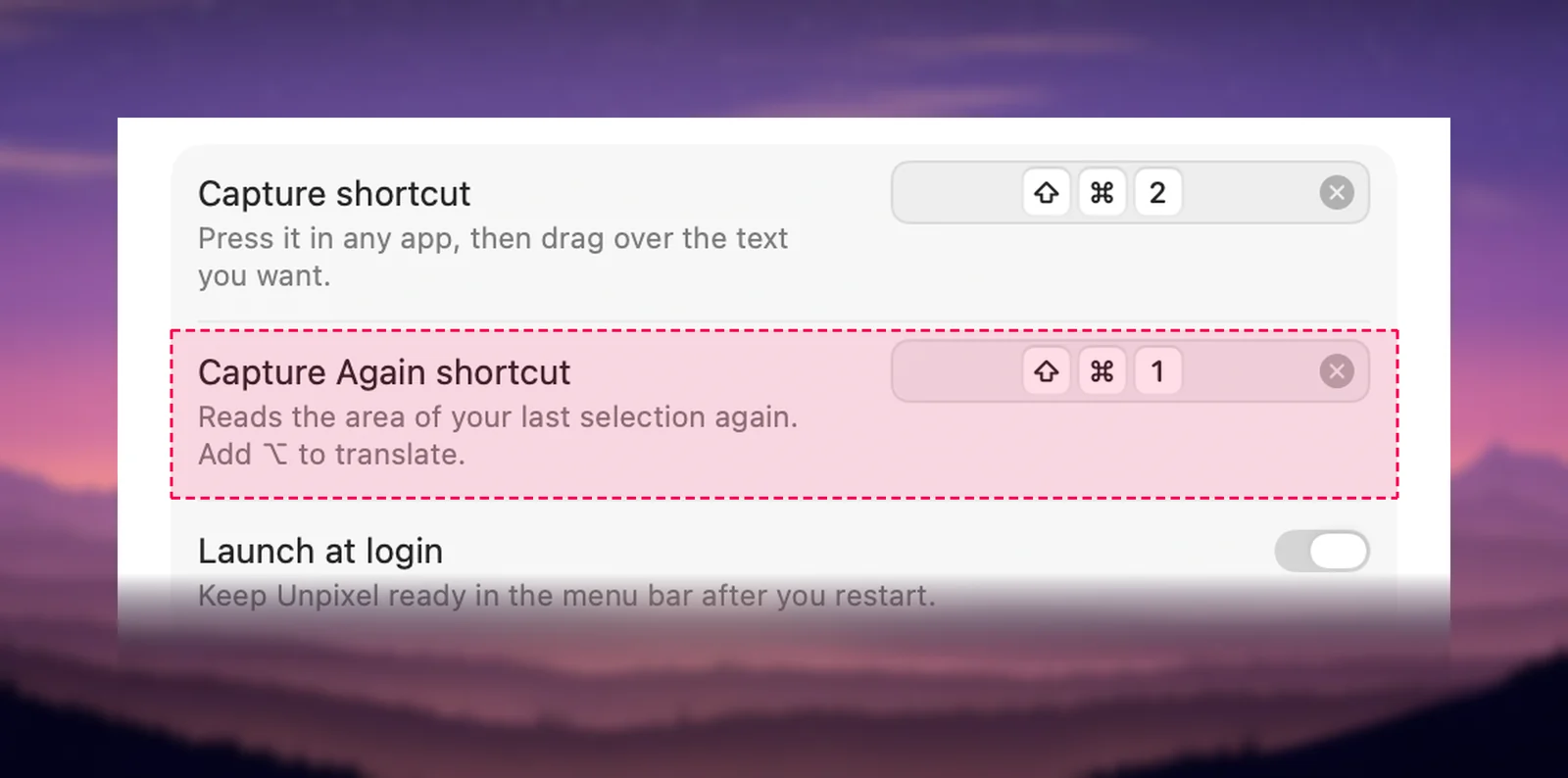
Open Settings → General and click the field next to Capture Again shortcut. Press the new combination, or click the ✕ to clear it; the menu items keep working without one. The curved-arrow button puts back ⇧⌘1, and so does Reset All Settings….
Capture Again is a global shortcut, so while it’s set, ⇧⌘1 no longer reaches the app in front. If an app you use needs that combination, record other keys or clear it. Clashes with macOS or other apps get the same orange warnings as the capture shortcut, explained in Change or clear the capture shortcut. The capture shortcut always wins a tie: choose its keys here and the field says to pick different ones.
What Unpixel remembers
Only the rectangle: which display it was on and where on that display. It’s kept in Unpixel’s preferences, so Capture Again still works after a restart, and it follows the display if you rearrange your screens. The text that was read is never part of it. Each new selection with the crosshair replaces the remembered area, whichever way you started it. From Clipboard and Open Image… don’t change it.
When it can’t read
| Message | What it means | What to do |
|---|---|---|
| No previous selection | You haven’t made a selection yet | Press ⇧⌘2 and drag over the text first |
| Previous selection isn’t on screen | Its display was disconnected, or its resolution changed so the area no longer fits | Make a new selection with ⇧⌘2 |
| No text found | There’s no text in the area right now, such as a gap between captions | Try again once text is showing |
These warnings appear even with Show confirmation after capture turned off, and nothing on your clipboard changes. Pressing the shortcut while the crosshair is on screen does nothing.
Frequently asked questions
Does Capture Again keep reading the area on its own?
No. It reads the area once each time you press the shortcut or choose the menu item. Nothing watches the screen between presses.
Can I hold ⇧ with Capture Again to add to the clipboard?
No. ⇧ is already part of ⇧⌘1, so Unpixel can’t tell an extra ⇧ apart. Capture Again always replaces the clipboard; to collect passages, drag with ⇧⌘2 and hold ⇧ as you let go.
Is there a link or Shortcuts command for Capture Again?
No, on purpose. Any app can open a link and then read the clipboard, so reading the screen without a fresh selection is kept to your own keys and clicks.