Text on a screen is wrapped to fit its column, slide or subtitle bar, and text recognition usually copies those wraps faithfully. That’s right for an address and wrong for a paragraph you want to paste into an email. Unpixel lets you choose which one you get, so the text arrives ready to use instead of needing a cleanup pass.
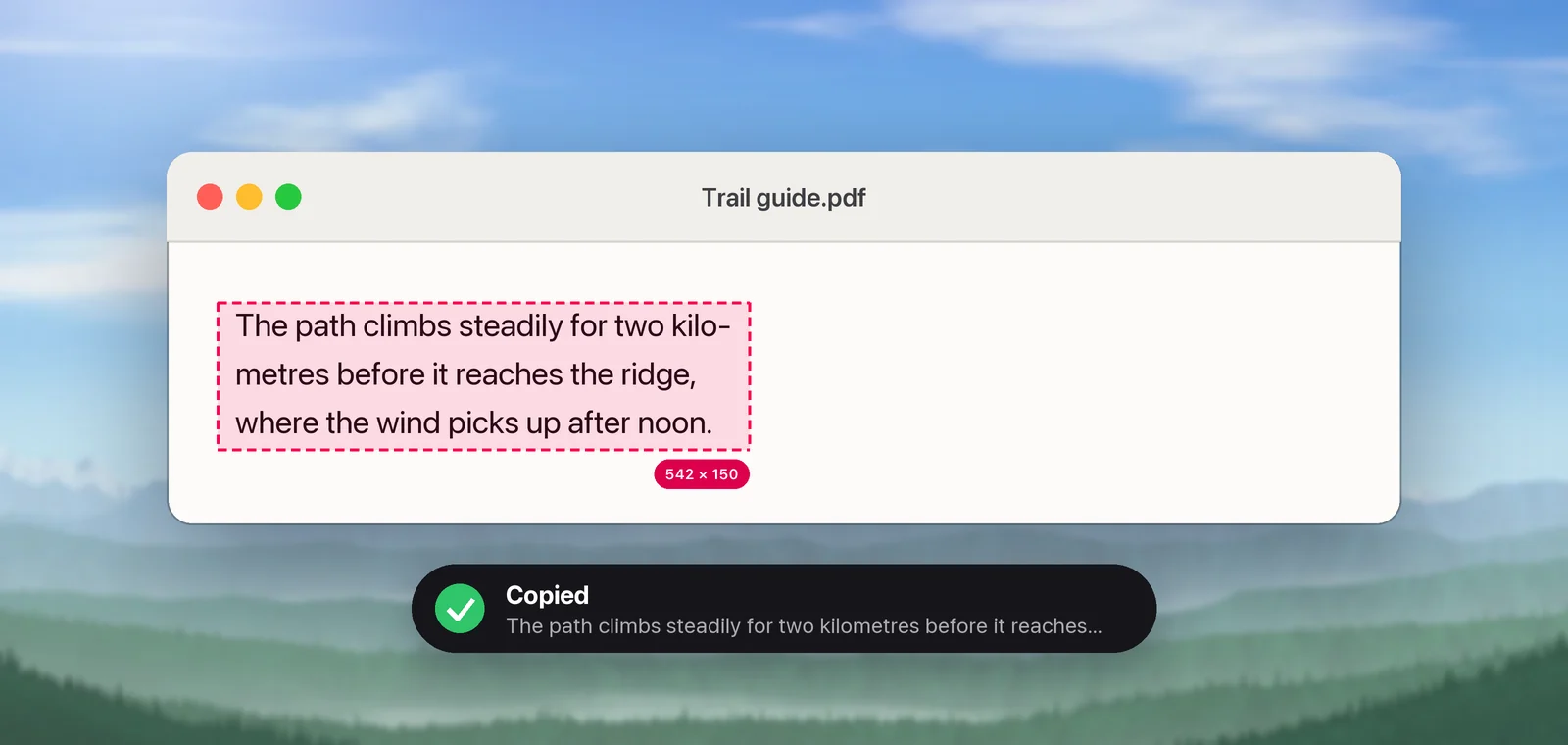
Unpixel copies text one of two ways, set by Keep line breaks in Settings → Recognition. On, every line comes out as it wraps on screen, which suits addresses, code and receipts. Off, the lines of each paragraph are joined so the text flows again, a word split by a hyphen is rejoined when the result is a real word, and list items keep their own lines.
What you get without an app
Live Text, the text recognition built into Preview, Photos, Safari and Quick Look, has no setting for this. What it copies usually keeps a break wherever a line ended in the image. Text copied from many PDFs behaves the same way, because the file stores each line separately. Paste and Match Style (⌥⇧⌘V) drops fonts and colors, but the breaks stay.
The free fix happens after pasting: a find and replace in Pages or Word, or a regular expression in a code editor. It works, though you have to protect the real paragraph breaks and repair hyphenated words by hand. Removing line breaks from PDF text shows each method step by step.
Two ways to copy the same text
Unpixel makes the choice before the text reaches your clipboard. The setting is Keep line breaks, under Formatting in Settings → Recognition, and a small example under the switch shows its effect. It applies to every capture, from the screen, a copied image or a file, until you change it.
- On (the default): wrapped lines stay separate lines, with a blank line between paragraphs.
- Off: each paragraph becomes a single line, with a space where every wrap was, and paragraphs stay apart.
Which setting for what
| What you’re capturing | Keep line breaks | Why |
|---|---|---|
| An article, email or report you’ll quote | Off | The paragraph rewraps to fit wherever you paste it |
| Slide bullets or a numbered list | Either | Lines that start with a bullet or number stay separate either way; items without a marker get joined when it’s off |
| Subtitles from a paused video | Off for whole sentences, on for line by line | One spoken sentence is often split across two subtitle lines |
| An address, receipt or menu | On | Each line holds a separate piece of information |
| Code, Terminal output or a log | On | Joined lines would run separate commands together |
| A poem or verse | On | The line breaks are part of the text |
If you switch between these a lot, leave the setting on. A paragraph with extra breaks is quicker to fix than an address squeezed onto one line.
What joining takes care of
Turning the setting off does more than swap each line break for a space:
- Split words. Justified text often breaks a long word with a hyphen. Unpixel drops that hyphen only when the rejoined word is in the Mac’s spelling dictionary, so “trans-” + “lation” becomes “translation”, while “self-” + “aware” and most hyphenated names keep theirs. The dictionary is your recognition language, or the detected one with automatic detection. When the Mac has no dictionary for it, the hyphen is dropped.
- Lists. Bulleted lines (•, - or *) and numbered or lettered ones (
1.,12),a)) each stay on a line of their own. - Paragraphs. The blank line between paragraphs survives. Only the wrapping inside each paragraph goes.
- Spacing by script. Chinese, Japanese and Thai lines run together with no space, because those scripts don’t separate words with spaces. Korean does, so its lines get a space, as English does. Multilingual OCR covers the languages Unpixel reads.
Columns are read in order
On a two-column paper or a magazine page, Unpixel finishes one column before it starts the next, whichever way the setting is, so the result doesn’t zigzag across the page. For right-to-left text such as Arabic, the right-hand column comes first.
Tables are a different case. Their columns hold separate values rather than running text, so Unpixel copies them as cells that paste into Numbers, Excel or Google Sheets. Tables that paste as real cells explains how that works.
When lines are joined anyway
Translation needs whole sentences. When you hold ⌥ to copy a translation, the wrapped lines of each paragraph are rejoined before the text goes to Apple’s translator, even with Keep line breaks on. List items keep their lines, and so do lines that don’t look like running prose, such as the parts of an address or the items on a receipt. The help article on keeping or joining line breaks has worked examples of both settings and the steps to change it.
Frequently asked questions
Can I choose per capture instead of changing the setting?
No. Keep line breaks is a single setting that applies to every capture until you change it. Holding ⌥ as you let go is the one per-capture switch, and that one copies a translation.
Will joining lines mess up code I capture?
It can. With the setting off, the lines of a paragraph are joined whatever they contain, so turn it back on before capturing code, Terminal output or anything else where each line matters.
Does the setting change captures already in my history?
No. A capture keeps the text it was copied with. Change the setting and capture the area again.
Sources
- Change Language & Region settings on Mac (Live Text) — Apple Support support.apple.com
- Recognizing Text in Images — Apple Developer Documentation developer.apple.com