Some utilities feel like visitors on a Mac: custom buttons, their own colors, settings that look like a web page. Unpixel is built the other way round, from the controls Apple ships with macOS 26 Tahoe. It looks and behaves like part of the system, including the new Liquid Glass design, and it picks up the appearance and accessibility choices you’ve already made.
Unpixel is a native macOS 26 app built from Apple’s standard controls, so its menu bar panel, Settings and dialogs look and behave like the rest of Tahoe. Its own Liquid Glass is kept to floating controls, such as the Copied confirmation and the selection’s size label. It follows light or dark mode and your accent color, respects Reduce Motion, and labels every icon button for VoiceOver.
Liquid Glass in macOS Tahoe
Apple introduced Liquid Glass in June 2025 as the new material across its operating systems. It’s translucent, reflects and refracts what’s behind it, and shifts between light and dark. On the Mac, the menu bar became fully transparent, and controls, sidebars and toolbars took on the new look.
Apple’s developer guidance is specific about where it belongs. Liquid Glass forms a layer for controls and navigation that floats above content. Standard components such as bars, popovers and controls adopt it automatically. And Apple says to avoid overusing it on custom controls, because it can distract from the content underneath.
You can tune it for every app at once. On current versions of macOS Tahoe, the Liquid Glass option in System Settings → Appearance chooses between a clear and a tinted look. Apple says apps built from standard system components pick up that choice automatically. Unpixel’s Settings, menus and dialogs are such components, and its floating controls use the system’s glass material rather than an imitation, so they should follow your choice too.
The menu bar panel and Settings
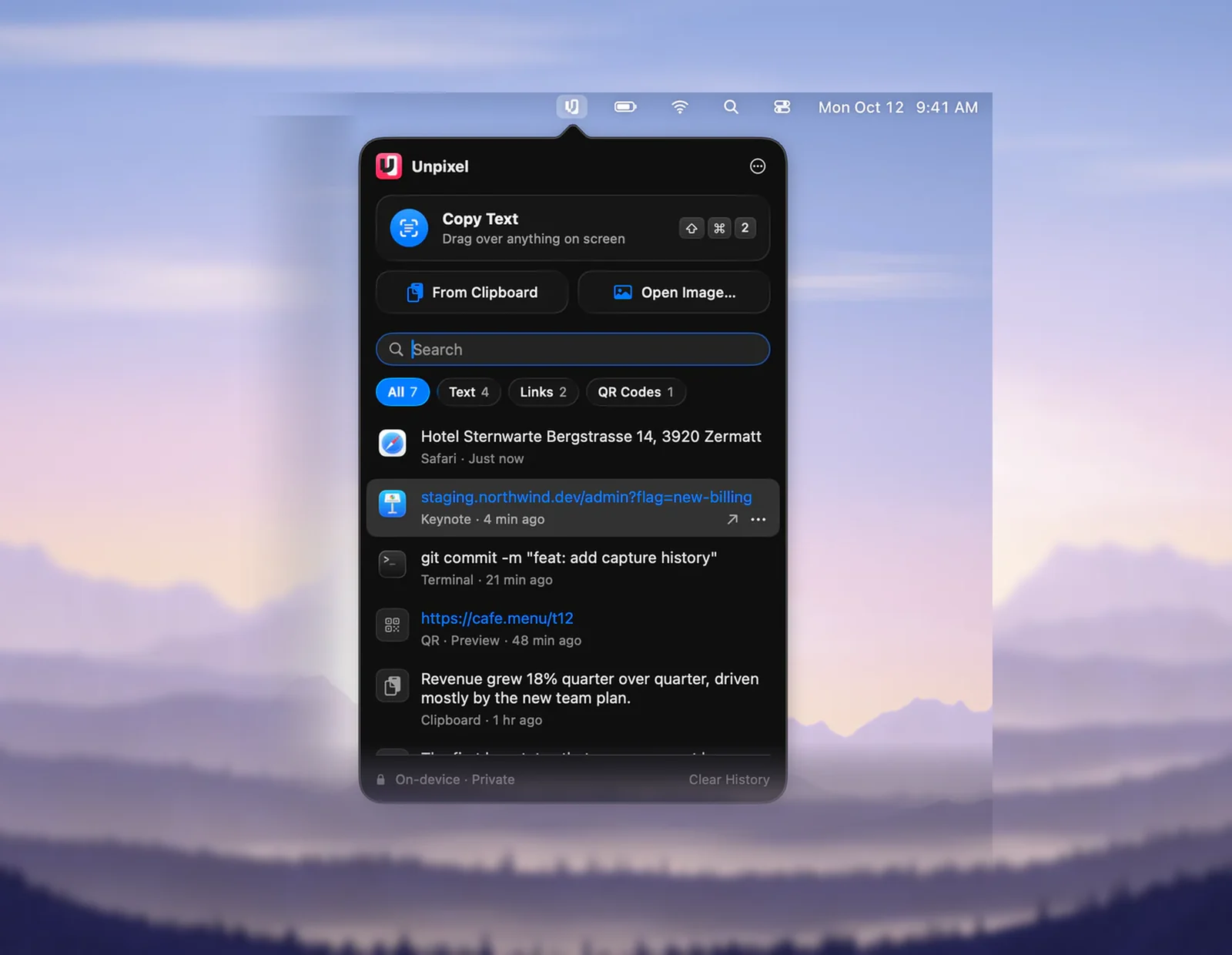
Click the Unpixel icon in the menu bar and a panel drops down beneath it, like a system menu. It holds the main Copy Text button with its ⇧⌘2 key caps, From Clipboard, Open Image…, a search field, filters and your capture history. The icon itself is an SF Symbol drawn as a template, so it matches the rest of your menu bar in light and dark.
Settings opens in a standard window with toolbar tabs: General, Recognition, Translation, History, License and About. Each tab is a grouped form, laid out the way System Settings is. File choosers, confirmations and alerts are the macOS ones, so they behave as you expect, down to ⌘, opening Settings.
Liquid Glass, used sparingly
Unpixel follows Apple’s advice and keeps glass on the parts that float above everything else:
- the “Copied” confirmation near the top of the screen, which never takes focus away from the app you’re in
- the size label that rides next to your selection
- the action buttons and filters in the menu bar panel
The history list, your captured text and the settings forms are content, so they stay solid and easy to read. Glass is never stacked on glass. Motion is quick and soft: confirmations scale in gently and fade away after a couple of seconds.
Light, dark and your accent color
Unpixel follows your choice of Light, Dark or Auto under Appearance in System Settings → Appearance. The Color you pick there, for buttons and other controls, becomes Unpixel’s accent too. It shows on the selected filter and on links in your history.
One element always stays dark: the size label during a selection. It sits on a dimmed screen over any kind of content, and a dark label stays readable on all of it.
Accessibility settings respected
macOS has settings for people who find motion or transparency hard going. Unpixel’s glass comes from the system, so these settings change it the way they change Apple’s apps:
- Reduce transparency, in System Settings → Accessibility → Display, makes the glass more solid, and Increase contrast on the same page strengthens borders.
- Reduce motion, which macOS Tahoe keeps in Accessibility → Motion, turns Unpixel’s springy animations into simple fades. The menu bar icon, which pulses while a long capture is being read, dims steadily instead.
- VoiceOver finds a name on every icon-only button, such as “More Actions”, “Open Link” and “Clear Search”, and reads a history row as one item with its text, source and time. While the “Copied” confirmation is on, which is the default, VoiceOver also reads out each finished capture and the start of its text.
Drawing the selection is the one step that needs a pointer. Accessibility in Unpixel covers the ways around it, such as Mouse Keys or reading a copied screenshot with From Clipboard, plus the panel’s keyboard controls. A launcher can also put From Clipboard and Open Image… on keys, as described in automation with Raycast, Alfred and Shortcuts.
Frequently asked questions
Does Unpixel have a Dock icon?
No. It’s a menu bar app, so it lives in the menu bar and opens a window only when you need one, such as Settings or the welcome guide.
Why does Unpixel need macOS 26?
It’s built on Tahoe’s design and on newer Apple frameworks, including Liquid Glass and the Vision document recognition that turns tables into cells. It needs a Mac with Apple silicon too.
Can I use Unpixel without a mouse or trackpad?
Mostly. Drawing a selection is a pointer drag, which macOS’s Mouse Keys can perform from the keyboard. The panel and Settings work from the keyboard once open, and From Clipboard and Open Image… can be put on keys through Unpixel’s unpixel:// links.
Sources
- Apple introduces a delightful and elegant new software design — Apple Newsroom (June 9, 2025) apple.com
- Adopting Liquid Glass — Apple Developer Documentation developer.apple.com
- Change Appearance settings on Mac (macOS Tahoe 26) — Apple Support support.apple.com
- Change Display settings for accessibility on Mac (macOS Tahoe 26) — Apple Support support.apple.com
- Change Motion settings for accessibility on Mac (macOS Tahoe 26) — Apple Support support.apple.com