Good text recognition starts with a good rectangle. Too tight and you clip a letter; too loose and you pull in a toolbar label or a timestamp. Unpixel’s selection is designed to make the right rectangle easy on the first try, on whichever display the text happens to be.
Press ⇧⌘2: every display dims slightly and the pointer becomes a crosshair with faint guide lines. Drag over the text and the selected area stays bright, with a small label showing its size in points. Hold Space to move the rectangle, press Esc or right-click to cancel, and let go to copy. Unpixel’s own overlay never ends up in the text.
The pattern macOS already taught you
Press ⇧⌘4 and macOS turns the pointer into a crosshair for a screenshot of part of the screen. Apple’s guide adds two habits worth knowing: hold Space while dragging to move the area without changing its size, and press Esc to cancel. The result is a picture, though. To get its text for free, open the screenshot in Preview and select the words with Live Text, as our guide to screenshotting part of the screen explains.
Unpixel keeps the same gestures, so your hands already know them. The difference is what you get when you let go: text on the clipboard, with no file to open or delete.
The crosshair and guide lines
Press ⇧⌘2 and each connected display takes on a light dimming while the pointer turns into a crosshair. Until you start dragging, two hair-thin guide lines run through the pointer across the whole display. Each has a faint dark twin, so it shows up on white documents and dark-mode apps alike. They let you set the rectangle’s first corner level with a line of text before you commit.
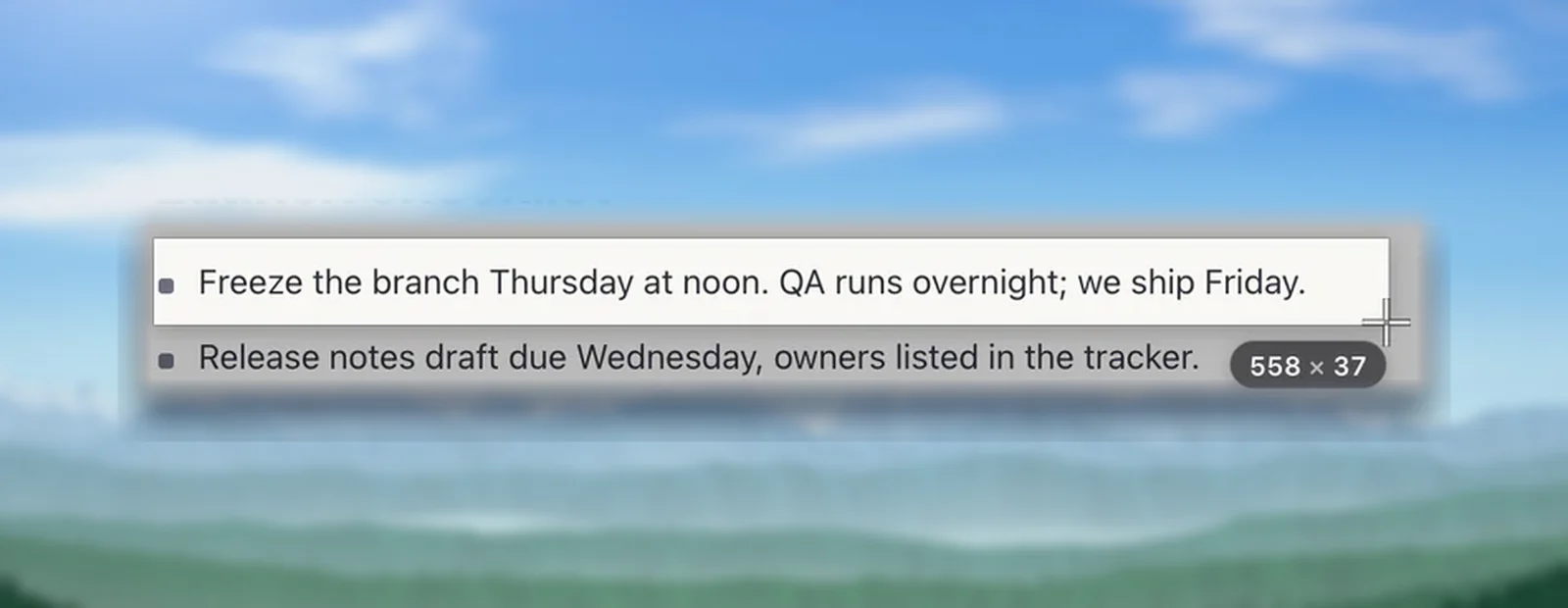
Once you drag, the selected area is cut out of the dimming. It stays at full brightness with a crisp white border and a soft shadow, so you can see exactly which words are inside.
A live size label
A small dark glass label rides next to the selection and shows its size, such as “558 × 37”. The numbers are points, not pixels. They help in two small ways. A selection that’s only a few points tall is probably slicing through a line, and matching numbers tell you that two captures covered the same area.
The pixels inside are read at the display’s native resolution, which on a Retina screen means four pixels for every point, so fine print isn’t blurred by scaling. A very large selection, such as most of a big display, is read in overlapping tiles, so small type spread across a wide area isn’t lost to downscaling. Hold ⌥ while dragging and the label adds “· Translate”, a reminder that letting go now copies a translation.
Move with Space
Sometimes you start the drag a few points off. Instead of starting over:
- Keep the mouse button or trackpad held down.
- Press and hold Space. Now the whole rectangle travels with the pointer, size unchanged.
- Let go of Space and dragging resizes again. Release the button when it’s right.
A moved rectangle stops at the edge of its display.
Cancel without side effects
Any of these ends a capture without copying anything, and leaves your clipboard as it was:
- Esc, ⌘. (Command-period) or a right-click
- a plain click, or a rectangle under 4 points wide or tall
- switching to another app, or the displays sleeping or changing
A second press of ⇧⌘2 while the crosshair is showing is ignored, so an accidental double press can’t stack two captures.
Every display
The crosshair appears on all your displays at once, so you start the drag wherever the text is. A Retina laptop next to a standard monitor is fine: whichever screen you select on, its own pixel density is used. The “Copied” confirmation then shows near the top of that same screen, not on your main one.
Nothing extra captured
Unpixel leaves its own capture interface out of the image it reads: the dimming, the border, the size label, the confirmation and the menu bar panel. So the result never includes stray text like “558 × 37”.
A few things are worth knowing about what is included:
- Everything visible inside the rectangle, from any app, including Unpixel’s Settings window if it happens to be under it.
- Codes come first. When a QR code or barcode is inside the rectangle, you get what the code holds, not the words beside it. Keep the code outside the rectangle when it’s the words you want.
- Protected video shows up black to screen capture, so there’s no text to read there.
The selection tips in the help center add practical advice, like zooming in on tiny text before you capture.
Frequently asked questions
Can I adjust the rectangle after I let go?
No. Letting go captures straight away, as the macOS screenshot tool does. If the text came out wrong, press ⇧⌘2 and draw it again; the new result replaces the old one on the clipboard.
Can one selection span two displays?
No. A selection stays on the display where you started dragging. Move the window onto one display, or capture each half separately.
Why does the size label show smaller numbers than my screen resolution?
It counts points, the units macOS uses for layout. On a Retina display, one point covers two by two pixels, and Unpixel reads the area at that full resolution.
Sources
- Take a screenshot on Mac — Apple Support support.apple.com