Word treats a picture as a picture. Insert a screenshot of a contract clause or a photo of a printed page, and you can resize it and wrap text around it, but you can’t select a single word. To edit those words, you need them as text first, and then pasted in a way that fits the document. This page covers both halves, from one image to a stack of scanned pages.
Word can’t select the words in a picture, so copy the text out first. Open the image in Preview, drag across the words with Live Text and copy them, or press ⇧⌘2 in Unpixel and drag over the text anywhere on screen. Paste into Word with ⇧⌘V, Paste text only, so it takes your document’s style, then run Spelling & Grammar.
The free way: Live Text, then paste
For an image file, or a picture already sitting in a document:
- If the picture is in Word, select it and press ⌘C, then choose File → New from Clipboard in Preview. For an image file, open it in Preview.
- Drag across the words. If Preview draws a box instead, choose Tools → Text Selection first.
- Control-click the selection and choose Copy Text.
- In Word, click where the text belongs and press ⇧⌘V, which Microsoft lists as Paste text only.
Live Text keeps a line break wherever a line ended in the picture, and Word turns each one into a paragraph mark. A paragraph that ran over eight lines arrives as eight one-line paragraphs, which then won’t reflow when you change the margins. Our guide to removing line breaks from copied text has the Find and Replace fix.
Paste clean paragraphs
In Unpixel
Unpixel can join the lines before the text ever reaches Word:
- In Settings → Recognition, turn off Keep line breaks.
- Press ⇧⌘2 and drag over the text, whether it’s a picture in your document, a PDF, a web page or a slide in a video call.
- In Word, press ⌘V.
The lines of each paragraph arrive as one paragraph. A word split by a hyphen at the end of a line is joined again when the result is a dictionary word, so “exam-ple” becomes “example” while “well-known” keeps its hyphen. List items keep their own lines. Paragraphs are separated by a blank line, which Word shows as an empty paragraph; if your style already adds space after paragraphs, replace ^p^p with ^p in Find and Replace to remove them.
A text capture is plain text, so it takes on the formatting where you paste it: your document’s font, size and paragraph style. There’s nothing to strip.
Keep Text Only, and when you need it
Two kinds of clipboard content bring more than words with them:
- Table captures. Unpixel puts the table on the clipboard as HTML alongside the text, and Word builds a table from it.
- Text copied from web pages, email and other documents, which carries fonts, colors and links.
To paste just the words, Word for Mac gives you three ways:
- Press ⇧⌘V (Paste text only).
- Press ⌃⌘V to open Paste Special, then choose Unformatted Text.
- Paste normally, click the Paste Options button that appears beside the text, and choose Keep Text Only.
For a table, the text-only version is one row per line with tabs between the cells, or Markdown or aligned columns if you’ve changed Tables as plain text in Unpixel’s Settings → Recognition.
Tables into Word
Pasted with ⌘V, a table capture becomes a Word table, much like a table copied from a web page. If you end up with tab-separated lines instead, select them and choose Insert → Table → Convert Text to Table, with Tabs as the separator. Then set the header row and column widths; copying a table from an image into Word walks through that formatting.
Long documents: many pages at once
Retyping a ten-page scanned letter is where text recognition saves the most time. In Unpixel’s menu bar panel, choose Open Image…, select the PDF, or several scans at once, and click Open. The pages are read in order, up to 50 per capture, with a blank line between pages, and the whole text lands on your clipboard in one go. Unpixel shows “Reading N pages…” while it works.
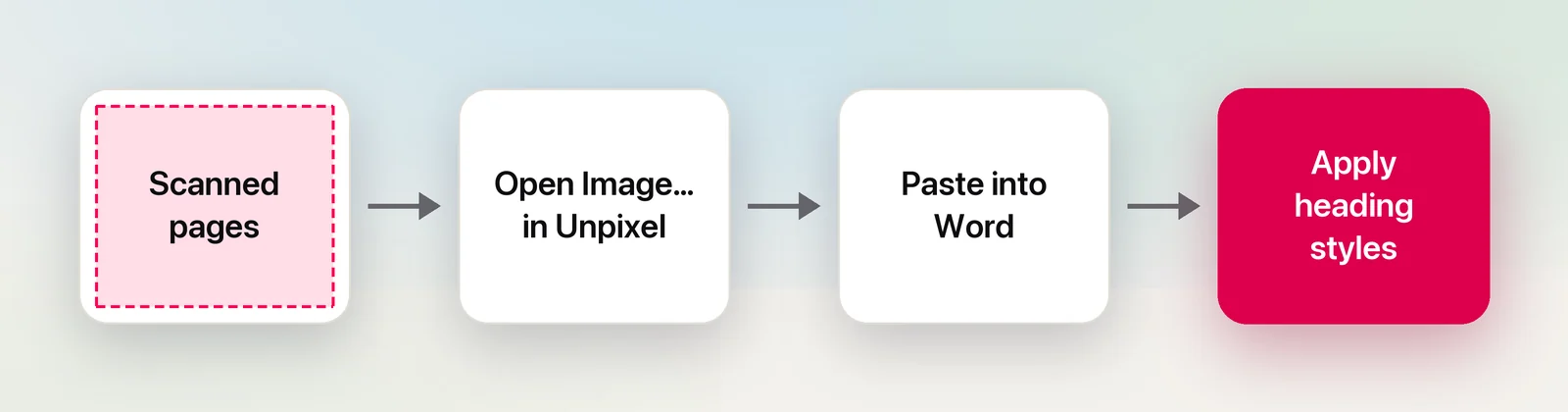
Paste into a new document, then rebuild the structure. Apply Heading 1 and Heading 2 to the headings, turn lists into Word lists, and delete running headers, footers and page numbers that were read along with each page. Recognition reads what a page shows, not how it was styled. For a PDF that already has selectable text, try Word’s own File → Open first, which can keep more of the layout; see converting a PDF to Word.
Proof it with Spelling & Grammar
Clean print usually comes through well; small, faint or unusual type less so. Give recognized text one pass before it goes anywhere:
- Choose Review → Spelling & Grammar, or press ⌥⌘L.
- Treat suggestions near names and numbers with suspicion, and check them against the original.
Spelling and grammar checks catch misreadings that aren’t real words. Check these by eye:
- Look-alike characters: “rn” read as “m”, “l” as “1”, “O” as “0”, especially in codes and part numbers.
- Numbers: a misread digit is still a valid number, so compare totals, dates and amounts.
- Accents and names: a name missing its accent looks fine to the checker.
- Other languages: if a passage isn’t in your document’s language, select it and set its proofing language (in Word for Mac, Tools → Language) so it’s checked against the right dictionary.
If the source is in a language you don’t read, hold ⌥ as you let go of an Unpixel capture to copy a translation into your language instead, made on your Mac by Apple’s Translation framework.
Frequently asked questions
Why does the pasted text break in the middle of sentences?
It was copied line by line, so every line in the picture ended with a paragraph mark. Turn off Keep line breaks in Unpixel before capturing, or join the lines afterwards with Find and Replace in Word.
Can Word turn a PDF into an editable document?
Often, if the PDF has real text: choose File → Open in Word and pick the PDF, then check the layout, which can shift. A scanned PDF has no text to convert, so it needs text recognition first.
Does spell check catch every recognition mistake?
No. It flags misread words that aren’t in the dictionary, but not a wrong digit, a misread letter that still makes a real word, or a name missing its accent. Compare numbers and names with the original.
Sources
- Keyboard shortcuts in Word (macOS) — Microsoft Support support.microsoft.com
- Check spelling and grammar in Office — Microsoft Support support.microsoft.com
- Convert text to a table or a table to text in Word for Mac — Microsoft Support support.microsoft.com
- Interact with text in a photo using Live Text in Preview on Mac — Apple Support support.apple.com