Screenshots pile up in Notion: a whiteboard photo in meeting notes, a slide in a research page, a receipt in an expenses database. Notion stores each one as an image block, so the words in it can’t be edited, linked or reused. The fix is to get the text out of the picture and paste it back as real text. Here’s how to do that on a Mac, and how to make the paste land the way you want in Notion’s blocks, tables and databases.
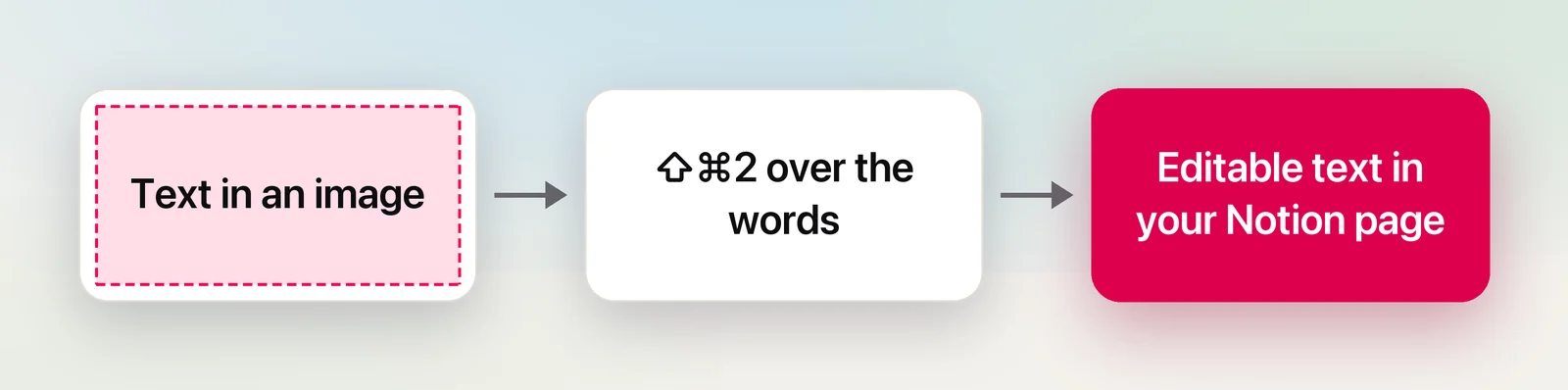
Notion keeps an image as a picture, so you can’t edit or reuse the words in it. Copy them out first: download the image, open it in Preview and select the words with Live Text, or press ⇧⌘2 in Unpixel and drag over the image. Then paste the text as a block, a quote, a database property or the image’s alt text.
Notion and images
An image block holds a picture and a few things around it. According to Notion’s help center, as of October 2026, you can:
- click Original to open the full-size image, or the download icon at its top right to save it;
- add a caption with the caption icon;
- add alt text from the image’s ••• menu, under Alt text.
None of those turn the picture into text. The built-in Mac way is Live Text in Preview:
- Click the download icon on the image and open the file in Preview.
- Make sure Tools → Text Selection is on.
- Drag across the words, press ⌘C, and paste them into Notion.
It works well, but it leaves a downloaded file behind for every image. If you use Notion in Safari, Original opens the full-size image in a new tab, and Safari’s Live Text can select the words there without a download. And if the picture is already on your screen, you can skip both.
In Unpixel
Press ⇧⌘2 and drag over the image right there in the Notion page, in the desktop app or the browser. When you let go, its text is on your clipboard; paste it below the image and the words become something Notion can edit and link. If you’ve copied an image from somewhere else, Unpixel’s From Clipboard reads it without a capture.
A good habit: paste the captured text into the image’s Alt text as well. Screen readers then read the words, and the picture is described for anyone who can’t see it.
Paste text into pages
Notion builds pages from blocks, and each line break in pasted text can start a new block. Text read from a narrow column, a slide or a scan has a break at the end of every line, so one paragraph can arrive as five separate blocks.
To avoid that in Unpixel, turn off Keep line breaks in Settings → Recognition before capturing prose. The lines of each paragraph are then joined, while list items stay on their own lines. Leave it on for code, addresses and anything where the line breaks matter, and paste those into a code block. Captured text is plain, so it takes on Notion’s formatting rather than bringing fonts and colours with it.
Tables into Notion
A table in a screenshot is the most tedious thing to retype. When you capture one, Unpixel recognizes it as a table and puts it on the clipboard as cells, the same kind of data a spreadsheet copy carries. Pasted into an empty line, spreadsheet-style cells usually become a simple table, though Notion’s paste handling changes between versions. If yours arrives as plain lines instead, use the CSV route further down. To make the first row a header, hover over its first cell and use the six-dot icon.
A few Notion details to know:
- Paste into an empty line, not into an existing table. Notion’s help page notes that you can’t paste into several simple table cells at once.
- Turn it into a database when you want filters, sorts or typed properties: open the table’s ••• menu and choose Turn into database.
- Need Markdown instead? Unpixel’s history can copy the same table again as Markdown or CSV. A raw Markdown table pasted into Notion may stay as plain text, so Markdown is most useful for files you keep outside Notion, such as a README.
Quotes with sources
When you collect quotes from slides, articles or videos, keep where each one came from. Type /quote to add a quote block, paste the captured text, then add the source as a link on the line below: the page’s address, or for a YouTube video a link to the exact moment. Unpixel’s history shows which app each capture came from, such as Safari, which helps when you sort quotes out at the end of a session, but the address itself you add yourself.
Database entries
Databases are where captured text saves the most typing. Common cases:
- Contacts from a business card photo or an email signature image: capture the name, then the email, then the phone number, pasting each into its property.
- Order numbers and tracking codes from a screenshot: turn off Language correction in Settings → Recognition so codes aren’t “corrected” into words, and check the digits.
- A QR code on a flyer or slide: capture it and Unpixel copies the link it contains, ready for a URL property.
For many rows at once, go through a CSV file. Copy the table as CSV from Unpixel’s history, paste it into a new TextEdit document, choose Format → Make Plain Text, and save it with a .csv name. In Notion, use Settings → Import → CSV for a new database, or open a database as a full page and choose Merge with CSV from its ••• menu to add rows to it. Make the CSV’s first row match the database’s property names exactly so each column lands in the right property. Notion notes that merges add rows rather than updating existing ones, so watch for duplicates.
Frequently asked questions
Does Notion have built-in OCR for images?
Notion’s help page on images covers uploading, captions, alt text and downloading, and doesn’t describe recognizing text in them. Copy the text out with Live Text or a capture tool, then paste it into the page.
Why does my pasted text turn into lots of separate blocks?
Each line break in the text you paste can become its own block. Text captured from a narrow column has a break at the end of every line, so join a paragraph’s lines before you paste.
Can I paste a table straight into a Notion database?
Paste it as a new table first, then use Turn into database from the table’s ••• menu. To add rows to a database you already have, import them from a CSV file with Merge with CSV.