Code reaches you as a picture more often than it should: a snippet in a conference talk, a stack trace in a bug report, a config file on a colleague’s shared screen. Once you’ve recognized the text, VS Code has the tools to make it usable again, from language modes to column selection. This page is about that second half: what to do in the editor so the pasted text is correct.
VS Code doesn’t read text in images, so recognize it first: Live Text in Preview for a screenshot file, or an on-screen OCR tool for videos and screen shares. Paste into a new file, set its language with ⌘K M, fix curly quotes with a regular-expression replace, then run Format Document (⇧⌥F). Paste tables as Markdown and check them with the preview, ⇧⌘V.
Get the text out first
VS Code shows images but doesn’t recognize the words in them. Depending on where the text is:
- A screenshot file (or a picture you can copy): open it in Preview, drag across the code with Live Text and press ⌘C. Quick Look works too: select the file in Finder and press Space.
- A video, a talk or a screen share: pause on a sharp frame, make it as large as you can, and capture the region with an OCR tool. Look for the speaker’s repository first; the original file beats any recognition.
Copying code from a video covers getting a crisp frame and the characters that usually go wrong. The rest of this page assumes the text is on your clipboard.
Paste into a file with the right language
- Press ⌘N for a new untitled file and paste.
- Press ⌘KM and choose the language, for example Python or TypeScript.
Syntax highlighting is your first proofreader. A misread character often shows up as the wrong colour: a 0 read as O turns a number into a name, and an unclosed string swallows the rest of the line. Where the language has support installed, squiggles for undefined names point at the remaining slips.
Clean up with Find and Replace
Recognition gives you characters that look right but aren’t what a compiler wants. Fix them in one pass:
- Press ⌥⌘F to open Replace, and turn on Use Regular Expression (the
.*button). - Replace
[“”]with", and[‘’]with'. - Search for
[–—]to find long dashes that should be--or-.
Captured line numbers or shell prompts at the start of each line come off with a column selection. Hold ⇧⌥ and drag from the top-left of the unwanted column to the bottom-right, then press Delete. The same column selection is handy for adding a comment marker to many lines at once.
Fix indentation
Recognition reads characters, not leading whitespace, so most lines arrive flush left.
- Languages with braces or tags (JavaScript, TypeScript, JSON, HTML, CSS, Go, Rust, Swift): press ⇧⌥F for Format Document, or select part of the file and press ⌘K⌘F for Format Selection. The first few work out of the box; others need the language’s formatter extension.
- Python and YAML: indentation is part of the meaning, so no formatter can rebuild it. Select lines and press ⌘] to indent or ⌘[ to outdent, while looking at the original.
- Tabs or spaces: click the indentation item in the status bar to convert the file between tabs and spaces.
If you paste recognized code often, consider turning on editor.formatOnPaste (off by default) so supported languages are formatted as they land.
Tables in a text editor
VS Code is a plain-text app, so a table on the clipboard arrives in whatever plain-text form the source provides. Markdown is the most useful one here: a pipe table you can drop into a README, a pull request description or docs.
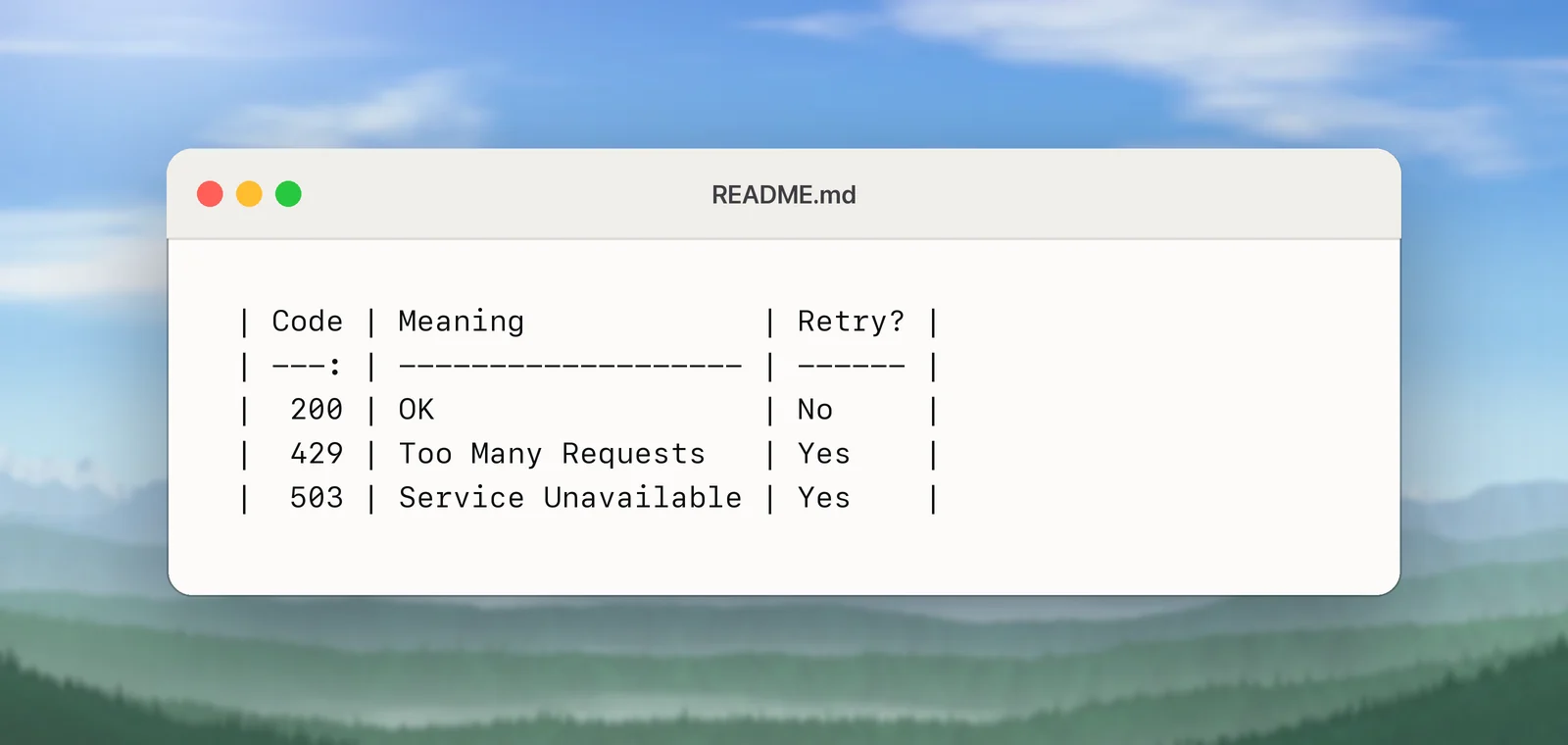
Check it with the Markdown preview: ⇧⌘V switches the editor to the preview, and ⌘KV opens it beside the source. A row with one cell too many or too few shows up there immediately. A | inside a cell has to be written \|.
Find the code behind an error
A screenshot of an error from a user or a tester is often the fastest way to find where it comes from. Copy the message, press ⇧⌘F to search across files, and paste a distinctive part of it. Leave out anything that varies, such as IDs, paths and numbers. If nothing turns up, the text may be built at runtime; search for a shorter, fixed piece.
In Unpixel
Unpixel recognizes the region you drag over, from any app, and puts the text on the clipboard: press ⇧⌘2, drag over the code, let go, and paste into VS Code.
- Settings for code. In Settings → Recognition, keep Accurate mode, turn off Language correction so identifiers aren’t turned into dictionary words, and keep Keep line breaks on so each line stays a line.
- Tables as Markdown. Set Tables as plain text to Markdown in Settings → Recognition, and captured tables paste into VS Code as pipe tables with number columns right-aligned. Spreadsheets still get cells. Or leave the setting alone and right-click a table in the history to choose Copy as Markdown or Copy as CSV.
- Listings stay text. Code and terminal output keep their lines instead of being turned into a table, even when their columns line up.
- History. Every capture stays in a local, searchable history with the app it came from, so the error you grabbed from a tester’s screen share is still there after the call.
Frequently asked questions
Why does Format Document do nothing on my pasted code?
VS Code needs a formatter for that language. JavaScript, TypeScript, JSON, HTML and CSS work out of the box; other languages usually need an extension. Check the language shown in the status bar too.
Can VS Code fix the indentation of pasted Python?
No formatter can guess Python or YAML indentation, because it changes the meaning. Re-indent by hand with ⌘] and ⌘[, looking at the original.
How do I remove line numbers that came along with the code?
Hold ⇧⌥ and drag down over the numbers to make a column selection, then press Delete.
Sources
- Basic editing — Visual Studio Code documentation code.visualstudio.com
- Markdown and Visual Studio Code — Visual Studio Code documentation code.visualstudio.com
- Interact with text in a photo using Live Text in Preview on Mac — Apple Support support.apple.com