An app running in the iOS Simulator is a picture of a phone inside a Mac window. A few things in it can be selected, like the text in a text field. Most of what you’d quote in a bug report can’t: labels, buttons, navigation titles, tab bars and alerts. The Xcode Previews canvas is the same. Here’s how to get those strings as text, whichever version of Xcode you run.
Selectable text in the simulated app, such as a text field, copies to your Mac through the shared pasteboard. Labels, buttons, alerts and the Xcode Previews canvas are pixels: screenshot the device and select the words with Live Text in Preview, or press ⇧⌘2 in Unpixel and drag over the string in the simulator window. In Xcode 27, simulators run in Device Hub.
Simulator app or Device Hub
Xcode 27 replaced the Simulator app with Device Hub, which runs simulators and shows paired devices in one window. Xcode 27 needs macOS Tahoe 26.6 or later, so many Macs still run Xcode 26 and the Simulator app. The tools you’ll use on this page live in different places:
| Task | Simulator app (Xcode 26 and earlier) | Device Hub (Xcode 27) |
|---|---|---|
| Screenshot of the device | Edit → Copy Screen puts it on the clipboard | The Screenshot button below the device saves it to your Desktop |
| Bigger, sharper text | Window → Pixel Accurate | Zoom In or Physical Size in the expanded window’s toolbar |
| Shared clipboard | Edit → Automatically Sync Pasteboard | Synced by Device Hub, no setting to find |
In both, xcrun simctl io booted screenshot ~/Desktop/sim.png saves a screenshot of the running simulator from Terminal.
Start with text that’s already text
Copied text is exact, so check these first:
- Selectable text in the app. Text fields, text views and web content select as they do on a phone: double-click a word or click and hold, then choose Copy from the edit menu. Pasteboard sync carries it to your Mac’s clipboard.
- When sync lets you down, run
xcrun simctl pbpaste bootedin Terminal. It prints whatever is on the simulator’s pasteboard. - Console output. A crash reason, a
printor a log message is already text in Xcode’s debug area. Select it there. - Your own source. Once you know which screen it is, the string is somewhere in your code or String Catalog.
Labels, buttons, titles, alerts and text drawn into images can’t be selected in the app itself. Those need text recognition.
Copy UI strings from the Simulator
The free way goes through a screenshot and Live Text:
- Take a screenshot of the device: Edit → Copy Screen in the Simulator app, or the Screenshot button in Device Hub.
- In Preview, choose File → New from Clipboard, or open the saved file.
- Drag across the string. If Preview draws a box instead, choose Tools → Text Selection first.
- Control-click the selection and choose Copy Text.
Device Hub saves screenshots at the device’s full resolution, which is sharper than the scaled-down window and easy for Live Text to read. The cost is four steps per string, plus a file on your Desktop each time in Device Hub.
In Unpixel
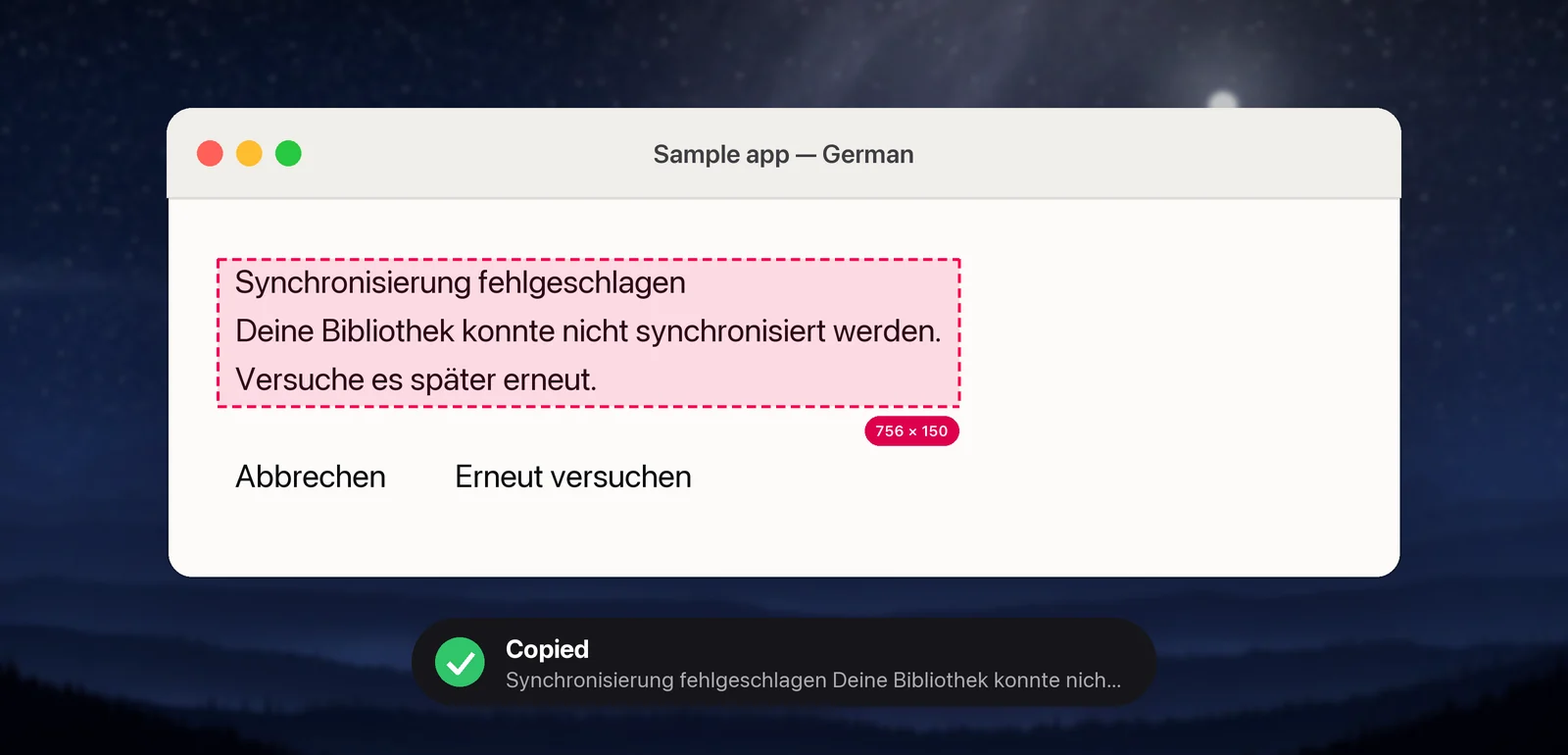
Press ⇧⌘2, drag over the label right in the simulator window, and let go. The string is on your clipboard, recognized on your Mac by Apple’s Vision framework. Capture one element at a time, such as a button, an alert or a table cell, so each copy is one string.
Two settings in Settings → Recognition suit interface text:
- Turn off Language correction, so identifiers, sample data and invented product names come through as shown instead of being “fixed” to dictionary words.
- Turn off Keep line breaks, so a label that wraps onto two lines is copied as one line, the way it’s written in your project.
Small text is where recognition starts guessing, so enlarge the device first with Window → Pixel Accurate or Device Hub’s Zoom In. To skip resizing, read a full-resolution screenshot instead. After Edit → Copy Screen, click From Clipboard in Unpixel’s menu bar panel. From Terminal, one line saves a screenshot and hands it to Unpixel:
xcrun simctl io booted screenshot ~/Desktop/sim.png && open -a Unpixel ~/Desktop/sim.pngA whole-screen read includes the status bar and every label on screen, so trim what you don’t need. If a QR code is visible, Unpixel copies what the code contains instead, unless you turn off Detect QR codes & barcodes.
Find the string in your project
A captured string is most useful as a search term:
- In Xcode, press ⇧⌘F to open the Find navigator, and paste.
- Search for a distinctive part, not the whole sentence. Values filled in at runtime, like a name or a count, aren’t in the source, and a truncated label ends in “…” that the source doesn’t have.
- Leave apostrophes and quotation marks out of the search. Straight and curly versions look alike on screen.
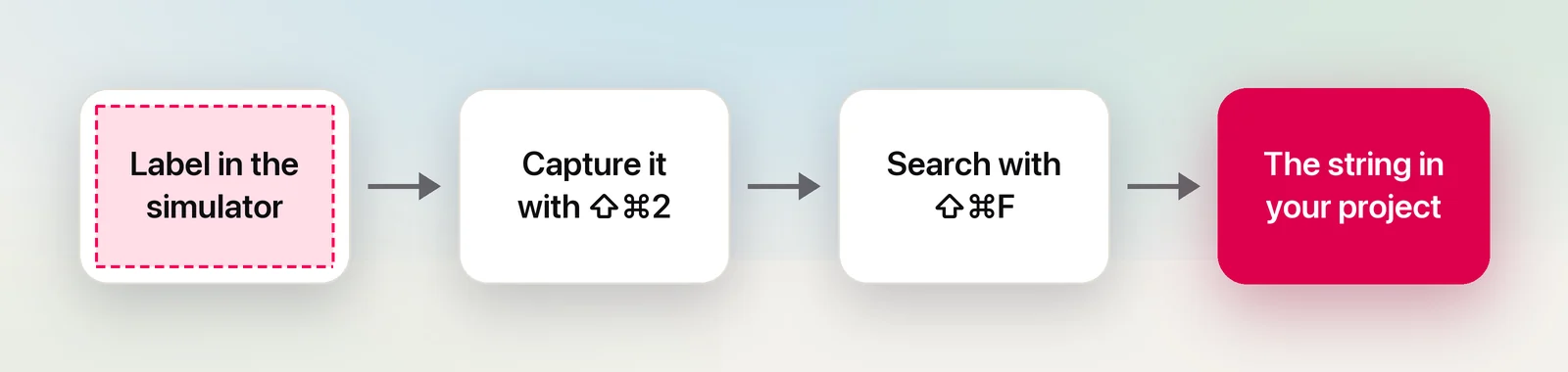
The result takes you to the view’s code or the String Catalog entry, which is where the fix goes.
Localization checks
To run your app in another language without changing the whole device, choose Product → Scheme → Edit Scheme, select Run, click Options, then pick an App Language and App Region. Apple notes that changing Language & Region on the simulated device itself switches the whole system, not just your app.
When you’re reading a language you don’t speak, hold ⌥ as you let go of an Unpixel selection. The string is translated into your language on your Mac by Apple’s Translation framework, which quickly tells you whether a button says Save or Delete. With Copy original and translation turned on in Settings → Translation, you get both, separated by a blank line. Translation checks meaning, not grammar or whether the text fits, so a native speaker still has the final say.
For a full pass rather than spot checks, let Xcode keep the records. Turn on Localization Screenshots in a test plan configuration, and your UI tests save screenshots for each language, with a property list that maps every string ID to where it appears on screen. The QA and localization testing guide has a checklist of what to look for.
Alerts and crash dialogs
Alerts hold the strings people most often need to quote, and none of them select:
- Alerts inside your app. Drag over the title and message together. With Keep line breaks off, a wrapped message arrives as one paragraph.
- When the app crashes, Xcode stops in the debugger and prints the reason in the console. Copy it from there. It’s complete, where a dialog may be cut short.
- Errors from Xcode or Device Hub, such as a failed install or a simulator that won’t boot, can appear in Mac alerts whose text won’t select. Look for the same message as text in Xcode’s Issue navigator or the build log first, and capture the alert when it isn’t there. Our guide to copying error messages covers Mac dialogs in general.
Xcode Previews
The canvas shows a rendering of your view, so its labels can’t be selected. Its own tools can still save you a capture:
- Selectable mode. Click Selectable in the lower-left corner of the canvas and double-click an element. Xcode highlights its code in the source editor, which often includes the string itself.
- Another language. Click Device Settings in the lower-right corner, turn on Language and choose a localization.
- Variants. The Variant button shows your view in several orientations or text sizes side by side. Zoom the canvas in before you capture from a tile, because the tiles are small.
- Screenshot. The Screenshot button in the lower-right corner saves the preview as an image file, with a name and folder you choose. Open it in Preview for Live Text, or drop it on Unpixel’s menu bar icon.
Physical devices and mirrored screens
In Xcode 27, Device Hub shows paired iPhones and iPads too: select one in the sidebar and click View Screen. Its screen appears in the canvas, and you capture from it exactly as from a simulator. Apple says to quit apps on the device that use the camera or microphone first. For a phone that isn’t set up for development, iPhone Mirroring puts its screen in a Mac window; copying text from iPhone Mirroring covers what it needs.
Frequently asked questions
Why can’t I select a label in the iOS Simulator?
Labels, buttons and alerts aren’t selectable on a real iPhone either, and the simulator runs your app as it behaves on a device. Read them from a screenshot with Live Text, or with a screen text tool.
Does the simulator share its clipboard with my Mac?
Yes. In the Simulator app, keep Edit → Automatically Sync Pasteboard ticked; Device Hub syncs the pasteboard as well. If something doesn’t come across, xcrun simctl pbpaste booted prints the simulator’s pasteboard in Terminal.
Where are Pixel Accurate and Point Accurate in Xcode 27?
As of October 2026, Apple’s Device Hub documentation lists Zoom In, Zoom Out, Zoom to Fit and Physical Size, but neither of those modes. Expand the compact window to see the zoom buttons in the toolbar, or drag the window larger.
Will a captured string match my String Catalog exactly?
Usually, but not always. Values filled in at runtime, truncated labels and look-alike characters such as l and I can differ, so search your project for a distinctive part of the string rather than all of it.
Sources
- Xcode 27 Release Notes — Apple Developer developer.apple.com
- Capturing screenshots and videos from devices — Apple Developer developer.apple.com
- Configuring the environment of a simulated device — Apple Developer developer.apple.com
- Interacting with your app in Device Hub — Apple Developer developer.apple.com
- Interacting with previews in the canvas — Apple Developer developer.apple.com
- Testing localizations when running your app — Apple Developer developer.apple.com
- Creating screenshots of your app for localizers — Apple Developer developer.apple.com
- Simulator Help Topics (archived) — Apple Developer developer.apple.com
- Xcode 27 Device Hub, no option to view Point Accurate and Pixel Accurate window sizes — Apple Developer Forums (read October 2026) developer.apple.com