There’s no single OCR app that wins at everything on a Mac, because “OCR” covers very different jobs. Grabbing one line from a paused video, turning a 200-page scan into a searchable PDF and reading text in a script each want a different tool. This guide sorts the options by job, starts with what macOS already does, and sticks to facts the makers publish.
Start with what’s free: Live Text reads photos, screenshots and paused video, and Preview can add a text layer to a scanned PDF. To copy text from anywhere on screen, a capture app such as TextSniper, CleanShot X, Shottr, TRex or Unpixel is quicker. For searchable PDFs, look at ABBYY FineReader PDF, Acrobat Pro or the free OCRmyPDF.
How this list was put together, and our bias
We make Unpixel, one of the apps below, so read its entry with that in mind. Everything about other apps comes from their own websites, read in October 2026. Prices and features change, so follow the links in the sources before you buy. We haven’t run lab benchmarks, and we don’t rank apps by accuracy. Recognition quality depends heavily on your material, so the fairest test is a few of your own files.
When you compare, these questions matter more than a feature grid:
- Where does recognition run? On your Mac, or on someone’s server?
- How do you start it? A shortcut over the screen, a file you open, or a command?
- What happens to layout? Tables, columns and line breaks are where tools differ most.
- Which languages? Check your exact languages, including the less common ones.
- What does it need? Some apps support macOS versions from years ago; others only the current one.
Built in first: Live Text, Preview and Shortcuts
Before you buy anything, try the three tools every Mac already has.
Live Text reads text in images and paused video inside Apple’s apps:
- Open the image in Preview or Photos, or select it in Finder and press Space.
- Drag across the words.
- Control-click the selection and choose Copy Text.
Preview handles scans. Open the PDF and choose File → Export, then select Embed Text. Apple notes the option only appears when the document has no recognized text yet.
Shortcuts has an Extract Text from Image action, which you can wire into a Quick Action or a keyboard shortcut.
These cost nothing and keep your files on the Mac. Their limit is reach: Live Text only works on images inside apps that support it, so text in a screen share, a dialog or a game needs a screenshot first. Our free OCR guide walks through each option in detail.
Copying text from anywhere on screen
This is the most common reason people buy an OCR app: press a shortcut, drag over the words, and paste. Details below are as of October 2026, from each maker’s site.
| App | How it’s sold | Runs on | Also does |
|---|---|---|---|
| TextSniper | One-time, from $7.99 for 1 Mac; also in Setapp | macOS Catalina or later | QR and barcodes, text-to-speech |
| CleanShot X | One-time $35 with a year of updates, or a Pro plan | macOS 13 or later | Full screenshot and recording suite |
| Shottr | Free to use; pay-what-you-want licence | macOS 10.15 or later | Screenshots, scrolling capture, QR |
| TRex | Free and open source; paid on the App Store | macOS 11 or later | QR and barcodes |
| Unpixel (ours) | One-time, from $5.99 for 1 Mac | macOS 26, Apple silicon | Tables, translation, history |
A few notes the table can’t hold:
- TextSniper is a dedicated text-capture app with a long track record and wide macOS support. As of October 2026, its site lists $7.99 for one Mac, says you can try it free for a week, and offers a 7-day money-back guarantee on direct purchases. It’s also part of the Setapp subscription.
- CleanShot X is a screenshot app first, with OCR as one of many tools. Its site says text recognition happens entirely on the device. If you also want annotation, scrolling capture and recordings, it’s the better buy than a single-purpose tool.
- Shottr is the budget pick for people who also take a lot of screenshots. Its developer says it can be used free for as long as you want, with an occasional prompt to buy.
- TRex is MIT-licensed and installs with
brew install --cask trex. Its README says every feature works offline.
Where Unpixel fits
Unpixel is a menu bar app built around one job: press ⇧⌘2, drag, and the text is on your clipboard. Recognition runs on your Mac with Apple’s Vision framework. A captured table pastes into Numbers or Excel as real cells, and holding ⌥ as you let go copies a translation instead. It reads images and PDFs of up to 50 pages, and keeps a searchable local history.
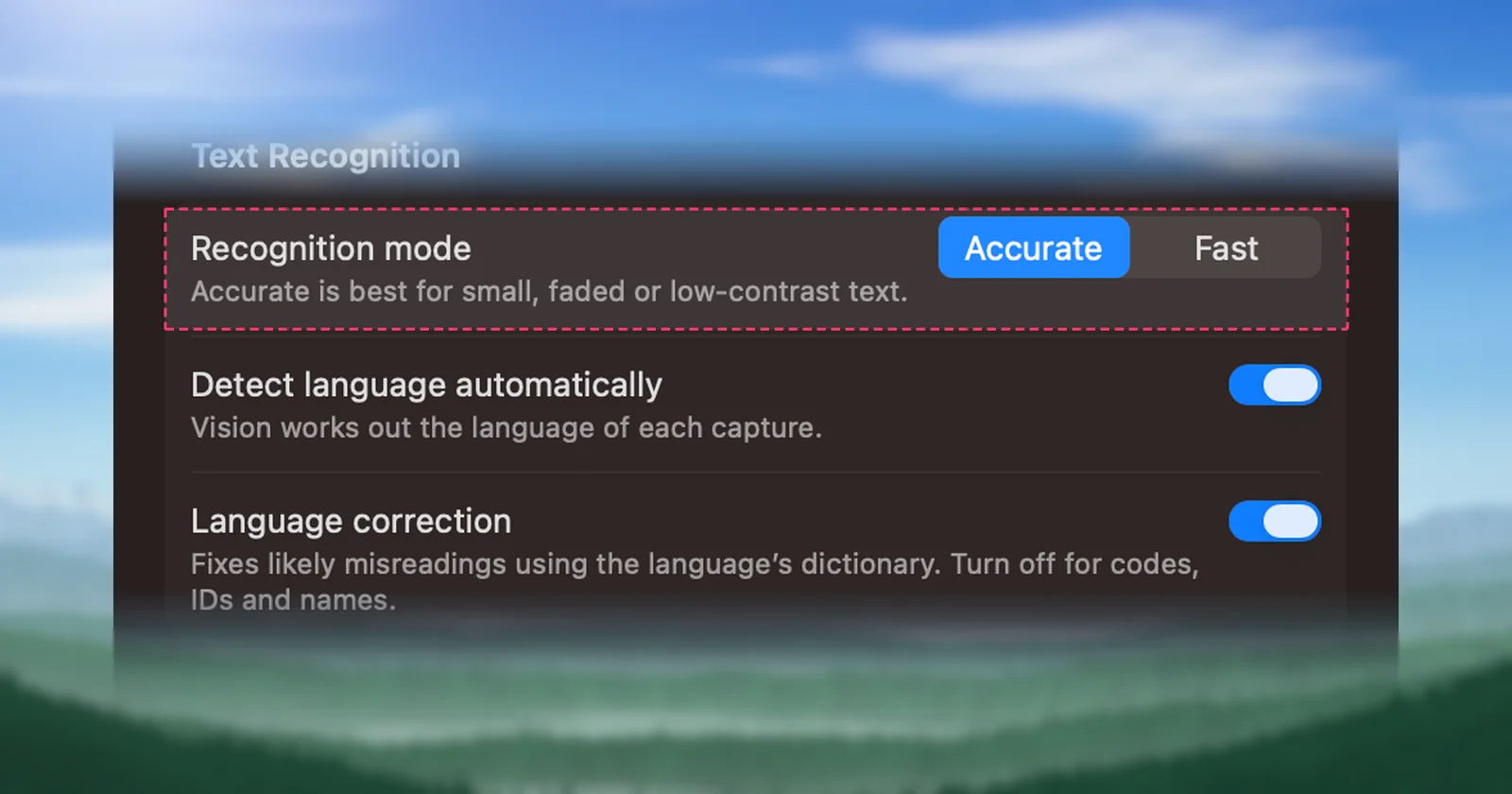
Its limits are just as clear. Unpixel needs macOS 26 and an Apple silicon Mac, it has no free trial (a 14-day money-back guarantee instead), and it doesn’t create searchable PDFs. If your Mac runs an older macOS, TextSniper, Shottr or TRex will serve you better.
Making scanned PDFs searchable
A searchable PDF keeps the page image and adds a hidden text layer, so you can search, select and index it. That’s a different job from copying a paragraph, and the tools are different too:
- ABBYY FineReader PDF for Mac is sold by the year: $69 a year in the US, as of October 2026, with a free trial. ABBYY says it recognizes text in 198 languages and converts scans to editable formats.
- Adobe Acrobat Pro costs $19.99 a month on an annual plan in the US, as of October 2026. Adobe lists turning scans into editable PDFs among Pro’s features, not Standard’s.
- OCRmyPDF is free and open source. It adds a text layer with the Tesseract engine and suits folders full of scans.
- Preview’s Embed Text is enough for the occasional scan.
Our PDF OCR roundup compares these in more depth.
Free, open-source and command-line options
If you’re comfortable in Terminal, you have more choice than any app store offers. Tesseract is the long-standing open-source engine, OCRmyPDF wraps it for PDFs, and Python libraries such as ocrmac call Apple’s own Vision framework. The shortcuts run command can even run your Extract Text shortcut from a script. Our guides to open-source OCR engines and OCR from the command line cover installation and examples.
Pick by job
| You mainly need to… | Start with | Consider paying for |
|---|---|---|
| Copy text from a photo or screenshot now and then | Live Text | Nothing |
| Grab text from video, calls, dialogs and apps all day | Shottr or TRex | TextSniper, CleanShot X or Unpixel |
| Paste tables as cells | Live Text, then tidy by hand | Unpixel |
| Make a few scans searchable | Preview’s Embed Text | Nothing |
| Process many scans or convert to Word | OCRmyPDF | ABBYY FineReader PDF or Acrobat Pro |
| Build OCR into a script | shortcuts run or ocrmac |
Nothing |
Whichever you lean towards, test it on three real files: a clean screenshot, a photo taken at an angle, and something with a table. The differences show up there, not in feature lists.
Frequently asked questions
Is there a free OCR app for Mac?
Yes. Live Text, Preview’s Embed Text and the Shortcuts action Extract Text from Image are built into macOS. TRex is open source, and Shottr can be used without paying.
Do Mac OCR apps upload my screenshots?
Not necessarily. CleanShot X and Xnapper both say their text recognition runs on the Mac, and Apple’s Vision framework lets any app do the same. Check each app’s privacy page, or test it with Wi-Fi turned off.
Which one is the most accurate?
That depends on your material more than on the logo. Several Mac apps build on Apple’s Vision framework, so cropping, settings and layout handling often matter more than the engine. Try two or three on your own documents.
Can one app copy text from the screen and make searchable PDFs?
Rarely well. Capture apps are built for a quick grab, and PDF suites for whole documents. Most people pair one of each, or use a free tool for whichever job is rare.
Sources
- Interact with text in a photo in Preview on Mac — Apple Support support.apple.com
- Embed text in a PDF in Preview on Mac — Apple Support support.apple.com
- TextSniper (prices, requirements and trial, read October 2026) textsniper.app
- TextSniper on Setapp (read October 2026) setapp.com
- CleanShot X pricing (read October 2026) cleanshot.com
- CleanShot X features (on-device text recognition) cleanshot.com
- Shottr — screenshot tool for Mac (read October 2026) shottr.cc
- TRex — GitHub github.com
- ABBYY FineReader PDF pricing (read October 2026) pdf.abbyy.com
- ABBYY FineReader PDF for Mac (free trial, 198 languages, read October 2026) pdf.abbyy.com
- Adobe Acrobat plans and pricing (read October 2026) adobe.com
- OCRmyPDF documentation ocrmypdf.readthedocs.io
- Xnapper (on-device text recognition, read October 2026) xnapper.com