The words in a photo or a screenshot look like text, but to your Mac they’re just coloured pixels. Live Text is the macOS feature that changes that. It recognises the text in an image so you can select it, copy it, translate it or tap a phone number in it, much like text in a document. Here’s how to make sure it’s on, where it works, and where it stops.
Open System Settings → General → Language & Region and make sure the Live Text switch (“Select text in images to copy or take action”) is on. Then open an image in Preview, Photos or Quick Look, or pause a video in QuickTime Player, and drag across the words. Control-click the selection to copy, look up or translate it.
What Live Text does
Once Live Text has found the words in an image, you can:
- Select and copy any part of the text, from one word to the whole image.
- Look Up a word for a dictionary definition.
- Translate a word or passage into another language.
- Search the web for the selection with your default search engine.
- Act on details directly: a small arrow appears beside phone numbers, email addresses and websites, with options to call, send a message, compose an email, add a contact or open the link.
It handles printed text best, from signs and menus to slides and receipts. Neat handwriting often works; messy handwriting usually doesn’t.
Turn it on
Live Text has one switch for the whole Mac:
- Choose Apple menu → System Settings.
- Click General in the sidebar, then Language & Region.
- Scroll down to Live Text, described as “Select text in images to copy or take action”, and turn it on.
If you don’t see the switch, Live Text may not be available for your language or region. Apple keeps the current list on its macOS Feature Availability page. It includes English, Chinese, Cantonese, French, German, Italian and Portuguese among others.
Preview has a second setting that trips people up. If dragging across an image draws a box instead of selecting words, choose Tools → Text Selection.
Where it works
Live Text is built into the apps that show images and video, not into the whole screen:
| App | How to use it |
|---|---|
| Preview | Open an image and drag across the text |
| Photos | Open a photo and drag across the text |
| Quick Look | Select a file in Finder, press Space, then drag |
| Safari | Drag across text in images on web pages |
| QuickTime Player | Pause the video, then drag across the text |
Other apps can build Live Text in as well. The test is simple: hover over text in the image. If the pointer changes to a text cursor, Live Text is ready.
Copy, translate and look up
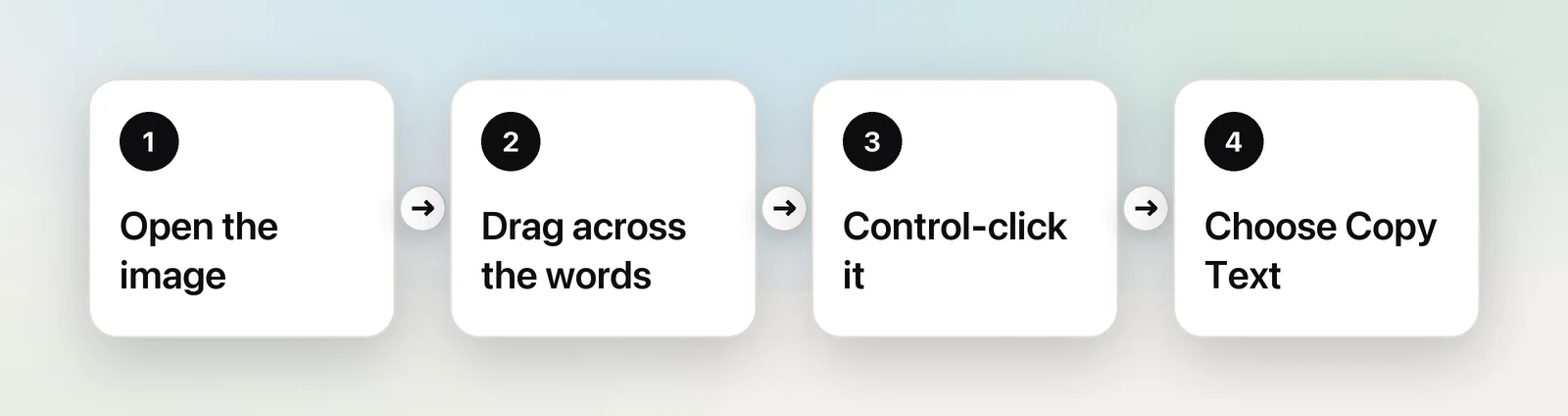
- Open the image in Preview, or press Space on it in Finder.
- Move the pointer over the text until it becomes a text cursor.
- Drag across the words you want.
- Control-click the selection and choose Copy Text, or press ⌘C.
The same Control-click menu holds Look Up, Translate and Search with your search engine. Translation isn’t available for every language pair or in every region. To act on a phone number or link without copying it, click the small arrow next to it.
What Live Text can’t do
Live Text is excellent for what it’s designed for. It also has firm edges:
- It only reads images inside supporting apps. Text in a shared screen during a video call, an app’s buttons and dialogs, a game, a remote desktop window or most third-party video players isn’t available. You have to take a screenshot first and open that.
- Video has to be paused, and only in players that support it. Protected video from streaming services usually captures as black, so there’s nothing to read.
- Tables lose their structure. Rows and columns come out as lines of text, not cells.
- Small, blurry or stylised text fails. Text from a zoomed-out page, faint print or decorative lettering often isn’t recognised. Zoom in on the original and try again.
- Languages are limited to the ones Apple lists, and some features vary by region.
When Live Text should work but doesn’t, our Live Text troubleshooting guide goes through the fixes.
When a capture shortcut is faster
For text that isn’t in an image yet, Live Text adds steps: take a screenshot, open it, select the text, copy it, then delete the file. That’s fine once a week. If you do it many times a day, a capture shortcut is quicker.
In Unpixel
Unpixel works on anything you can see, not only images in certain apps. Press ⇧⌘2, drag over the text, and let go. The recognised words are on your clipboard straight away, read on your Mac by Apple’s Vision framework, and no screenshot file is created. That covers the places Live Text can’t reach, such as a slide in a screen share, a paused frame in any video player or a dialog box.
It also does a few things Live Text doesn’t: tables paste into Numbers or Excel as real cells, QR codes and barcodes come back as their contents, and holding ⌥ as you let go copies a translation instead. If you’re weighing the two, our comparison of Unpixel and Live Text spells out where the free option is enough.
Quick checklist
- Switch: System Settings → General → Language & Region → Live Text.
- In Preview: Tools → Text Selection if dragging draws a box.
- Fastest check: select an image in Finder, press Space, drag across the words.
- Video: pause first, on a sharp frame.
- Anything that isn’t an image: take a screenshot first, or use a capture shortcut.
Frequently asked questions
Why can’t I select text in an image on my Mac?
Check the Live Text switch in System Settings → General → Language & Region, and in Preview choose Tools → Text Selection. If both are on, the text may be too small or blurry, or in a language Live Text doesn’t read.
Does Live Text work in videos on a Mac?
Yes, in paused video in apps that support it, such as QuickTime Player. Pause on a sharp frame, then drag across the text.
Is Live Text the same as Visual Look Up?
No. Live Text works with words in an image. Visual Look Up identifies things in photos, such as plants, pets, landmarks and art.
Does Live Text send my images anywhere?
No. Apple says Live Text runs on-device machine learning, so the text is recognised on your Mac. Actions you choose afterwards, such as searching the web for a word, go online like any other search.
Sources
- Change Language & Region settings on Mac (Live Text) — Apple Support support.apple.com
- Interact with text in a photo using Live Text in Preview on Mac — Apple Support support.apple.com
- Use Live Text to interact with text in a photo in Photos on Mac — Apple Support support.apple.com
- macOS Feature Availability (Live Text languages) — Apple apple.com
- macOS Monterey is now available (Live Text runs on-device) — Apple Newsroom apple.com
- macOS Ventura is now available (Live Text in paused video frames) — Apple Newsroom apple.com