You don’t need to buy anything to pull text out of an image on a Mac. macOS has three free OCR tools built in, a handful of open-source apps fill most of the gaps, and online converters cover the rest, at a privacy cost. Here’s each free option, what it’s good at, and the catch.
Every Mac has free OCR built in. Live Text copies text from images and paused video in Preview, Photos and Quick Look; Preview’s Embed Text adds a text layer to scanned PDFs; and the Shortcuts action Extract Text from Image can run from a key. Beyond that, TRex and NormCap are free and open source, and Google Docs converts images online.
Built into macOS
Live Text, for images you can open
Live Text works in Preview, Photos, Quick Look, Safari and paused video in QuickTime Player. Drag across the words as if they were in a document, then press ⌘C. If dragging draws a box in Preview instead, choose Tools → Text Selection. The recognition runs on your Mac.
The catch: it only reads images inside apps that support it. A slide in a video call or a message in a dialog is out of reach until you turn it into an image.
The free trick for everything else
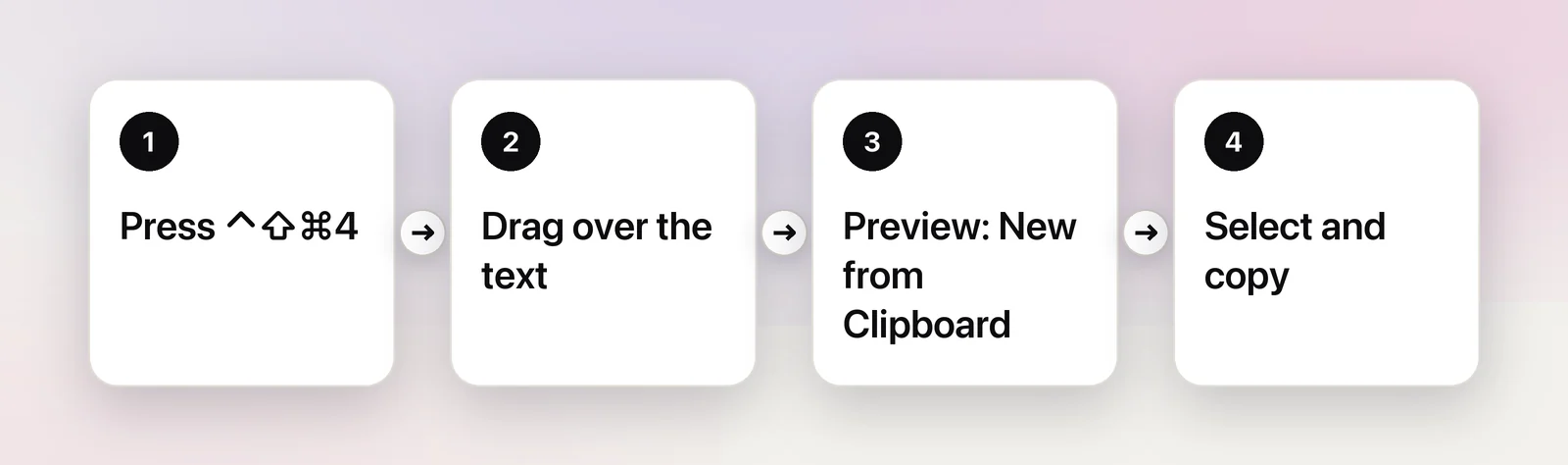
To read text that isn’t in an image yet, put a screenshot on the clipboard and open it in Preview:
- Press ⌃⇧⌘4 and drag over the text. No file lands on your desktop.
- In Preview, choose File → New from Clipboard.
- Select the words and copy them, then close the window without saving.
It’s slower than a dedicated app, but it reaches almost anything that appears on screen.
Embed Text, for scanned PDFs
Open the scan in Preview, choose File → Export and select Embed Text. You get a copy with a hidden text layer that you can search and select in any PDF viewer. Apple notes the option only appears if Preview hasn’t already recognized text in the document.
The catch: you don’t get to pick a language or fix the page orientation, and there’s no batch mode.
Shortcuts: a free OCR tool you build
The Shortcuts app includes an action called Extract Text from Image. Three actions make a usable tool: Get Clipboard, then Extract Text from Image, then Copy to Clipboard. Give the shortcut a key combination in its Details, and the screenshot trick above becomes two shortcuts and a paste.
The same shortcut runs from Terminal with shortcuts run, which turns it into a free command-line OCR tool. Our step-by-step guide to extracting text with Shortcuts covers the Quick Action version and the settings.
The catch: the action has no options. You can’t choose a language or a faster mode, and it doesn’t decode QR codes.
Open-source and free apps
When the built-in route gets tedious, these cost nothing:
- TRex is a menu bar app that copies text from anywhere on screen. It’s MIT-licensed, its README says every feature works offline, and it needs macOS 11 or later. Get it with
brew install --cask trex. The App Store version is paid, so use Homebrew or the GitHub releases if you want it free. - NormCap is a cross-platform screen OCR tool built on Tesseract, with a separate download for Apple silicon. Its app isn’t signed, so macOS blocks the first launch; allow it under System Settings → Privacy & Security (our guide to opening apps from unidentified developers explains how). It also needs permission to take screenshots.
- Shottr isn’t open source, but its developer says it can be used free for as long as you want, with an occasional reminder to buy. Alongside screenshots, it copies text from a selected area and reads QR codes.
- Tesseract and OCRmyPDF are free command-line tools. Tesseract reads images; OCRmyPDF adds a text layer to scanned PDFs, page after page. Both run offline once installed with Homebrew.
Developers who want engines rather than apps will find more in our open-source OCR guide.
Free tiers and trials
Some paid OCR software has a free version or a trial. That can be enough for a one-off job, such as converting one long scan. As of October 2026:
- Shottr is usable without paying, as above.
- TextSniper says on its site that you can try it free for a week. It’s also in Setapp, whose membership has a 7-day trial.
- ABBYY FineReader PDF for Mac offers a free trial, which suits a one-off conversion of a long scan.
- PDF editors often keep OCR for a paid plan. In PDF Expert, for example, Recognize text (OCR) is listed under the paid Premium plan.
Read the terms before you start a trial. Some ask for a card and renew automatically, so set a reminder to cancel.
Online tools: read the fine print
Free websites will OCR an uploaded image in seconds. The price is that your file goes to their server. Google Drive is a common choice: right-click an image or PDF, choose Open with → Google Docs, and Google adds the recognized text to a new document. Google’s help page lists limits: files of 2 MB or less, text at least 10 pixels high, and pages the right way up. Tables, columns and footnotes usually don’t survive.
Before you upload anywhere, check four things:
- Retention: how long does the site keep your file?
- Use: can it use your content to improve its services?
- Account: does it ask you to sign in, tying the file to you?
- Content: would you be comfortable if this document leaked?
Bank statements, IDs, medical letters and anything under an NDA should stay on your Mac. Is online OCR safe? goes through real privacy policies.
When paying makes sense
Free tools cover occasional OCR well. Paying starts to make sense when one of these is true:
- You do it many times a day. The screenshot-then-Preview routine costs four steps every time.
- Layout matters. Free tools mostly flatten tables into lines, which you then rebuild by hand.
- You process long or difficult scans. Paid PDF suites add deskewing, page cleanup and export to Word.
Unpixel, which we make, is one of the paid options for the first two. Press ⇧⌘2, drag over anything on screen, and the text is on your clipboard; tables paste as cells. It’s a one-time purchase from $5.99 for one Mac, with a 14-day money-back guarantee. It has no trial and needs macOS 26 on Apple silicon, so try the free tools above first and see whether they’re enough.
A quick way to choose
| Your situation | Free pick |
|---|---|
| A photo or screenshot you can open | Live Text |
| Text in an app, a call or a dialog | Screenshot to clipboard, then Preview, or TRex |
| One scanned PDF | Preview’s Embed Text |
| A folder of scanned PDFs | OCRmyPDF |
| A script or automation | shortcuts run or Tesseract |
| Nothing confidential, no Mac tools to hand | Google Docs via Drive |
Frequently asked questions
What is the best free OCR on a Mac?
For most people it’s Live Text, because it’s already there and runs on the Mac. For scanned PDFs, use Preview’s Embed Text. For text in apps, calls and dialogs, a free capture app such as TRex saves the screenshot step.
Can I make a scanned PDF searchable for free?
Yes. In Preview, choose File → Export and select Embed Text. For many files at once, the open-source OCRmyPDF does the same from Terminal.
Are free online OCR sites safe?
They upload your file to someone else’s server, and their policies decide what happens next. Keep anything personal, financial or confidential on your Mac.
Is Unpixel free?
No. It’s a one-time purchase from $5.99 with a 14-day money-back guarantee, and it has no trial. The free options on this page cover occasional use well.
Sources
- Interact with text in a photo in Preview on Mac — Apple Support support.apple.com
- Embed text in a PDF in Preview on Mac — Apple Support support.apple.com
- Run shortcuts from the command line — Shortcuts User Guide (Apple Support) support.apple.com
- TRex — GitHub github.com
- NormCap — GitHub github.com
- Shottr — screenshot tool for Mac (read October 2026) shottr.cc
- OCRmyPDF installation — OCRmyPDF documentation ocrmypdf.readthedocs.io
- Convert PDF and photo files to text — Google Drive Help support.google.com
- TextSniper (free week to try, read October 2026) textsniper.app
- TextSniper on Setapp (7-day membership trial, read October 2026) setapp.com
- ABBYY FineReader PDF for Mac (free trial, read October 2026) pdf.abbyy.com
- PDF Expert pricing (read October 2026) pdfexpert.com